 Effortlessly manage data through preview, delete, export, etc.

 100% Security Verified | No Subscription Required | No Malware

 :
: 
 ChatGPT
 Perplexity
 Gemini
 Claude
 Grok
Grok

I’m setting up a new phone and I only want to move contacts and photos—nothing else. But I’m worried some contacts are on SIM/device, some are in the cloud, and I’ll end up with missing items or duplicates if I do it in the wrong order.
Forum user
Moving only contacts and photos sounds simple, but it’s easy to accidentally copy the wrong things, miss cloud-synced items, or overwrite data on the new phone.
AI can help you structure the workflow into clear phases, identify what to verify, and reduce avoidable mistakes—especially when you’re switching between Android and iPhone or juggling multiple accounts.
AI cannot access your devices, confirm what actually transferred, or prevent a destructive click. You still need real tools to execute the plan safely and confirm results before any point-of-no-return actions.
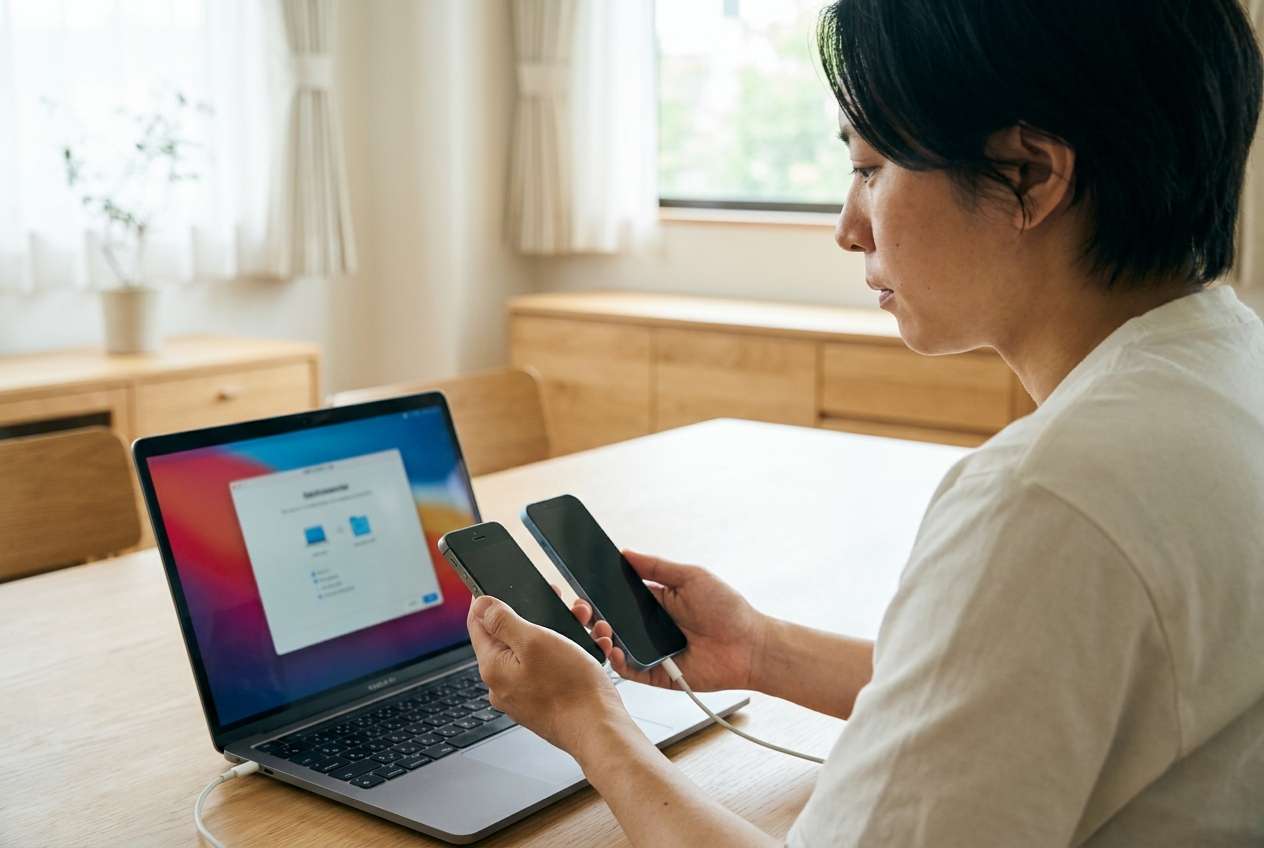
In this article
- How to plan the workflow without missing critical steps
- Define the scope (contacts + photos only)
- Audit where contacts and photos actually live
- Build a safe sequence with checkpoints
- Delay irreversible actions until verification passes
- What the AI needs to know
- Using AI prompts to build a safer workflow
- When to stop planning and start execution
- Execute the workflow safely with Dr.Fone
Part 1. How to Plan transfer contacts and photos only to new phone Without Missing Critical Steps
You’re setting up a new phone and only want contacts and photos—not apps, messages, WhatsApp data, or old clutter. You’re unsure whether your contacts are stored on the SIM, phone storage, Google/iCloud, or a mix, and you’re worried about duplicates.
Even after an AI answer, the confusing part is usually the sequence: what to check first, what to export, what to transfer, and what to verify before you touch anything irreversible.
The point of no return is typically something like erasing the old phone, turning off a cloud sync, or merging contacts in a way that’s hard to undo—those should not happen until you’ve verified the new phone has the correct contacts and the full photo set you expect.
1-1. Define the scope (contacts + photos only)
Write down the exact scope before you do anything: contacts and photos only (no apps, no messages, no other files). This prevents “just in case” selections that quietly pull extra data.
1-2. Audit where contacts and photos actually live
Most transfer failures happen because the “source of truth” is unclear. Your plan should force you to confirm whether contacts/photos are cloud-synced, stored locally, on SIM/SD, or split across multiple accounts.
1-3. Build a safe sequence with checkpoints
Turn your workflow into phases—Preparation → Execution → Verification—and add stop points where you confirm counts, accounts, and date coverage before continuing.
1-4. Delay irreversible actions until verification passes
Do not do anything destructive (factory reset, deleting originals, bulk merge/cleanup, disabling sync) until the new phone passes your verification criteria.
Part 2. What the AI Needs to Know
Share the details below so the AI can produce a workflow that matches your devices and avoids destructive steps.
- Old phone brand/model and OS (e.g., iPhone 12 iOS 17 / Samsung S21 Android 14)
- New phone brand/model and OS
- Transfer direction (iPhone→iPhone, Android→Android, iPhone→Android, Android→iPhone)
- Where contacts currently live (Google, iCloud, SIM, Exchange/Outlook, “On My iPhone/Phone”)
- Where photos currently live (local storage, iCloud Photos, Google Photos, OneDrive, SD card)
- Approximate photo count/size (e.g., 8,000 photos / 120 GB)
- Whether you want albums preserved or “all photos only” is fine
- Your constraints (time window, limited storage, limited data plan, no PC available, etc.)
- Your risk tolerance (prefer “copy then verify” vs. “move/merge”)
Part 3. Using AI Prompts to Build a Safer transfer contacts and photos only to new phone Workflow
Use the prompts below to make the AI produce a step-by-step plan with checkpoints before you execute anything on the devices.
3-1. Level 1: Basic Prompt
I need a plan to transfer contacts and photos only from my old phone to my new phone.
Create a short checklist in the correct order with a few verification steps so I don’t miss anything or copy extra data.
3-2. Level 2: Advanced Prompt
Build a structured workflow to transfer contacts and photos only to my new phone.
Separate it into Preparation, Execution, and Verification, and clearly label critical steps vs. optional steps.
Include stop points where I should verify counts/sync status before continuing.
3-3. Level 3: Evidence Prompt
Create a workflow for transferring contacts and photos only from [old device] to [new device] across [same/different OS] with minimal risk.
My details:
- Old phone: (Samsung S21, Android 14)
- New phone: (iPhone 15, iOS 17)
- Contacts location(s): (Google account + some “Phone-only”)
- Photos location(s): (Google Photos + some local folders like “Camera” and “Downloads”)
- Volume: (≈8,000 photos, ≈120 GB)
- Requirements: (no messages, no apps, avoid duplicates, albums not required)
For each phase (before / during / after), list the checks I should perform, including:
- How to confirm where contacts are stored and how many exist
- How to confirm whether photos are cloud-only vs. local-only
- What to verify on the new phone (example: expected contact count range, sample spot-check of recent/old photos)
- A warning list of irreversible actions (example: factory reset, “merge duplicates” in bulk, disabling sync, deleting originals) that I must not do until verification is complete
3-4. Prompt Refinement
Output the plan as a table with columns: Step, Goal, Exact evidence to collect, Pass/Fail criteria, If fail, what to do next.
Split contacts into separate tracks: cloud-synced, SIM, and device-only, and tell me how the plan changes for each track.
Add a duplicate prevention section: when duplicates happen, how to avoid them, and when (if ever) to run a merge.
Include a minimum viable verification checklist (5 minutes) and a deep verification checklist (30–60 minutes).
List the top 5 ways people accidentally transfer extra data (apps/messages/files) and how to prevent each one.
3-5. AI Plan vs. Real Device Constraints
| Item | What it means |
|---|---|
| AI can help you | Define the correct sequence, decision points, and verification criteria. |
| AI cannot | See your actual contact counts, photo folders, or cloud sync status on-device. |
| Real devices/tools must | Perform the transfer, handle permissions, and complete any backups/restores. |
| Your job | Collect evidence (counts, samples, timestamps) and decide when it’s safe to proceed. |
AI improves planning, but it cannot execute the transfer or verify results—execution and confirmation require real device actions and tooling.
Part 4. When to Stop Planning transfer contacts and photos only to new phone and Start Execution
- You have a written sequence with Preparation → Execution → Verification, and each phase has clear pass/fail checks.
- You’ve identified your sources of truth (where contacts/photos actually live) and you know what is cloud-only vs. local-only.
- You’ve defined what “success” means (expected contact count range, expected photo date coverage, required folders/albums).
- You have explicitly postponed any irreversible actions (factory reset, deleting originals, bulk merge/cleanup) until after verification.
If these are true, planning is complete and it’s time to run the workflow using a real execution tool.
Part 5. Transfer contacts and photos only to new phone: Execute the Workflow Safely with Dr.Fone
If you’re ready to execute, Dr.Fone - Phone Transfer can help you transfer just what you need while you follow the verification checkpoints from your plan.
 Move data between iOS to Android and vice versa.
- Transfer contacts, SMS, photos, videos, music, and more types.
- Available with all phones with Android and iOS versions.
- Simple, click-through process.

Execution matters now because the biggest risks come from partial transfers and unverified assumptions—not from the plan itself.
-
Step 1 Prepare a verification baseline (before transfer)
On both phones, capture your baseline evidence (contact count by account, photo count/date range, and 10–20 spot-check items). Confirm your scope is only contacts and photos.
Limitation: AI can’t see your devices to confirm these numbers—use the phone settings/gallery details you can actually view.

-
Step 2 Set the correct transfer direction
Connect both phones and double-check the source and destination are correct (this is a common place where mistakes start).

-
Step 3 Run the transfer for contacts and photos only (no extras)
Select only Contacts and Photos, then execute the transfer in your planned order (for example: contacts first, then photos) to reduce confusion during verification.
Limitation: If you select the wrong data categories or source account, you can create duplicates or miss device-only items—pause and re-check selections before you proceed.

-
Step 4 Verify results before any point-of-no-return steps
Confirm the new phone meets your pass criteria (contact count within expected range, correct accounts present, photos span expected dates, and spot-check recent/old photos). Only after that should you consider cleanup actions.
Limitation: Do not erase the old phone, delete originals, or run bulk “merge duplicates” until verification is complete—those actions can be difficult or impossible to undo.





Conclusion
Use AI to design a careful, evidence-based sequence with clear stop points and verification checks; then use Dr.Fone to execute the actual transfer and confirm results before any irreversible cleanup steps.
FAQ
-
How do I avoid transferring messages, apps, or other files by accident?
Define the scope first (“contacts + photos only”), then only select those categories during execution. Verify on the new phone that only the expected apps/data appear before proceeding with any cleanup. -
What’s the most common reason contacts go missing?
Mixed storage locations (some contacts in Google/iCloud, some “on device,” some on SIM). Your plan should force a source audit and a count check before transfer. -
Why do I get duplicates after moving contacts?
Duplicates usually come from importing the same set twice (cloud sync + manual import) or having the same person stored across multiple accounts. Avoid bulk merge until after you confirm the correct source-of-truth account. -
How should I verify photos transferred correctly?
Check more than a single number: verify date range coverage (oldest and newest), spot-check a sample across months/years, and confirm key folders (e.g., Camera) are present if required. -
When is it safe to erase the old phone?
Only after the new phone passes your verification criteria for both contacts and photos and you’ve confirmed you can still access them after a restart (to rule out “not fully synced yet”).
 Add Wondershare Dr.Fone as a preferred source on Google





