 Effortlessly manage data through preview, delete, export, etc.

 100% Security Verified | No Subscription Required | No Malware

 :
: 
 ChatGPT
 Perplexity
 Gemini
 Claude
 Grok
Grok

You’re about to run a system repair because the phone is stuck, unstable, or won’t boot normally—but you’re not sure whether your backup is complete, recent, or usable.
Forum user
System repair can fix crashes and boot loops, but skipping a single backup check can turn a recoverable problem into permanent data loss.
AI is useful here because it can turn a vague goal (“make sure my backup is good”) into a concrete checklist, in the right order, with clear pass/fail verification before you touch anything risky.
AI can’t see your files, open your backup, or confirm what’s truly restorable on your device—so once the plan is clear, you still need real tools to perform the backup/restore and system repair steps.
In this article
- How to plan backup verification before system repair
- Clarify the exact repair risk
- Define pass/fail proof
- Handle partial verification failures
- Set a “do not proceed” gate
- What the AI needs to know
- Using AI prompts to build a safer workflow
- When to stop planning and start execution
- Execute the workflow safely with Dr.Fone
Part 1. How to plan what to verify in backup before system repair without missing critical steps
You’re about to run a system repair because the phone is stuck, unstable, or won’t boot normally—but you’re not sure whether your backup is complete, recent, or usable. You may have multiple backups (cloud, computer, old exports) and no clarity on which one is the “real safety net.”

The uncertainty usually isn’t “how do I back up?”—it’s the sequence: what to verify first, what proof is enough, and what to do if verification fails for one category (photos ok, messages missing, app data unclear).
The point-of-no-return moment is when you start a repair action that can overwrite system partitions, trigger a reset, or lead to data being wiped as a side effect of recovery. You should not reach that moment until your backup passes your verification criteria.
Part 2. What the AI needs to know
Answer these so the AI can build a verification plan that matches your risks and constraints:
- Device type and model (e.g., iPhone 13, Samsung S22)
- Current state (boots normally / boot loop / black screen / stuck on logo)
- What “system repair” you plan to do (OS repair tool, recovery mode repair, reset, firmware reinstall)
- Where your backups exist (computer backup, external drive, cloud, SD card) and approximate dates
- What data is most critical (photos, contacts, messages, WhatsApp, notes, app data, 2FA authenticators)
- Whether you have a secondary device to test-restore to (yes/no)
- Storage and cable constraints (available disk space, working cable/port, stable PC/Mac)
- Account access readiness (Apple ID/Google login, screen lock PIN, recovery codes)
- Any encryption/passwords used for backups (backup password known/unknown)
- Your tolerance for data loss and downtime (low/medium/high)
Part 3. Using AI prompts to build a safer workflow
Use the prompts below to force a clear sequence, verification proofs, and “stop conditions” before you execute anything.
3-1. Level 1: Basic Prompt
I’m about to do a system repair on my phone and I want to verify my backup first.
Build a short checklist of what to verify and the safest order to verify it in, with clear pass/fail criteria.
Include the moment I must stop and not proceed until checks pass.
3-2. Level 2: Advanced Prompt
Create a structured workflow to verify my backup before system repair, split into Preparation, Verification, and Go/No-Go.
Mark each check as critical or optional, and state what evidence counts as “verified” for each (for example: file count, restore test, checksum, opening samples).
Also include fallback actions if a critical check fails.
3-3. Level 3: Evidence Prompt
Here’s my situation: device (Samsung S21), issue (boot loop), repair plan (system repair tool first, reset only if needed), backups (one PC backup dated ~2 weeks ago, Google Photos sync on, WhatsApp uncertain), constraints (no spare phone, 20 GB free on laptop, stable USB cable).
Build a verification plan with checks before, during, and after execution.
For each check, specify: what I should look for, what result is acceptable (e.g., “at least 5,000 photos detected”), and what to do if the result is unclear.
Include a “do not proceed” gate right before the irreversible step.
3-4. Prompt Refinement
Convert the plan into a table with columns: Item, Why it matters, How to verify, Proof required, If missing then.
Define my minimum viable backup in one sentence, then list exactly what must be included to meet it.
Add decision rules: “If X is true, do Y; if X is false, stop and do Z,” especially for messages/WhatsApp and authenticator apps.
Identify hidden failure modes (encrypted backup password forgotten, partial sync, missing app data, corrupted archive) and add detection steps for each.
Rewrite the workflow so the highest-risk step is last, and add explicit stop signs before it.
3-5. AI plan vs. real device constraints
AI improves planning and reduces avoidable mistakes, but it cannot execute verification or repair actions on your real device—your tooling must do that part.
| AI can do | AI can’t do |
|---|---|
| Plan the sequence and risks | Inspect your actual backup contents |
| Define pass/fail criteria | Prove your backup is restorable |
| List “point of no return” moments | Prevent a wipe or interruption during repair |
| Propose fallback paths | Perform transfers, repairs, or restores on your hardware |
Part 4. When to stop planning and start execution
- You have a written critical-only checklist with pass/fail criteria (not just “looks fine”).
- You’ve identified the irreversible moment (repair/reset step) and placed a hard stop before it.
- You know what you’ll do if a critical item fails verification (alternate backup source, delay repair, recover data first).
- You’ve confirmed you have what execution needs (accounts/passwords, stable cable, enough disk space, time without interruptions).
If all four are true, the next move is to execute the verification and repair in the safest order you defined.
Part 5. What to verify in backup before system repair: Execute the workflow safely with Dr.Fone
Execution matters now because a “planned” backup is not the same as a verified backup—and system repair steps can become irreversible once started. If you need a practical way to back up, preview, and verify what’s captured before attempting repair, Dr.Fone Basic - Data Manager can help you run those checks in a more controlled workflow.
 Easily manage data through preview, delete, export, etc.
- Transfer all data between devices.
- Robust backup solutions for reliable data protection.
- Mirror screens to PC for meetings, teaching, and control.

-
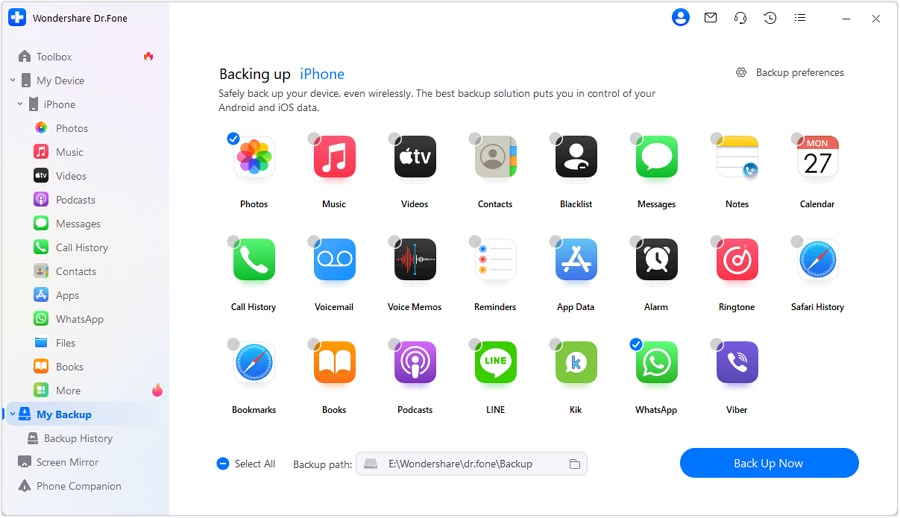
Step 1 Create or update a local backup (if possible)
Use your backup tool to run a fresh backup to your computer (or confirm the latest backup is captured) before attempting system repair.
If the device can’t stay connected or won’t boot enough to be recognized, you may not be able to create a new backup.
-
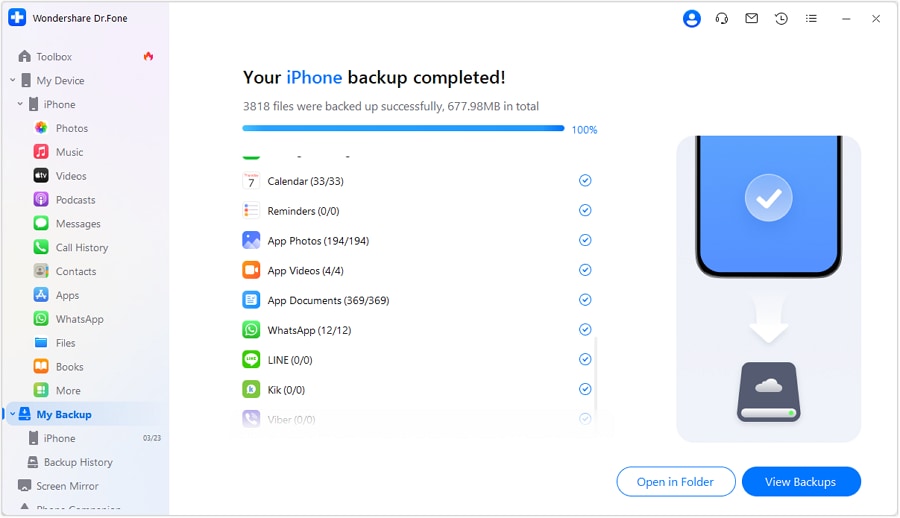
Step 2 Monitor the backup process and capture evidence it completed
During backup, avoid interruptions (unstable cable/port, sleep mode, low disk space). If the tool provides progress or logs, keep them as proof the process finished.

-
Step 3 Verify the backup is readable and complete enough for your minimum needs
Confirm the backup can be opened/read, and that the critical categories you care about (for example photos/contacts/messages where supported) appear in expected amounts.
Some app data may not be fully included or previewable depending on device, OS, app design, encryption, and permissions—verification must match what your tool can actually confirm.
-
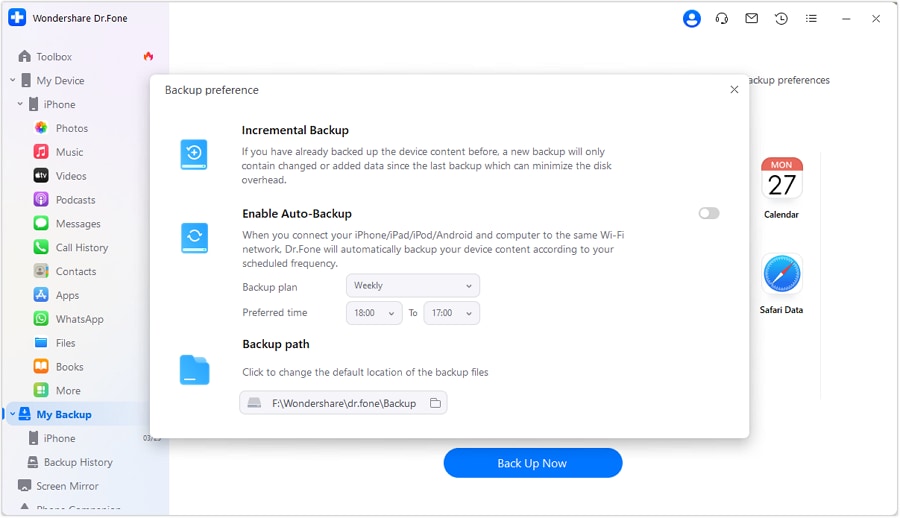
Step 4 Set your Go/No-Go gate, then run system repair only after it passes
Proceed with system repair only after your critical verification checks pass and you’ve acknowledged the data-loss risks of the chosen repair mode.
Some repair paths may still result in data loss or require a reset if the OS damage is severe; tool execution can’t guarantee preservation in every case.




Conclusion
Use AI to define the safest sequence, the critical verification proofs, and the stop conditions—then use a real tool like Dr.Fone to perform the backup verification and system repair execution where the risks are real and irreversible.
FAQ
-
What’s the single most important thing to verify before system repair?
That you have at least one backup you can actually read/access and that contains your minimum critical data, with clear proof (not assumptions). -
Is a cloud sync the same as a backup?
Not always. Sync can delete items everywhere, may not include everything (e.g., some app data), and can be incomplete if the device hasn’t synced recently. -
How do I verify messages/WhatsApp are protected before I repair?
Plan for an evidence-based check (existence, date, size, and—ideally—restore test). If you can’t test-restore, treat it as higher risk and delay the irreversible step until you have stronger evidence. -
When is the “point of no return”?
Usually when you start a repair/reset/firmware action that can overwrite system data or triggers a factory reset as a fallback. Put a hard stop immediately before that step. -
Can AI tell if my backup is corrupted or missing files?
No. AI can tell you what to check and what corruption looks like, but only your tools can open the backup and prove it’s usable.
 Add Wondershare Dr.Fone as a preferred source on Google





