 Effortlessly manage data through preview, delete, export, etc.

 100% Security Verified | No Subscription Required | No Malware

 :
: 
 ChatGPT
 Perplexity
 Gemini
 Claude
 Grok
Grok

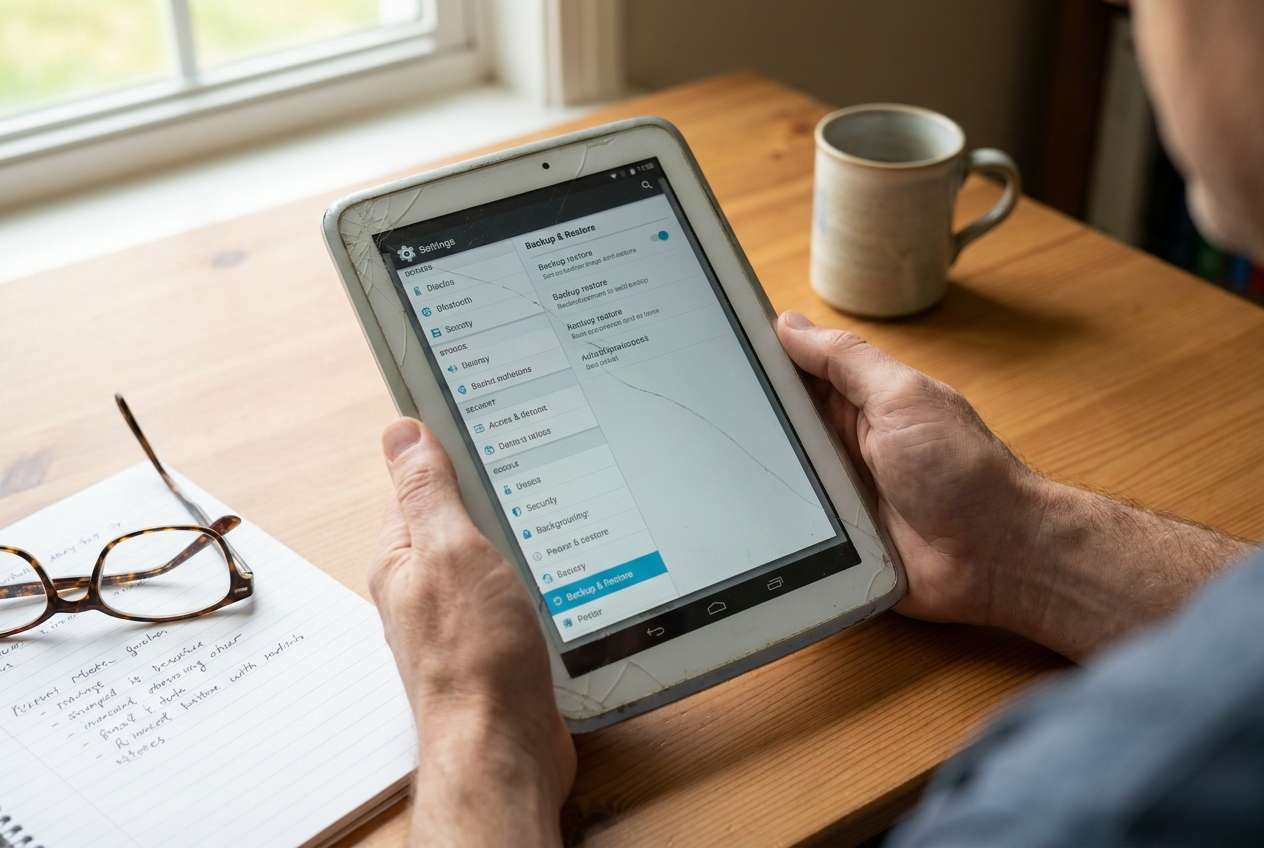
I “did a backup” of my old Android tablet, but I’m not sure what it actually captured. The device is slow and I don’t want to factory reset or clean anything until I can prove the backup is usable and complete.
Reddit user, r/AndroidQuestions
Checking whether an old Android tablet backup is actually complete is easy to get wrong if you miss one verification step or rely on a single “backup successful” message.
AI can help you lay out a safe sequence: what to inspect first, what evidence to collect, and what checks prove the backup contains the data you care about.
AI can’t read your tablet, open your backup files, or validate encrypted archives on-device—so once the plan is solid, execution and validation must be done with real tools.
In this article
- How to plan without missing critical steps
- Define what “complete” means
- List all backup sources
- Set evidence checks
- Block irreversible actions
- What the AI needs to know
- Using AI prompts to build a safer workflow
- AI plan vs. real device constraints
- When to stop planning and start execution
Part 1. How to Plan Check Backup Completeness on an Old Android Tablet Without Missing Critical Steps
You have an older Android tablet that may be slow, partially broken, or running an outdated Android version. You already “did a backup” at some point (or someone else did), but you’re not sure what it captured: photos, downloads, app data, messages, or only a subset.
The uncertainty usually isn’t “how to back up”—it’s the order of checks and what counts as proof. For example: a Google account sync might cover contacts but not local photos; a folder copy might miss hidden app folders; an SD card might be excluded.
There’s also a point-of-no-return moment: factory reset, OS update, storage cleanup, or replacing the tablet before you’ve verified the backup can be restored and opened. Don’t cross that line until verification is complete.
1-1. Define what “complete” means
Decide which data categories must be present (photos/videos, documents, app notes, messages, etc.) and what date range matters. “Complete” should be a written definition, not a feeling.
1-2. List every place data could be
Old Android tablets often spread data across internal storage, microSD, and cloud sync. Missing one source (like an SD card or an app-specific folder) is a common cause of “false completeness.”
1-3. Decide what counts as proof
Use measurable evidence such as folder/file counts, total sizes, timestamp coverage, and spot-check opens to confirm files are real (not thumbnails, shortcuts, or placeholders).
1-4. Set hard stop/go checkpoints
Before any irreversible action (reset/cleanup/update), require that your evidence checks pass and that you can open and restore what matters.
Part 2. What the AI Needs to Know
Share your tablet context and what “complete” means for you, so the plan targets the right evidence.
- Tablet make/model (if known) and Android version (approximate is fine)
- Tablet condition (boots нормально / slow / touchscreen issues / random shutdowns)
- Storage setup (internal only vs microSD; SD card size/brand if relevant)
- Backup type(s) you have right now (Google sync, manual folder copy, PC backup, third-party backup, unknown)
- Where the backup lives (PC, external drive, cloud) and whether it’s encrypted/password-protected
- The data that matters most (photos/videos, WhatsApp, documents, notes, app data, contacts, SMS)
- Whether you can log into the Google account used on the tablet
- Your risk tolerance (must be forensically complete vs “good enough” for personal recovery)
- Whether you have a second Android device available for a test restore (yes/no)
Part 3. Using AI Prompts to Build a Safer Check Backup Completeness Workflow
Use the prompts below to force a checklist-based plan with clear verification gates before any irreversible actions.
3-1. Level 1: Basic Prompt
I need a planning checklist to verify whether my old Android tablet backup is complete.
Ask me only the key questions, then give me an ordered workflow with “stop/go” checkpoints.
Do not give execution steps—planning and verification only.
3-2. Level 2: Advanced Prompt
Build a structured workflow to check backup completeness for an old Android tablet.
Separate it into Preparation / Verification / Decision Gate, and label each step as critical or optional.
Include what evidence I should collect (file locations, timestamps, counts) and list the top 5 failure modes (e.g., SD card excluded, cloud sync partial, encrypted archive unreadable).
3-3. Level 3: Evidence Prompt
Here’s my context: tablet (Samsung Galaxy Tab A, Android 7), very slow but boots; storage (16 GB internal + 32 GB microSD); backup(s) available: a folder on my Windows PC (“TabletBackup_2023-11-02”), plus Google account sync. Data I care about: photos/videos, Downloads PDFs, and app notes.
Create an evidence-driven plan with checks before / during / after verification, including:
- what folder paths to compare (e.g., DCIM/Camera, Pictures/, Download/)
- how to compare counts and sizes (e.g., “DCIM has ~2,400 photos”)
- how to validate the backup isn’t just shortcuts/thumbnails
- a decision gate that explicitly blocks any factory reset/cleanup until evidence is met.
3-4. Prompt Refinement
Convert your plan into a two-column table: Claim of completeness vs How I will prove it, with pass/fail criteria for each.
Ask me 10 yes/no questions to determine whether my backup likely missed anything, then output the top 3 risks and what evidence resolves each.
Rewrite the workflow as “gates”: Gate 1 (access), Gate 2 (coverage), Gate 3 (restore test), Gate 4 (final sign-off)—each gate must have measurable checks.
Create a minimal verification set for photos/documents only, and a separate “deep verification” set that includes app data and hidden folders; clearly state what each cannot guarantee.
Given my device condition (slow, old Android), propose fallback verification methods if the tablet disconnects, reboots, or can’t unlock.
Part 4. AI Plan vs. Real Device Constraints
| What AI can plan well | What only real tools/device access can do |
|---|---|
| Define what “complete” means and what to verify | Read the tablet’s actual storage and system databases |
| List likely data locations and common omissions | Export/backup protected app data (varies by app/Android) |
| Create evidence criteria (counts, sizes, timestamps) | Confirm a backup file is readable/decryptable in practice |
| Set “stop/go” gates before irreversible actions | Perform a restore test and validate recovered files open |
AI improves planning and reduces missed steps, but it cannot access your tablet, open your backup archives, or run a restore—execution requires device-capable tools.
Part 5. When to Stop Planning Check Backup Completeness on an Old Android Tablet and Start Execution
- You have a written definition of “complete” (which data categories and date ranges must be present).
- You have identified all backup sources to verify (PC folder, SD copy, Google sync, any third-party backups).
- You have pass/fail evidence checks (counts, total sizes, spot-check opens, timestamp ranges) for each source.
- You have explicitly blocked irreversible actions (reset/cleanup/update) until verification passes.
If those are true, you’re no longer deciding what to do—you’re ready to validate it.
Recommended tool: Execute the Workflow Safely with Dr.Fone
If you’re moving from planning into execution, Dr.Fone Basic - Data Manager can help you perform the actual backup/export and restore steps you need to validate your evidence checks while the old tablet is still accessible.
 Easily manage data through preview, delete, export, etc.
- Transfer all data between devices.
- Robust backup solutions for reliable data protection.
- Mirror screens to PC for meetings, teaching, and control.

Execution now matters because “backup exists” is not the same as “backup is usable,” and old devices fail at the worst time—verification should happen while the tablet is still accessible.
-
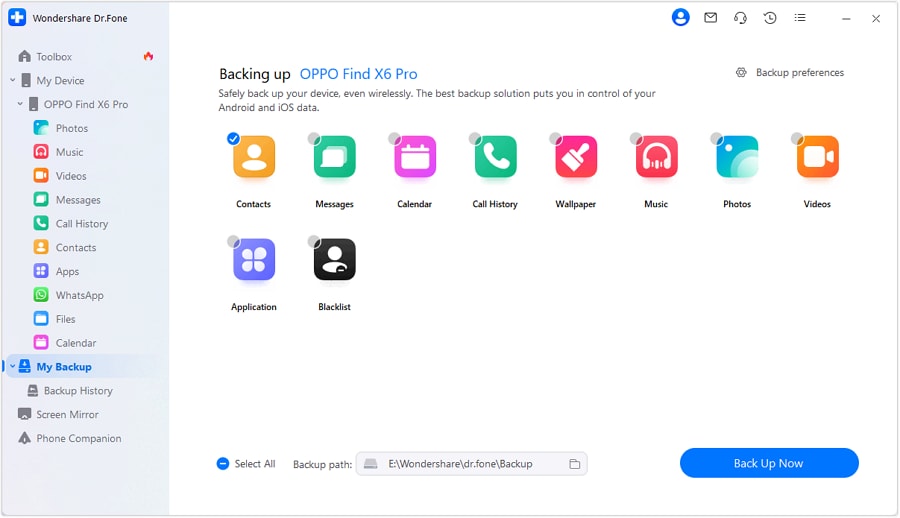
Step 1 Connect and start capturing the data you intend to verify
Run the backup/export actions required by your plan so you can compare what’s captured against your completeness criteria (counts, sizes, timestamps, and spot-check opens).
-
Step 2 Follow required on-device prompts during backup
Depending on what you’re backing up, Android may request temporary permissions or default-app changes so the transfer/backup can proceed.
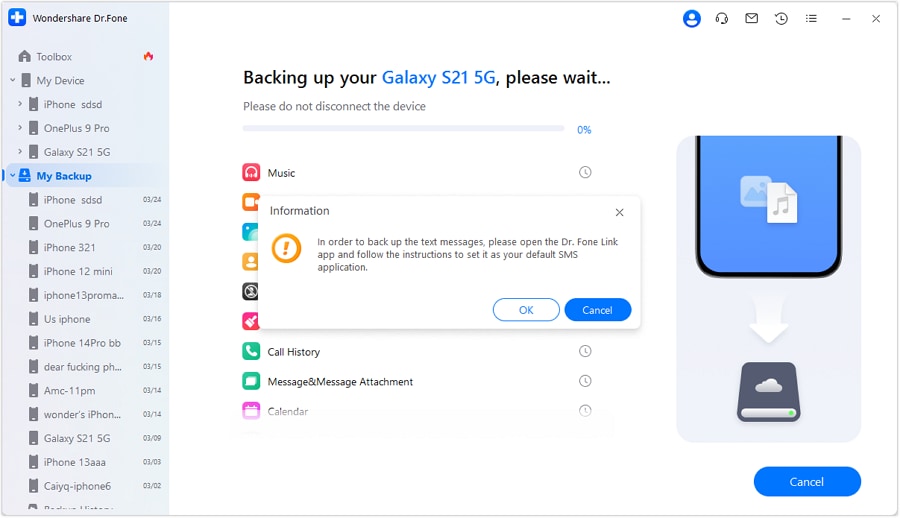
 Note: Default-app prompts (for example, SMS-related prompts) are only relevant if your verification plan includes messaging data. If you’re verifying photos/documents only, your flow may differ.
 -
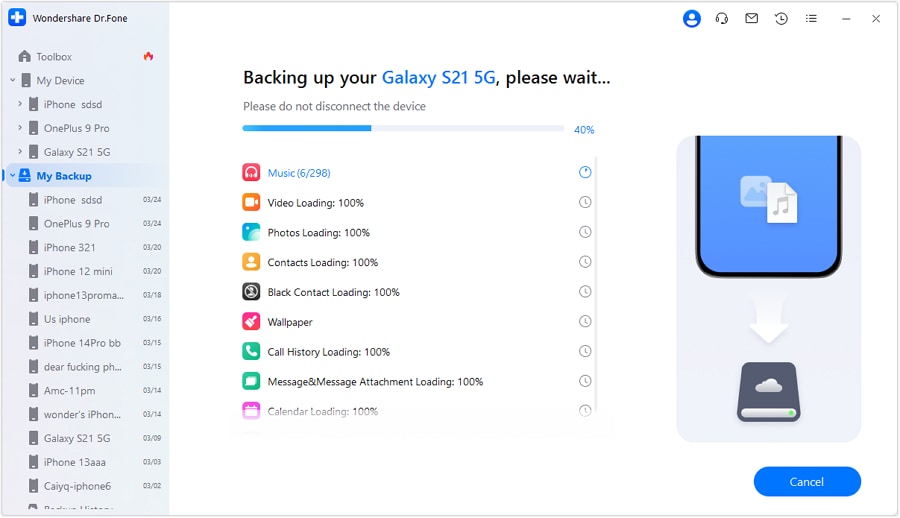
Step 3 Validate readability and coverage against your evidence checks
Use the backup outputs plus normal computer inspection to confirm counts/sizes/timestamp ranges and open a spot-sample of files to prove they’re real (not thumbnails or placeholders).
-
Step 4 Perform a restore test before any irreversible changes
Restore to a safe target (or a test device/profile where possible) and confirm restored items open and match the expected range before you wipe/reset/clean the old tablet.

Limitations remain: AI cannot connect to your tablet, open your local backup files, confirm decryption success, run the restore test, or detect device-level errors. Use AI to define what to capture and what “pass” looks like, then verify on your device and computer.




Conclusion
Use AI to define completeness, order the checks, and set hard verification gates—then use real tools like Dr.Fone to perform backup/restore actions and confirm the result before any irreversible changes.
FAQ
-
How do I know if my backup is “complete” and not just partially synced?
Define “complete” by data type and date range, then prove it with measurable checks (file counts, total size, timestamp coverage) and spot-open samples. -
What’s the biggest verification mistake with old Android tablets?
Assuming Google sync equals a full device backup. Sync often excludes local folders, app-specific data, and some media locations. -
When is the point of no return?
Factory reset, storage cleanup, OS update, or giving away/replacing the tablet—anything that can erase or alter the only remaining copy of data. -
Do I need a restore test if the backup folder “looks right”?
Yes for anything high-value. A restore test confirms the backup is usable (readable, not corrupted, not missing key categories). -
Can AI tell me which exact folders on my tablet contain everything?
AI can list common locations and risks, but it can’t see your device’s actual directory structure or app-specific storage without your evidence.
 Add Wondershare Dr.Fone as a preferred source on Google





