 Effortlessly manage data through preview, delete, export, etc.

 100% Security Verified | No Subscription Required | No Malware

 :
: 
 ChatGPT
 Perplexity
 Gemini
 Claude
 Grok
Grok

I deleted some photos and immediately installed a “recovery app” from Google Play—did I just make recovery harder?
Reddit user, r/Android
Accidentally deleted photos, videos, or documents on your phone—and your first instinct is to install a “recovery app” right away. After tapping Install in Google Play (or after a restart), it can feel like nothing is changing and you’re not sure whether your files are still recoverable.
AI (like ChatGPT or Gemini) can help you reason through what happened, identify what actions increase overwrite risk, and narrow down the most likely recovery paths based on your device and Android version.
AI can’t see your storage state or guarantee results, and trial-and-error can quietly make things worse—especially if installing apps writes new data over the space your deleted files used to occupy.
In this article
- Part 1. Why installing apps after deleting files reduces recovery chances
- How Android deletion works
- What increases overwrite risk
- What if you already installed a recovery app
- Before you prompt the AI
- Part 2. Using AI prompts to assess deleted Android files before you install anything
- Part 3. When to stop DIY recovery to avoid overwriting deleted data
- Part 4. Recover deleted Android data with Dr.Fone Data Recovery
- Part 5. AI output vs reality: what you can infer vs what you must verify
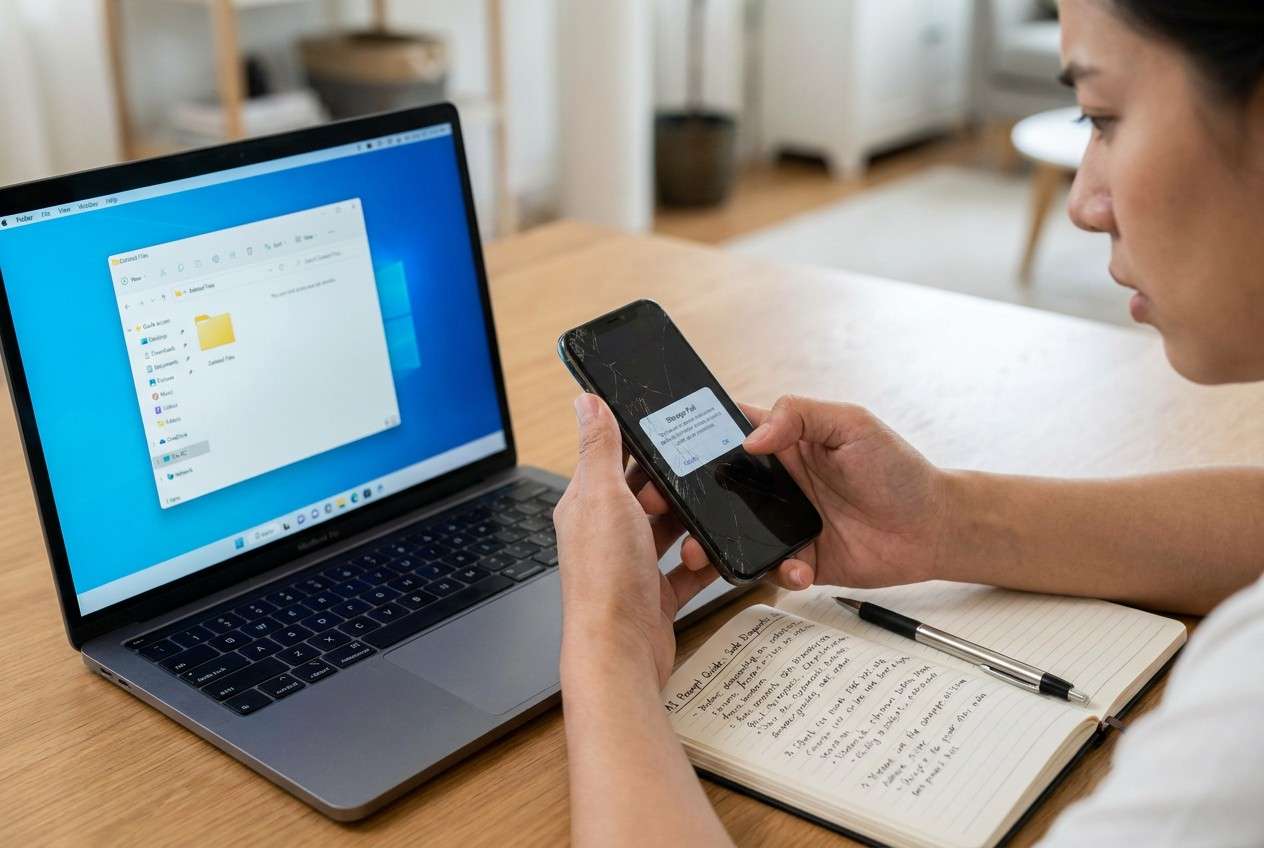
1. “Deleted” doesn’t always mean gone—until new data overwrites it.
On Android, deletion often removes the file entry while the underlying storage blocks may remain recoverable until something else writes over them.
2. Installing apps is a common way people accidentally overwrite recoverable data.
App installs, downloads, recording video, and heavy messaging can create new writes that reduce what any recovery method can still find.
3. Use AI to plan the safest checks first, then execute in a controlled way.
AI can help you choose low-risk paths (cloud trash, app recycle bins, SD card handling) but can’t confirm what your storage still contains.
Part 1. Why installing apps after deleting files reduces recovery chances
1-1. How Android deletion works (why “deleted” may still be recoverable)
On Android, “deleted” often means the file entry is removed, but the underlying storage blocks may remain until new data replaces them.
1-2. What increases overwrite risk after deletion
Installing apps, downloading media, recording video, or even heavy messaging can create new writes that overwrite those blocks—reducing what any recovery method can still find.
This is why the safest immediate move is usually to stop writing new data to the device. The risk is similar across devices (for example, a Samsung Galaxy S23 or Pixel 8), and the basic principle also applies on iPhone models like an iPhone 13 or iPhone 14—even though recovery workflows differ by platform.
1-3. If you already installed a recovery app, what that changes
If you already installed a recovery app after deleting files, it may still be possible to recover something, but the outcome becomes more uncertain: some files may come back partially, with corrupted previews, or not at all.
1-4. Before You Prompt the AI
Gather a few details first so the AI can estimate overwrite risk with fewer guesses:
- Device brand/model and Android version
- Where the files were deleted from (Gallery, Files, WhatsApp, SD card, etc.)
- What you did afterward (installed apps, recorded video, rebooted, updates)
- Whether you use cloud backup (Google Photos, OneDrive, Samsung Cloud)
- Whether storage is near full (low free space increases overwrite likelihood)
Part 2. Using AI prompts to assess deleted Android files before you install anything
2-1. Level 1: Basic Prompt
I deleted files on my Android phone and then installed an app afterward. Explain why installing apps can reduce recovery chances, and list the safest next steps I should take right now to avoid overwriting more data.
2-2. Level 2: Advanced Prompt
Act like a cautious mobile data-loss triage assistant. Based on my situation, do the following:
1) Ask up to 7 clarifying questions that affect overwrite risk.
2) Rank the most likely recovery routes (cloud trash, app-specific restore, local recovery tool) from lowest-risk to highest-risk.
3) For each route, explain what evidence would confirm it and what actions could make recovery worse.
4) If any step is risky, propose a safer alternative.
2-3. Level 3: Evidence Prompt
Help me diagnose a deleted-files situation on Android without increasing overwrite risk. Use the details below and be explicit about assumptions and uncertainty.
Device
- Phone model: (e.g., Samsung Galaxy S23)
- Android version: (e.g., Android 14)
- Storage type: internal / SD card (if SD card, brand/size)
- Free space roughly: (e.g., 5–10 GB free)
What was deleted
- File types: (photos / videos / documents / chats)
- Approx. size and count:
- Where deleted from: (Gallery / Files app / WhatsApp / Downloads)
- How deleted: (manual delete / “Free up space” / factory reset / app cleanup)
What happened after deletion (overwrite risk)
- Installed any apps? Which ones and how many:
- Recorded video / downloaded files / OS update / reboot since then:
- Time since deletion: (e.g., 2 hours / 3 days)
Backups & trash
- Google Photos / Google Drive / OneDrive / Samsung Cloud: on/off and last sync time:
- Any trash/recycle bin checked? Results:
Goal & constraints
- Priority: (recover originals vs recover anything)
- Can I stop using the phone now? yes/no
Now:
1) Summarize the most likely cause of loss and the overwrite risk level (low/medium/high).
2) List the safest next steps in order, with a brief “why” for each.
3) List steps I should avoid and why.
4) Tell me what single piece of evidence would change your recommendation the most.
2-4. Prompt Refinement
Use these follow-ups to force clearer, safer guidance:
“What questions do you still need answered to estimate overwrite risk, and why does each question matter?”
“Separate my possibilities into categories: cloud/trash recovery, app-specific recovery, SD card recovery, and internal storage recovery.”
“Rank the top 5 likely causes of permanent loss in my case, and explain what evidence would rule each one in or out.”
“What is the minimum set of actions I can take right now that preserves the most recovery options?”
“Identify the one check that is safest and highest-yield (no installs), and tell me exactly what to look for.”
Part 3. When to stop DIY recovery to avoid overwriting deleted data
If you notice any of the signs below, pause troubleshooting and shift to a controlled recovery attempt to reduce avoidable writes.
- You already installed multiple apps, downloaded large files, or recorded video after deletion (overwrite risk is rising fast).
- The phone is low on storage or constantly “cleaning up,” which can trigger background writes.
- You’re about to factory reset, “optimize storage,” or run aggressive cleaner tools you don’t fully trust.
- Your attempts are turning into repeated trial-and-error (each new attempt can create more changes to storage).
Once you’ve used AI to narrow the most likely scenario and safest sequence, the next step is execution with a method that minimizes additional writes and targets Android deleted-data recovery directly.
Part 4. Recover deleted Android data with Dr.Fone Data Recovery
After deletion, the priority is preserving recoverable remnants and avoiding extra installs or downloads on the phone itself. If you’ve used AI to confirm that cloud/trash routes don’t apply (or aren’t enough), Dr.Fone - Data Recovery (Android) becomes relevant as a practical way to carry out a structured recovery attempt for the Recover Data from Android Device workflow, using a computer-based process rather than continuing random on-phone experiments.
 Scan Android phones and tablets directly.
- Preview and recover only what you want.
- Supports WhatsApp, photos, videos, contacts, and more.
- Works with 6000+ Android devices.

-
Step 1 Stop new writes on the phone
Put the device in airplane mode and avoid installing apps or saving new media until the recovery attempt is completed.

-
Step 2 Open Dr.Fone on a computer
Launch the Android data recovery module so the scan workflow happens off-phone as much as possible.

-
Step 3 Connect your Android device carefully
Attach the phone via USB and follow the on-screen prompts, avoiding unrelated system changes you don’t understand while enabling required access.

-
Step 4 Run a targeted scan for deleted data
Select the relevant data types (e.g., photos/videos/documents) to reduce noise and keep the process focused.

-
Step 5 Preview and export recovered items
Save recovered files to the computer (not back to the same phone storage) to avoid overwriting additional remnants.




Part 5. AI output vs reality: what you can infer vs what you must verify
AI can guide decisions, but it can’t validate what’s actually recoverable on your device. AI helps you choose the least risky path; execution still depends on what your phone and storage actually retained, plus using an appropriate recovery approach.
| What AI can infer | What you still need in reality |
|---|---|
| Installing apps may overwrite deleted data blocks | A tool/workflow that can scan storage without adding more writes |
| Cloud/trash may contain recently deleted items | Access to your actual account trash, retention window, and sync status |
| App-specific deletes may have their own recycle bins | The app’s real restore options and whether the deletion was synced |
| Time and usage increase risk | A practical way to stop usage and attempt recovery methodically |
Conclusion
AI is most useful here for diagnosing what likely happened, estimating overwrite risk, and choosing the lowest-risk next steps; once you’ve narrowed the best path, a focused execution tool like Dr.Fone can handle the actual Android recovery attempt in a more structured way than continued trial-and-error on the phone.
FAQ
-
Why is installing apps after deleting files a problem?
Because installing apps writes new data to storage, which can overwrite the space where deleted files still physically reside. -
Should I keep using my phone if I want my deleted files back?
Minimize use; messaging, downloads, camera recording, and updates can all increase overwrite risk. -
Can AI tell me if my deleted files are still recoverable?
AI can estimate likelihood from your actions and timeline, but it can’t verify what your storage still contains. -
What should I check before attempting device recovery?
Check cloud backups and “trash” areas first (Google Photos/Drive, app recycle bins), because they’re usually the lowest-risk options. -
If I already installed a recovery app, is it hopeless?
Not necessarily, but chances may be lower; stop further installs/downloads and proceed with a more controlled recovery attempt.
 Add Wondershare Dr.Fone as a preferred source on Google





