 Effortlessly manage data through preview, delete, export, etc.

 100% Security Verified | No Subscription Required | No Malware

 :
: 
 ChatGPT
 Perplexity
 Gemini
 Claude
 Grok
Grok

I updated iOS and now my iPhone is stuck on the recovery mode screen. Finder/iTunes keeps prompting me, and I’m not sure whether to hit Update or Restore because I don’t want to lose my data.
Apple Support Community user
Your iPhone may be stuck showing the recovery mode screen right after an iOS update—often after you tapped Install Now or the phone restarted during the update (for example, on an iPhone 13 or iPhone 14). It can feel like nothing changes even after several minutes, and it’s unclear whether the update is still running.
AI (like ChatGPT or Gemini) can help you describe the symptoms clearly, narrow the most likely causes, and choose the lowest-risk next steps based on what you observe.
AI can’t execute device actions for you, and trial-and-error can increase risk (like data loss or longer downtime). Use prompts to decide what to try first, then use a dedicated tool to carry out the safer option you choose.
In this article
- Why iPhone gets stuck in recovery mode after update
- What recovery mode after an update usually means
- What to check on Finder/iTunes first
- Common triggers (verification, storage, connection)
- Before you prompt the AI: details to gather
- AI prompt templates (Level 1–3) + refinement
- When to stop troubleshooting and avoid risks
- AI output vs reality: what you still must verify
- Fix recovery-mode loop safely with Dr.Fone

1. Treat recovery mode as an incomplete update, not a signal to immediately restore.
First confirm what Finder/iTunes detects and whether it offers Update (less destructive) versus only Restore (more destructive).
2. Use AI to rank likely causes and choose the lowest-risk next action.
Good prompts help you focus on evidence (screen state, error codes, connection stability) and avoid random retries that can increase risk.
3. Stop repeating the same attempt when the signals don’t change.
If you keep seeing the same error code or unstable disconnect/reconnect behavior, switch strategy and prioritize safer execution steps.
Part 1. Why iPhone stuck in recovery mode after update happens and what it means
Recovery mode after an update often indicates the update process didn’t complete cleanly, or iOS detected a state where it needs a computer-assisted restore/update path. Sometimes it’s triggered by a failed verification step, interrupted download, low storage, unstable power, or a cable/port issue when connecting to a computer.
This state can also appear if the device boot looped into recovery mode after a restart, or if iOS can’t finish booting due to a system mismatch. The key detail is whether the iPhone is recognized normally by Finder/iTunes and whether “Update” is offered (less destructive) versus only “Restore” (more destructive).
What it “means” in practice: your iPhone is not completing a normal boot right now, so your safest plan is to confirm what the computer sees, collect evidence (errors, timestamps), and avoid repeated restore attempts until you’ve ranked the likely causes.
1-1. Before you prompt the AI
Gather these details first so the AI can be specific:
- iPhone model and iOS version you attempted to install (if known)
- What you did right before it got stuck (update via Settings, Finder, iTunes)
- Current screen (recovery cable/computer icon, Apple logo, spinning wheel)
- Whether Finder/iTunes detects the iPhone and what options it shows
- Any error codes shown (e.g., 4013, 9, 14) and when they appear
- Cable/port/computer details (original cable, USB hub, Mac/Windows)
Part 2. Using AI prompts to diagnose iPhone stuck in recovery mode after update safely
2-1. Level 1: Basic Prompt
My iPhone is stuck in recovery mode after an iOS update. Ask me the minimum questions needed to identify the most likely cause and the lowest-risk next step, and warn me which actions could cause data loss.
2-2. Level 2: Advanced Prompt
Diagnose my “iPhone stuck in recovery mode after update” situation using a ranked list of likely causes (most to least likely). For each cause, give: (1) what evidence would confirm it, (2) a low-risk action to try first, and (3) what NOT to do yet to avoid data loss. Assume I want to try non-destructive steps before any restore.
2-3. Level 3: Evidence Prompt
Help me troubleshoot iPhone stuck in recovery mode after update using evidence-based reasoning.
Device & context
- iPhone model: (e.g., iPhone 13 Pro)
- Approx iOS version attempted: (e.g., iOS 17.x)
- Update method: (Settings / Finder on Mac / iTunes on Windows)
- What happened right before: (tapped Install Now / auto-restart / update paused)
Current symptoms
- Screen shown now: (recovery screen / Apple logo / loop)
- How long it’s been stuck: (e.g., 20 minutes / 2 hours)
- Any heat/battery issues: (normal / warm / hot / low battery)
Computer check
- Finder/iTunes detects device: (yes/no)
- Options shown: (Update / Restore)
- Error codes/messages: (e.g., 4013 / 9 / 14 / unknown error)
Hardware & environment
- Cable type: (Apple / third-party)
- Port type: (USB-A / USB-C / hub)
- Computer OS: (macOS / Windows version if known)
Goal
- Priority: (keep data if possible / fastest return to usable phone)
Now: (1) list the top 3 likely causes, (2) provide a safest-first action plan, (3) tell me which single observation would most change your diagnosis.
2-4. Prompt Refinement
Use these follow-ups to tighten the diagnosis:
What key question do you still need answered to rule out a hardware connection issue vs an iOS corruption issue?
Separate causes into: update interruption, storage/verification, cable/port/computer, and iOS system corruption—and rank within each category.
Based on my error code (___), what are the two most probable causes, and what evidence would differentiate them?
What is the lowest-risk sequence of steps if I want to avoid “Restore” unless it’s the last option?
Which single test should I do next (different cable/port/computer, retry Update, force restart) and what result should I report back?
Part 3. When to stop troubleshooting iPhone stuck in recovery mode after update and avoid risks
Stop and switch strategies when repeated attempts are more likely to worsen the situation than help.
- Finder/iTunes repeatedly fails with the same error code after you’ve tried a different cable/port/computer
- The iPhone disconnects/reconnects frequently during update attempts (unstable connection pattern)
- You only see “Restore” as the offered option and you cannot risk data loss without a backup
- The device shows abnormal heat, won’t hold charge, or won’t stay powered long enough to complete any step
Once you’ve used AI to narrow the most probable cause and safest next step, the next move is execution: choose a method to exit recovery mode or complete a system-level step with the least risk to your data.
Part 4. AI output vs reality
AI can help you decide what to try; it can’t perform device actions or guarantee outcomes.
| What AI can tell you | What you still must verify |
|---|---|
| Likely causes based on symptoms and error codes | Whether Finder/iTunes actually offers Update vs Restore |
| Which steps are lowest-risk first | Whether the device stays stable during retries (disconnects, reboots) |
| What evidence to collect to reduce guessing | Whether a different cable/port/computer changes detection/errors |
| When a restore is likely unavoidable | Whether you have a current backup and can tolerate data loss |
Even a well-ranked AI plan depends on real-world signals (detection behavior, error codes, connection stability). Treat AI guidance as a decision aid, then use the right tool to carry out the chosen step safely.
Part 5. iPhone stuck in recovery mode after update: fix or resolve it safely with Dr.Fone
If your diagnosis points to a persistent recovery-mode loop (especially when Finder/iTunes behavior is inconsistent or “Update” doesn’t complete), Dr.Fone - System Repair (iOS) is relevant because it provides an Enter/Exit Recovery Mode function you can use to carry out a controlled exit attempt before escalating to more destructive options. At this stage, you’re not looking for more theories—you’re applying the lowest-risk action your evidence supports, then re-checking whether the iPhone can boot normally or be recognized for an update path.
-
Step 1 Open System Repair (iOS)
Launch Dr.Fone on your computer and access System Repair (iOS) from the toolbox.

-
Step 2 Select the device type
Choose the correct device category so the repair workflow matches your iPhone.

-
Step 3 Enter the iOS System Repair screen
Open the iOS repair module where recovery-mode tools are available.

-
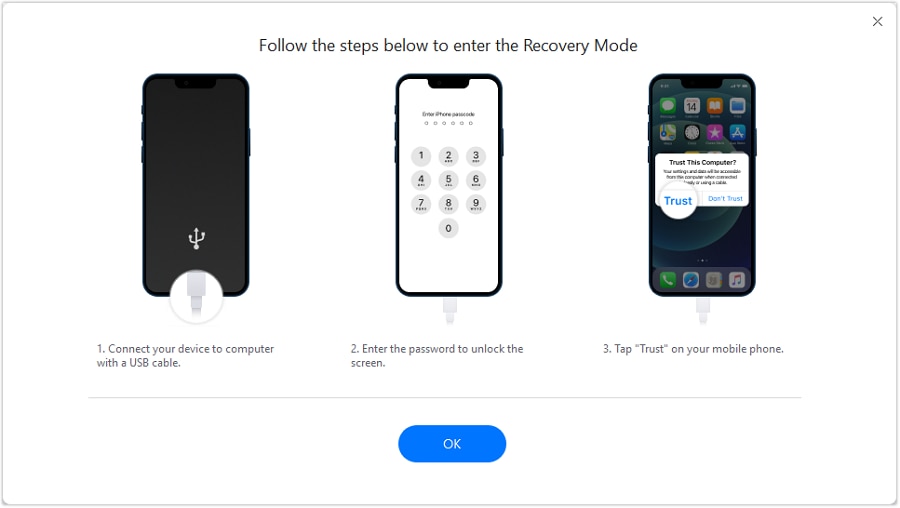
Step 4 Use Enter/Exit Recovery Mode
Choose Exit Recovery Mode to attempt a safe exit from the recovery screen without jumping straight to a restore.
-
Step 5 Re-check boot and computer detection, then escalate only if evidence supports it
After the exit attempt, confirm whether the iPhone boots normally; if not, check whether Finder/iTunes now offers Update and whether the same error repeats. If the device returns to recovery mode again, proceed only with the option that matches your goal (data preservation first), and avoid repeated restore attempts unless you’re ready for potential data loss.
Recommended tool: Dr.Fone - System Repair (iOS)
If you want to execute a safer, controlled recovery-mode exit attempt before escalating to more destructive options, Dr.Fone’s Enter/Exit Recovery Mode function can help you apply the next step your evidence supports—then immediately re-check whether the iPhone can boot normally or be detected for an Update path.
 Fix iOS issues, no data loss.
- One-click repair for all iOS problems.
- Solve recovery mode, Apple logo, black screen, etc.
- Upgrade or downgrade iOS without iTunes

To keep risk low, pair this with the same evidence-first approach from the AI prompts: confirm whether the phone exits recovery mode, whether it boots normally afterward, and whether Finder/iTunes offers Update (instead of only Restore) once the device is stable.




Conclusion
Use AI prompts to translate what you see (screen state, detection behavior, error codes) into a ranked set of likely causes and a safest-first plan, then hand off execution to a practical tool like Dr.Fone - System Repair (iOS)’s Enter/Exit Recovery Mode when you’re ready to apply the next step without escalating too quickly to data-destructive options.
FAQ
-
Why is my iPhone stuck in recovery mode after update?
Common reasons include an interrupted update, insufficient storage during installation, connection instability to a computer, or iOS system files failing to complete the boot process. -
Does “Update” in Finder/iTunes erase my data?
“Update” is intended to reinstall iOS without erasing data, but it can still fail; “Restore” is the option that typically wipes the device. -
What should I do first to avoid data loss?
Prioritize evidence collection (error code, detection behavior) and try the lowest-risk steps first, such as a recovery-mode exit attempt and a stable reconnection setup before considering restore paths. -
What does it mean if Finder/iTunes only shows “Restore”?
It often suggests the system can’t be updated in place through the standard flow, or the device state is too unstable; treat it as a higher data-loss risk scenario unless you have a backup. -
Can a bad cable or USB port cause recovery mode after an update?
Yes. Unstable connections can interrupt the update process and trigger recovery mode; testing a different cable/port/computer is a high-value, low-risk check.
 Add Wondershare Dr.Fone as a preferred source on Google





