 Effortlessly manage data through preview, delete, export, etc.

 100% Security Verified | No Subscription Required | No Malware

 :
: 
 ChatGPT
 Perplexity
 Gemini
 Claude
 Grok
Grok

I deleted some photos, rebooted after an update, and now they’re just… gone. I can’t tell if they’re actually deleted or just not showing up anywhere.
Reddit user, r/Android
Losing Android data often happens right after a change—like deleting photos, tapping Factory reset, or restarting after an update—and it’s not always obvious what made the data “disappear.” The same uncertainty can also apply if you recently switched from an iPhone 13 or iPhone 14 and aren’t sure where your files were actually stored.
AI (like ChatGPT or Gemini) can help you list the right facts, interpret symptoms, narrow likely causes (deleted vs. overwritten vs. account/sync vs. hardware), and decide what to do next with the lowest risk.
AI can’t see your phone or confirm what’s recoverable, and trial-and-error steps can make recovery harder (especially if new data overwrites old blocks). The goal is to gather details first, then choose a safer execution path.
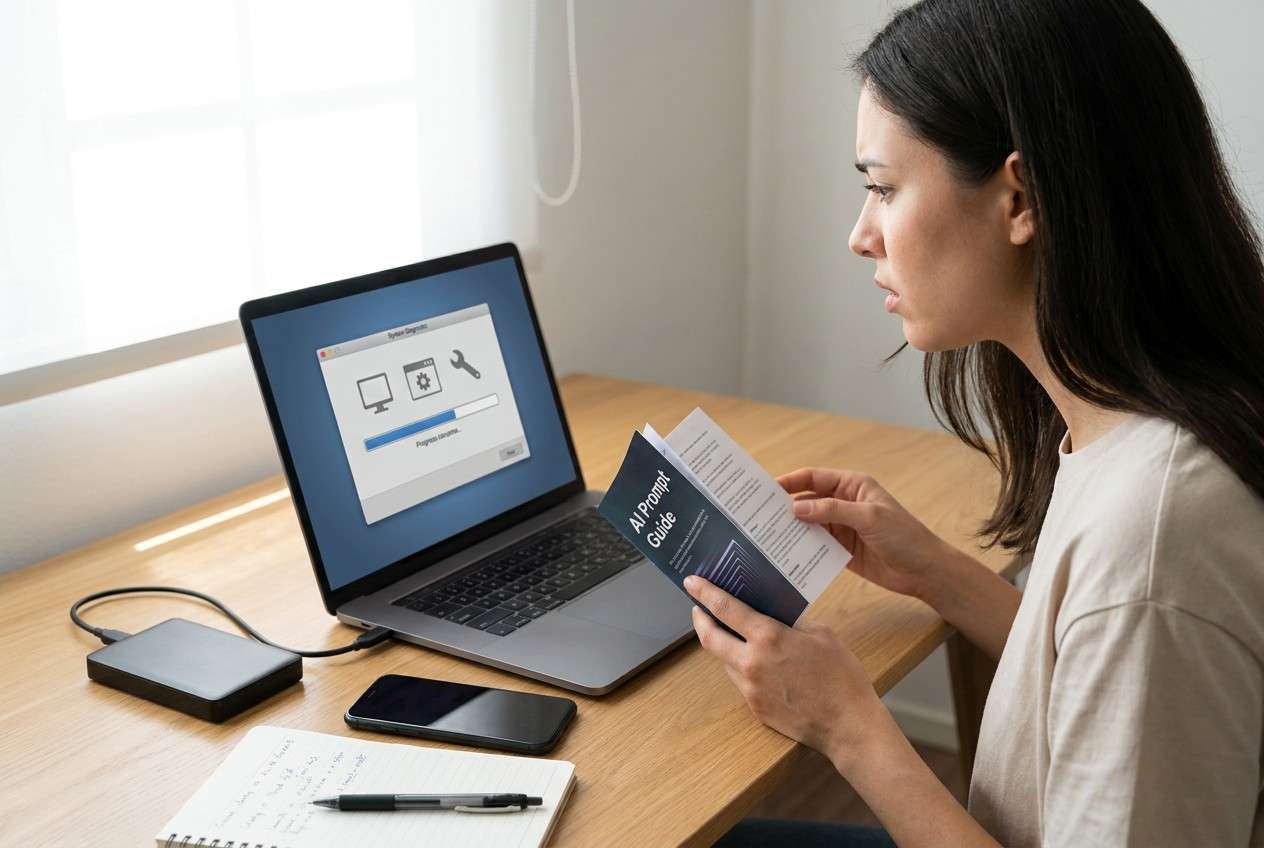
In this article
- Part 1. What details to note before trying data recovery on Android
- Why documenting matters before any attempt
- Trigger actions that change recovery odds
- Storage/account clues to capture
- Before you prompt the AI: one-time checklist
- Part 2. Using AI prompts to assess Android data recovery readiness
- Part 3. When to stop DIY data recovery to avoid overwriting files
- Part 4. Turning AI output into a safer plan (AI vs reality)
- Part 5. Recover data from Android device safely with Dr.Fone
Part 1. What details to note before trying data recovery on Android
If you’re using an Android phone (for example, a Samsung Galaxy S22 or Google Pixel 7), the most important step before any recovery attempt is documenting what happened and what changed. Many “data loss” cases are actually account, storage location, or app-sync issues—not true deletion.
Think about the trigger: did the issue start after you cleared storage, reinstalled an app, updated Android, enabled encryption, moved files to an SD card, or logged into a different Google account? Your answer changes both the probability of recovery and what actions are safest.
A common experience is: you wait several minutes, re-check Gallery/Files, and nothing changes—so it’s unclear whether the files are gone or just not being shown.
1-1. Before You Prompt the AI
Collect these details once so your prompts stay consistent:
- Device brand/model and Android version (if known)
- What went missing (photos, WhatsApp, contacts, documents) and from which app
- Exact trigger action (deleted, factory reset, OS update, app reinstall, storage cleanup)
- Storage location hints (internal storage, SD card, cloud sync, work profile)
- Time since loss and whether the phone has been heavily used since
- Any error messages, unusual heat, boot loops, or storage-full warnings
Part 2. Using AI prompts to assess Android data recovery readiness
2-1. Level 1: Basic Prompt
I lost data on my Android phone. Ask me the minimum set of questions needed to figure out whether this is (1) hidden/synced data, (2) deleted-but-possibly-recoverable data, or (3) hardware/storage failure. Then give me the lowest-risk next steps to avoid overwriting anything.
2-2. Level 2: Advanced Prompt
You are helping me triage an Android data-loss situation safely.
1) List the top 5 most likely causes based on my symptoms and rank them from most to least likely.
2) For each cause, state what evidence would confirm/deny it.
3) Flag any actions that increase overwrite risk or permanently reduce recovery chances.
4) End with a short “do first / avoid” checklist.
Here are my details: [paste what happened, what’s missing, when it happened, what I did afterward].
2-3. Level 3: Evidence Prompt
Help me prepare a data-recovery intake note and a safe plan. Use my answers to:
- categorize the case (sync/visibility vs deletion vs corruption vs physical)
- estimate risk of overwrite
- recommend low-risk checks first
- identify what I must NOT do
Fill this out with me and then summarize:
Device model: (e.g., Samsung Galaxy S22 / iPhone 13 Pro)
Android version: (e.g., Android 13)
What data is missing: (e.g., DCIM photos, WhatsApp chats, Contacts)
Where it was stored: (internal / SD / app storage / unknown)
Trigger event: (e.g., “deleted from Gallery,” “factory reset,” “system update,” “app reinstall”)
Time since loss: (minutes / hours / days)
Phone usage after loss: (heavy / light / none; installs, downloads, new photos?)
Any backups/sync: (Google Photos, Google Drive, OEM cloud, WhatsApp backup)
Account changes: (logged out/in, changed Google account, work profile)
Storage state: (nearly full? warnings?)
Symptoms now: (missing items only / crashes / boot issues / SD not detected)
Goal: (recover specific files vs maximum recovery)
Constraints: (can’t root, can’t risk factory reset, must keep data private)
2-4. Prompt Refinement
Use these follow-ups to make the AI’s output more accurate:
“What are the missing questions you still need to ask before suggesting any recovery steps?”
“Separate likely causes into: sync/account, app behavior, storage/SD, true deletion, device failure—then rank within each category.”
“For the top 3 causes, list the single most decisive piece of evidence I should check next.”
“Which actions create the highest overwrite risk in my situation, and what are safer alternatives?”
“If two causes are tied, what quick test distinguishes them without installing new apps or generating new data?”
2-5. AI Output vs Reality
AI can help you choose a safer path, but it can’t validate what’s physically recoverable on your device.
| AI can help you decide | Reality you still need to handle |
|---|---|
| Which scenario fits best (sync vs deletion vs failure) | Whether the data blocks were overwritten |
| What evidence to check first | What your device storage actually contains |
| Which actions are high-risk | The irreversible effect of continued phone usage |
| A conservative plan and stop points | Running recovery execution with the right tool |
The gap is that diagnosis is logic-based, while recovery depends on device state, storage behavior, and how much has changed since the loss.
Part 3. When to stop DIY data recovery to avoid overwriting files
If the situation is unclear, “trying more things” can be the highest-risk move, because normal use may overwrite the space your deleted data used to occupy.
- You’ve continued taking photos/installing apps/downloading files since the loss, and the missing data is time-sensitive.
- The phone shows storage/SD errors, random reboots, or the missing data coincides with corruption symptoms.
- You’re tempted to factory reset, “clean,” optimize storage, or run multiple recovery apps back-to-back.
- The data is high-value (work/legal/medical) and you can’t accept accidental overwrite risk.
Once you’ve captured the key details and likely causes with AI, hand off execution to a dedicated recovery workflow that minimizes unnecessary changes.
Part 4. Turning AI output into a safer plan (AI vs reality)
After AI helps you confirm what details matter (trigger, storage location, overwrite risk, and what evidence is missing), the next step is running a controlled recovery attempt. Dr.Fone - Data Recovery (Android) is relevant here because it focuses on the execution side of the process—helping you attempt to recover data from an Android device using a structured workflow rather than repeated trial-and-error.
If you want a reference for the exact flow, follow the official guide steps in the next section while you work, and keep your actions minimal to reduce overwrite risk.
Part 5. Recover data from Android device safely with Dr.Fone
After you’ve documented the trigger event, storage location clues, and overwrite risk, run recovery as a controlled workflow (not repeated experiments). The goal is to scan for the specific data types you need, preview results, and export recovered files somewhere safe without generating unnecessary new data on the phone.
 Scan Android phones and tablets directly.
- Preview and recover only what you want.
- Supports WhatsApp, photos, videos, contacts, and more.
- Works with 6000+ Android devices.

-
Step 1 Pause risky activity
Stop creating new data (photos, downloads, installs) to reduce overwrite risk before you begin.

-
Step 2 Open the recovery module and choose what to scan
Launch the recovery module and choose the data types you’re trying to retrieve so the scan stays focused.

-
Step 3 Connect your Android device carefully
Connect via USB and follow on-screen device-permission steps, avoiding unrelated system changes you’re not confident about.

-
Step 4 Scan and preview results
Use preview to verify you’re finding the right items before saving anything, and don’t save recovered files back onto the same device storage.

-
Step 5 Export recovered data to a safe location
Save to a computer or separate storage destination, then reassess what’s still missing before attempting additional passes.




Conclusion
Use AI to capture the right pre-recovery details, rank the most likely causes, and choose low-risk next steps—then rely on a dedicated execution workflow like Dr.Fone - Data Recovery (Android) to carry out the recovery attempt in a controlled, less error-prone way.
FAQ
-
What details matter most before I try Android data recovery?
The trigger event, time since loss, phone usage since loss, storage location (internal vs SD vs cloud), and whether accounts/sync changed.
-
Can AI tell me if my deleted Android files are recoverable?
No—AI can only estimate likelihood based on symptoms and risk factors; actual recoverability depends on overwrite and device/storage state.
-
Should I keep using my phone after I notice missing files?
Minimize use if you suspect deletion, because normal activity can overwrite the space where deleted files used to be.
-
What if my files are missing because of Google account or sync changes?
Document which account is signed in and which app shows the data; AI can help you test for “visibility/sync” causes before you attempt recovery.
-
Is it safe to save recovered files back onto the same Android phone?
It’s safer to export to a computer or different storage first to avoid overwriting other recoverable data.
 Add Wondershare Dr.Fone as a preferred source on Google





