 Effortlessly manage data through preview, delete, export, etc.

 100% Security Verified | No Subscription Required | No Malware

 :
: 
 ChatGPT
 Perplexity
 Gemini
 Claude
 Grok
Grok

I installed the latest security patch and now my Samsung just keeps restarting on the logo. It never reaches the lock screen—how do I figure out what’s safe to try without wiping everything?
Samsung Community user
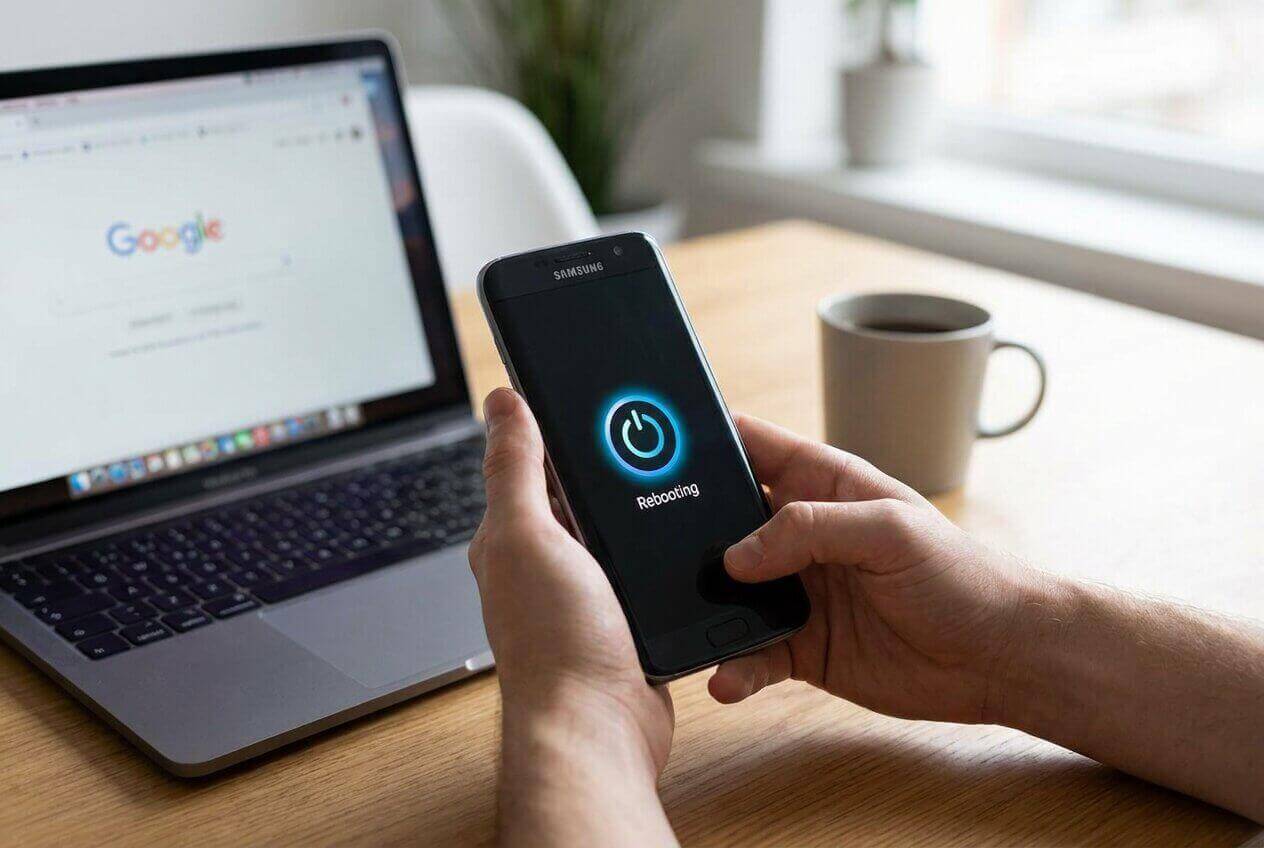
A Samsung phone that keeps restarting after a security patch can feel stuck in limbo: you tapped Install now, it rebooted, and now it never reaches the lock screen. Nothing changes after several minutes, so it’s unclear whether it’s still updating or truly stuck.
AI (like ChatGPT or Gemini) can help you name the symptom accurately, narrow likely causes (cache vs. update conflict vs. firmware mismatch), and decide which next step is lowest risk for your data.
AI can’t see your device state, and trial-and-error can increase risk (especially steps that wipe data). Use AI to plan and prioritize, then use a dedicated tool to carry out the chosen action safely.
In this article
- Part 1. Why Samsung boot loop after security patch happens and what it means
- What the loop typically looks like
- Common root causes after a patch
- Why identical symptoms can mean different things
- What to collect before you do anything risky
- Part 2. Using AI prompts to diagnose Samsung boot loop safely
- AI output vs. reality: how to verify what AI suggests
- Part 3. When to stop troubleshooting Samsung boot loop and avoid risks
- Part 4. How to move from AI diagnosis to a guided fix
Part 1. Why Samsung boot loop after security patch happens and what it means
A Samsung boot loop after security patch usually starts right after the update reboot: the phone shows the Samsung logo, restarts, and repeats. This can happen on models like Galaxy S22 or Galaxy S23, even when the update itself looked normal.
Common meanings of the loop: the system is failing to finish boot due to a bad temporary cache state, an app/OS conflict that surfaces post-patch, low storage causing incomplete update finalization, or (less commonly) a corrupted system component.
The tricky part is uncertainty: the same loop can look identical whether it’s a minor cache issue or something that requires system repair, so your goal is to collect a few signals before taking any destructive steps.
Before You Prompt the AI
Gather a few facts first to avoid guessing:
- Exact Samsung model and Android version (if known)
- What you did right before it started (e.g., tapped Install now, auto-reboot overnight)
- Current screen behavior (logo → restart timing, any warnings)
- Battery level and whether it loops while charging
- Whether you can access Recovery mode or Download mode
- Whether storage was close to full before updating
Part 2. Using AI prompts to diagnose Samsung boot loop safely
Level 1: Basic Prompt
My Samsung phone is in a boot loop right after a security patch. Ask me the minimum questions needed to identify the most likely causes and the lowest-risk next step that avoids data loss if possible.
Level 2: Advanced Prompt
Act as a cautious Android triage assistant. Based on my answers, rank the top 5 likely causes of a Samsung boot loop after a security patch, and for each cause list:
1) what evidence would support it,
2) the safest next test step,
3) the data-loss risk (low/medium/high).
Prioritize steps that are reversible and do not wipe data.
Level 3: Evidence Prompt
Help me diagnose a Samsung boot loop after a security patch using evidence only. Here are my details—please ask follow-ups if anything is missing and then give a ranked differential diagnosis with risk notes.
Device
- Samsung model: (e.g., Galaxy S22)
- Carrier/region (if known):
- Approx. Android / One UI version (if known):
Trigger
- Update type: (security patch / OTA)
- What I tapped: (e.g., “Install now” / “Schedule”)
- Battery/storage before update: (e.g., 25% battery, 2 GB free)
Current symptoms
- Loop pattern: (logo only / logo + animation / vibrates then restarts)
- Time to reboot: (e.g., every 20–40 seconds)
- Gets warm? (yes/no)
- Any error text? (exact wording)
Access checks
- Can I enter Recovery mode? (yes/no/unknown)
- Can I enter Download mode? (yes/no/unknown)
- Can I reach Safe mode? (yes/no/unknown)
Constraints
- Data sensitivity: (high/medium/low)
- I can/can’t accept a factory reset:
Output format
- Ranked causes (1–5) + confidence
- Best next step (lowest risk first)
- Stop conditions that mean I should avoid further attempts
Prompt Refinement
Use these follow-ups to make the AI’s output more actionable:
What two questions would change your ranking the most, and why?
Separate causes into software cache, app conflict, firmware/update corruption, and hardware—then place my case in one bucket.
List the three strongest evidence signals I should check next that don’t wipe data.
If I can access Recovery mode, which non-wiping actions should I try first, and what outcomes confirm/deny each cause?
Give me a risk ladder of next steps from safest to most destructive, with a clear stop point.
AI output vs. reality: how to verify what AI suggests
AI can help you reason, but it can’t confirm what the device will do. Use this table to keep expectations grounded:
| What AI suggests | What you should verify on the phone |
|---|---|
| “It’s likely a cache / post-update conflict.” | Whether Recovery mode is accessible and whether symptoms change after a non-wiping step |
| “It might be a failed OTA finalization.” | Storage was low, update was interrupted, or the loop started immediately after reboot |
| “Safe Mode could confirm an app conflict.” | Whether the device can actually enter Safe Mode and stay stable |
| “System repair is lower risk than random resets.” | Whether the chosen method preserves data and matches your model/region constraints |
AI outputs are a decision aid; execution still depends on what modes you can access, how the phone responds, and your data-loss tolerance.
Part 3. When to stop troubleshooting Samsung boot loop and avoid risks
Stop early when continuing would turn a recoverable situation into a data-loss situation.
- The phone heats up significantly, swells, or smells unusual during repeated reboots.
- The loop worsens into black screen / no charge / no mode access after attempts.
- You’re about to try a step you don’t understand that could erase data (e.g., factory reset) just to “see what happens.”
- You see repeated system/firmware errors or you can’t access Recovery/Download mode reliably.
Once you’ve used AI to narrow likely causes and choose the lowest-risk path, hand off the execution to a purpose-built method rather than improvising.
Part 4. How to move from AI diagnosis to a guided fix
When the diagnosis points to a system-level boot problem (not just a temporary glitch), you’ll usually need a controlled way to run Android system repair steps. Dr.Fone - System Repair (Android) is relevant at this stage because it’s designed to execute a guided workflow for Repair Samsung Phone Issues without relying on guesswork, helping you avoid jumping straight to destructive options.
Fix it safely with Dr.Fone (guided execution)
If you’ve confirmed repeated logo reboots and limited normal boot access, a guided repair flow can be safer than improvising resets—especially when you’re trying to minimize unnecessary data-loss risk.
 Fix Android instantly – no skills needed.
- Solve boot loop, black screen, won’t turn on, etc.
- High success rate for all system issues.
- User-friendly interface with easy-to-follow steps.

-
Step 1 Prepare the basics
Charge the phone to at least ~50% and use a stable USB cable/port to reduce disconnect risks mid-process.

-
Step 2 Open System Repair (Android)
Launch Dr.Fone and choose the Android system repair option for Samsung boot issues.

-
Step 3 Choose Android Repair
Select the Android repair option to proceed with the guided workflow.

-
Step 4 Confirm device details carefully
Select the correct Samsung model/variant to avoid mismatched firmware steps.

-
Step 5 Follow the guided repair flow and re-check boot behavior
Proceed through the on-screen instructions and keep the phone connected until the process completes. After completion, observe whether the device reaches the lock screen and remains stable for several minutes.




Conclusion
Use AI to clarify what “boot loop after security patch” most likely means in your specific case, what evidence to check, and which next step is lowest risk; then hand off the chosen repair approach to a controlled execution method like Dr.Fone System Repair (Android) rather than escalating randomly.
FAQ
-
Why did my Samsung start boot looping right after a security patch?
A security patch can expose a pre-existing conflict (low storage, corrupted cache, incompatible system component) and the reboot cycle repeats because the system can’t complete startup. -
Is a Samsung boot loop after an update always a hardware problem?
No. Many boot loops after updates are software-state issues (cache/update finalization) that look dramatic but aren’t hardware failures. -
What’s the safest first step if I want to avoid data loss?
Use AI to identify whether you can access Recovery mode and prioritize non-wiping checks first; avoid factory reset unless you’ve accepted the data-loss outcome. -
How do I know if I should stop and avoid more attempts?
Stop if the device overheats, loses access to Recovery/Download modes, or you’re about to try destructive steps without a clear reason tied to evidence. -
Where does Dr.Fone fit if AI already told me the likely cause?
AI helps you choose the most reasonable path; Dr.Fone is the execution layer that performs a guided Android system repair attempt instead of trial-and-error.
 Add Wondershare Dr.Fone as a preferred source on Google





