 Effortlessly manage data through preview, delete, export, etc.

 100% Security Verified | No Subscription Required | No Malware

 :
: 
 ChatGPT
 Perplexity
 Gemini
 Claude
 Grok
Grok

I transferred my photos to a new phone, then “cleaned up duplicates” on the old one—only to realize weeks later that thousands of items never made it over, and some dates/Live Photos were messed up.
Apple Support Community user
Moving a huge photo library is easy to start and surprisingly easy to mess up if you skip one verification step—especially when storage is tight and you’re tempted to “clean as you go.”
AI helps you map a safer sequence: what to check first, what to freeze (settings, sync, accounts), how to stage the move, and how to prove the result is complete before any cleanup. But AI can’t see your device state, so you still need real tools to transfer, back up, and validate on-device outcomes.
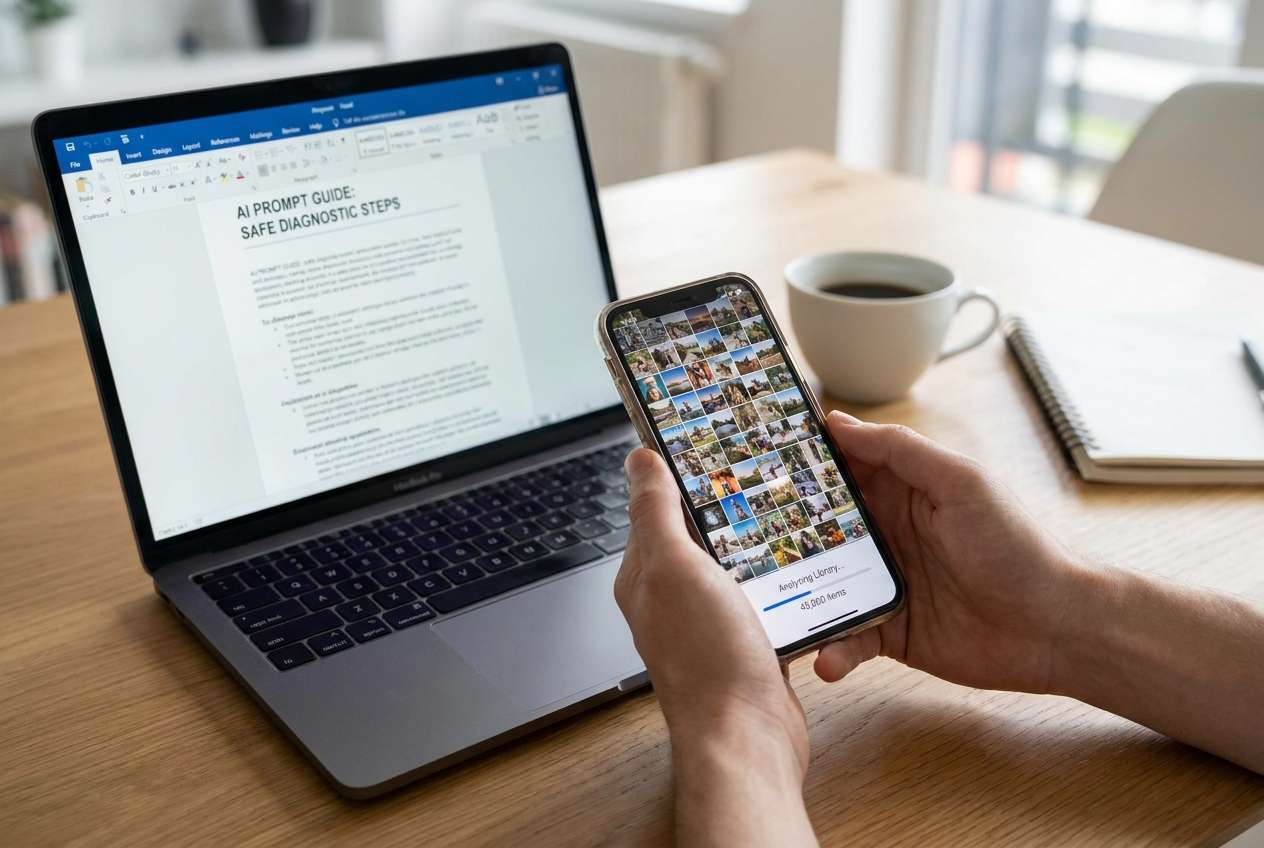
1. Plan the order of operations (with “pause” points).
Get AI to output a phased sequence (Preparation → Execution → Verification) and define exactly when you must stop, check counts/status, and avoid any irreversible cleanup.
2. Give AI the constraints that change the strategy.
Phone models/OS, library size, where media lives (device vs cloud), sync settings (Optimize Storage, backups), free space, network limits, and your “done” definition determine the safest path.
3. Treat verification as the real deliverable.
Use measurable evidence (item counts, sync-complete indicators, storage consistency, targeted spot-checks for metadata/albums) before deleting originals, enabling duplicate cleanup, or factory resetting.
In this article
- Plan the move without missing critical steps
- What makes huge libraries risky
- Correct order of operations
- Where to pause and verify
- The “point of no return”
- What the AI needs to know
- AI prompts (Level 1–3) + Prompt Refinement
- AI plan vs. real device constraints
- Execute safely with Dr.Fone
Part 1. How to Plan a Best Move Strategy for Huge Photo Libraries Without Missing Critical Steps
You may have tens (or hundreds) of thousands of photos and videos across one phone, cloud sync, shared albums, and multiple messaging apps. The goal is to move to a new phone without losing dates, Live Photos, HDR variants, albums, or “hidden” items—and without creating a duplicate mess.
After you ask AI for advice, you may get a list of options (cloud sync, direct transfer, computer export), but not a clear order of operations. The missing piece is usually when to pause, what to verify, and what must be turned off to prevent re-sync loops or partial libraries.
There’s also a point of no return: deleting the original library, factory-resetting the old phone, or enabling a cleanup tool that removes “duplicates” before you’ve proven the new device contains the full, correct set.
Part 2. What the AI Needs to Know
Share the details below so the workflow can be sequenced safely and matched to your constraints:
- Source phone model and OS (e.g., iPhone 13 iOS 17.5 / Galaxy S22 Android 14)
- Destination phone model and OS
- Approx. library size (photos/videos count + total GB)
- Where photos currently live (device-only, iCloud Photos, Google Photos, OneDrive, mixed)
- Current sync settings (iCloud Photos on/off, “Optimize Storage” on/off, Google Photos backup on/off)
- Whether you need albums/metadata preserved (dates, locations, Live Photos, burst, portrait, HEIC/RAW)
- Available free storage on both phones (and whether you can use a computer/external drive)
- Network constraints (slow Wi‑Fi, metered data, travel deadline)
- Any existing duplicates or prior partial transfers
- Your tolerance for downtime (can the phone be plugged in for hours?)
- What “done” means to you (exact copy, curated selection, or migration + cleanup)
Part 3. Using AI Prompts to Build a Safer Workflow
Use the prompts below to make AI produce a plan with checkpoints (not generic transfer advice).
3-1. Level 1: Basic Prompt
Help me plan the safest “best move strategy” for migrating a huge photo library from my old phone to my new phone.
I want a step-by-step sequence with verification checkpoints before I delete or reset anything.
Do not include execution steps—planning only.
3-2. Level 2: Advanced Prompt
Design a migration workflow for my huge phone photo library with three phases: Preparation, Execution, and Verification.
- Mark steps as Critical vs Optional.
- Include risk notes (duplicates, missing metadata, partial cloud sync, storage shortfalls).
- Specify what must be confirmed before any irreversible action (deleting originals, factory reset, “duplicate cleanup”).
3-3. Level 3: Evidence Prompt
Create a migration plan for this scenario and include checks before / during / after, plus “stop conditions” if something looks wrong.
My context:
- Source: (iPhone 12, iOS 17), Destination: (iPhone 15, iOS 17)
- Library: (~48,000 photos, ~3,500 videos, ~420 GB)
- iCloud Photos: (ON), Optimize Storage: (ON)
- Free space: (Old phone 15 GB free, New phone 300 GB free)
- Deadline: (2 days), Wi‑Fi: (fast, stable)
Evidence I can provide: (Photos app item counts, iCloud storage usage, screenshot of sync status)
Output required:
- A phased workflow with exact verification points (counts to compare, where to look for sync status)
- A checklist of settings to freeze/unfreeze
- A definition of “migration complete” that avoids relying on “it looks fine”
- Warnings for the irreversible moment (e.g., factory reset) and what must be true right before it
3-4. Prompt Refinement (Follow-up Prompts)
Return the plan as a table with columns: Step, Critical/Optional, Preconditions, Action (high level), Verification, Failure signals, Rollback option.
Add a “minimum viable proof” section: the smallest set of checks that still gives high confidence the library is complete.
List the top 10 ways huge photo migrations fail in my specific setup, and add a prevention step for each.
Separate verification into: content completeness, metadata integrity (dates/locations), and usability (albums, search, people). Give checks for each.
Define explicit stop conditions during transfer (e.g., battery/heat, sync stuck, storage warnings) and what to do next without causing duplicates.
Part 4. AI Plan vs. Real Device Constraints
AI improves planning, but it cannot execute transfers, read device states, or guarantee outcomes—your verification evidence is what makes the plan safe to act on.
| Planning item AI can produce | What AI cannot do on devices | What you must verify yourself | Why it matters |
|---|---|---|---|
| A safe order of operations and checklists | Read actual photo counts, sync status, or errors | Item counts, sync completion messages, storage | Prevents assuming the library is fully present when it isn’t |
| Risk flags (duplicates, partial sync, metadata loss) | Detect which files are missing or altered | Spot-check Live Photos, dates, locations, albums | Missing metadata can be hard to recover later |
| Decision rules (when to stop, rollback options) | Perform transfers, backups, or resets | That rollback is possible before irreversible steps | Avoids getting stuck mid-migration |
| Evidence plan (what screenshots/logs to capture) | Capture device-only states automatically | Screenshots of settings and sync states | Creates proof and a baseline for troubleshooting |
4-1. When to Stop Planning and Start Execution
- You have one chosen path (direct transfer vs cloud re-sync vs local backup/restore) and you can explain why it fits your storage, time, and reliability constraints.
- You’ve defined “done” using measurable criteria (counts, sync-complete status, and spot-checks), not visual sampling alone.
- You know the irreversible moment you must avoid until the final verification passes (e.g., deleting originals, turning off cloud library, factory reset).
- You have a rollback option (e.g., the old phone remains intact and signed in, or you have an offline backup) if verification fails.
At this point, the plan should feel boringly specific—if it still feels interpretive, refine the prompts again before touching anything.
Part 5. Best Move Strategy for Huge Photo Libraries: Execute the Workflow Safely with Dr.Fone
Execution now matters because large libraries fail in “small” ways—background sync pauses, storage hits 0, or transfers finish without being complete—and you only notice after you’ve already cleaned up the source. If you want a dedicated execution tool, Dr.Fone - Phone Transfer can help run the transfer/backup/restore portion while you follow the verification checkpoints from your AI plan.
 Move data between iOS to Android and vice versa.
- Transfer contacts, SMS, photos, videos, music, and more types.
- Available with all phones with Android and iOS versions.
- Simple, click-through process.

Use your AI plan to lock in the “freeze” decisions (sync settings/accounts), then run a controlled transfer where you avoid multitasking on the phones until the execution phase is complete. Finally, perform verification before any irreversible cleanup like deleting originals, running “duplicate cleanup,” or factory resetting the old phone.
-
Step 1 Open Phone Transfer and prepare a controlled run
Launch the transfer tool and start from a stable baseline (devices charged, stable connection, and your chosen transfer path ready). Keep the source library intact until your verification checklist passes.

-
Step 2 Set the transfer direction (source → destination)
Select the correct source and destination devices before you proceed. A wrong direction or wrong device selection can produce an incomplete or duplicated outcome.

-
Step 3 Choose photo/video data and run the execution phase
Choose the data types you plan to migrate (photos/videos and other needed items). Don’t change sync settings mid-run; wait for completion, then move into your verification phase (counts, status indicators, spot-checks).

-
Step 4 Prevent re-sync loops before cleanup
Before any irreversible action, ensure your plan’s “freeze/unfreeze” sequence is followed (for example, avoid cloud re-sync loops or conflicting background uploads). Only proceed to cleanup after verification is fully passed.





Conclusion
Use AI to design a cautious, evidence-based workflow with clear checkpoints and an explicit “do not cross” moment, then use Dr.Fone as the execution layer once the plan is unambiguous and your verification rules are ready.
FAQ
-
What’s the most common mistake with huge photo libraries?
Starting a transfer while cloud sync is incomplete (or “Optimize Storage” is hiding originals), then assuming the new phone has everything. -
How do I verify the migration without checking every photo?
Use a layered approach: total item counts, sync/completion indicators, storage usage consistency, and targeted spot-checks (Live Photos, recent videos, oldest items, location-tagged photos, hidden/favorites). -
When is it safe to delete photos or reset the old phone?
Only after your plan’s verification criteria pass on the destination and you confirm you still have a rollback option (old phone intact or a separate backup). -
Can AI tell me if my library is fully synced or transferred?
No. AI can tell you what to look for and how to interpret signals, but it can’t read your device’s actual counts, sync state, or missing files. -
Why do duplicates happen during phone-to-phone moves?
Usually from mixing methods (cloud + direct transfer + re-imports), rerunning transfers after partial failures, or changing sync settings mid-process.
 Add Wondershare Dr.Fone as a preferred source on Google





