 Effortlessly manage data through preview, delete, export, etc.

 100% Security Verified | No Subscription Required | No Malware

 :
: 
 ChatGPT
 Perplexity
 Gemini
 Claude
 Grok
Grok

I just want to clear duplicate WhatsApp photos on my Android, but I’m worried I’ll delete the wrong files and lose something I can’t get back.
Forum user
Cleaning duplicate WhatsApp media on Android sounds simple, but missing one step can lead to deleting the wrong files, breaking chat context, or losing photos/videos you can’t re-download.
AI helps by turning a vague goal (“remove duplicates”) into a clear sequence: what to back up first, where duplicates usually hide, how to verify safely, and when to pause before irreversible actions.
AI can’t see your device storage, confirm which files are truly duplicates, or undo deletions—so once the plan is correct, execution needs real device tools and careful verification.
In this article
- Part 1. How to plan clean duplicate WhatsApp media files on Android without missing critical steps
- Why the order matters
- Where duplicates usually hide
- The point of no return
- What a “safe plan” looks like
- Part 2. What the AI needs to know
- Part 3. Using AI prompts to build a safer workflow
- Part 4. AI plan vs. real device constraints (and when to start execution)
- Part 5. Execute the workflow safely with Dr.Fone
Part 1. How to plan clean duplicate WhatsApp media files on Android without missing critical steps
1-1. Why the order matters
You’ve noticed WhatsApp media eating up storage, and you’re seeing repeated copies of the same images/videos across folders (or after restores, migrations, and forwarding). You want to clean duplicates without losing anything important.
1-2. Where duplicates usually hide
The uncertainty usually isn’t “what to delete,” but “in what order”: which WhatsApp folders matter, what Android gallery apps cache, whether Google Photos/Drive has the originals, and how to confirm duplicates instead of “similar-looking” files.
1-3. The point of no return
Your point of no return is the moment you start deleting media from WhatsApp/its media folders (or empty the trash): if verification isn’t complete first, you can permanently lose originals, especially for old files no longer available in chats.
1-4. What a “safe plan” looks like
A safer plan forces verification before deletion: confirm backup availability, confirm the exact folders involved, define what “duplicate” means for you, and only then delete in small batches.
Part 2. What the AI needs to know
Share the details below so the AI can build a safer, device-appropriate plan.
- Android device model and Android version (e.g., “Samsung A54, Android 14”)
- WhatsApp type (standard WhatsApp vs Business) and whether multi-device is enabled
- Storage situation (approx. free space, and how much WhatsApp uses)
- Where duplicates appear (Gallery, Files app, WhatsApp chat media, Google Photos, SD card)
- Your backup status (Google Drive backup on/off, last backup date, local backups)
- Your priority (maximize storage vs preserve every file; keep originals vs keep newest)
- Any recent events (phone migration, restore, SD card move, WhatsApp reinstall)
- Your comfort level (manual review ok vs want minimal manual decisions)
Part 3. Using AI prompts to build a safer workflow
Use the prompts below to make the AI produce a step-by-step plan with explicit checks before you delete anything.
3-1. Level 1: Basic Prompt
Help me plan a safe workflow to clean duplicate WhatsApp media files on my Android without deleting anything important.
List the safest order of steps (backup → identify duplicates → verify → delete) and the top mistakes to avoid.
Do not tell me to delete anything until verification steps are complete.
3-2. Level 2: Advanced Prompt
Design a structured workflow to clean duplicate WhatsApp media on Android.
Split it into:
- Preparation (backups, where to look, what NOT to touch yet)
- Execution (how to select duplicates safely, how to stage deletions)
- Verification (checks before/during/after, rollback options)
Mark each step as CRITICAL or OPTIONAL.
Include a “stop point” before any irreversible deletion and list the minimum verification required to proceed past it.
3-3. Level 3: Evidence Prompt
Build me a safer cleanup plan for duplicate WhatsApp media based on my situation:
Device: (Pixel 7, Android 14)
WhatsApp: (standard WhatsApp, multi-device ON)
Duplicates seen in: (Gallery + Files app; WhatsApp Images folder looks repeated)
Backups: (Google Drive backup ran 3 days ago; not sure about local backups)
Goal: (free 8–12 GB but avoid losing any originals)
I need:
1) A folder map of likely duplicate locations (WhatsApp/Media subfolders, Sent, Private, Downloads, DCIM, SD card).
2) Checks BEFORE cleanup (backup validation, sampling files, confirming originals exist).
3) Checks DURING cleanup (how to avoid deleting the only copy; how to handle “Sent” vs received copies).
4) Checks AFTER cleanup (what to confirm in WhatsApp chats, Gallery, and storage).
5) A clear “point of no return” warning and the exact criteria to meet before I delete anything.
3-4. Prompt Refinement
Rewrite the plan as a checklist with pass/fail gates. I should not proceed to the next gate unless the previous one is confirmed.
Add a “duplicate definition” section: what counts as a duplicate (same filename? same size? same timestamp?) and what to treat as non-duplicates (edited copies, compressed forwards, thumbnails).
Force the plan to include a 20-file sampling method (randomly select 20 suspected duplicates) and explain what evidence confirms safe deletion.
Create a rollback plan: if I delete the wrong files, what are my recovery options depending on whether I have Google Drive backup, local backup, or a PC copy?
Part 4. AI plan vs. real device constraints (and when to start execution)
4-1. AI plan vs. real device constraints
| Planning element | What AI can do | Real-world constraint | What you must verify |
|---|---|---|---|
| Folder targeting | Suggest likely WhatsApp media paths and duplicate hotspots | Paths vary by Android/WhatsApp version and storage setup | Confirm actual folders on your device before acting |
| Duplicate criteria | Define rules (same size/name/date/hash conceptually) | AI can’t compute hashes or inspect your files | Confirm duplicates with real file details and samples |
| Risk controls | Add stop points and gates before deletion | Deletion may be irreversible after trash is emptied | Verify backups and do a small test batch first |
| Post-clean checks | Provide a verification checklist | AI can’t open WhatsApp chats or storage stats | Confirm chats/media visibility and storage changes yourself |
AI improves planning, but cannot execute file inspection, backup validation, or deletion on your Android—those steps require real tools and your confirmation.
4-2. When to stop planning clean duplicate WhatsApp media files on Android and start execution
- You have a written “point of no return” gate that blocks deletion until backups and sampling checks are complete.
- You’ve identified the exact folders to target and the exact folders to avoid (no guessing).
- You’ve chosen a duplicate definition you will follow consistently (and noted exceptions like edits/thumbnails).
- You have a rollback option (at least one verified backup copy outside the phone, or a confirmed cloud backup).
If all four are true, planning is done—and the remaining work is careful execution with verification.
Part 5. Execute the workflow safely with Dr.Fone
Execution now matters because the risk isn’t “finding duplicates”—it’s accidentally deleting the only copy, deleting the wrong folder, or realizing too late that backups weren’t usable. To make execution more controlled, you can use Dr.Fone Basic - Data Manager for backup and on-device media management while you follow the verification gates from your AI plan.
 Easily manage data through preview, delete, export, etc.
- Transfer all data between devices.
- Robust backup solutions for reliable data protection.
- Mirror screens to PC for meetings, teaching, and control.

-
Step 1 Create a verified safety backup first
Use Dr.Fone to back up the relevant WhatsApp media folders/photos/videos to a computer (so you have an external copy before any deletions).
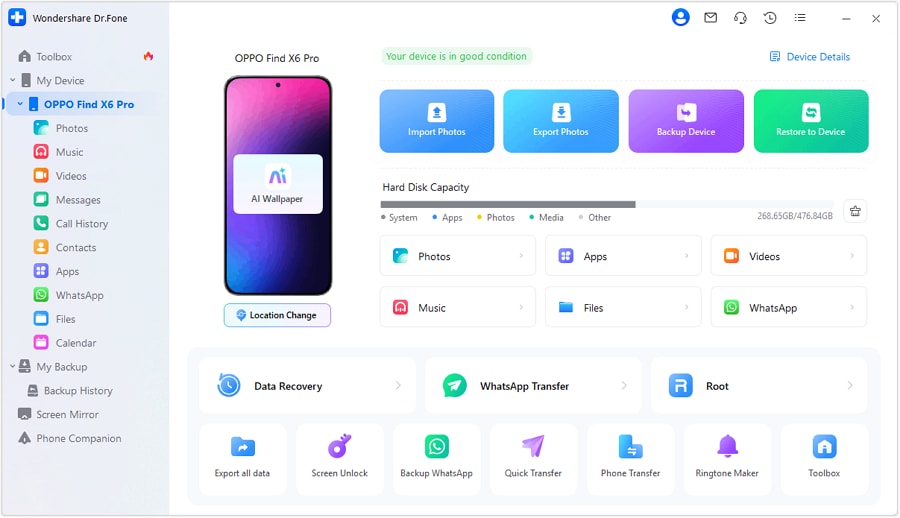
 Note: Dr.Fone can create/handle backups, but it can’t decide which files are safe to delete—you still must validate the backup opens and includes expected items.
 -
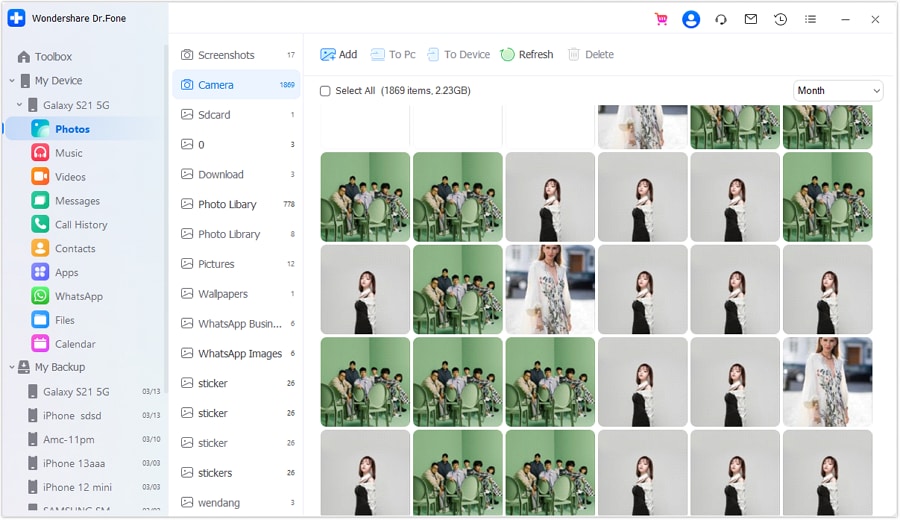
Step 2 Locate and review the relevant media before touching deletions
Use Dr.Fone’s device file/media management to access the photo/media areas you plan to clean, so you can preview items and confirm you’re working in the correct locations.
-
Step 3 Stage a small test cleanup batch (“pilot batch”)
Remove a small, clearly confirmed set of duplicates first, then re-check WhatsApp/Gallery behavior before scaling up.
 Note: Deletion is a high-risk moment—don’t scale up until your pilot batch passes your verification checks.
 -
Step 4 Scale cleanup + run post-checks before emptying any trash
Continue in batches, then run your planned after-checks (spot-check chats, Gallery counts, storage freed) before permanently removing anything.
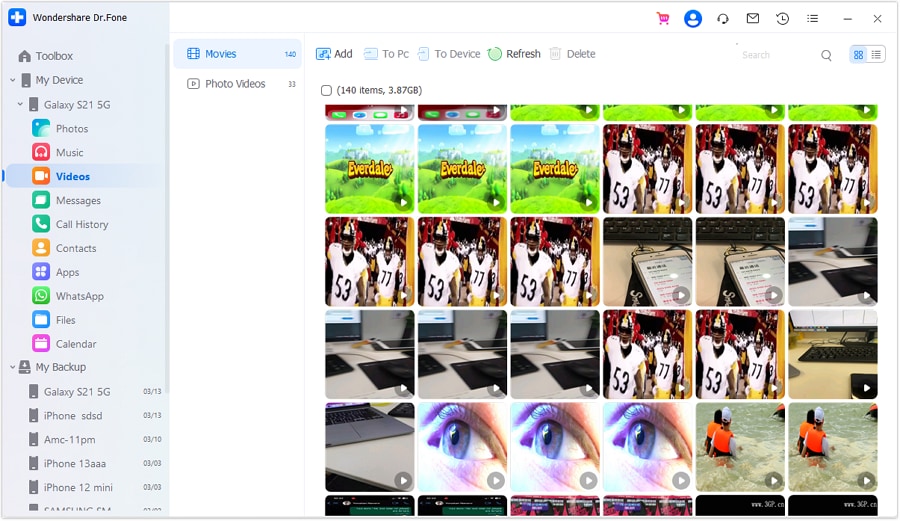 Note: Once items are permanently removed (e.g., trash emptied), recovery may be difficult or impossible without a verified backup.




Conclusion
AI is best used to plan a safe, gated workflow with clear verification before any irreversible deletion; once that plan is solid, a real tool like Dr.Fone is used to execute backups and controlled cleanup on the device.
FAQ
-
How do I avoid deleting the only copy of a photo/video?
Back up first, then use a sampling method: confirm suspected duplicates truly match (same file size/date and visually identical), and verify at least one safe copy remains after deletion.
-
Where do WhatsApp media duplicates usually come from?
Common causes include restores/migrations, “Sent” folder copies, downloads re-saved by Gallery apps, forwarded media creating new files, and cloud apps re-downloading.
-
What’s the most dangerous moment in this workflow?
When you permanently delete files (or empty trash). Do not reach that point until your backup and sampling verification gates are passed.
-
Should I clean thumbnails and “Statuses” media too?
Only after confirming you’re not impacting anything you care about. Thumbnails are usually safe to remove, but always verify the exact folder and contents first.
-
Can AI tell me which exact files are duplicates on my phone?
No. AI can define criteria and a safe workflow, but it can’t inspect your device files or confirm which ones are duplicates.
 Add Wondershare Dr.Fone as a preferred source on Google





