 Effortlessly manage data through preview, delete, export, etc.

 100% Security Verified | No Subscription Required | No Malware

 :
: 
 ChatGPT
 Perplexity
 Gemini
 Claude
 Grok
Grok

I took my microSD out to move photos, put it back in, and now it either doesn’t show up or says it needs to be formatted. I can’t tell if the card is dying or if the reader/adapter/phone port is the real issue—what should I test first without risking data loss?
Forum user
SD cards can fail quietly—or they can be fine while the reader, adapter, or phone port is the real problem. This usually shows up right after you reinsert the card, restart your phone, or try a different device (for example, switching between an Android phone and an iPhone 14 using an SD reader). Nothing changes after several minutes, and it’s unclear whether the card is still being detected in the background.
AI (like ChatGPT or Gemini) can help you describe the symptoms precisely, compare likely causes, and narrow down what to test next with the lowest risk. The goal is to identify whether you’re dealing with a card problem, a reader/adapter problem, a device/OS issue, or a formatting/encryption mismatch.
AI can’t “see” your hardware, and trial-and-error can worsen data loss (especially if you format, run “repair” tools, or keep hot-swapping). Use AI for diagnosis and decision-making, then use a practical tool to carry out the safest next step.
In this article
- Is my SD card bad or is the reader failing: common signs
- How this problem usually starts
- What “unreadable” and “format” warnings can indicate
- Card vs reader vs device/OS uncertainty
- Before you prompt the AI (what to collect)
- Using AI prompts to diagnose SD card vs reader failure safely
- When to stop troubleshooting SD card not reading to avoid data loss
- Unlock Android phone to access SD card with Dr.Fone
- AI output vs reality (what AI can’t verify)
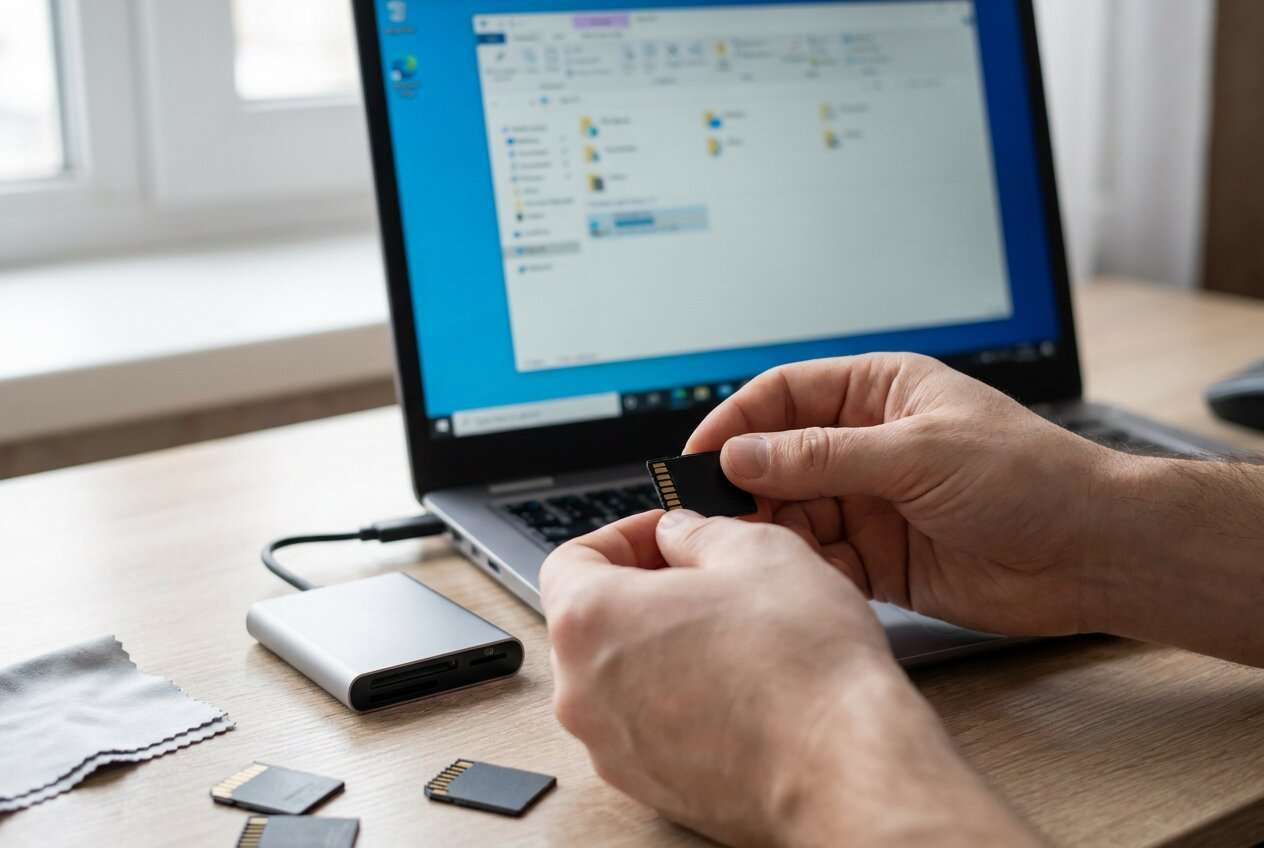
Part 1. Is my SD card bad or is the reader failing: common signs
This situation often starts after a normal action: you removed the microSD to transfer photos, you tapped Restart, or you connected a USB/SD adapter to your laptop. Then the card shows as unreadable, needs to be formatted, or simply doesn’t appear at all.
The key uncertainty is where the failure lives: the SD card (wear, corruption, controller failure), the reader/adapter (dirty pins, power/compatibility), or the device/OS (permissions, encryption, driver issues). On Android, you might also see prompts like “Set up SD card” or “SD card missing,” even though the card was working yesterday.
If you’re doing this on multiple devices (e.g., an Android phone plus an iPhone 13 using an SD import reader), inconsistent results can feel like the card is “half-working,” which makes it harder to choose a safe next action.
1-1. Before You Prompt the AI
Gather a few concrete observations first:
- Device(s) tested (phone model + OS version, and any laptop/OS)
- Card type/capacity (microSD/SD, brand, size, age if known)
- How it’s connected (built-in slot, USB adapter, hub, Lightning/USB-C reader)
- Exact error text (or screenshots) and whether the card appears in settings/disk tools
- What changed right before it failed (restart, update, removal, new adapter, drop/water, low battery)
Part 2. Using AI prompts to diagnose SD card vs reader failure safely
2-1. Level 1: Basic Prompt
My SD card isn’t being recognized. Help me decide if the SD card is failing or the reader/adapter/device is failing. Ask me the minimum questions needed, then give me the safest tests to run first that won’t risk data loss.
2-2. Level 2: Advanced Prompt
Diagnose my “SD card not reading” issue.
Task: Rank the most likely causes from most to least likely, and propose a low-risk testing sequence.
Constraints: Avoid any step that can overwrite data (no formatting, no “repair” writes, no re-partitioning).
Output format:
1) Top 5 likely causes (with probability-style ranking)
2) Evidence that supports/refutes each cause
3) Safest next 6 tests in order (and what each test proves)
4) Stop conditions (when I should stop testing)
2-3. Level 3: Evidence Prompt
Help me troubleshoot whether my SD card is bad or the reader is failing using the evidence below. Please separate card-level, reader/adapter-level, device/OS-level, and file-system/encryption-level causes. Then give the safest next steps.
Evidence (fill in):
- SD card type/capacity: (e.g., microSD 128GB)
- Card age/usage: (e.g., 2 years, dashcam daily)
- Primary device: (e.g., Samsung Galaxy S22 on Android 14)
- Other devices tested: (e.g., Windows 11 laptop, iPhone 13 Pro with SD reader)
- Connection method: (e.g., USB-C hub, built-in slot, Lightning reader)
- What happened right before failure: (e.g., restarted phone / removed card without eject)
- Symptoms: (e.g., not detected / “needs to be formatted” / slow read then disconnects)
- Does it appear anywhere?: (Android Storage list / Disk Management / Disk Utility)
- Exact error text: (paste)
- Any physical signs: (e.g., bent adapter, dirty contacts)
- Data importance: (e.g., only copy of photos)
Rules:
- Do not recommend formatting or repair tools that write to the card unless I explicitly say the data is disposable.
- Explain what each recommended test proves and the risk level (low/medium/high).
2-4. Prompt Refinement
If the AI answer feels generic, push it to be more discriminating with follow-ups:
“What are the missing questions you need from me to choose between ‘bad card’ vs ‘bad reader’ with higher confidence?”
“Re-rank the causes assuming the card fails on two different readers but works intermittently on one device.”
“Split your diagnosis into categories: electrical/connection, file system, encryption/permissions, and physical media failure.”
“What single piece of evidence would most strongly confirm a failing SD controller vs a dirty/underpowered adapter?”
“List the top 3 tests that are read-only and explain exactly what results mean for each.”
Part 3. When to stop troubleshooting SD card not reading to avoid data loss
Stop early when the risk of making things worse exceeds the value of more guessing.
- The card repeatedly disconnects/reconnects, heats up, or causes the phone/PC to freeze.
- You see prompts to format the card and the data is important or not backed up.
- The card is detected but shows 0 bytes, wrong capacity, or a changing size between attempts.
- You hear/see physical issues (loose slot, cracked adapter, liquid exposure) that could cause electrical instability.
Once you’ve narrowed the likely cause (card vs reader vs device), the next step is controlled execution—accessing the device safely, preserving data, and avoiding actions that write to the card.
Part 4. Unlock Android phone to access SD card with Dr.Fone
If your SD card is inside an Android phone and you can’t get past the lock screen (or you can’t reach storage settings to verify detection), that blocks basic, low-risk checks like confirming whether the card appears in Storage or whether the device can read it at all. At this point, using Dr.Fone - Screen Unlock (Android) as an execution step can help you regain access to the phone UI so you can complete the diagnosis and decide what to do next—without guessing based on the adapter alone. Use the Unlock Android Screen workflow and follow the on-page Android lock screen removal guide to proceed carefully.
 Unlock Android phone in seconds.
- Remove PIN, pattern, password, fingerprint.
- Bypass Google FRP lock easily.
- Works on all Android brands & models.
- No tech skills required – user-friendly.

-
Step 1 Confirm your goal (access, not repair)
Open Dr.Fone and choose Screen Unlock so you can reach Android settings and storage checks without changing the SD card contents.

-
Step 2 Connect the Android device by USB
Plug the phone directly into the computer (avoid flaky hubs) to reduce disconnects during the unlock flow.

-
Step 3 Select the correct device path
Follow the prompts for your Android brand/model carefully, because choosing the wrong path can increase the chance of a failed attempt.

-
Step 4 Complete unlock, then validate SD detection
After access is restored, check Settings → Storage to see whether the SD card is detected and whether Android reports errors (avoid tapping any “Format” option).

-
Step 5 Run the lowest-risk next check
If the phone sees the card, copy the most important files first; if it doesn’t, treat it as a reader/card-level issue and avoid repeated hot-swaps.




Part 5. AI Output vs Reality
AI can map symptoms to likely causes, but it can’t validate hardware conditions directly.
| AI can help you decide | Reality you still must verify |
|---|---|
| Which observations point to card failure vs reader failure | Whether contacts, power, or port fit are actually stable |
| The safest order of tests to reduce risk | Whether a “safe” test triggers disconnects that worsen corruption |
| How to interpret “format disk” warnings | Whether the file system is unsupported vs genuinely corrupted |
| When to stop to avoid overwriting data | Whether your next action will cause writes (even accidental ones) |
Use the AI output to choose the lowest-risk next step and a clear stop point—then switch to execution tools and careful handling to avoid accidental data changes.
Conclusion
Use AI to turn vague symptoms into a ranked set of likely causes and a low-risk testing order for “bad SD card vs failing reader,” then hand off execution to practical steps—such as unlocking an Android phone to confirm SD detection and copy critical files—without taking risky actions that could overwrite data.
FAQ
-
How can I tell if it’s the SD card or the reader without losing data?
Start with read-only checks: test the same card in a different known-good reader/device, and test a known-good card in the same reader; inconsistent detection usually points to the reader/adapter/port.
-
Why does my device say “SD card needs to be formatted”?
That message can mean corruption, an unsupported file system, or encryption/permission mismatch; formatting writes changes, so avoid it until you’ve decided the data is disposable or already backed up.
-
What does it mean if the SD card shows the wrong capacity (like 0 bytes)?
Wrong or fluctuating capacity can indicate controller-level failure, unstable power/connection, or severe partition table corruption; it’s a strong signal to stop repeated testing.
-
Can an Android lock screen prevent SD card troubleshooting?
Yes—if you can’t unlock the phone, you can’t verify whether Android detects the SD card in storage settings or safely copy files from the device side.
-
Does unlocking my Android phone fix the SD card problem?
No—unlocking only restores access so you can confirm detection, copy priority data, and make an informed decision about whether the card or reader is at fault.
 Add Wondershare Dr.Fone as a preferred source on Google





