 Effortlessly manage data through preview, delete, export, etc.

 100% Security Verified | No Subscription Required | No Malware

 :
: 
 ChatGPT
 Perplexity
 Gemini
 Claude
 Grok
Grok

I set up a “shared” tablet and realized too late it was pulling in my personal photos and messages. I wish I’d had a checklist for the right order before I signed into anything.
Forum user
Setting up a shared tablet alongside a personal phone can quietly go wrong if you miss one step—like syncing the wrong photos, messages, or cloud account to a device everyone uses.
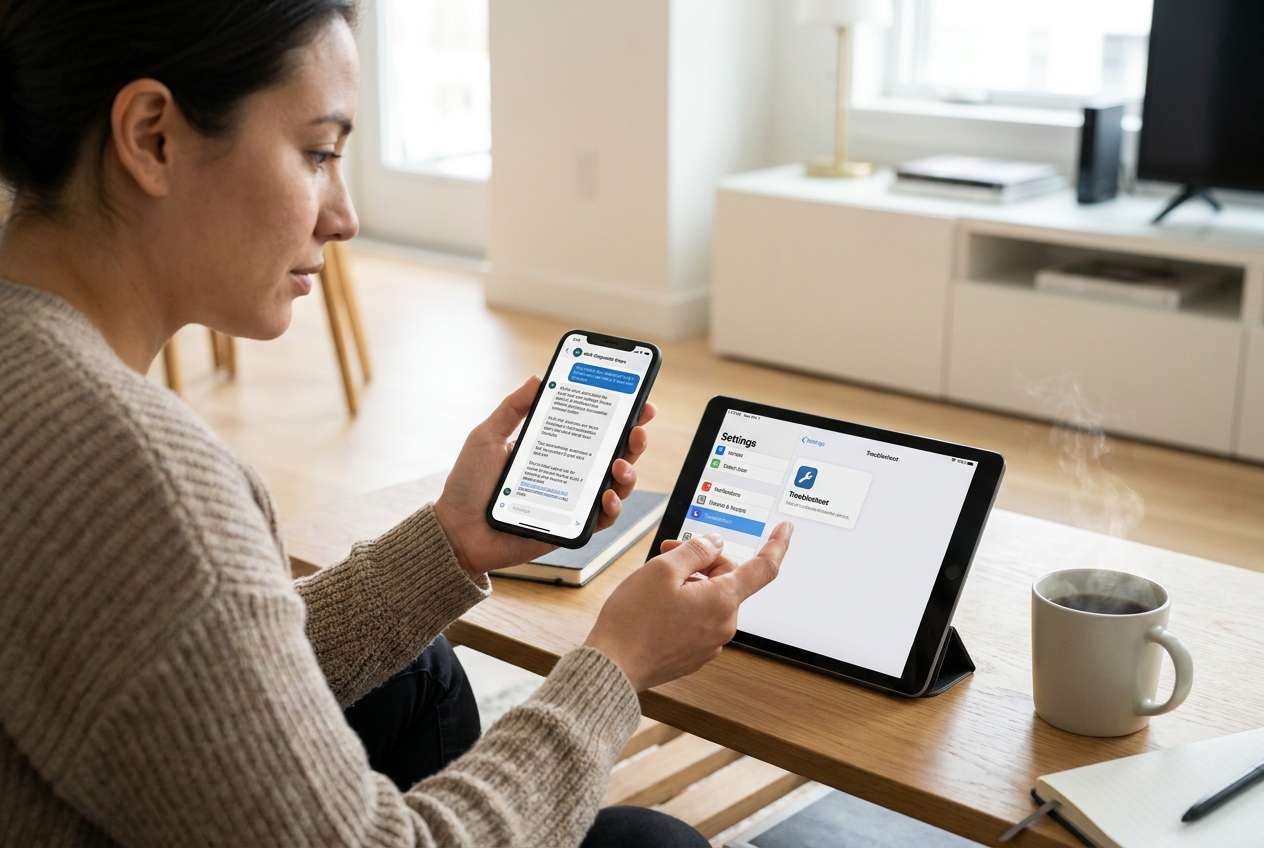
AI is useful here to map the sequence (what must happen first), flag risks, and define verification checks so you don’t cross a “can’t easily undo” moment too early.
AI can’t touch your devices, sign you out, back up data, or transfer anything; once the plan is locked, execution needs real device tools and clear confirmation steps.
In this article
- How to plan a shared tablet setup without missing critical steps
- Define the shared-tablet scenario
- Decide the correct setup order
- Identify point-of-no-return moments
- Set the goal: share convenience, not private data
- What the AI needs to know
- Using AI prompts to build a safer workflow
- When to stop planning and start execution
- Execute the workflow safely with Dr.Fone
Part 1. How to plan a shared tablet setup without missing critical steps
1-1. Define the shared-tablet scenario
A common situation: you have a personal phone with private content, and you’re setting up a tablet that will be shared (family, kids, partner, workplace). You want convenience (some shared apps, maybe shared calendar) without exposing personal messages, photos, or cloud backups.
1-2. Decide the correct setup order
After asking AI for advice, you may still feel unsure about the order: Do you create a new Apple ID/Google account first, or set up the tablet first? Should you migrate anything from the phone, and if so, what exactly? Which toggles (cloud sync, backups, photo sync, messaging) are “safe” on a shared device?
1-3. Identify point-of-no-return moments
The point-of-no-return moment is usually signing into the wrong cloud account and enabling sync/backup, or erasing a device to restart without a verified backup—either can lead to privacy leakage or permanent loss if you overwrite or merge data.
1-4. Set the goal: share convenience, not private data
Your plan should explicitly separate: (1) what must remain private on the phone and (2) what is allowed to appear on a device that multiple people can access.
Part 2. What the AI needs to know
Answer these so the plan matches your real risk profile and device limits:
- Phone OS and model (e.g., iPhone 14 iOS 17 / Samsung S23 Android 14)
- Tablet OS and model (e.g., iPad 9th gen iPadOS 17 / Galaxy Tab Android 13)
- Who will use the tablet and how (kids only / household / workplace / guest use)
- Which data must stay private (photos, messages, WhatsApp, notes, files, browsing, passwords)
- Which data you want shared (streaming apps, calendar, email, purchases, contacts)
- Current cloud accounts involved (Apple ID(s), Google account(s), Microsoft, etc.)
- Whether the tablet is already set up or has data on it
- Whether you can use multiple users/profiles on the tablet (varies by Android/iPad)
- Any management constraints (MDM, work profile, parental controls, screen time policy)
- Your tolerance for reset/restart if something looks wrong (yes/no)
Part 3. Using AI prompts to build a safer workflow
Use the prompts below to force a clean sequence with explicit verification before any irreversible step.
3-1. Level 1: Basic prompt
Help me plan how to set up a shared tablet while keeping my personal phone data private. I want a step-by-step order with the main risks and what to verify at each step. Do not give device-click instructions—just the workflow and checks.
3-2. Level 2: Advanced prompt
Design a workflow to set up a shared tablet with a personal phone, separating Preparation, Execution, and Verification.
Include critical vs optional steps, and call out any irreversible/high-risk moments (like enabling cloud sync on the wrong account or erasing a device) that must not happen until verification is complete.
3-3. Level 3: Evidence prompt
Create a risk-controlled setup plan using this context, and include checks before / during / after each phase:
- Phone: (iPhone 13, iOS 17.4)
- Tablet: (iPad 10th gen, iPadOS 17.4)
- Users: (2 adults + 2 kids)
- Must stay private: (iMessage, Photos library, Notes, Passwords, WhatsApp)
- OK to share: (Netflix/Disney+, a shared calendar, a few games)
- Accounts: (one personal Apple ID on phone; tablet is new but may be signed in already)
Also provide a “Stop if you see this” list (e.g., prompts about merging data, enabling full photo sync, or restoring backups).
3-4. Prompt refinement (follow-up prompts)
Break the plan into a checklist with gates: “Proceed only if these 3 checks are true,” for each phase.
Identify exactly which items are safe to transfer from phone to tablet (and which should never be transferred for a shared device), then explain why.
Give me a minimal-privacy setup (most locked down) and a balanced setup (some sharing), and list the tradeoffs.
List the top 10 missteps people make in this setup, and for each misstep add a prevention check and a recovery path.
Create a short “verification script” I can read out loud while I check settings (accounts signed in, sync toggles, backups, messaging, photo sync).
3-5. AI plan vs. real device constraints
- AI can outline a safe order → only the device can confirm which account is actually signed in and syncing right now.
- AI can warn about irreversible moments → only real tools can back up, transfer, or erase data reliably.
- AI can propose separation strategies → OS limits (iPad multi-user, Android profiles, MDM rules) may block parts of the plan.
- AI can provide checklists → real-world prompts (“Merge?”, “Keep on device?”, “Restore backup?”) vary by OS version and must be verified live.
AI improves planning, but it cannot execute changes; you still need to validate on-device prompts and use proper tools for backup/transfer/erase.
Part 4. When to stop planning and start execution
- You have a written list of what will be shared vs kept private, and it matches the real users of the tablet.
- You have confirmed which cloud account(s) should be used on the tablet (and which must not be used).
- You have a backup plan that you can verify (what’s backed up, where it is, and how you’d restore).
- You have identified the no-return actions (enabling full cloud sync on the wrong account, restoring a backup to the wrong device, factory reset/erase) and placed them after verification gates.
Once these are true, the remaining risk is mostly execution accuracy rather than planning gaps.
Part 5. Execute the workflow safely with Dr.Fone
Execution matters now because this is where data can be copied, merged, or erased—your plan must be applied exactly, with verification before any destructive action. If you want a more controlled way to back up and move only the approved data types, Dr.Fone - Phone Transfer can help you carry out the plan with clearer boundaries than “restore everything” defaults.
 Move data between iOS to Android and vice versa.
- Transfer contacts, SMS, photos, videos, music, and more types.
- Available with all phones with Android and iOS versions.
- Simple, click-through process.

-
Step 1 Create a verified safety net (backup) before any transfer or reset
Back up the device(s) involved so you can recover if setup prompts lead to accidental overwrites or account mix-ups. AI can tell you what to protect, but it cannot perform or validate an actual backup file.

-
Step 2 Transfer only the approved data set (not the whole personal profile)
Move only the specific categories you decided are safe (instead of cloning everything by default), then immediately spot-check the tablet for unintended private data. AI can recommend boundaries, but it can’t see what actually landed on the tablet after transfer.
-
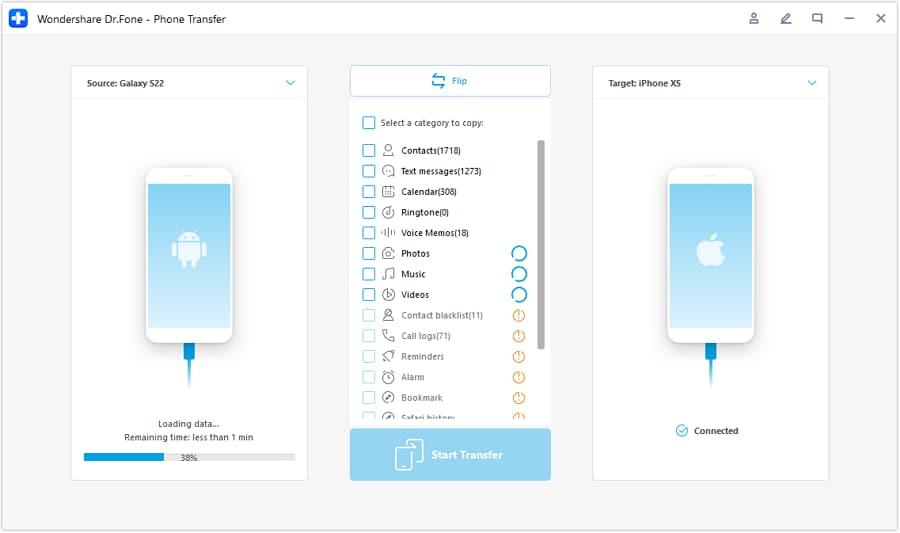
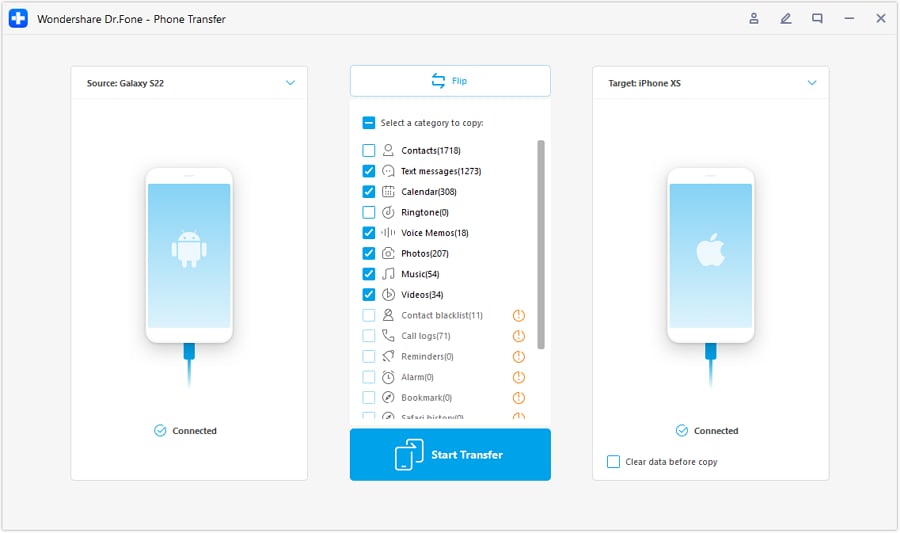
Step 3 Confirm transfer scope and monitor progress during execution
Double-check the selected data types and watch the transfer process so you can stop and reassess if anything looks off (wrong device pairing, unexpected categories, or prompts implying a full restore/merge).
-
Step 4 Only after verification, apply irreversible cleanup if needed (high risk)
If the tablet was previously tied to the wrong account or contains unwanted personal data, remove/erase the unwanted data only after confirming you have the right backups and the correct target device. AI can warn you, but it cannot stop you from erasing the wrong device—this is the point-of-no-return moment.




Conclusion
Use AI to design a tight sequence with clear verification gates and explicit “don’t cross yet” moments; then use real tools like Dr.Fone to carry out backups, selective transfers, and any high-risk cleanup actions safely.
FAQ
-
What is the biggest privacy risk when sharing a tablet linked to a personal phone?
Accidentally signing into the personal cloud account on the shared tablet and enabling broad sync (photos, messages, notes, passwords), which can replicate private data onto a shared device. -
When should I avoid “restore from backup” during setup?
When the backup is from a personal phone and the tablet will be shared; full restores often bring over accounts, app data, messages, and settings you didn’t intend to share. -
What should I verify before I erase/reset anything?
That you have a working backup, you can identify the correct device, and you’ve confirmed which accounts are signed in and which sync features are enabled. -
Can AI tell me exactly which buttons to tap on my device?
It can describe typical paths, but prompts and menus vary by OS version, region, and management policies; use AI for the workflow and use the device (and tools) for the actual steps. -
How do I know the setup worked after execution?
Do a quick audit: signed-in accounts, cloud sync toggles, photo library contents, messaging availability, browser history, and whether new app installs/purchases are routed through the intended account.
 Add Wondershare Dr.Fone as a preferred source on Google





