 Effortlessly manage data through preview, delete, export, etc.

 100% Security Verified | No Subscription Required | No Malware

 :
: 
 ChatGPT
 Perplexity
 Gemini
 Claude
 Grok
Grok

“I updated my iPad and now it’s just stuck on the Apple logo with a progress bar that won’t move. I don’t know if I should keep waiting or if it’s frozen.”
Apple Support Community user
Your iPad may get stuck on the startup screen right after an iPadOS update—often after tapping Install Now or after the automatic restart. This can look like a frozen Apple logo or a loading bar that never finishes on devices like an iPad Air (5th gen) or iPad Pro 11-inch. From the outside, it’s unclear whether the update is still working or completely stalled.
AI can help you analyze the symptoms you’re seeing, narrow down the most likely causes, and suggest low-risk checks in the right order. Tools like ChatGPT or Gemini are especially useful for turning scattered observations into a clear decision path.
AI can’t see your iPad directly, and trial-and-error can raise the risk of data loss (or turn a minor glitch into a bigger one). The goal is to use prompts to diagnose carefully—then hand off the execution to a safer, purpose-built method.
In this article
- Part 1. Why iPad stuck on startup screen after iPadOS update happens and what it means
- What the startup screen freeze usually means
- Common triggers during/after an update
- Why “waiting vs acting” feels uncertain
- What to collect before you ask AI
- Part 2. Using AI prompts to diagnose iPad startup screen freeze safely
- Part 3. When to stop troubleshooting iPad boot loop after iPadOS update and avoid risks
- Part 4. Repair iPadOS startup screen issue with Dr.Fone System Repair
- Part 5. Quick checklist to keep diagnosis low-risk
Part 1. Why iPad stuck on startup screen after iPadOS update happens and what it means
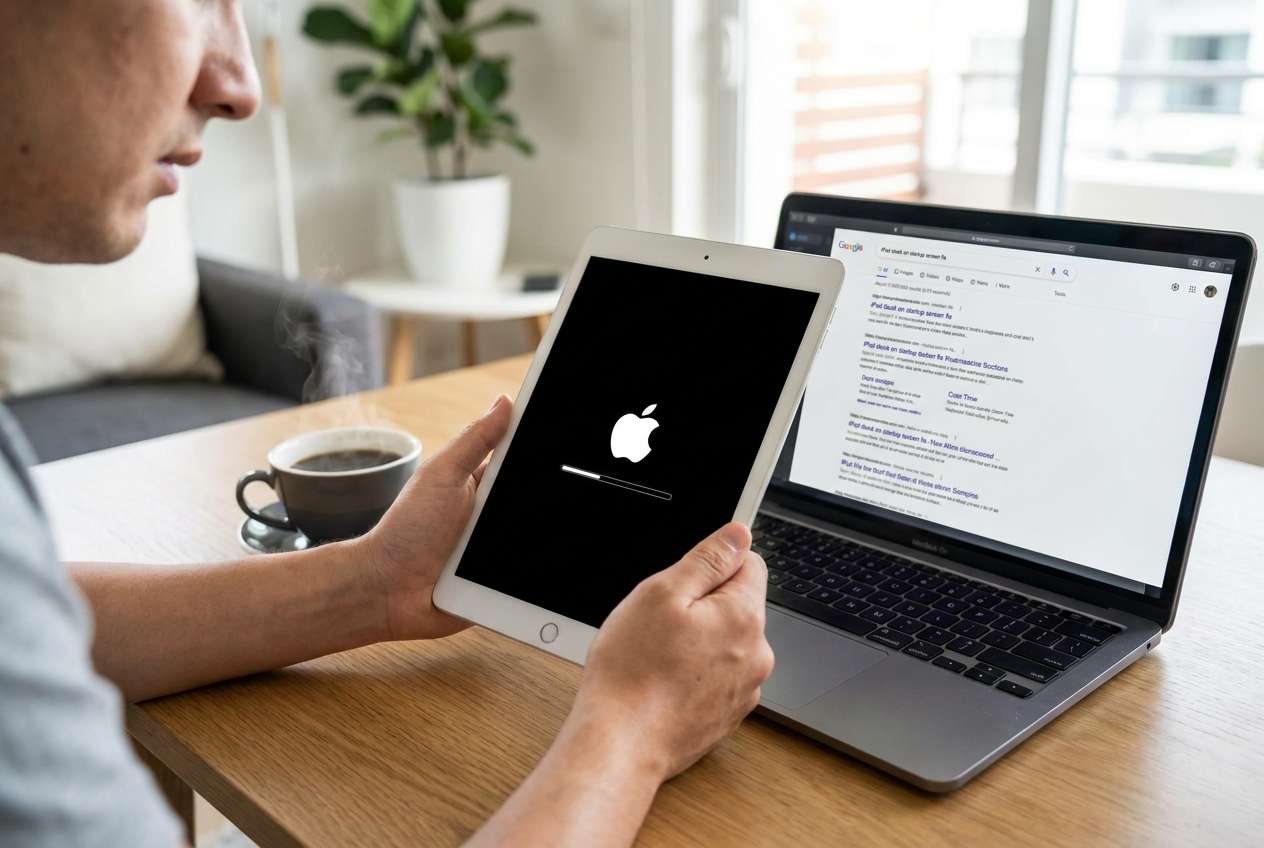
If your iPad is stuck on the startup screen after an iPadOS update, it usually means the boot process can’t complete normally. This might be a temporary “finishing update” delay, a stalled install, or a system component that isn’t loading correctly.
Common triggers include updating with low battery, unstable Wi‑Fi during download, low storage, or a conflict that appears after the restart. Sometimes it’s not a true freeze—just no visible progress for a long time—so it’s easy to misjudge what’s happening.
What makes this stressful is the uncertainty: the screen looks “alive” (logo, spinner, or progress bar), but nothing changes after several minutes, and you don’t know whether waiting helps or harms.
1-1. Before You Prompt the AI
Collect a few details first so the AI can reason from evidence, not guesses:
- iPad model and approximate age
- iPadOS version you attempted to install (if known)
- What you see now (Apple logo, progress bar %, spinner, black screen)
- How long it has been stuck
- Battery level / was it plugged in
- Any recent storage warnings or “iPad Storage Full” messages
- Whether the iPad was dropped, exposed to liquid, or overheated recently
Part 2. Using AI prompts to diagnose iPad startup screen freeze safely
2-1. Level 1: Basic Prompt
My iPad is stuck on the startup screen right after an iPadOS update. I see [describe: Apple logo / progress bar / spinner] and it has not changed for [X minutes]. What are the most likely causes, and what are the lowest-risk next steps to try first without increasing data-loss risk?
2-2. Level 2: Advanced Prompt
Act like a cautious triage assistant. My iPad is stuck on the startup screen after an iPadOS update.
Symptoms: [Apple logo / progress bar / spinner / black screen], stuck for [X minutes], was [plugged in/not plugged in].
Context: I started the update by [Install Now / overnight auto-update], storage was [enough/low/unknown], internet was [stable/unstable].
1) Rank the top 5 likely causes from most to least probable.
2) For each cause, list one key piece of evidence that would confirm it.
3) Give a low-risk action order (what to try first, second, third) and label anything that could raise risk (data loss, longer downtime, repeated boot failures).
4) Tell me what not to do yet and why.
2-3. Level 3: Evidence Prompt
Help me diagnose an iPad stuck on startup screen after an iPadOS update using only the evidence below. Then propose the safest decision tree (wait vs restart vs computer-based recovery vs repair tool).
Device:
- iPad model: (e.g., iPad Pro 11-inch 3rd gen)
- Storage free before update: (e.g., ~6 GB free)
- Battery state: (e.g., 40% and plugged in)
Update event:
- Started update by: (e.g., tapped Install Now)
- iPadOS version target: (if known)
- Any interruptions: (e.g., Wi‑Fi dropped / battery drained / got hot)
Current screen behavior:
- Screen shows: (e.g., Apple logo only / Apple logo + progress bar)
- Progress bar movement: (e.g., moved to ~20% then stopped)
- Total time stuck: (e.g., 45 minutes)
- Any cycles: (e.g., reboots to logo repeatedly)
- Any computer recognition: (e.g., Finder/iTunes sees it / not detected)
Constraints:
- Data sensitivity: (e.g., need photos/notes, no recent backup)
- What I already tried: (e.g., waited 30 minutes, changed charger)
Output format:
A) Top 3 likely causes + confidence
B) Key evidence missing (questions you need me to answer)
C) Safest next step sequence with “stop” conditions
D) If a repair tool is appropriate, specify when and why (risk-aware)
2-4. Prompt Refinement
If the AI answer feels generic, use these follow-ups to force clarity and safer sequencing:
What exact questions do you still need answered to distinguish between ‘still updating’ vs ‘stalled install’ vs ‘boot loop’?
Separate your diagnosis into power/charging, storage/update, system corruption, and hardware categories, then rank within each category.
Based on my symptoms, rank the top causes again and explain what single piece of evidence would most change your ranking.
Give me a stop-rule: after what time limit or behavior change should I stop waiting and switch strategies?
List the lowest-risk actions that do not require wiping data, and clearly mark any step that could lead to data loss.
2-5. AI Output vs Reality
AI can organize your evidence and recommend a cautious order, but it can’t verify what your iPad is doing internally.
| What AI can infer from your inputs | What you must confirm in the real world |
|---|---|
| Whether the symptoms resemble a boot loop vs a stalled progress bar | Whether the progress bar ever moves, even slightly, over time |
| Whether power, storage, or interruptions are plausible contributors | Actual battery/charging stability and cable/adapter behavior |
| Whether a computer-based recovery path is indicated | Whether Finder/iTunes detects the iPad (normal vs recovery/DFU) |
| Whether “risk of data loss” is high based on constraints | Whether you have a recent backup and how critical the data is |
AI reduces guesswork, but execution still depends on what the device shows (detection state, stability, and how it responds to recovery attempts).
Part 3. When to stop troubleshooting iPad boot loop after iPadOS update and avoid risks
If you keep repeating random restarts or switching methods without a plan, you can increase downtime and complicate recovery. Use clear stop signals so you don’t push a borderline system into a worse state.
- The iPad repeatedly returns to the Apple logo (looping) for more than 10–15 minutes with no change in pattern.
- The progress bar does not move at all after a long wait (for example, ~60 minutes) while plugged into a reliable charger.
- The iPad gets unusually hot, shows charging instability, or won’t stay powered consistently.
- A computer does not detect the iPad normally, or it only appears in recovery modes consistently.
Once you’ve used AI to narrow the likely cause and set a cautious action order, the next step is to use a controlled execution method that matches your risk tolerance (especially if you’re trying to preserve data).
Part 5. Quick checklist to keep diagnosis low-risk
- Use evidence first: model, on-screen state (logo/progress bar/spinner/black screen), how long it’s stuck, and whether it’s looping.
- Track power and stability: whether it’s plugged in, charging behavior, and any unusual heat.
- Confirm detection state: whether Finder/iTunes recognizes the iPad and in what mode.
- Define a stop-rule before you act: time limits and behavior changes that trigger switching strategies.
- Avoid improvising: repeated random restarts or method-switching can add downtime and make the symptoms harder to interpret.
Part 4. Repair iPadOS startup screen issue with Dr.Fone System Repair
When your iPad is stuck on the startup screen after an iPadOS update, a structured system repair workflow can be more predictable than repeating manual retries. At this point, your AI diagnosis should have clarified whether you’re dealing with a likely software-level startup failure (versus clear hardware damage). Dr.Fone - System Repair (iOS) becomes relevant as the execution layer: it applies a guided repair process for common iOS/iPadOS system issues while you follow a consistent, risk-aware sequence instead of improvising.
 Fix iOS issues, no data loss.
- One-click repair for all iOS problems.
- Solve recovery mode, Apple logo, black screen, etc.
- Upgrade or downgrade iOS without iTunes

-
Step 1 Confirm your goal (data-first)
Decide whether preserving data is the priority, and choose the lowest-risk repair option first if the tool offers a standard mode.

-
Step 2 Connect iPad to a stable computer setup
Use a reliable cable and keep the computer powered to reduce the chance of interruptions mid-process.

-
Step 3 Open System Repair (iOS) and select the iPad repair workflow
Choose Repair iOS Issues and follow the on-screen device detection steps carefully, stopping if the tool warns about mode requirements you’re unsure about.

-
Step 4 Run the repair process in the recommended order
Start with the least invasive repair path available, and avoid repeating multiple cycles back-to-back if behavior doesn’t change.

-
Step 5 Re-check boot outcome and update stability
After completion, verify the iPad boots normally and remains stable for several minutes before attempting any additional updates or restores.




Conclusion
AI is best used here to translate what you’re seeing into a ranked list of likely causes and a low-risk decision order, while avoiding impulsive trial-and-error. Once the diagnosis is reasonably narrow, handing execution to a controlled tool-based system repair workflow helps you apply the next steps consistently and with clearer risk boundaries.
FAQ
-
How long should I wait on the Apple logo after an iPadOS update?
If there’s no visible progress change for a long time (often around an hour while plugged in), treat it as likely stalled and switch to a more structured approach. -
Does an iPad stuck on the startup screen always mean a boot loop?
No. A boot loop is repeated restarts back to the logo; a stall is a single stuck state with no progress. -
What evidence should I give AI to get a useful diagnosis?
Model, what’s on-screen (logo/progress bar), how long it’s stuck, whether it’s looping, battery/charging state, storage situation, and whether a computer detects it. -
If Finder/iTunes doesn’t detect my iPad, what does that suggest?
It can suggest a deeper startup failure, a cable/port issue, or that the iPad is only detectable in recovery/DFU—your next step should prioritize safe, guided detection. -
Can I try multiple methods back-to-back if nothing works?
It’s better to stop and reassess; repeated attempts without a plan can add risk and make the situation harder to interpret.
 Add Wondershare Dr.Fone as a preferred source on Google





