 Effortlessly manage data through preview, delete, export, etc.

 100% Security Verified | No Subscription Required | No Malware

 :
: 
 ChatGPT
 Perplexity
 Gemini
 Claude
 Grok
Grok

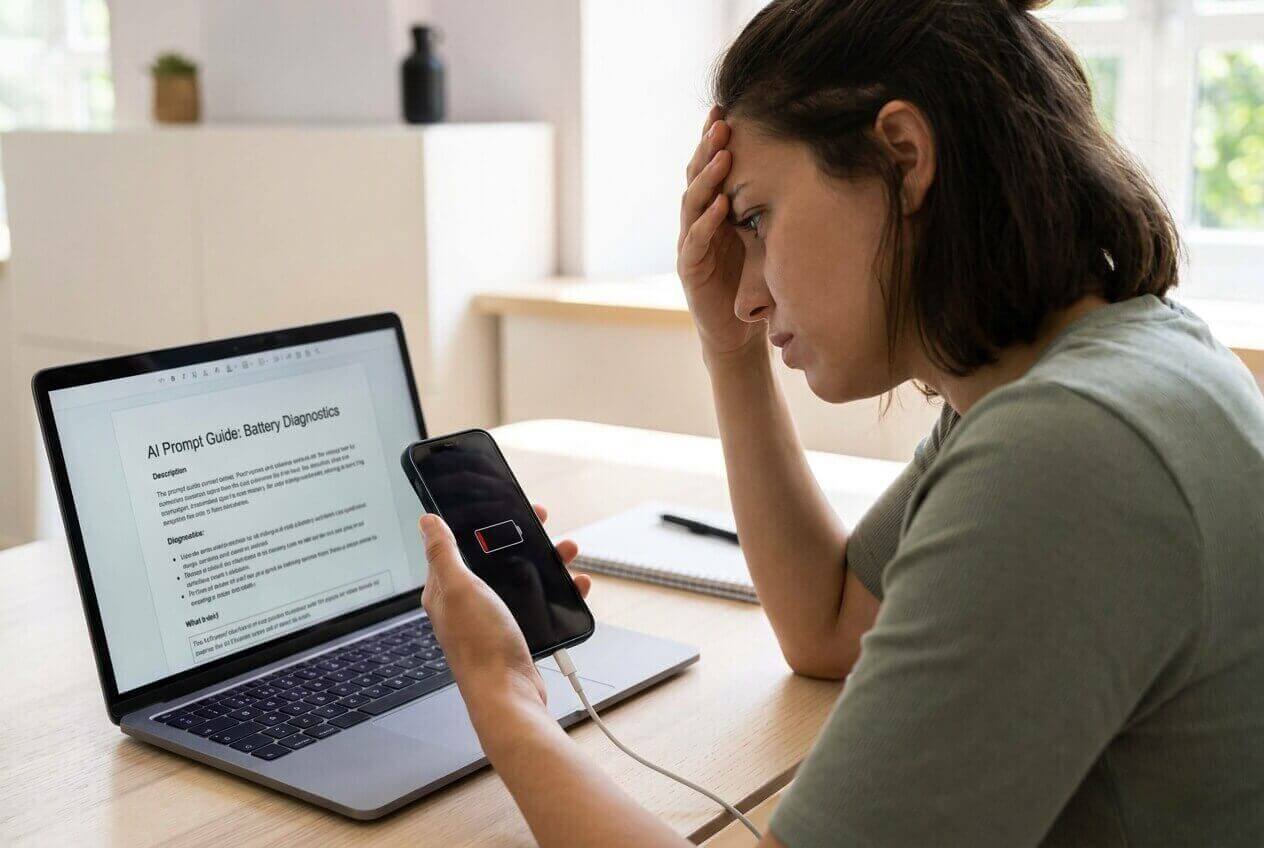
Ever since I installed the update, my battery is dropping way faster than before—especially overnight. I can’t tell if I should wait, tweak settings, or just reset.
Reddit user, r/Android
Battery drain after an update is frustrating because there usually isn’t one “best” fix—there are several, and each has trade-offs. Generic advice (“just factory reset”) can waste time or create new problems if it’s not matched to your situation.
AI helps by turning your vague symptoms into a structured comparison: what changed, what’s draining power, what you’re willing to risk, and how much time you want to spend troubleshooting. Instead of guessing, you can compare options by priorities like speed, safety, and likelihood of success.

In this article
- How to Compare Based on Real Priorities
- Fast relief vs thorough fixes
- Common causes after an update
- Risk vs disruption trade-offs
- Pick priorities to narrow options
- What the AI Needs to Compare
- Using AI Prompts to Evaluate More Clearly
- AI Recommendation vs Real-World Fit
- When to Stop Researching and Make the Call
How to Compare battery drain after phone update with ai guide Based on Real Priorities
Most people aren’t choosing between “good” and “bad” options here—they’re choosing between fast relief vs thorough fixes, and low risk vs higher disruption. The same symptom (battery drops fast) could be caused by a rogue app, new background syncing, indexing after the update, a bug, weak cellular signal, or an aging battery that the update simply exposed.
The real tension is usually one of these:
- “Do I wait it out and adjust settings, or do I take a bigger step like a reset?”
- “Is this software, or is it time for a battery replacement or a new phone?”
- “If I switch phones, how do I avoid data loss and reduce setup hassle?”
A good comparison focuses on what you value most right now: quickest improvement, least disruption, preserving data, or long-term stability.
What the AI Needs to Compare
Share the details below so AI can compare fixes based on your risk tolerance and time budget.
- Phone model and OS version (and what version you updated from, if you know)
- When the drain started (immediately after update vs days later)
- Battery health info (if available) and phone age
- What “drain” looks like (screen-on vs overnight idle, heat, fast drop on cellular, etc.)
- Top battery users (apps/services), background activity, and whether the phone gets warm
- Any new settings enabled by the update (location, always-on display, new sync, widgets)
- Your constraints: can’t lose data, can’t be offline long, need reliability for work
- Your acceptable “disruption level”: quick settings changes vs reset vs switching phones
Using AI Prompts to Evaluate battery drain after phone update with ai guide More Clearly
Use these prompts to force a trade-off-based comparison rather than a generic checklist.
Level 1: Basic Prompt
I have battery drain after a phone update. Compare the most common options (wait it out, adjust settings, uninstall apps, reset settings, factory reset, battery replacement, switching phones) and tell me which two are best to try first based on minimizing risk and time.
Also list what information would most change the recommendation.
Level 2: Advanced Prompt
Act as a decision assistant, not a tech support script. Compare these options for post-update battery drain:
1) wait 48–72 hours, 2) change settings (background refresh/location/display), 3) remove/limit high-drain apps, 4) reset settings, 5) factory reset + restore, 6) battery replacement, 7) switch phones.
For each option, explain:
- who it fits best
- what you gain / what you give up (time, risk, disruption, likelihood)
- “warning signs” that mean skip this option and move to the next
Then recommend a sequence of 2–3 steps based on my priorities: fast improvement, low risk, and no data loss.
Level 3: Evidence Prompt
Here’s my context:
- Phone model/age: [fill in]
- Update installed: [fill in]
- Drain pattern: [overnight idle drops __%] / [screen-on drops __% per hour]
- Heat: [yes/no, when]
- Battery usage top items: [list top 5]
- Signal/Wi‑Fi: [mostly Wi‑Fi / mostly cellular / poor signal]
- What I already tried: [list]
- My constraint: [can’t factory reset / can reset / can’t be offline / need it stable by tomorrow]
Based on this, recommend the best next step and one fallback step. For each, explain what I gain and lose, and name one key assumption you’re making that—if wrong—would flip your recommendation.
Prompt Refinement
If you had to bet, is this software indexing/bug, an app behavior change, network/signal, or battery aging exposed by the update? Rank them and explain your reasoning using my symptoms.
What is the fastest test that separates “one bad app/service” from “system-wide drain” without a factory reset? Give me a 20-minute experiment plan and what results mean.
Tell me the most likely regret for each path (e.g., waiting too long, resetting too soon, replacing battery unnecessarily, switching phones prematurely).
If my priority is “least disruption,” what’s the maximum I should do before stopping and switching strategies? Define a stopping rule.
What settings changes are reversible and low-risk, and which ones tend to create side effects (missed notifications, worse photos/location accuracy)?
If the drain is mostly on cellular, how does that change the recommendation compared to Wi‑Fi-only drain?
AI Recommendation vs Real-World Fit
| likely AI recommendation or conclusion | what real-life use may change or reveal |
|---|---|
| “Wait 48–72 hours after updating; indexing and optimization may settle.” | Your usage pattern (navigation, hotspot, weak signal commute) may keep drain high indefinitely, so “waiting” doesn’t prove it will improve. |
| “One or two apps/services are the true culprits; limit background activity.” | The app may be essential for your workflow, so the ‘fix’ creates friction (missed messages, delayed sync, unreliable alerts). |
| “A settings reset or factory reset is the cleanest way to rule out software issues.” | Restore choices (full restore vs fresh setup) can reintroduce the problem, and downtime may be unacceptable. |
| “Battery health/age suggests hardware is the limiting factor; consider replacement or switching.” | Real battery behavior can vary by temperature, charging habits, and accessory use; a replacement may help less than expected if drain is network-driven. |
AI can clarify likely fit and trade-offs, but hands-on use, workflow friction, and daily habits still decide satisfaction.
When to Stop Researching battery drain after phone update with ai guide and Make the Call
- You can clearly state your top priority (fast relief, least disruption, long-term stability, or avoiding data risk) and your recommendation aligns with it.
- You have a simple stopping rule (for example: “If idle drain is still above X% overnight after two low-risk changes, I’ll escalate to reset/repair”).
- You’ve identified the biggest flip factor (e.g., battery health, poor cellular signal, one specific app) and run at least one quick test to check it.
- You’re no longer comparing “infinite tips”—you’re choosing between two realistic next steps with known downsides.
Once you’re down to a clear next move (and a fallback), the decision is ready enough to act on.
After Choosing battery drain after phone update with ai guide: Switch or Prepare Smoothly with Dr.Fone
After you decide—whether that’s a factory reset, battery replacement, or switching phones—the practical risk shifts to data continuity: backing up what matters, moving it cleanly, and avoiding leftover personal data if you’re retiring the device. If you also run into lock-screen access issues during troubleshooting, Dr.Fone - Screen Unlock (Android) can help you regain access so you can proceed with the plan you chose.
 Unlock Android phone in seconds.
- Remove PIN, pattern, password, fingerprint.
- Bypass Google FRP lock easily.
- Works on all Android brands & models.
- No tech skills required – user-friendly.

Step: Back up before disruptive changes
Action: Use Dr.Fone to create a backup of the data you can’t afford to lose before a reset, repair visit, or troubleshooting that may require wiping the device.
Limitation: A backup only protects what it actually captures—verify the most important items (photos, messages, contacts) are included.
Step: Transfer what you need if you switch phones
Action: Use Dr.Fone to move key data to the new phone so you don’t rely on piecemeal re-downloads and missed items.
Limitation: Some app data or login-based content may still require signing in again or re-syncing inside the app.
Step: Clean up for trade-in or resale
Action: After you’ve confirmed your new setup is complete, use Dr.Fone to help remove personal data from the old phone so you can hand it off with less worry.
Limitation: Always confirm your accounts are removed and that the device is fully reset according to your phone’s platform requirements.
-
Step 1 Launch Dr.Fone and open the relevant tool
Start Dr.Fone on your computer and navigate to the tool you need for your situation (for example, access-related recovery so you can proceed with your plan).

-
Step 2 Select your device workflow
Choose the option that matches your device and what you’re trying to accomplish so you don’t take unnecessary, disruptive steps.

-
Step 3 Proceed with the on-screen function
Follow the on-screen instructions carefully and confirm you understand any impact on access, data continuity, or downtime before continuing.

-
Step 4 Confirm your device details and continue
Select the correct brand/model details when prompted to reduce errors and keep the process aligned with your chosen troubleshooting path.





Conclusion
AI is best used here as decision support: it helps you compare fixes by trade-offs, define stopping rules, and avoid regret-driven escalation. Real use is the final proof of fit, and once you choose a path that involves reset, switching, or resale, a practical tool like Dr.Fone can help you execute the backup/transfer/cleanup step safely.
FAQ
-
Can I trust AI to tell me the “real cause” of battery drain after an update?
AI can’t confirm the cause directly; it can only infer from your symptoms and guide you to tests that separate likely causes (apps vs system vs network vs aging battery). -
What’s the single most important trade-off in this decision?
It’s usually disruption vs certainty: low-risk tweaks are easy but may not fully solve it, while resets/repairs are more disruptive but can rule out entire categories of causes faster. -
How do I avoid a generic, spec-like checklist approach?
Give AI your drain pattern (idle vs screen-on), heat behavior, top battery users, signal conditions, and what you already tried—then ask for “what you gain/what you give up” per option and a stopping rule. -
What’s a common assumption that flips the recommendation?
Battery health/age. If the battery is already degraded, software fixes may only help a little; if the battery is healthy, an app/service or network condition becomes a more likely culprit. -
If I decide to factory reset, what should I prepare first?
Back up, list critical apps/accounts, note 2FA methods, and confirm you can sign back into everything. A reset is mostly an identity/access problem, not just a settings problem. -
If I switch phones because of this, what’s the cleanest way to reduce setup pain?
Decide what must move (contacts/photos/messages) vs what can be reinstalled, then do a deliberate backup/transfer before you wipe or trade in the old device.
 Add Wondershare Dr.Fone as a preferred source on Google




