 Effortlessly manage data through preview, delete, export, etc.

 100% Security Verified | No Subscription Required | No Malware

 :
: 
 ChatGPT
 Perplexity
 Gemini
 Claude
 Grok
Grok

I’m moving to a new phone, and I’m worried one wrong step will make WhatsApp restore incomplete—missing messages or media. I just want a safe order to follow and a way to verify everything transferred before I wipe the old phone.
Reddit user, r/whatsapp
Moving personal WhatsApp chats to a new phone sounds simple, but one missed step can lead to partial history, missing media, or a failed restore.
AI helps you map the safest sequence, identify what must be verified first, and prepare a checklist so you don’t discover problems only after you’ve switched devices.
AI cannot access your devices, see your WhatsApp state, or run transfers—so once the plan is correct, you need real tooling to execute and verify the move.
In this article
- How to plan a WhatsApp transfer without missing steps
- Why order matters
- What AI needs to know
- Prompts you can use
- AI vs real device constraints
- What the AI needs to know
- Using AI prompts to build a safer workflow
- When to stop planning and start execution
- Execute the workflow safely with Dr.Fone
1. Plan the exact sequence before doing anything irreversible.
Decide your transfer path (Android↔iPhone, same OS, same/new number), define “success,” and list the no-return actions you will not do until verification passes.
2. Use AI to produce a checklist with stop-gates and verification evidence.
Ask for phased steps (Preparation → Execution → Verification), “Stop/Do not proceed until…” checkpoints, and a sampling-based verification method (chat depth, timestamps, media playback, search).
3. Execute with a real transfer tool, then verify before cleanup.
AI can’t run transfers or confirm your on-device results, so perform the transfer with a dedicated tool and verify completeness on the new phone before deleting, clearing data, or resetting the old device.
Part 1. How to plan transfer personal WhatsApp chats to new phone without missing critical steps
You’re switching to a new phone and want your WhatsApp chats (and ideally media) to come across exactly as they are. You may also have complications like different OS (iPhone ↔ Android), a new SIM/number, limited storage, or flaky Wi‑Fi.
Even after asking AI “how do I transfer my chats,” you can still be unsure about the correct order: when to back up, when to connect accounts, what to confirm on the new phone, and how to prove everything migrated.
There’s also a point of no return: once you delete WhatsApp, clear app data, factory reset, or overwrite a working backup, you may not be able to recover missing messages. Planning must finish before any destructive action.
Part 2. What the AI needs to know
Answer these so the workflow can be sequenced safely:
- Old phone OS and model (e.g., iPhone 13 iOS 17 / Samsung S21 Android 14)
- New phone OS and model
- Transfer direction (Android→Android, iPhone→iPhone, Android→iPhone, iPhone→Android)
- WhatsApp account details: same phone number or changing number
- Whether you need media (photos/videos/voice notes) included
- Approximate chat size and free storage on both phones (e.g., “20 GB chats, 30 GB free”)
- Current backup state (last backup date, and where it’s stored if you know)
- Any constraints: no Wi‑Fi, limited data, damaged screen, old phone unstable
- Whether WhatsApp is already installed/activated on the new phone
- Your tolerance for downtime (minutes vs hours) and whether you can keep both phones available during transfer
Part 3. Using AI prompts to build a safer transfer personal WhatsApp chats to new phone workflow
Use these prompts to force a clear sequence with verification gates before you touch the devices.
3-1. Level 1: Basic prompt
I’m transferring personal WhatsApp chats from my old phone to a new phone. Create a safe, ordered checklist that avoids data loss and includes verification steps before I do anything irreversible. Don’t tell me to execute actions—only plan and what to confirm.
3-2. Level 2: Advanced prompt
Build a workflow for transferring WhatsApp chats with three phases: Preparation, Execution, and Verification.
In each phase, label steps as Critical vs Optional, and add “Stop/Do not proceed until…” checkpoints (e.g., confirm backup date, confirm sufficient storage, confirm chats visible on new phone) before moving on.
3-3. Level 3: Evidence prompt
Here’s my context: old phone (Android 14, Samsung S21), new phone (iPhone 15, iOS 17), same number (yes), WhatsApp size (≈12 GB), free storage (old: 18 GB, new: 40 GB), last known backup (unknown), network (home Wi‑Fi available), and I can keep both phones for 2 hours.
Create a step-by-step plan with checks before / during / after, and specify what evidence to capture (e.g., screenshot chat list count (e.g., “top 20 recent chats”), spot-check 5 chats (e.g., “one with media, one with long history”), confirm media visibility (e.g., “videos play”), confirm last message timestamp).
Include explicit “do not do yet” warnings for actions like deleting WhatsApp, clearing data, logging out, or overwriting a backup.
3-4. Prompt refinement
Rewrite the plan as a decision tree: if same OS vs cross‑OS, if same number vs new number, and if backup is current vs unknown—each path should end with a verification checklist.
List the top 10 failure modes for my case and add a prevention step + a detection step for each (e.g., “insufficient storage” → prevent: free space; detect: transfer stops at X%).
Create a pre-flight checklist I can complete in 10 minutes, and include clear pass/fail criteria (example: “backup timestamp within 24 hours = pass”).
Define minimum acceptable verification: what must I confirm before I consider the transfer successful (chat history depth, media sampling, search results, group chats, starred messages if relevant).
Add a rollback-safe rule: at what exact point can I stop using the old phone without risking losing messages, and what proof should I have first?
3-5. AI plan vs. real device constraints
| Planning item | What AI can do | What AI cannot do | What you must verify on-device |
|---|---|---|---|
| Correct sequence | Draft an ordered workflow with checkpoints | Guarantee the steps match your exact WhatsApp state | Actual backup status, account state, and device readiness |
| Risk control | Identify irreversible moments and prevention | Prevent overwriting/erasing anything | You haven’t deleted/cleared data; backups are intact |
| Verification design | Provide evidence-based checks and sampling | View your chats/media to confirm completeness | Chat depth, media playback, timestamps, and spot-check results |
| Timing & constraints | Estimate time and dependencies | Know transfer speed, cable reliability, or OS prompts | Real-world transfer duration and any errors shown |
AI improves planning, but cannot execute the transfer or validate results—device checks and a real execution tool are required.
Part 4. When to stop planning transfer personal WhatsApp chats to new phone and start execution
- You can state your exact transfer path (old OS → new OS) and whether the phone number stays the same.
- You have a written pre-flight checklist (storage, power, stable connection, time window) and it’s all “pass.”
- You have defined success criteria (what “complete transfer” means) and how you’ll prove it.
- You have identified your no-return actions (delete app, clear data, factory reset, overwrite backup) and committed not to do them until verification passes.
If any of these are unclear, pause and refine the plan before touching the devices.
Part 5. Transfer personal WhatsApp chats to new phone: execute the workflow safely with Dr.Fone
Execution now matters because the safest plan still fails if the transfer is interrupted, done in the wrong order, or “completed” without verification—especially before any irreversible cleanup.
Product recommendation: use a real transfer tool after your plan is finalized
Once your AI checklist is clear, use a dedicated tool like Dr.Fone - WhatsApp Transfer to carry out the transfer on real devices and then verify the results before you do any cleanup on the old phone.
 Transfer WhatsApp across Android & iOS.
- Backup & restore WhatsApp to PC securely.
- Preview & export chats selectively.
- Works with all iPhone & Android models.
-
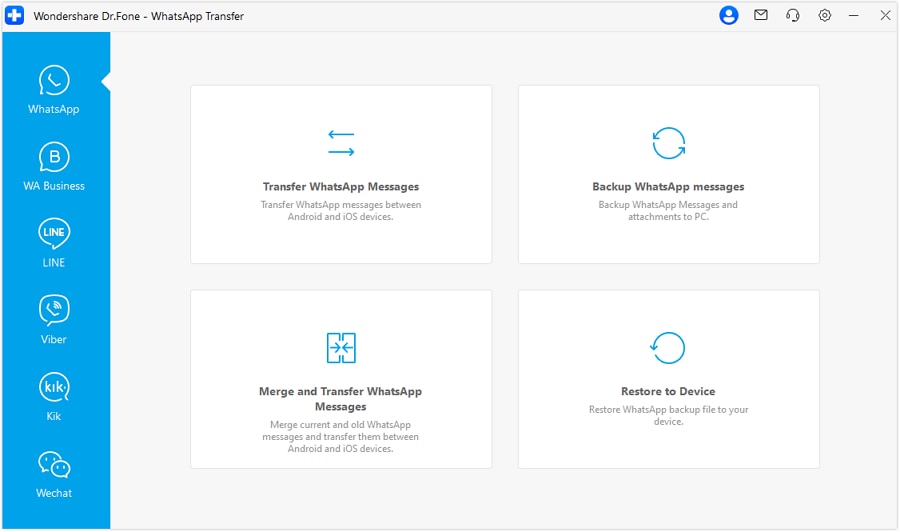
Step 1 Open WhatsApp Transfer in Dr.Fone
Follow your planned direction and prerequisites (power, stable connection, enough storage) before starting. AI can’t operate the software or see device prompts, so rely on on-screen instructions.

-
Step 2 Start the transfer flow and keep both devices stable
Run the transfer without interruptions (avoid cable disconnects, sleep mode, or network drops). A “completed” message is not a substitute for verification.
-
Step 3 Confirm source and destination devices match your plan
Double-check the old phone is set as source and the new phone as destination, especially for cross-OS moves. Mis-selection can lead to overwrite risk or incomplete results.

-
Step 4 Verify completeness on the new phone before any cleanup
Use your predefined verification method (spot-check chats, media playback, timestamps, and critical conversations). Keep the old phone untouched until you’ve passed verification; deleting WhatsApp, clearing data, or resetting can be irreversible if something was missed.




Conclusion
Use AI to design the safest sequence, checkpoints, and verification criteria for transferring personal WhatsApp chats to a new phone; then use Dr.Fone to execute the transfer on real devices only after the plan is clear and you’ve defined what “successful” looks like.
FAQ
-
What’s the biggest “do not do yet” action during planning?
Deleting WhatsApp, clearing WhatsApp storage/data, factory resetting the old phone, or overwriting a known-good backup before you’ve verified the new phone has the full history you need. -
How do I verify the transfer without checking every chat?
Use sampling: confirm recent chats match, spot-check several long-history chats, verify at least one media-heavy chat, confirm group chats, and validate timestamps/search for a known keyword. -
Should I install and log into WhatsApp on the new phone first?
Plan this carefully—logging in too early can change account state and complicate recovery. Follow a single, consistent sequence and don’t switch back and forth unless your plan explicitly includes it. -
What if the old phone has very little free space?
Add a pre-flight step to reduce non-essential storage usage and confirm you can complete the chosen transfer method. If you can’t meet space requirements, don’t start the transfer until you have an alternative path. -
Can AI tell me whether my backup is valid and complete?
No. AI can tell you what to look for (timestamps, sizes, error messages), but only you can confirm what your phone and WhatsApp actually show.
 Add Wondershare Dr.Fone as a preferred source on Google





