 Effortlessly manage data through preview, delete, export, etc.

 100% Security Verified | No Subscription Required | No Malware

 :
: 
 ChatGPT
 Perplexity
 Gemini
 Claude
 Grok
Grok

I’m about to update/reset my iPhone, but I’m not sure my backup is actually complete—and I’m scared that “checking” the wrong way will overwrite the only good backup.
Apple Support Community user
Checking whether an iPhone backup is truly complete sounds simple, but missing one verification step can leave you with an unusable backup right when you need it. AI can help you plan a safe, repeatable workflow—what to check first, what evidence to collect, and what “pass/fail” signals mean you can proceed. But AI can’t access your device, read your backup files, or confirm what actually restored, so the execution and final validation must be done with real device tools.

In this article
- Plan a safe verification sequence
- Why order matters
- What “point of no return” means
- What to verify vs what to assume
- How to avoid overwriting a good backup
- What the AI needs to know
- AI prompts to build a safer workflow
- AI plan vs. real device constraints
- When to stop planning and start execution
Part 1. Plan a safe verification sequence (without missing critical steps)
You backed up your iPhone because you’re about to update iOS, switch devices, repair a screen, or free up storage. Now you’re unsure if the backup is complete—or if it’s missing key data like photos, messages, app data, or health records.
You ask AI, and it gives a list of places to look, but the order is unclear: should you verify iCloud status first, check the backup timestamp, confirm encrypted backups, or test-restore? Without a sequence, it’s easy to “check” the wrong thing and assume you’re safe.
There’s also a point-of-no-return moment: starting a new backup that overwrites the only good backup, deleting an old backup to “clean up space,” or factory-resetting your iPhone before proving you can restore what you need.
Part 2. What the AI needs to know
Answer these so the AI can build a checklist that matches your backup type and risk level:
- Backup type(s): iCloud backup, computer backup (Finder/iTunes), or both
- Your goal: device migration, iOS update, repair, factory reset, storage cleanup, etc.
- Time pressure: deadline (e.g., “repair appointment in 2 hours”)
- iPhone model + iOS version (e.g., iPhone 13, iOS 17.5)
- Mac/Windows availability (and whether Finder/iTunes is usable)
- iCloud storage status (enough space? recently hit a limit?)
- Whether encryption is enabled for computer backups (important for Health/Keychain)
- “Must-not-lose” data list (e.g., WhatsApp chats, photos, Notes, Health, Authenticator apps)
- Any recent errors: backup stuck, “not enough iCloud storage,” disconnects, slow upload
- Whether you can do a test restore (spare device available or not)
Part 3. Using AI prompts to build a safer workflow
Use the prompts below to force a clear sequence, evidence checks, and “stop conditions” before any irreversible action.
3-1. Level 1: Basic prompt
Draft a step-by-step plan to check whether my iPhone backup is complete.
Include the safest order of checks and what evidence I should confirm before I update iOS or reset the phone.
Do not include execution instructions—planning and verification only.
3-2. Level 2: Advanced prompt
Build a workflow to verify my iPhone backup is complete, separated into Preparation, Verification, and Go/No-Go Decision.
Label each check as critical or optional, and include common failure modes (e.g., iCloud storage full, missing encrypted backup, backup too old) plus what I should do if a check fails.
3-3. Level 3: Evidence prompt
I need to confirm my iPhone backup is complete before a risky change.
Use my context to produce a verification checklist with pass/fail criteria, plus what proof to collect before/during/after.
Context: backup type (iCloud + computer), device (iPhone 13), iOS (17.5), deadline (today), must-not-lose items (Photos, Messages, WhatsApp, Notes, Health, Keychain), iCloud storage (190 GB used of 200 GB), last backup time shown (Yesterday 11:40 PM).
Also include a “do not cross” point of no return (e.g., deleting old backups or factory reset) and the exact conditions that must be met before that.
3-4. Prompt refinement
Turn this into a single-page decision checklist with three states: Safe to proceed / Not safe / Needs more evidence, and list what evidence maps to each state.
Ask me 10 yes/no questions that remove ambiguity (backup type, encryption, timestamps, storage, errors), then generate the plan based on my answers.
Define what “complete” means for my situation: distinguish device settings, app data, cloud-synced data, and locally stored data, and show which category is most likely to be missing.
Create a minimum viable verification plan I can finish in 15 minutes, and a full verification plan for when I have time—each with clear stop conditions.
Add a risk register: top 5 ways people lose data during this process, the trigger for each, and the preventive check that blocks it.
Part 4. AI plan vs. real device constraints
AI can sequence steps and define evidence, but it can’t access your actual backup artifacts or confirm restore results.
| AI can plan | But the real constraint is |
|---|---|
| Define what to verify (timestamps, size, encryption, included data types) | Only your device/computer can display actual backup status and logs |
| Create pass/fail criteria for “safe to proceed” | iCloud/Finder may show “successful” even if key items didn’t upload/sync |
| Identify high-risk moments (overwrite/delete/reset) | Those actions are irreversible once executed |
| Suggest a test-restore strategy | You may not have a spare device/time; restore can take hours and needs stable power/network |
Part 5. When to stop planning and start execution
- You have a clear backup source list (iCloud and/or computer) and know which one is your “gold copy.”
- Your checklist includes pass/fail evidence (not just “look at it”) and you can collect that evidence now.
- You have explicitly marked the point of no return (delete old backup / overwrite backup / factory reset) and the conditions required before it.
- You have a fallback if verification fails (e.g., postpone update/reset, make an additional backup, free iCloud space, switch to encrypted computer backup).
If those are true, planning is done and the next step is controlled execution with verification.
How to check if my iPhone backup is complete: Execute the workflow safely with Dr.Fone
Execution matters because this is where people accidentally overwrite the only good backup, delete the wrong backup, or proceed to a reset without proof they can restore critical data. A practical way to reduce mistakes is to use a dedicated tool such as Dr.Fone Basic - Data Manager to carry out the backup and verification steps you already defined in your checklist.
 Easily manage data through preview, delete, export, etc.
- Transfer all data between devices.
- Robust backup solutions for reliable data protection.
- Mirror screens to PC for meetings, teaching, and control.

-
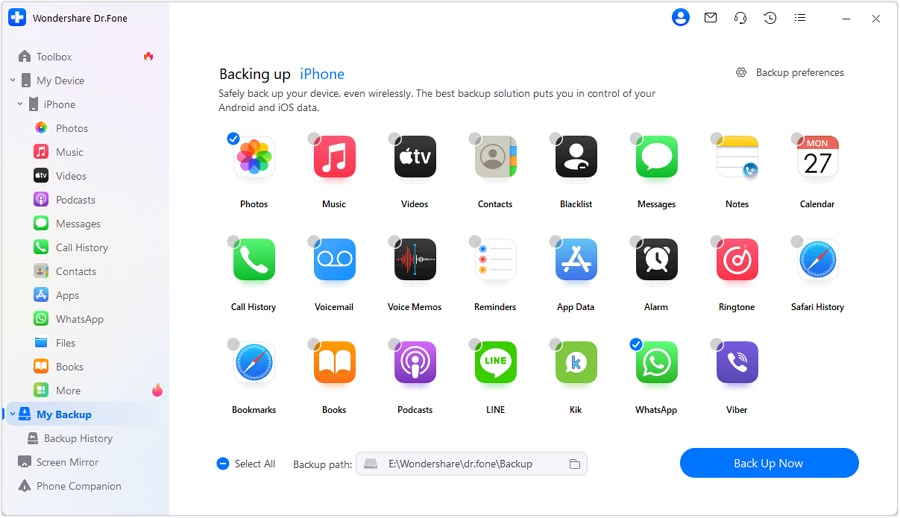
Step 1 Protect the “gold copy” before any changes
Use Dr.Fone to run the backup action you chose (based on your plan) while ensuring you do not delete or overwrite the only verified backup.
Limitation: Dr.Fone can execute backup operations, but only your pre-checks can prevent you from choosing the wrong source/destination or proceeding too early.
-
Step 2 Run the backup process in a controlled way
Follow the workflow you planned so the backup completes without interruptions that commonly create partial or outdated results.
Limitation: If storage is full, the connection drops, or the backup method isn’t appropriate for your must-not-lose items, you may still need to adjust your plan before proceeding.

-
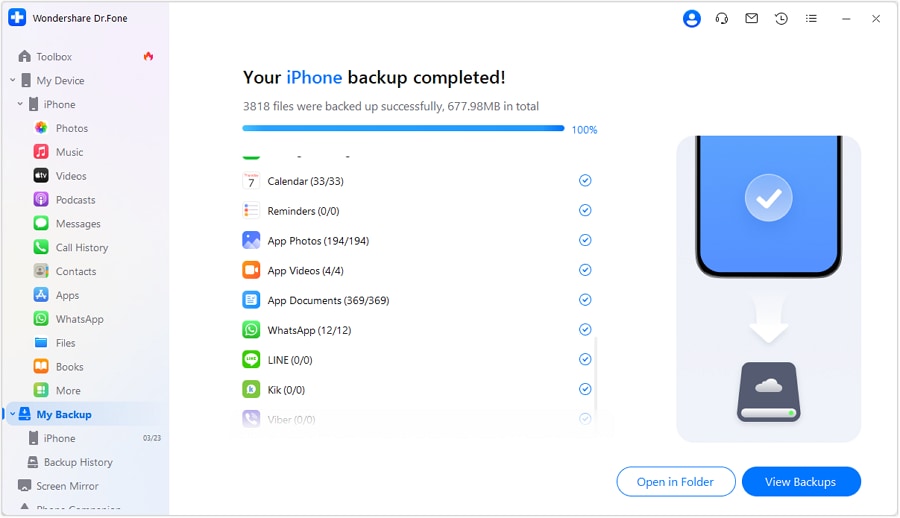
Step 3 Verify the backup artifact and coverage
Use Dr.Fone to help you validate that the backup exists and aligns with your required data coverage (per your evidence checklist).
Limitation: Verification still depends on what your plan defined as “complete,” and some app-specific data may require additional confirmation beyond a single status indicator.
-
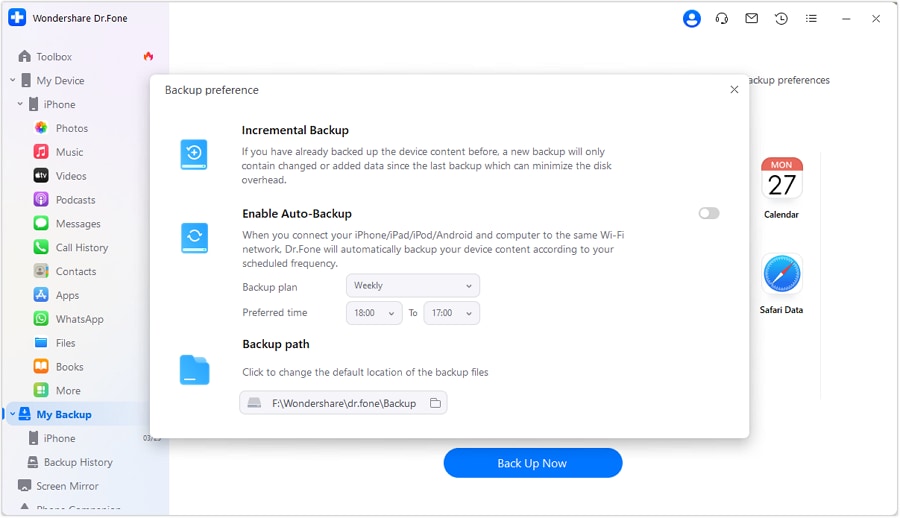
Step 4 Proceed only after verification passes
Only after your checklist is fully “pass,” proceed (with Dr.Fone as needed) to the change that creates risk—device migration, iOS update, repair handoff, or reset.
Limitation: This is the irreversible moment (especially reset/erase); neither AI nor tools can recover data that was never backed up or was overwritten.




Conclusion
Use AI to define a clear verification workflow with pass/fail evidence and a hard stop before any irreversible action; then use a real tool like Dr.Fone to execute the backup and checks exactly as planned.
FAQ
-
What’s the biggest mistake when checking if an iPhone backup is complete?
Assuming “Last backup: today” means everything you care about is included, without checking encryption, storage failures, or whether critical apps/data types are covered. -
Is iCloud backup enough by itself?
Sometimes, but it depends on storage headroom, network stability, and whether your must-have items rely on encryption or app-specific backup behavior. -
Why does encryption matter for “complete” backups?
Some categories (commonly including Health data and Keychain) may require an encrypted computer backup to be fully captured. -
Do I need to do a test restore to be sure?
It’s the strongest proof, but it can be time-consuming. If you can’t test-restore, use stricter evidence checks and avoid crossing the point of no return. -
When should I stop and postpone the update/reset?
If the backup is too old, storage was full, encryption requirements aren’t met, errors occurred, or you can’t produce the evidence your checklist requires.
 Add Wondershare Dr.Fone as a preferred source on Google





