 Effortlessly manage data through preview, delete, export, etc.

 100% Security Verified | No Subscription Required | No Malware

 :
: 
 ChatGPT
 Perplexity
 Gemini
 Claude
 Grok
Grok

My Android Downloads folder suddenly looks empty, but I’m sure I just downloaded PDFs and images. I don’t want to keep trying random “fixes” and make it worse.
Forum user
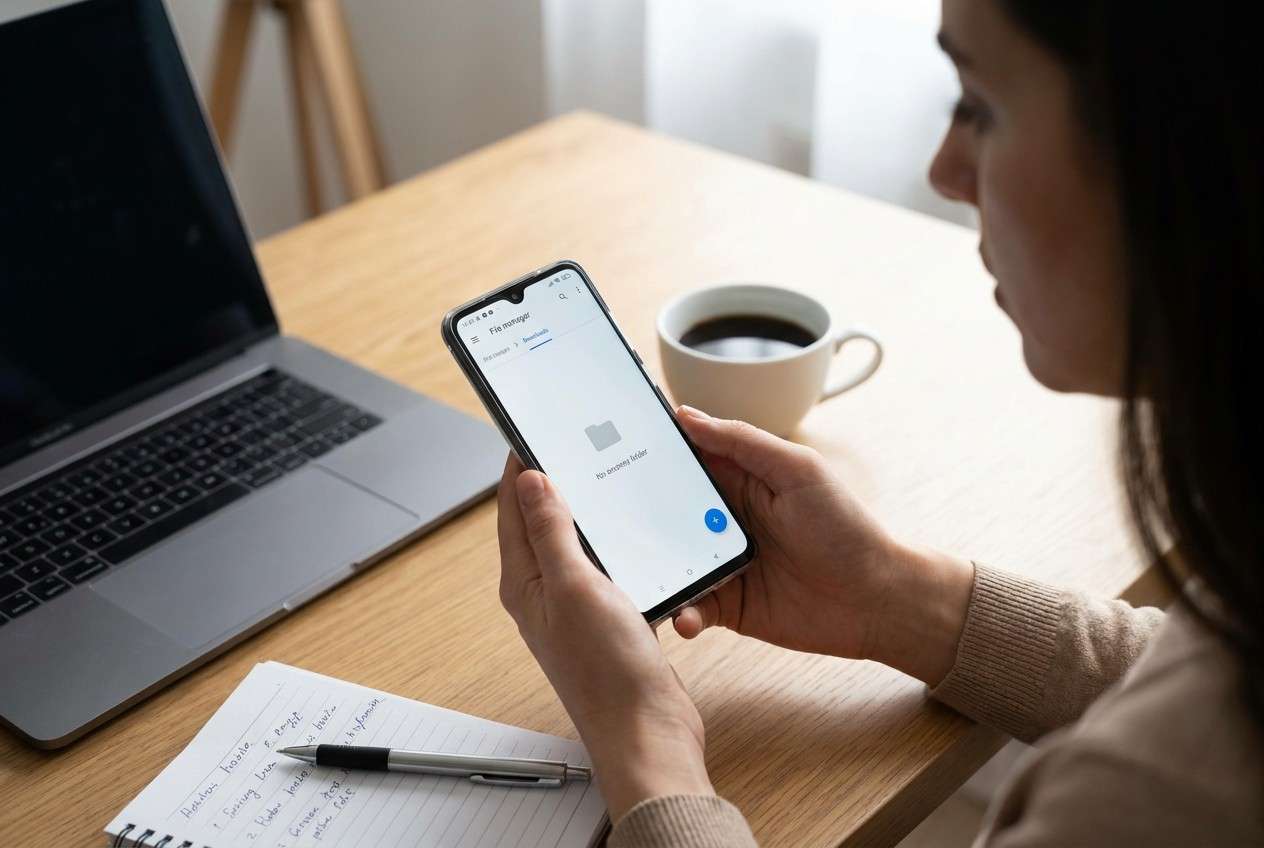
Your Android Downloads folder can look empty even though you just saved PDFs, images, or APKs—often right after tapping Download, running a cleanup app, or rebooting. On some phones, the files aren’t truly gone; they may be hidden, moved, filtered, or stored in a different path.
AI (like ChatGPT or Gemini) can help you map symptoms to likely causes, ask the right clarifying questions, and prioritize low-risk checks—so you don’t jump into destructive trial-and-error.
AI can’t see your phone, confirm what was deleted, or safely “undo” actions by itself. If you keep poking around (clearing storage, resetting permissions, factory reset), you can make the situation worse or harder to verify.
In this article
- Why Downloads files disappear on Android (and what it means)
- Common triggers
- View/filter limitations
- Wrong save location
- Before you prompt the AI
- Using AI prompts to diagnose missing Downloads files safely
- When to stop troubleshooting and avoid risks
- Fix or resolve it safely with Dr.Fone
- AI output vs reality: what to verify on-device
Part 1. Why downloads folder files disappeared on android happens and what it means
This usually happens after a system update, storage cleanup, file manager change, SD card remount, or app permission change. It can also happen if the “Downloads” view is showing only one category (e.g., images) or only files from one app (e.g., Chrome vs Telegram).
If you recently transferred content from another device (for example, a file you originally downloaded on an iPhone 13 or iPhone 14 and then moved to Android), you may be looking in the wrong location—some apps save to app-specific folders instead of the shared Download directory.
A common feeling here is: nothing changes after several minutes, and it’s unclear whether the phone is still indexing files, syncing, or actually missing data.
1-1. Before You Prompt the AI
Capture a few facts first so the AI can narrow causes quickly:
- Android brand/model and Android version
- Which app downloaded the files (Chrome, Files, WhatsApp, Drive, etc.)
- What you did right before it happened (restart, cleanup, update, permission change)
- Whether you use SD card, work profile, or “Secure Folder”
- Whether the phone is currently locked out (forgot PIN/pattern) or accessible
Part 2. Using AI prompts to diagnose missing Downloads files on Android safely
2-1. Level 1: Basic Prompt
My Android Downloads folder looks empty, but I downloaded files recently. Ask me the minimum questions needed to narrow the most likely causes, then give me a low-risk checklist (no factory reset, no wiping apps).
2-2. Level 2: Advanced Prompt
You are diagnosing “Downloads folder appears empty” on Android.
1) Ask up to 8 clarifying questions.
2) Rank the top 5 likely causes from most to least probable.
3) For each cause, list: what I would observe, a low-risk verification step, and what NOT to do because it increases risk.
Keep steps reversible and avoid data-destroying actions.
2-3. Level 3: Evidence Prompt
Help me diagnose why my Downloads files disappeared on Android using the evidence below. Provide: (a) most likely causes ranked, (b) quickest low-risk checks, (c) what evidence would confirm/deny each cause, (d) stop-and-escalate triggers.
Device
- Phone model: (e.g., Samsung Galaxy S22 / Pixel 7)
- Android version: (e.g., Android 13)
- Storage: (e.g., 80% full)
- SD card: (Yes/No)
What changed right before
- Action: (e.g., “tapped Install update,” “ran cleaner,” “restarted,” “changed file manager”)
- Time since: (e.g., 10 minutes / 1 day)
Symptoms
- Downloads app view shows: (empty / partial / only some file types)
- Search results: (found / not found)
- Other folders affected: (DCIM, Documents, WhatsApp, etc.)
- Any “hidden files” setting: (on/off/unknown)
Apps involved
- Download source app: (Chrome / Drive / Telegram / etc.)
- File manager used: (Files by Google / Samsung My Files / etc.)
Constraints & risk
- I can unlock the screen: (Yes/No)
- I have backups/cloud copies: (Yes/No/Not sure)
- I want to avoid: (factory reset / app data clearing / root)
2-4. Prompt Refinement
If the AI answer feels broad, use these follow-ups to force clarity:
What single missing detail would change your ranking the most, and what should I check to get it?
Separate causes into categories: view/filter issue, moved location, permission/storage access, deletion/cleanup, SD card/user profile.
Rank causes again, but this time weight heavily: I used a cleaner / I rebooted / I changed file manager (pick the one that applies).
What is the one strongest confirming sign for your top cause, and the fastest low-risk way to check it?
List the checks in order of lowest risk first, and mark anything that could make recovery harder.
2-5. AI Output vs Reality
AI can provide strong hypotheses, but your phone’s state determines what’s actually true.
Part 3. When to stop troubleshooting missing Downloads on Android and avoid risks
Stop when continuing experiments is more likely to worsen the situation than clarify it.
- You’re about to factory reset, “optimize storage,” or run another cleaner to “see if it comes back.”
- The phone shows storage errors, repeated crashes, or you suspect internal storage corruption.
- You can’t access key areas because the phone is locked (forgot PIN/pattern) and you’re guessing credentials.
- You’re considering rooting or risky apps that demand deep access without clear, reversible steps.
Once you’ve narrowed the most likely cause with AI, the next step is choosing a safe execution path—especially if you’re blocked by a lock screen and can’t verify where the files went.
Part 5. AI output vs reality: what to verify on-device
AI helps you choose the safest next check; it can’t confirm the filesystem outcome, access locked screens, or validate hidden partitions—those require on-device access and the right tool for the job.
| What AI suggests | What you should verify on-device |
|---|---|
| “It’s a filter/view issue in the file manager.” | Switch to All files, clear filters, and use global search for a known filename. |
| “Files were saved to an app-specific folder.” | Check the source app’s folder (e.g., Telegram/Chrome/Drive storage locations). |
| “Permissions/storage access changed after an update.” | Confirm the file manager has Files and media access and can browse internal storage. |
| “Cleaner or storage optimization deleted items.” | Review the cleaner’s trash/quarantine, and check any Recycle Bin/Trash feature. |
Part 4. Downloads folder files disappeared on android: fix or resolve it safely with Dr.Fone
If your Downloads look “missing” but you can’t fully verify paths, permissions, or app folders because you’re locked out of the device, unlocking access becomes the practical next step. In that situation, Dr.Fone - Screen Unlock (Android) is relevant because it focuses on restoring screen access so you can continue the low-risk checks (search, folder review, cloud confirmation) from inside the phone instead of guessing from the outside.
 Unlock Android phone in seconds.
- Remove PIN, pattern, password, fingerprint.
- Bypass Google FRP lock easily.
- Works on all Android brands & models.
- No tech skills required – user-friendly.

-
Step 1 Confirm the lock scenario
Identify whether you’re blocked by PIN/pattern/password/biometrics before attempting changes that could increase lockouts.

-
Step 2 Open Screen Unlock (Android)
Use Dr.Fone’s Unlock Android Screen feature to proceed with the appropriate unlock flow for your device.

-
Step 3 Follow the on-screen device matching
Select the correct brand/model carefully to avoid using the wrong method on the wrong device.

-
Step 4 Regain access and verify Downloads paths
Once you can enter the phone, immediately check Files/Downloads, the source app’s storage folder, and any Trash/Recycle Bin options.





Conclusion
AI is best used here to classify the most likely reasons your Android Downloads look empty and to prioritize reversible checks. When diagnosis shows you’re blocked by screen access, handing off to a practical execution tool like Dr.Fone – Screen Unlock (Android) helps you regain the ability to verify folders, filters, and app storage locations safely.
FAQ
-
Why is my Downloads folder empty but storage is still used?
Files may be in app-specific folders, hidden by a filter, in Trash, or duplicated in cache; storage use alone doesn’t prove the shared Download folder contains them.
-
Where do Chrome downloads go on Android if not in Downloads?
Usually the shared Download directory, but settings, storage location changes, or scoped storage behavior can route files into app-managed locations.
-
Can a system update make downloaded files “disappear”?
It can change permissions, media indexing, or file manager behavior so items don’t show up—especially right after reboot while indexing finishes.
-
What’s the safest first check if I suspect a cleanup app deleted downloads?
Look for the cleaner’s trash/quarantine and the file manager’s Recycle Bin/Trash before doing any further “optimization.”
-
What if I can’t check anything because I forgot my screen lock?
In that case, focus on regaining access first (so you can verify paths and trash folders directly), and avoid repeated unlock guesses that can trigger timeouts.
 Add Wondershare Dr.Fone as a preferred source on Google





