 Effortlessly manage data through preview, delete, export, etc.

 100% Security Verified | No Subscription Required | No Malware

 :
: 
 ChatGPT
 Perplexity
 Gemini
 Claude
 Grok
Grok

I moved to a new phone and thought my authenticator would “just transfer.” Then I got locked out of email because the codes didn’t match, and I’d already removed the old device from my account security settings.
Forum user
Missing one step during a password or authenticator move can lock you out of accounts, break 2FA, or leave you without recovery options when you need them most.
AI helps by turning a messy “move everything” goal into a sequence: what to inventory, what to verify, what to migrate first, and what must be confirmed before any irreversible changes. But AI can’t access your devices, scan your apps, or confirm that codes are generating correctly on the new phone—so execution still requires real tools and real on-device checks.
In this article
- Plan the move without missing critical steps
- Why sequence matters
- What counts as “point of no return”
- What to verify before changes
- How to avoid mid-transfer lockouts
- What the AI needs to know
- AI prompts: build a safer workflow
- AI plan vs. real device constraints
- When to stop planning and start execution
Part 1. Plan the move passwords and authenticator apps to new phone without missing critical steps
You’re switching to a new phone and want your passwords, passkeys, and authenticator codes to work on day one. Some accounts rely on app-based 2FA, others on passkeys, and you may not remember which services are tied to which method until something fails.
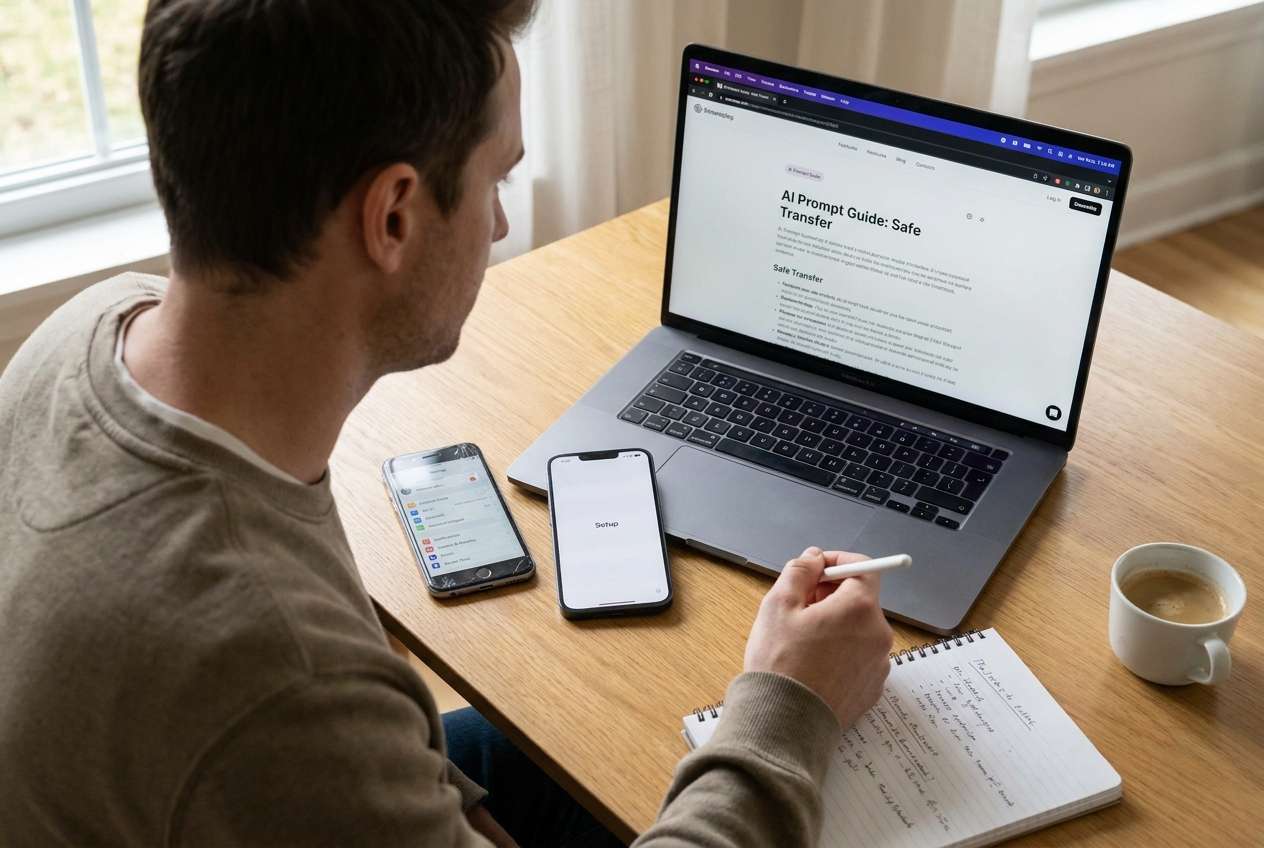
Even with good AI advice, uncertainty usually shows up in the sequence: should you migrate the authenticator first or the password manager first, and when should you sign out of the old phone? Without a clear order, it’s easy to trigger extra security checks mid-transfer.
The point of no return is disabling 2FA, deleting an authenticator profile, factory resetting the old phone, or removing the old device from account security settings before you’ve confirmed you can generate working codes (or passkeys) on the new phone.

Part 2. What the AI needs to know
Share the minimum details needed to plan a safe, account-by-account workflow:
- Old phone OS/version and new phone OS/version (iPhone → iPhone, Android → Android, Android → iPhone, etc.)
- Which password manager you use (iCloud Keychain, Google Password Manager, 1Password, Bitwarden, LastPass, etc.)
- Which authenticator apps you use (Google Authenticator, Microsoft Authenticator, Authy, Duo, etc.)
- Whether you use passkeys (and where they’re stored: iCloud Keychain, Google Password Manager, hardware key)
- Whether the old phone is still available and unlocked (and for how long)
- Your current recovery options: backup codes saved? recovery email/phone up to date?
- Approximate number of critical accounts (banking, email, Apple/Google, work SSO, crypto)
- Any constraints (no SIM on old phone, traveling, limited Wi‑Fi, work device policies/MDM)
Part 3. AI prompts: build a safer move passwords and authenticator apps to new phone workflow
Use these prompts to force a checklist-driven plan before you touch settings on either device.
3-1. Level 1: Basic prompt
I’m moving to a new phone and need my passwords and authenticator apps to keep working without lockouts.
Create a safe, ordered plan with the key checks I must complete before I sign out of the old phone or erase it.
3-2. Level 2: Advanced prompt
Build a structured workflow to move passwords and authenticator apps to a new phone.
**Preparation:** inventory what I have (password manager, authenticator apps, passkeys), confirm recovery methods, and list “must-not-do-yet” actions.
**Execution:** give the safest order to migrate password manager and authenticator app(s), including when to test logins.
**Verification:** provide a checklist of account tests and security review steps after migration.
Mark steps as **critical** vs **optional**, and call out any **point-of-no-return** moments to avoid until verification passes.
3-3. Level 3: Evidence prompt
I’m migrating from (old: iPhone 12 iOS 17.5) to (new: iPhone 15 iOS 17.5).
Passwords are in (iCloud Keychain + 1Password).
2FA is in (Microsoft Authenticator + Google Authenticator).
I use passkeys for (Google + a few sites).
I still have the old phone unlocked for (48 hours).
My recovery phone number is (ending 1234) and I have (some) backup codes saved in (a notes app).
Create a plan with:
- A table inventory of what to verify **before** any transfer (recovery email/phone, backup codes, device access, SIM status).
- Checks **during** migration (how to confirm the authenticator entries moved, how to confirm passkeys are present, what to do if an account prompts for re-verification).
- Checks **after** migration (test logins for 5 critical accounts, confirm new device is trusted, confirm old device is still present until done).
- A “stop” list of irreversible actions (factory reset old phone, removing old device from security settings, turning off 2FA, deleting authenticator app data) that must not happen until all checks pass.
Also include a fallback path if I discover an account is tied to the old authenticator only.
3-4. Prompt refinement (follow-ups)
Return the plan as a checklist with three gates: **Ready to Start**, **Safe to Switch**, **Safe to Erase Old Phone**—each gate must have pass/fail criteria.
Create an account triage list: rank accounts by lockout risk (email, Apple/Google, banking, work SSO, crypto) and specify the test I should run for each.
Add a ‘Failure Playbook’ section: if I lose access to the authenticator, list recovery actions in order and what evidence I’ll need (backup codes, recovery email, ID verification).
Ask me up to 10 clarifying questions first, then output the workflow only after you have answers; don’t assume which apps support cloud sync or transfer.
Produce a ‘Do Not Touch Yet’ list that includes exact examples of risky actions (e.g., deleting authenticator entries, disabling 2FA, removing trusted device) and the verification step that unlocks each action.
Part 4. AI plan vs. real device constraints
| Planning Step (AI) | What AI Can Do | What AI Cannot Do | What You Must Verify on Device |
|---|---|---|---|
| Inventory accounts, 2FA, passkeys | Create a structured checklist | See your installed apps/accounts | Which accounts actually use 2FA/passkeys |
| Order of operations | Propose safest sequencing | Guarantee it fits your apps/policies | That each migrated item works before moving on |
| Risk identification | Flag irreversible moments | Detect hidden dependencies | Whether recovery methods and trusted devices are correct |
| Verification criteria | Define pass/fail tests | Run tests or log in for you | Successful logins + codes/passkeys working on new phone |
AI improves planning, but it cannot execute device actions, move protected credentials, or confirm that authentication codes and passkeys function correctly—those checks must happen on the devices using real tools.
Part 5. When to stop planning and start execution
- You have an inventory of: password manager(s), authenticator app(s), passkey storage, and your top critical accounts.
- Your recovery options are confirmed: backup codes located, recovery email/phone correct, and you can access them right now.
- You have a defined verification set (at least 5 critical accounts) and a clear “safe to erase old phone” gate.
- You’ve identified and postponed all point-of-no-return actions until verification is complete.
If those conditions aren’t true yet, keep refining the plan—because the next stage depends on proof, not confidence.
Recommended tool: execute the workflow safely
Once your verification-first plan is ready, you can use Dr.Fone - Phone Transfer to help carry out the real transfer while both phones are available and unlocked—so you can test critical access immediately and reduce the chance of lockouts.
 Move data between iOS to Android and vice versa.
- Transfer contacts, SMS, photos, videos, music, and more types.
- Available with all phones with Android and iOS versions.
- Simple, click-through process.

Execution matters because the window to verify (while the old phone still works) is your safety net—once it’s gone, recovery becomes slower, stricter, and sometimes impossible.
-
Step 1 Prepare a controlled migration window
Open the transfer tool on your computer and keep both devices available and unlocked, so you can validate results immediately after moving data.

-
Step 2 Set the transfer direction correctly
Confirm the source (old phone) and destination (new phone) before you start, so you don’t overwrite or miss what you intended to move.

-
Step 3 Transfer what you planned, then immediately test critical access
Run the transfer you planned, then test logins and required 2FA/passkey challenges for your critical accounts before proceeding to any security clean-up on the old phone.

-
Step 4 Verify first; irreversible actions come last
Only after verification passes should you consider removing the old phone from trusted devices or erasing it. If your setup involves cloud syncing, ensure it won’t reintroduce old data mid-move.





Conclusion
Use AI to design a verification-first workflow with clear stop points and pass/fail checks, then use Dr.Fone to carry out the real transfer—because planning prevents lockouts, but only real-device execution confirms access is intact.
FAQ
-
What’s the biggest risk when moving authenticator apps to a new phone?
Breaking access to accounts that require time-based codes or device approvals, especially if you remove the old device before confirming the new one works. -
Which accounts should I verify first?
Start with the accounts that unlock everything else: primary email, Apple ID/Google account, password manager account, then banking/work SSO/crypto. -
When is it safe to factory reset the old phone?
Only after you can sign in on the new phone to your critical accounts and complete 2FA/passkey challenges successfully—plus you’ve confirmed recovery methods and backup codes. -
Can AI tell me whether my authenticator app will sync or transfer correctly?
AI can outline what to check and what questions to ask, but it can’t see your app settings or confirm how your specific configuration behaves. -
What should I do if I realize an account is tied to the old authenticator only?
Stop any irreversible steps, keep the old phone active, use the account’s recovery flow (backup codes/recovery email/ID verification), and only then re-enroll 2FA on the new phone.
 Add Wondershare Dr.Fone as a preferred source on Google





