 Effortlessly manage data through preview, delete, export, etc.

 100% Security Verified | No Subscription Required | No Malware

 :
: 
 ChatGPT
 Perplexity
 Gemini
 Claude
 Grok
Grok

My Samsung updated and now it’s just stuck on the Samsung logo. It looks like it’s still updating, but nothing changes no matter how long I wait.
Samsung Community user
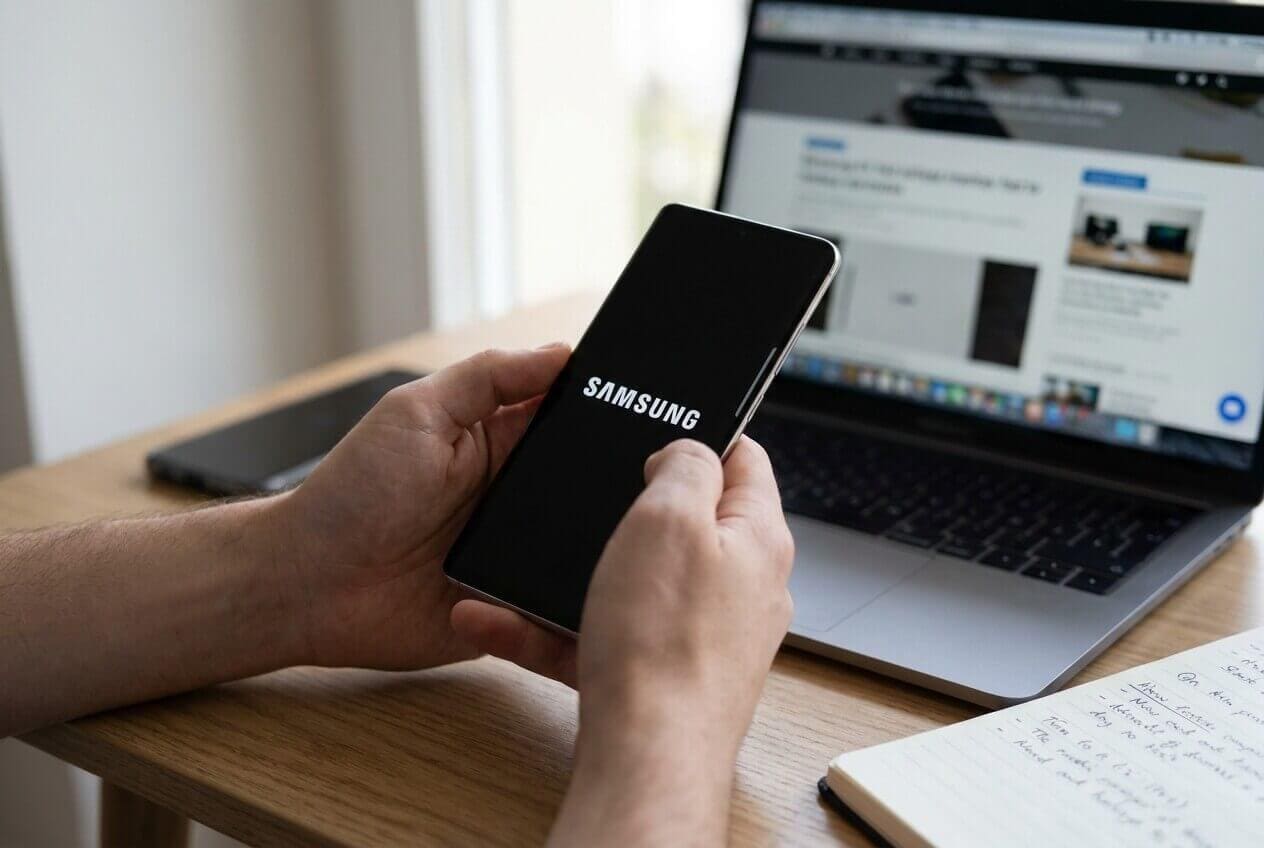
Your Samsung phone may hang on the startup logo right after an update—often after you tapped Install now and the device rebooted. On models like a Galaxy S21 or Galaxy A54, it can look like it’s “still updating,” but nothing changes even after several minutes.
AI (like ChatGPT or Gemini) can help you describe the symptoms precisely, narrow likely causes, and decide which checks are low-risk versus risky. The goal is better diagnosis, not guesswork.
AI can’t see your device state directly, and trial-and-error can increase risk (especially if you wipe data or interrupt firmware processes). Use prompts to choose safer next steps, then use a dedicated tool for execution when needed.
In this article
- Why a Samsung phone gets stuck on the startup logo after an update
- Common patterns
- What it often points to
- Before you prompt the AI
- What it means for risk
- Using AI prompts to diagnose a Samsung boot loop after update safely
- AI output vs reality: what you must verify on-device
- When to stop troubleshooting and avoid risks
- Fix Samsung startup logo freeze with Dr.Fone System Repair (Android)
Part 1. Why a Samsung phone is stuck on startup logo after an update happens and what it means
A Samsung phone stuck on the startup logo after an update usually means the boot process can’t finish. This can happen right after a major Android/One UI update, a security patch, or an update that completed with low battery, low storage, or a background app conflict.
Common patterns
Common patterns include: the logo stays forever, the phone restarts back to the logo (boot loop), or it reaches the logo and freezes after a vibration. It may be unclear whether the update is still running or already failed.
What it often points to
What it often points to: a corrupted cache, an incomplete update, app optimization getting stuck, a system component mismatch, or (less commonly) storage/file system issues.
Before You Prompt the AI
Gather a few specifics first so the AI can narrow causes without pushing risky steps.
- Samsung model (exact) and region/carrier variant
- What update you installed (One UI/Android version, security patch month if known)
- How long it’s been stuck and whether it restarts
- Battery level and whether it was charging during the update
- Whether you can enter Recovery Mode or Download Mode
- Any recent changes (low storage, new apps, VPN, work profile/MDM, rooting)
Part 2. Using AI prompts to diagnose a Samsung boot loop after update safely
Level 1: Basic Prompt
My Samsung phone is stuck on the startup logo after an update. Ask me the minimum questions needed to identify the most likely cause, and list the safest next checks I can try first without risking data.
Level 2: Advanced Prompt
Diagnose my Samsung stuck-on-logo issue after an update.
Requirements:
1) Give 5 likely causes ranked by probability.
2) For each cause, list: what evidence would confirm it, and a low-risk check to try.
3) Flag steps that could cause data loss (like factory reset) as HIGH RISK.
4) End with a decision tree: “If I can/can’t enter Recovery Mode” and “If it boot loops/doesn’t boot loop”.
Start by asking only the most important clarifying questions.
Level 3: Evidence Prompt
Act as a mobile OS triage assistant. Analyze my Samsung phone stuck on startup logo after update and propose low-risk next steps.
Device & context
- Phone model: (e.g., Galaxy S21 / Galaxy A54)
- Variant: (carrier/region if known)
- Android/One UI version before update: (if known)
- Update type: (major OS / security patch)
- Update trigger: (tapped “Install now”, overnight auto-update, manual OTA)
- Battery level during update: (e.g., 20% / 80% / plugged in)
- Free storage before update: (e.g., 2 GB / 10 GB)
Current symptoms
- Stuck screen: (Samsung logo / carrier logo / boot animation)
- Behavior: (static logo / reboot loop / warms up / vibrates)
- Time stuck: (e.g., 10 min, 1 hour)
- Can enter Recovery Mode? (yes/no)
- Can enter Download Mode? (yes/no)
- Any error text? (exact wording)
History & constraints
- Any rooting, custom ROM, or bootloader changes? (yes/no)
- Work phone / MDM policy? (yes/no)
- Data priority: (must keep data / ok to reset)
Output format
1) Ranked likely causes with reasoning
2) The minimum safe checks to try first
3) What NOT to do yet and why
4) Clear stop points where I should switch to a system repair tool or service
Prompt Refinement
Use these follow-ups to force clearer, safer diagnosis:
What 3 questions would most change your ranking of causes, and why?
Separate your causes into categories: update/OTA failure, storage/file-system, app optimization, hardware. Then rank within each category.
List the single most important piece of evidence I should check next (Recovery Mode status, Download Mode status, error text, or time-to-heat), and explain how it changes the plan.
Give me a “lowest risk first” sequence limited to 10 minutes total, and tell me exactly when to stop to avoid data loss.
If I can enter Recovery Mode, what evidence should I capture (screens/options) before doing anything, and why?
AI Output vs Reality
AI helps you choose a safer direction, but it can’t apply changes on the device.
| What AI can infer | What you must verify on-device |
|---|---|
| Likely causes based on symptom patterns | Whether Recovery/Download Mode is accessible |
| Which steps are low-risk vs high-risk | Whether a step will trigger a wipe on your model/menus |
| What evidence would confirm an OTA failure | Exact screen text, reboot behavior, and time stuck |
| When escalation is reasonable | Your data priority, warranty status, and time constraints |
AI can narrow options and reduce risky trial-and-error, but execution still depends on tools and the device’s actual states (modes available, firmware availability, and whether the system partition can boot).
Part 3. When to stop troubleshooting Samsung startup logo stuck and avoid risks
Stop and switch to a more controlled repair approach if any of these apply:
- The phone is rebooting repeatedly or getting hot while stuck on the logo.
- You can’t access Recovery Mode or Download Mode, or the device disconnects repeatedly from a computer.
- You see encryption/verification errors (or similar) and you’re unsure which option wipes data.
- The phone has been stuck over 60 minutes after an update with no progress signs (no change in screen, no boot completion).
Once you’ve used AI to identify the most likely path (and your data-risk tolerance), the next step is using a system repair method that’s designed for Android firmware-level issues rather than guessing through menus.
Part 4. Fix Samsung startup logo freeze with Dr.Fone System Repair (Android)
If your diagnosis points to an update/boot failure (especially when basic waiting and safe checks don’t change anything), Dr.Fone - System Repair (Android) is relevant because it’s built to handle Samsung system startup problems in a more guided, controlled way than repeated manual attempts. At this point, AI has helped you narrow the scenario (logo freeze vs boot loop, mode access, risk level), and Dr.Fone can be the execution layer for the “system repair” path—particularly when you want to avoid random resets and keep steps consistent with your model. You can use the Repair Samsung Phone Issues feature via Dr.Fone’s Android System Repair workflow.
 Fix Android instantly – no skills needed.
- Solve boot loop, black screen, won’t turn on, etc.
- High success rate for all system issues.
- User-friendly interface with easy-to-follow steps.

-
Step 1 Install Dr.Fone and open System Repair (Android)
Download and launch Dr.Fone, then choose System Repair and select Android, ensuring your PC connection is stable to avoid interruptions.

-
Step 2 Select the Samsung repair option
Choose the Samsung-focused repair path and confirm the exact device details carefully to prevent mismatched firmware selections.

-
Step 3 Put the phone into the required mode
Follow the on-screen instructions to enter the appropriate mode (often Download Mode); don’t disconnect the cable during mode changes.

-
Step 4 Run the repair process and monitor completion
Start the repair and wait for it to finish without using the phone; if the device restarts, let it proceed fully before judging results.

-
Step 5 Re-check boot outcome and stability
After boot, confirm the issue is resolved by restarting once and checking storage health and pending updates before installing more apps.




Conclusion
Use AI prompts to capture the right evidence, rank the most likely causes, and choose the lowest-risk next checks for a Samsung phone stuck on the startup logo after an update; when diagnosis indicates a system-level boot failure, hand off execution to a dedicated option like Dr.Fone System Repair (Android) for a more controlled repair path.
FAQ
-
How long should I wait on the Samsung logo after an update before assuming it’s stuck?
If there’s no change after ~30–60 minutes (no progress, repeated restarts, or overheating), treat it as stuck and shift to diagnosis. -
Does wiping cache in Recovery Mode delete my photos and messages?
Cache wipe typically targets temporary system caches, not personal data—but menu wording varies, so confirm you’re not selecting a reset option. -
What’s the difference between being stuck on the logo and a boot loop?
Logo-stuck usually means it freezes at the same screen; a boot loop repeatedly restarts back to the logo after a short interval. -
If I can enter Download Mode, what does that suggest?
It often suggests the hardware can still communicate for firmware-level procedures, which can make controlled repair approaches more feasible. -
Can an update fail because of low storage even if the download completed?
Yes. Installation and app optimization can require extra working space, and low storage can contribute to boot issues post-update.
 Add Wondershare Dr.Fone as a preferred source on Google





