 Effortlessly manage data through preview, delete, export, etc.

 100% Security Verified | No Subscription Required | No Malware

 :
: 
 ChatGPT
 Perplexity
 Gemini
 Claude
 Grok
Grok

I dropped my phone, the screen cracked, and now I can see the lock screen but I can’t enter my passcode correctly—taps don’t register or it types the wrong numbers.
Forum user
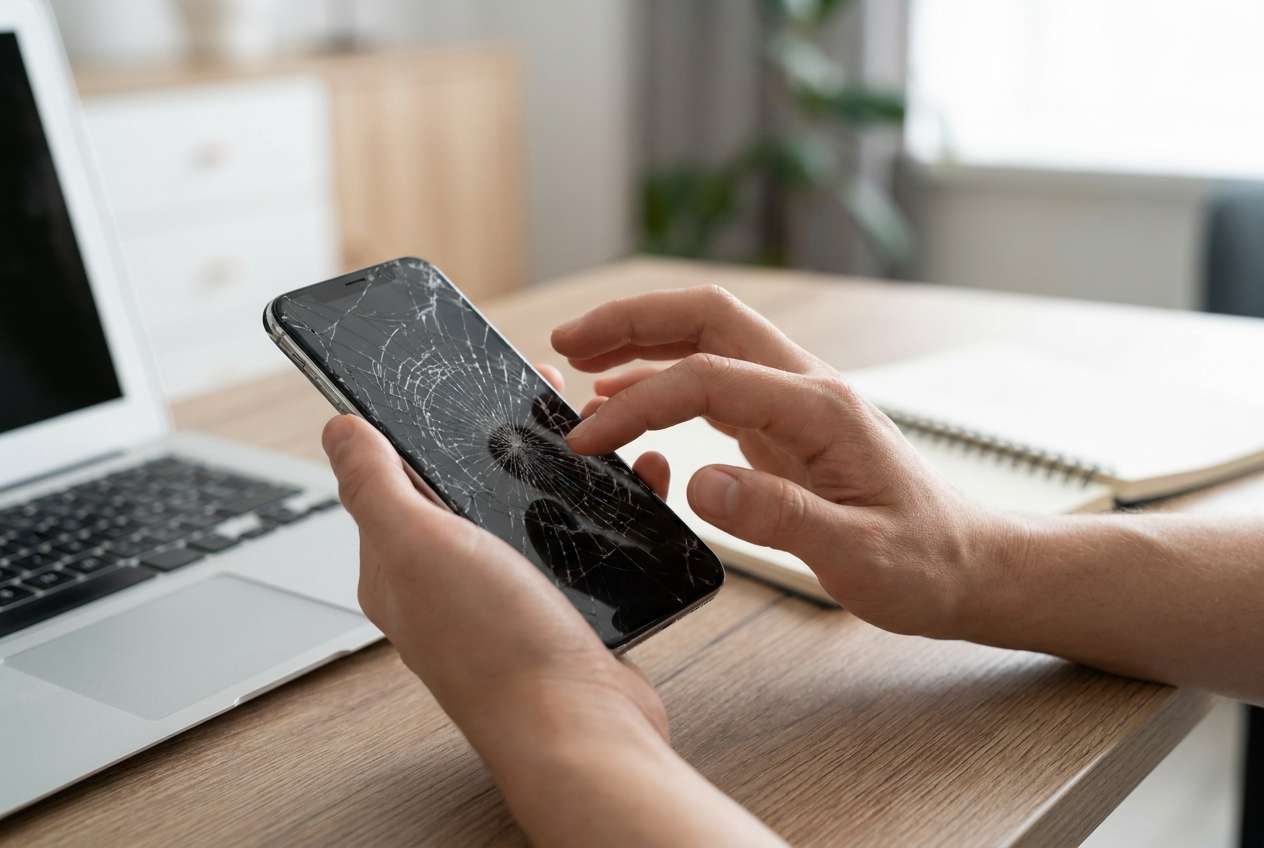
A cracked phone screen can leave you locked out because taps don’t register, parts of the display are dead, or the touch layer “ghost taps” in the wrong places. This often shows up right after a drop, after a restart, or when you try to type your passcode and nothing lands correctly.
AI (like ChatGPT or Gemini) can help you describe symptoms precisely, narrow the most likely causes (touch vs display vs software), and choose the lowest-risk next step based on what you still can or can’t control on the phone.
AI can’t verify what’s physically broken, and repeated trial-and-error can raise risk (like triggering lockout timers, disabling biometric unlock, or making access harder). The goal is careful diagnosis first, then execution with the right tool.
In this article
- Why a cracked screen can block passcode entry
- What touch digitizer damage means
- Common triggers after a drop or restart
- Why it feels like the phone is “ignoring” you
- Before you prompt the AI: facts to capture
- Using AI prompts to diagnose safely
- When to stop troubleshooting and avoid risks
- Fix or resolve it safely with Dr.Fone
Part 1. Why phone screen cracked and cannot enter passcode happens and what it means
When a phone screen cracks, the visible glass damage isn’t always the main problem—the touch digitizer underneath may be partially dead or misreading your input. You might “type” the correct passcode, but the phone receives different numbers, so it never unlocks.
A common trigger is: you dropped the device, picked it up, and immediately tried the passcode; or you restarted, and now the phone requires the passcode (biometrics often won’t work until after the first unlock). It can feel like the phone is ignoring you because nothing changes after several attempts.
This can happen across devices (for example, a Samsung Galaxy S22 or Pixel 7), and the same “no-touch / wrong-touch” pattern is also familiar to users of iPhone 13 or iPhone 14—meaning the symptom is usually about touch input integrity, not just the lock screen itself.
1-1. Before You Prompt the AI
Capture a few facts first so the AI can classify the lockout safely:
- Phone brand/model and Android version (if known)
- What still works: display, touch, side buttons, fingerprint/face, charging
- Where the screen is cracked and whether any area is unresponsive
- Whether you see ghost touches, random typing, or rapid battery drain
- How many failed attempts you’ve made and whether a timer/lockout appears
- Whether USB debugging or “Find My Device” was previously enabled (if you know)
Part 2. Using AI prompts to diagnose phone screen cracked and cannot enter passcode safely
2-1. Level 1: Basic Prompt
My Android phone screen is cracked, and I can’t enter my passcode reliably. Ask me the minimum questions needed to determine whether this is a touch digitizer failure, a display-only issue, or a software/lockout issue, and then suggest the lowest-risk next step.
2-2. Level 2: Advanced Prompt
Act as a mobile troubleshooting triage assistant. Based on my answers, rank the likely causes of “cracked screen + cannot enter passcode” and label each as low/medium/high risk if I keep trying random fixes.
Prioritize options that minimize: (1) permanent lockout delays, (2) data loss, (3) security escalation.
Then give a short decision tree with the safest next action.
2-3. Level 3: Evidence Prompt
Help me diagnose a locked Android phone after a cracked screen. Use only the evidence I provide and tell me what evidence is missing.
Device details
- Brand/model: (e.g., Samsung Galaxy S22)
- Android version (if known):
- Screen type symptoms: (dead zones / ghost touches / flicker / black screen)
What happened
- Trigger event: (e.g., dropped it, then tapped the power button and tried to unlock)
- Time since damage:
- Any water exposure: yes/no/unsure
Lock state
- Passcode/PIN/password:
- Biometrics available before restart: yes/no
- Current lockout timer showing: yes/no (how long)
- Failed attempts count (estimate):
What still works
- Display visible: yes/no/partially
- Touch works anywhere: yes/no/partially (where)
- Buttons: yes/no
- Can receive calls/notifications: yes/no
Connectivity & settings (if known)
- Wi‑Fi/cellular connected: yes/no/unsure
- USB debugging enabled before: yes/no/unsure
- Google Find My Device enabled before: yes/no/unsure
Goal & constraints
- My goal: regain access / avoid data loss / just disable lock / other
- Constraints: no PC available / PC available / urgent timeline
Now: (1) list top 3 likely causes, (2) list the safest next steps in order, (3) tell me what not to do right now.
2-4. Prompt Refinement
Use these follow-ups to tighten the diagnosis and avoid risky loops:
“What questions are you missing to distinguish dead touch zones from ghost touch?”
“Separate possibilities into hardware, software, and security lockout categories, and give one key test for each.”
“Rank causes again assuming I’ve already failed the passcode 8–10 times—what changes?”
“What single piece of evidence would most strongly confirm digitizer failure vs wrong PIN entry?”
“If biometrics stopped working after a restart, explain why and what that implies about next steps.”
2-5. AI Output vs Reality
AI can guide decisions, but the phone’s real condition and security rules still control what’s possible.
| AI suggests | Reality check |
|---|---|
| “Try typing slower / clean the screen” | Useful only if touch is mostly accurate; dead zones won’t improve. |
| “Use an external mouse/keyboard via OTG” | May fail if the lock screen blocks input methods or OTG isn’t supported/enabled. |
| “Wait for the timer and keep trying” | Repeated attempts can increase lockout time and stress the situation. |
| “It’s definitely just the glass” | A crack often includes digitizer damage that only a direct test can confirm. |
AI helps you choose the lowest-risk path and stop guessing. Execution (unlocking or access steps) needs a concrete method and the right tool.
Part 3. When to stop troubleshooting phone screen cracked and cannot enter passcode and avoid risks
Stop “trying things” and switch to a safer plan if any of these are true:
- Lockout timers are increasing (minutes → hours), or warnings appear after repeated attempts
- Touch input is clearly unreliable (ghost taps, multiple digits per tap, dead zones over the keypad)
- The phone is overheating, rapidly draining, or behaving erratically after the impact
- You’re considering steps you can’t reverse (factory reset, unknown flashing tools, unverified scripts)
At this point, treat the AI’s output as a decision aid: pick the lowest-risk route, then move to an execution tool designed for controlled screen-lock handling.
Part 4. Phone screen cracked and cannot enter passcode: fix or resolve it safely with Dr.Fone
If the diagnosis points to “I can’t enter the passcode because touch input is broken,” the practical need is an execution path that doesn’t rely on precise on-screen typing. Dr.Fone - Screen Unlock (Android) is relevant at this stage because it’s built to carry out the unlock workflow when the lock screen is the blocker, while your AI prompts help you choose the safest moment and avoid actions that increase lockouts. You can use the Unlock Android Screen feature and follow the guided flow described in the official instructions to keep steps consistent and controlled.
 Unlock Android phone in seconds.
- Remove PIN, pattern, password, fingerprint.
- Bypass Google FRP lock easily.
- Works on all Android brands & models.
- No tech skills required – user-friendly.

-
Step 1 Confirm your risk level
Decide whether you can wait (to reduce lockout pressure) and avoid more failed attempts before proceeding.

-
Step 2 Open Screen Unlock (Android)
On a computer, launch Dr.Fone and select the Screen Unlock tool for Android.

-
Step 3 Connect your phone carefully
Plug in via USB and keep the connection stable to avoid interruptions during the guided process.

-
Step 4 Follow the guided unlock flow
Use the on-screen instructions to proceed step by step rather than improvising (reference: the official Android lock screen removal guide).

-
Step 5 Re-secure access afterward
Once you regain access, set a new lock method and back up important data before addressing hardware repair.




Conclusion
Use AI prompts to classify what’s happening (touch failure, display issue, or lockout behavior), identify the safest next step, and avoid escalating lockouts through guesswork; once you’ve made that decision, hand off execution to a purpose-built workflow like Dr.Fone - Screen Unlock (Android) for the practical steps.
FAQ
-
Why does a cracked screen prevent passcode entry even when the display still shows clearly?
Because the touch digitizer can fail independently of the display, causing dead zones or inaccurate taps that make correct passcode entry nearly impossible. -
Why did fingerprint or face unlock stop working after I restarted the phone?
Many Android devices require the passcode/PIN after a restart for security, so biometrics won’t work until the first successful unlock. -
Can I just use a USB OTG mouse to type the passcode?
Sometimes, but it depends on OTG support and whether the lock screen accepts that input method; it’s not reliable enough to be your only plan if attempts are already piling up. -
How do I tell if this is ghost touch versus me entering the wrong passcode?
Ghost touch usually shows random selections or multiple digits registering per tap; the AI prompts above can help you collect evidence and separate those cases. -
What should I avoid doing if I want the lowest risk path to regain access?
Avoid repeated passcode attempts, unknown “one-click” tools, or irreversible actions like factory reset unless you’ve accepted the data-loss tradeoff.
 Add Wondershare Dr.Fone as a preferred source on Google





