 Effortlessly manage data through preview, delete, export, etc.

 100% Security Verified | No Subscription Required | No Malware

 :
: 
 ChatGPT
 Perplexity
 Gemini
 Claude
 Grok
Grok

I switched from Android to iPhone and thought everything copied, but later I realized some contacts were missing and my photos were incomplete. I wish I had a clear checklist before I started.
Reddit user, r/iPhone
Moving from Android to iPhone can quietly fail if you miss one prerequisite (like cloud sync, login access, or enough storage), and the result is often partial contacts, missing photos, or duplicates that are hard to untangle later.
AI helps you turn a messy goal (“move everything”) into an ordered workflow with checkpoints, so you know what to confirm before you hit any irreversible step.
AI can’t actually access your devices, accounts, cables, Wi‑Fi, or on-screen options, so the real transfer still needs a proper execution tool once the plan is validated.
In this article
- How to plan the transfer without missing critical steps
- Why transfers fail silently
- Identify the true data sources
- Avoid “point-of-no-return” actions
- Define success and verification gates
- What the AI needs to know
- Using AI prompts to build a safer workflow
- AI plan vs. real device constraints (and when to start execution)
- Execute the workflow safely with Dr.Fone
Part 1. How to Plan Android to iPhone Transfer Without Losing Contacts and Photos Without Missing Critical Steps
You have an Android phone with years of contacts and photos, and a new iPhone that you want to set up correctly the first time. You might be unsure whether your contacts are stored on the phone, in Google, on a SIM, or scattered across apps—and that uncertainty changes the correct transfer method.
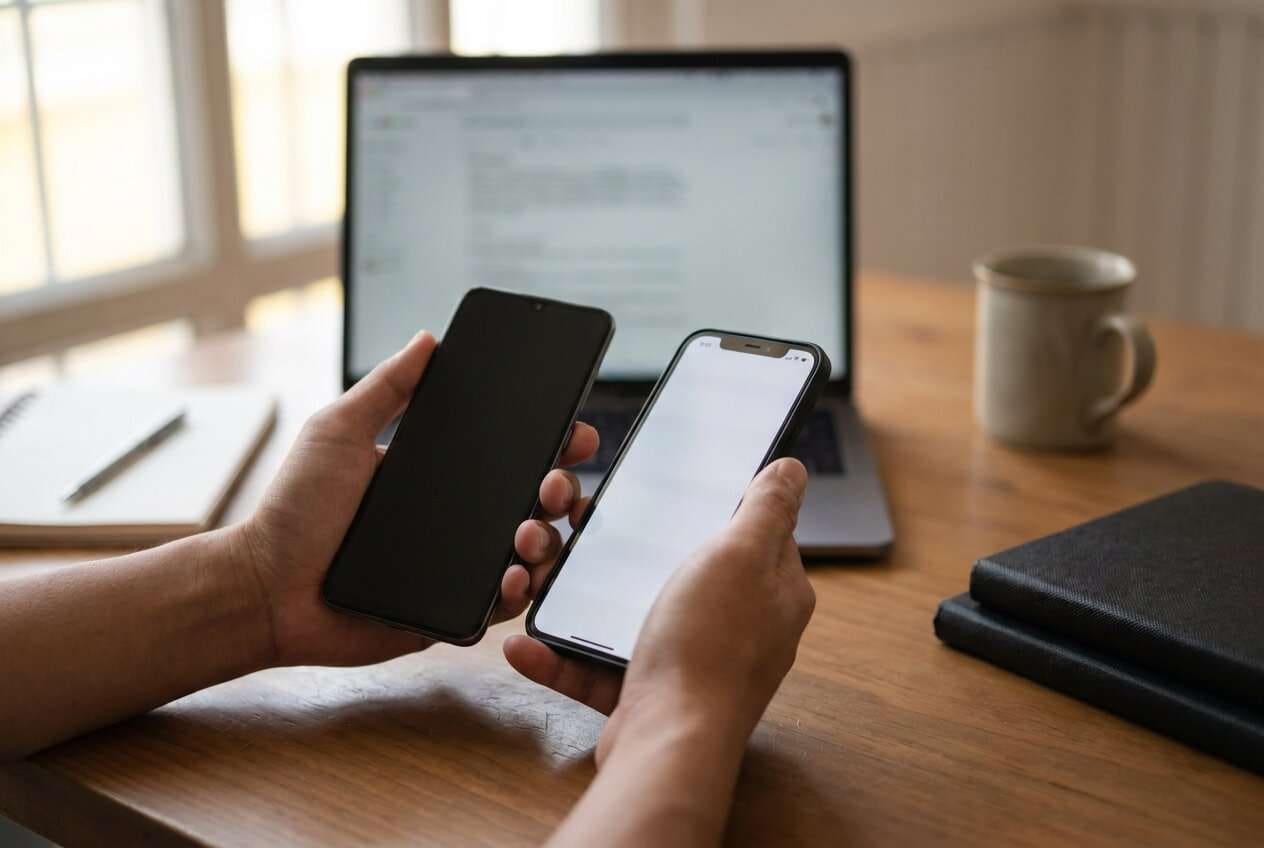
AI can suggest “use cloud sync” or “use a transfer app,” but that answer often skips the critical order of operations: what to back up first, how to confirm where your contacts truly live, and what “success” looks like before you proceed.
The point-of-no-return moment is usually erasing or resetting the iPhone to run an initial migration flow (or overwriting/merging a contact source), because once data is merged incorrectly or the device is wiped, you can’t easily reconstruct the original state without a verified backup.
Part 2. What the AI Needs to Know
Share your starting conditions so the AI can map the safest sequence and checks.
- Android model and Android version (e.g., “Samsung S21, Android 14”)
- iPhone model and iOS version (e.g., “iPhone 15, iOS 17”)
- Where contacts are currently stored (Google account, phone-only, SIM, Exchange/Outlook, other)
- Photo source(s) (DCIM/local gallery, Google Photos, OneDrive, SD card)
- Current cloud usage status (Google sync on/off, iCloud enabled/disabled)
- Approximate photo library size (e.g., “45 GB / 18,000 photos”)
- Network constraints (stable Wi‑Fi available? limited data? corporate firewall?)
- Whether the iPhone is already set up and in use (yes/no)
- Any special items (WhatsApp media, locked notes, encrypted folders)
Part 3. Using AI Prompts to Build a Safer Android to iPhone Transfer Without Losing Contacts and Photos Workflow
Use these prompts to force a clear sequence, reduce assumptions, and add verification gates before any irreversible action.
3-1. Level 1: Basic Prompt
I’m moving from Android to iPhone and I only care about not losing contacts and photos.
Create a step-by-step plan with checkpoints to confirm where my contacts/photos are stored and how to verify the transfer is complete.
Don’t include execution clicks—just the workflow and what to verify at each stage.
3-2. Level 2: Advanced Prompt
Design a workflow for “Android → iPhone contacts + photos transfer” with three sections: Preparation, Execution, and Verification.
In each section, label steps as Critical vs Optional, and include a “Stop/Do Not Proceed Until…” checkpoint before any irreversible step (like wiping the iPhone or merging contact sources).
3-3. Level 3: Evidence Prompt
Here’s my context: Android (Pixel 6, Android 14), iPhone (iPhone 14, iOS 17), contacts are a mix of Google + some phone-only, photos are mostly local + some Google Photos, library size ~60 GB, iPhone is already set up (yes), Wi‑Fi is stable (home fiber).
Build a transfer plan that includes:
- Before checks (e.g., confirm contact source counts: Google Contacts = (2,150), phone storage = (120), SIM = (0))
- During checks (what signals indicate it’s still transferring vs stalled)
- After checks (spot-check strategy: albums, date ranges, duplicates, missing recent photos)
Also include a “rollback strategy” checklist if I detect missing items after the first attempt.
3-4. Prompt Refinement
List the exact verification metrics I should record before transfer (counts, sizes, dates) and the acceptable mismatch threshold (e.g., “±1–2 contacts due to duplicates”).
Ask me 10 yes/no questions that determine the safest transfer route (cloud sync vs direct transfer), then output the route you choose and why.
Create a decision tree for contacts only: Google-synced vs phone-only vs SIM vs work account, and specify the verification method for each branch.
Produce a risk register with: risk, likelihood, impact, prevention, detection check, and recovery action—focused on contacts/photos only.
Give me a pre-flight checklist that blocks execution unless every item is confirmed (accounts, storage, cable, charging, backups).
Part 4. AI Plan vs. Real Device Constraints (and When to Start Execution)
4-1. AI Plan vs. Real Device Constraints
| AI planning output | Real-world constraint to account for |
|---|---|
| A clean step sequence with checkpoints | Devices may prompt unexpected login/2FA or permissions mid-transfer |
| Estimated duration and prerequisites | Transfer time varies widely by Wi‑Fi quality, cable stability, and library size |
| Verification checklist and success criteria | Some items won’t match 1:1 due to duplicates, hidden albums, or “Recently Deleted” behavior |
| Recovery/rollback plan | Recovery depends on whether you created a real backup before any merge/reset |
AI improves planning, but cannot execute the transfer, validate on-device screens, or guarantee account access—so execution needs real tooling and real verification on the devices.
4-2. When to Stop Planning Android to iPhone Transfer Without Losing Contacts and Photos and Start Execution
- You have written down baseline counts (contacts by source + approximate photo count/size) and know what “complete” means for you.
- You have confirmed account access (Apple ID, Google account, any work account) including 2FA recovery methods.
- You have a non-destructive fallback (a verified backup or export) that you can restore from if something overwrites or merges incorrectly.
- You have identified and postponed any irreversible step (like wiping the iPhone) until after you’ve validated the backup and the chosen route.
Once these are true, you’re no longer deciding—you’re ready to follow the workflow without improvising mid-transfer.
Part 5. Android to iPhone Transfer Without Losing Contacts and Photos: Execute the Workflow Safely with Dr.Fone
Execution now matters because most failures happen when you start copying before you’ve locked the source of truth (where contacts/photos really live) and before you’ve set pass/fail checks. If you want a dedicated transfer tool for the execution phase, Dr.Fone - Phone Transfer can help you run the transfer in a controlled pass.
 Move data between iOS to Android and vice versa.
- Transfer contacts, SMS, photos, videos, music, and more types.
- Available with all phones with Android and iOS versions.
- Simple, click-through process.

Step: Secure a fallback first
Create a fresh backup of the source data (and confirm it completes) so you have something to return to if you later detect missing or overwritten contacts/photos. AI can tell you what to back up and how to verify it, but it cannot create or validate the backup on your devices.
Step: Run the transfer in one controlled pass
Use Dr.Fone to perform the planned contacts/photos transfer route you chose, keeping devices powered and stable until completion. AI cannot operate Dr.Fone, keep connections stable, or respond to on-device permission prompts for you.
Step: Verify against your baseline before you delete anything
Compare post-transfer results to your recorded baseline (counts, recency, spot-check date ranges, and a few named contacts) and only then consider cleanup actions. AI can help interpret mismatches and decide next actions, but it cannot see your actual iPhone/Android libraries or confirm what truly arrived.
-
Step 1 Launch the phone transfer tool
Open the transfer module and keep both devices charged and unlocked so you can respond to any on-device prompts.

-
Step 2 Set the Android → iOS device path
Connect both phones and confirm the direction is Android (source) to iPhone (target) before you continue.

-
Step 3 Choose data types (contacts and photos) and start the transfer
Select the types you intend to move (contacts and photos), then run the transfer as one controlled pass based on the plan you validated.

-
Step 4 Monitor progress and do post-transfer verification
Watch for progress indicators and, after completion, verify against your baseline (counts, recency, spot-check date ranges) before deleting anything on the Android.




Conclusion
Use AI to design the sequence, identify risks, and set verification gates; then use Dr.Fone to carry out the real transfer—only after your baseline and rollback plan are confirmed.
FAQ
-
What’s the biggest risk during Android → iPhone transfer for contacts and photos?
Starting without a verified backup and then triggering a merge/overwrite/reset that changes the only good copy of your contacts or photo library.
-
When is the “point of no return”?
When you wipe/reset the iPhone to rerun an initial migration flow, or when you overwrite a cloud contact source (causing bad merges or deletions to sync everywhere).
-
How do I verify contacts transferred correctly (not just “some of them”)?
Record baseline counts by source (Google vs phone-only vs SIM/work) and then confirm the iPhone reflects the intended source(s), plus spot-check specific names, recent additions, and duplicates.
-
How do I verify photos transferred correctly?
Check a few anchors: oldest photos, newest photos (last 7–30 days), several videos, and a couple of albums/folders; also confirm totals roughly match your baseline size/count expectations.
-
Can AI choose the best method automatically?
AI can recommend a method based on your context, but it can’t confirm your real storage state, account permissions, or device prompts—so your verification checkpoints are what make the choice safe.
 Add Wondershare Dr.Fone as a preferred source on Google





