 Effortlessly manage data through preview, delete, export, etc.

 100% Security Verified | No Subscription Required | No Malware

 :
: 
 ChatGPT
 Perplexity
 Gemini
 Claude
 Grok
Grok

I tried to separate client videos from my personal camera roll, but I ended up with duplicates and I wasn’t sure what was safe to delete because iCloud kept syncing everything.
Reddit user, r/iPhone
Separating work media from personal photos on your phone sounds simple, but missing one step can lead to duplicates, broken albums, lost metadata, or accidental deletion.
AI can help you map the workflow end-to-end, decide what “separate” means for your situation, and add verification checks before you touch anything on the device.
AI can’t see your phone’s real storage state, cloud sync behavior, or app permissions in real time—so once the plan is solid, you still need a reliable tool to execute moves, exports, and backups safely.
In this article
- Plan the separation workflow without missing critical steps
- Define what counts as “work media”
- Choose destinations and backups first
- Build verification gates before cleanup
- Move the “point of no return” to the end
- What the AI needs to know
- AI prompts to build a safer workflow
- AI plan vs. real device constraints
- Stop planning and start execution
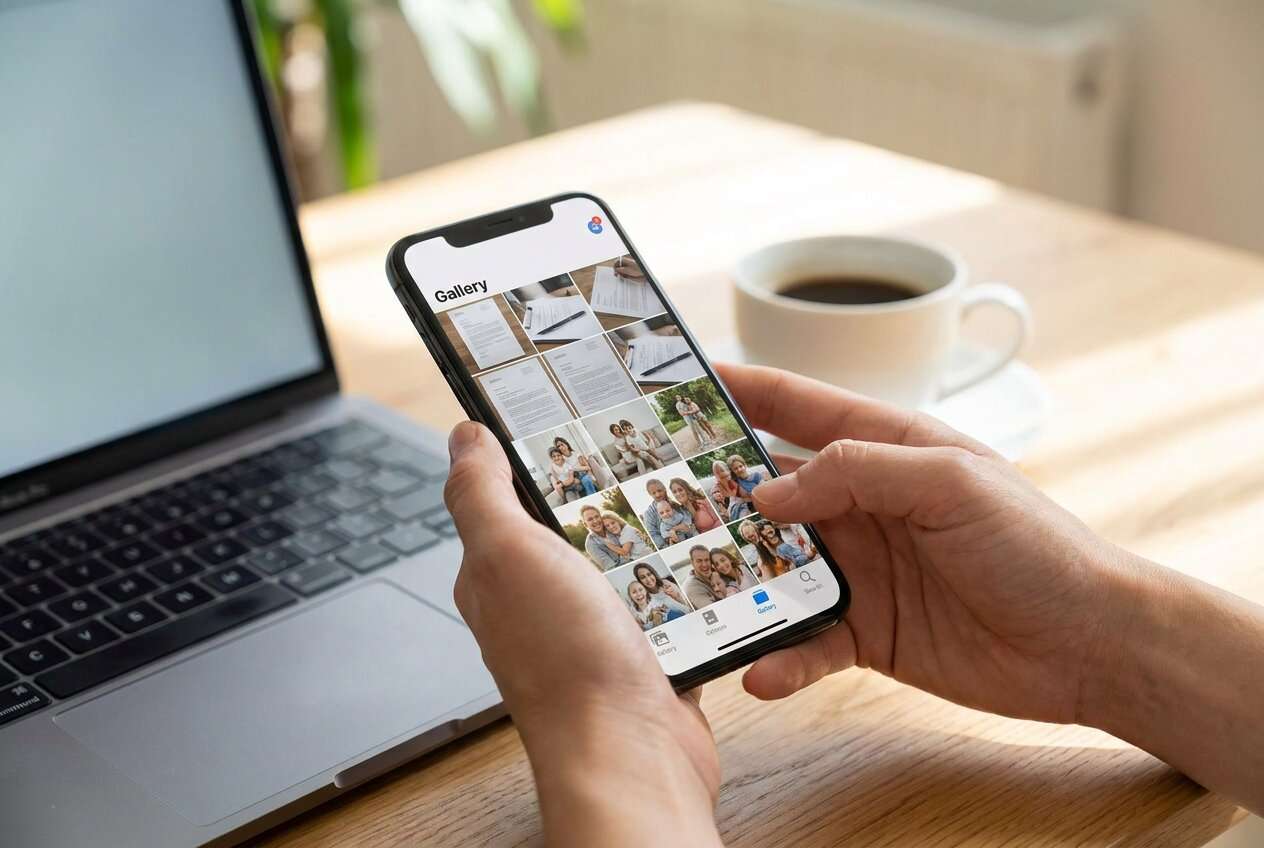
Part 1. How to plan separate work media from personal photos on phone without missing critical steps
You may have work screenshots, client videos, and shared files mixed into the same camera roll as family photos. You want work media isolated (for privacy, compliance, or easier cleanup) without breaking your personal photo history.
The uncertainty usually starts after you get generic advice like “make folders” or “use cloud storage,” because it doesn’t clarify sequence: what to back up first, what to export vs. move, and how to confirm nothing is missing before you clean up the phone.
There’s also a point of no return: deleting originals (or factory resetting / removing an account) before you’ve verified the copy is complete can permanently remove items—especially if cloud sync propagates deletions across devices.

Part 2. What the AI needs to know
Answer these so the plan matches your phone, accounts, and risk tolerance.
- Phone type and OS version (Android model + Android version, or iPhone + iOS version)
- Where photos/videos currently live (device-only, iCloud Photos, Google Photos, OneDrive, work MDM/app)
- What “work media” includes (camera shots, WhatsApp/Teams downloads, screenshots, screen recordings, PDFs)
- Desired destination for work media (separate phone profile, separate cloud account, PC/Mac archive, encrypted drive)
- Whether you need to preserve metadata (date taken, location, albums, Live Photos/Motion Photos)
- Whether work apps are managed by IT/MDM (and any restrictions on export/sharing)
- Storage constraints (free space on phone and computer; cable vs Wi‑Fi transfer)
- Your cleanup goal (hide from Photos app, separate for sharing, or remove from personal space entirely)
Part 3. Using AI prompts to build a safer separate work media from personal photos on phone workflow
Use the prompts below to force a clear sequence with verification before any irreversible action.
3-1. Level 1: Basic prompt
I want a step-by-step plan to separate work media from my personal photos on my phone without losing anything. Ask me the minimum questions you need, then propose a safe sequence with checks before I delete or move any originals.
3-2. Level 2: Advanced prompt
Design a workflow to separate work media from personal photos on my phone with Preparation / Execution / Verification phases. Mark each step as Critical or Optional, and include specific “stop points” where I must confirm counts, sample files, and metadata before proceeding.
3-3. Level 3: Evidence prompt
Context: I use (iPhone 14, iOS 17) with (iCloud Photos ON) and my work media is mainly (screenshots, shared client videos, WhatsApp downloads) mixed into Photos; I want work media stored in (a folder on my Windows 11 PC) and optionally in (a separate cloud account). Create a plan with checks before/during/after transfer, including how to verify (item counts, date ranges like 2024-01 to 2025-06, file types .jpg/.heic/.mp4), and list the exact conditions that must be true before I delete anything.
3-4. Prompt refinement (follow-up prompts)
Create a table with columns: Item type, Source location, Destination, How to export, How to verify, Risk if skipped—fill it based on my answers.
Give me a “minimum viable separation” plan (fast + safe) and a “best practice” plan (more thorough), and tell me what extra verification the best-practice plan adds.
Specify the exact verification steps to confirm metadata is intact (timestamps, location, Live/Motion behavior) and how many random samples I should check (e.g., 20 files across months).
Identify deletion risks with cloud sync (iCloud/Google Photos/OneDrive) and rewrite the sequence so deletions cannot propagate until verification is complete.
Produce a checklist that I can print, with explicit pass/fail criteria (e.g., “Exported count matches source count ± known exclusions”).
Part 4. AI plan vs. real device constraints
| Planning area | What AI can do | Real constraint to account for |
|---|---|---|
| File inventory & categorization | Define rules (what counts as “work”) and propose sorting logic | Actual items may be scattered across Camera, Downloads, app folders, hidden/recently deleted |
| Transfer strategy | Recommend safer sequences and redundancy (two copies, staged cleanup) | Transfer speed, cable reliability, storage space, and permission prompts vary by device |
| Verification design | Provide checklists (counts, spot-checks, metadata tests) | Some metadata/album structures don’t export the same way across apps/OS |
| Risk control | Flag irreversible moments and cloud-sync pitfalls | Cloud services may sync deletions instantly; managed work apps may block exporting |
AI improves planning, but it cannot execute on-device moves, exports, backups, or account changes—those must be done with real tools after you’ve validated the plan.
Part 5. When to stop planning separate work media from personal photos on phone and start execution
- You have a written definition of “work media” (types, sources, date ranges) and what is explicitly excluded.
- You have chosen destinations and redundancy (at least one backup copy before any cleanup).
- You have verification rules that are measurable (counts, sample checks, metadata expectations) and a clear “pass/fail” threshold.
- You have identified the irreversible moment (deleting originals / emptying Recently Deleted / removing an account) and placed it only after verification.
Once these are true, planning should pause so you don’t overthink while the device state continues to change (new photos, new downloads, ongoing sync).
Recommended tool: execute the workflow safely with Dr.Fone
If your plan is ready, Dr.Fone Basic - Data Manager can help you carry out transfers and exports in a controlled, tool-driven way—reducing the chance of partial copies, wrong destinations, or accidental deletions.
 Easily manage data through preview, delete, export, etc.
- Transfer all data between devices.
- Robust backup solutions for reliable data protection.
- Mirror screens to PC for meetings, teaching, and control.

Prepare a protected snapshot. Make a full backup/export baseline to your computer so you have a rollback point before reorganizing anything.
Transfer work media to your chosen destination. Follow your verified sequence (export first, verify, then clean up) instead of improvising mid-transfer.
Verify, then perform the irreversible cleanup. Only after verification passes should you remove work media from the personal photo space—and avoid emptying “Recently Deleted” (or equivalent) until you’re fully confident.
-
Step 1 Connect your phone to the computer
Use a stable cable connection and unlock the device so permission prompts can be approved. If prompted, choose “Trust This Computer” (iPhone) or allow file access (Android) to avoid partial transfers.

-
Step 2 Open data management and locate the media categories
Navigate to the section where you can browse media by type (photos/videos). This is where your plan’s “work media definition” matters (screenshots, downloads, client videos, specific date ranges).

-
Step 3 Filter/select the work media set to export
Select only the work items (for example: screenshots + shared client videos + WhatsApp downloads) according to your written criteria. If your plan requires metadata preservation, export formats and destinations should be chosen accordingly.

-
Step 4 Export to your destination folder and verify before cleanup
Export to the exact destination folder you defined (for example, a Windows 11 folder). Then run your verification gates (counts by type/date range, random samples across months, metadata checks) before deleting or moving any originals.





Conclusion
Use AI to define “work vs personal,” lock the sequence, and build verification gates; then use a real execution tool to perform the transfer and cleanup only after the checks pass.
FAQ
-
What’s the biggest risk when separating work and personal media on a phone?
Deleting or moving originals before confirming the destination copy is complete—especially when cloud sync can mirror the change everywhere.
-
How do I verify I didn’t miss anything?
Use a combination of item counts (by type and date range), spot-check samples across months, and metadata checks (timestamps, location, Live/Motion behavior).
-
Should I turn off iCloud Photos/Google Photos sync first?
Only if your plan requires it and you understand the consequence; changing sync settings can trigger uploads/downloads or removal behavior that complicates verification.
-
When is it safe to delete the originals from my phone?
After you can prove the destination contains the expected files (counts + samples) and you’ve confirmed how deletions will behave with your cloud account(s).
-
Can AI tell me whether a specific file successfully transferred?
No—AI can design the checks, but it can’t inspect your device, your computer folders, or transfer logs in real time.
 Add Wondershare Dr.Fone as a preferred source on Google





