 Effortlessly manage data through preview, delete, export, etc.

 100% Security Verified | No Subscription Required | No Malware

 :
: 
 ChatGPT
 Perplexity
 Gemini
 Claude
 Grok
Grok

My iPhone is stuck on the cable-to-computer screen. If I keep going in Recovery Mode, will it erase everything on my phone?
Apple Support Community user
Recovery Mode can feel risky—especially if your iPhone (for example, an iPhone 13 or iPhone 14) is stuck after you tapped Install Now, forced a restart, or tried to connect it to a computer. You may be seeing the cable-to-computer screen and wondering whether continuing will wipe everything. It’s also common that nothing seems to change after several minutes, so it’s unclear what the phone is actually doing.
AI can help you interpret what you’re seeing, distinguish Recovery Mode from DFU mode, and map your exact situation to the safest next step. With the right prompts, you can narrow likely causes and identify which actions are low-risk versus data-destructive.
AI can’t “see” your device state with certainty, and trial-and-error can increase risk (especially if you choose “Restore” when you meant “Update”). Use AI for careful decision-making, then rely on a dedicated tool for the actual execution steps.
In this article
- Part 1. Why will recovery mode erase data on iphone happens and what it means
- What Recovery Mode really does
- Update vs Restore: where data loss happens
- Why the prompts feel confusing
- Before you prompt the AI
- Part 2. Using AI prompts to diagnose will recovery mode erase data on iphone safely
- Part 3. When to stop troubleshooting will recovery mode erase data on iphone and avoid risks
- Part 4. Will recovery mode erase data on iphone: fix or resolve it safely with Dr.Fone
- Conclusion

Part 1. Why will recovery mode erase data on iphone happens and what it means
1-1. What Recovery Mode really does
Recovery Mode itself doesn’t automatically erase your data—it’s a special state that lets a computer attempt an iOS reinstall.
1-2. Update vs Restore: where data loss happens
Data loss risk depends on what you click next: Update is intended to reinstall iOS without erasing, while Restore typically wipes the device.
1-3. Why the prompts feel confusing
Confusion often happens because the prompts in Finder/iTunes can look similar, and people enter Recovery Mode while already stressed (boot loop, failed update, frozen screen). In that moment, it’s easy to choose an option without understanding the consequence.
If the iPhone can’t complete an update-in-place, the software path may still end in a restore requirement. That’s why it helps to first diagnose whether you’re in a recoverable “update” scenario or a “must restore” scenario.
1-4. Before you prompt the AI
Collect a few details first so the AI can assess risk accurately:
- iPhone model and iOS version (if known)
- What you did right before this (update, storage cleanup, transfer, force restart)
- What’s on screen now (Apple logo, progress bar, cable-to-computer icon)
- Whether Finder/iTunes shows Update and/or Restore
- Whether you have an iCloud or computer backup (and when it was last successful)
Part 2. Using AI prompts to diagnose will recovery mode erase data on iphone safely
2-1. Level 1: Basic Prompt
I put my iPhone into Recovery Mode and I’m worried about data loss. Does entering Recovery Mode erase data by itself, and what is the safest next step if I want to avoid wiping my iPhone?
2-2. Level 2: Advanced Prompt
Act like a cautious iPhone troubleshooting assistant. Based on my symptoms, rank the most likely scenarios that determine whether I can use “Update” without erasing data vs when “Restore” is unavoidable. For each scenario, list: (1) what it means, (2) data-loss risk level (low/medium/high), and (3) the lowest-risk next step I should try first.
2-3. Level 3: Evidence Prompt
Help me assess whether Recovery Mode will erase data in my case and what I should do next with minimal risk. Use my evidence and ask for anything missing.
Device info
- iPhone model: (e.g., iPhone 13 Pro)
- iOS version (if known):
- Storage status before issue: (e.g., “almost full” / “unknown”)
What triggered it
- What I did right before: (e.g., tapped Install Now, force restarted, update failed)
- Any prior issues: (e.g., random reboots, low storage warnings)
Current symptoms
- Screen now shows: (e.g., cable-to-computer icon / Apple logo loop / progress bar stuck at 25%)
- How long it’s been stuck: (e.g., 20 minutes)
- Computer prompt shows: (Update / Restore / both / not detected)
- Error codes (if any): (e.g., 4013, 9)
Data safety context
- iCloud backup available: (yes/no/unsure; last date if known)
- Computer backup available: (yes/no/unsure)
- Do I remember my Apple ID password: (yes/no)
What I need from you
1) Explain whether entering Recovery Mode itself erases data.
2) Identify the safest path to try first and why.
3) Tell me exactly what actions to avoid to reduce wipe risk.
4) List decision points where data loss becomes likely.
2-4. Prompt Refinement
Use these follow-ups to tighten the diagnosis and reduce guesswork:
What key question are you missing to decide between Update and Restore?
Separate the possibilities into categories: software glitch, failed iOS update, cable/port/computer issue, hardware risk.
Rank the top 3 most likely causes given my symptoms, and tell me what evidence would confirm each one.
What is the lowest-risk action I can take in the next 10 minutes that does not increase wipe risk?
Which Finder/iTunes messages or error codes would change your recommendation immediately?
2-5. AI Output vs Reality
AI helps you plan; it doesn’t control what the device or computer will do.
| AI can help you decide | Reality you still must verify |
|---|---|
| Whether Recovery Mode itself wipes data | Which button you actually click: Update vs Restore |
| Whether symptoms match a failed update vs a connection issue | Whether the computer reliably detects the iPhone without disconnects |
| What evidence suggests low vs high wipe risk | Whether iOS reinstall succeeds without demanding a restore |
| Which next step is least risky | Whether you have a usable backup if restore becomes unavoidable |
AI can outline the safest sequence, but the execution step (entering/exiting modes and running a system procedure) is where mistakes can cause data loss or wasted time—so treat the plan as guidance, then proceed carefully with the right tool.
Part 3. When to stop troubleshooting will recovery mode erase data on iphone and avoid risks
If your goal is to avoid wiping data, the main danger is repeating random steps until you accidentally choose a destructive path or make the situation harder to recover from.
- You only see Restore (no Update) and you don’t have a verified recent backup.
- The iPhone repeatedly disconnects during attempts, or error codes keep returning after cable/port changes.
- The device is stuck in a loop for a long time and every new attempt increases instability or heat.
- You’re not sure whether you’re in Recovery Mode vs DFU mode, and you’re guessing which steps to try next.
Once you’ve narrowed the likely scenario with AI, the next move is executing the lowest-risk recovery-mode action reliably—without experimenting through high-risk options.
Part 4. Will recovery mode erase data on iphone: fix or resolve it safely with Dr.Fone
If your iPhone is stuck in Recovery Mode and you’re trying to avoid a wipe, this is the point where execution matters more than theory: you need a controlled way to enter/exit Recovery Mode and attempt a system-level fix without guessing inside Finder/iTunes. Dr.Fone - System Repair (iOS) is relevant here because it can help you perform the Recovery Mode steps and system procedure in a guided workflow, reducing accidental clicks that typically lead to “Restore” and data loss outcomes.
 Fix iOS issues, no data loss.
- One-click repair for all iOS problems.
- Solve recovery mode, Apple logo, black screen, etc.
- Upgrade or downgrade iOS without iTunes

-
Step 1 Connect your iPhone and open Dr.Fone
Use a stable cable/port connection (avoid hubs if possible) to reduce mid-process disconnects that can trigger repeat failures.

-
Step 2 Select System Repair and choose the correct device type
Select the iOS System Repair area so you’re working in a mode designed for system-state issues rather than manual trial-and-error.

-
Step 3 Enter the iOS System Repair module
Make sure you’re in the workflow intended for iOS system issues (not a restore/reset path) before proceeding.

-
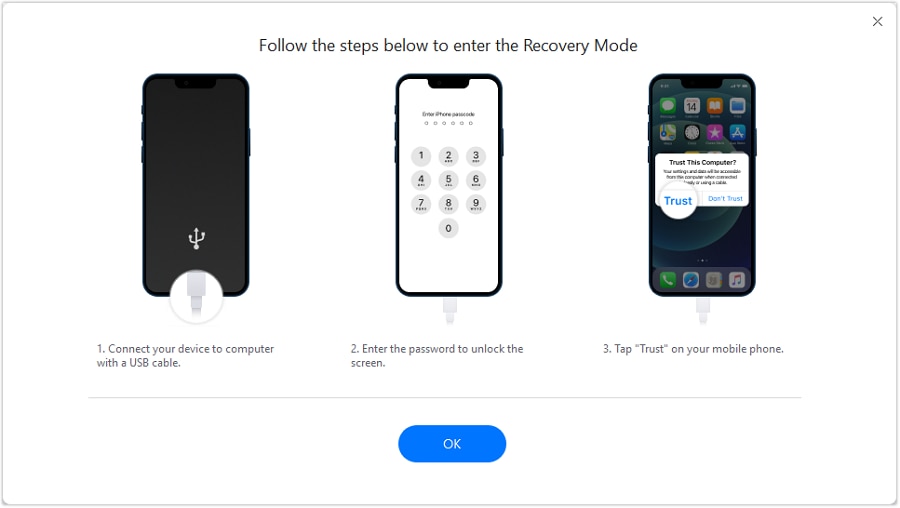
Step 4 Use Enter/Exit Recovery Mode first when appropriate
Choose the Recovery Mode option to exit Recovery Mode first when appropriate, since exiting is typically lower-risk than restoring.
-
Step 5 Run the repair workflow carefully, then verify after boot
Follow the on-screen steps carefully and prefer the option intended to preserve data when available, avoiding restore-style paths unless you’ve confirmed backups. Once the iPhone turns on, verify your data presence and confirm iCloud backup settings to reduce risk if a future restore becomes necessary.




Conclusion
Use AI to clarify whether Recovery Mode itself erases data, identify the decision points that trigger wiping, and choose the lowest-risk sequence; then hand off to Dr.Fone - System Repair (iOS) to execute entering/exiting Recovery Mode and system steps in a more controlled way.
FAQ
-
Does entering Recovery Mode erase data on iPhone?
No—entering Recovery Mode alone doesn’t wipe data. Data loss usually happens if you proceed with Restore (or if an update-in-place fails and a restore becomes required).
-
What’s the difference between “Update” and “Restore” in Finder/iTunes?
Update attempts to reinstall iOS while keeping data. Restore typically erases the iPhone and installs iOS fresh.
-
Can I exit Recovery Mode without restoring my iPhone?
Often yes. Exiting Recovery Mode is usually a low-risk first step if the device entered it due to a temporary software hang.
-
If “Update” fails, does that mean I must erase my iPhone?
Not always, but repeated update failures can indicate a deeper system issue where restore becomes the only Apple-official path—this is where careful diagnosis and a system repair workflow can matter.
-
Is DFU mode more likely to erase data than Recovery Mode?
DFU mode is a deeper restore state and is commonly used for full reinstalls, which increases wipe risk because it’s often paired with restore-type actions.
 Add Wondershare Dr.Fone as a preferred source on Google





