 Effortlessly manage data through preview, delete, export, etc.

 100% Security Verified | No Subscription Required | No Malware

 :
: 
 ChatGPT
 Perplexity
 Gemini
 Claude
 Grok
Grok

I went to clear cache to free space and accidentally hit “Clear data.” The app logged me out and a bunch of stuff was gone—now I’m paranoid about touching anything in Storage settings.
Reddit user, r/Android
Clearing Android app cache can quickly free space and fix glitches, but skipping one verification step can cost you time (re-logins, re-downloads) or data (if you clear storage by mistake).
AI helps you map a safe workflow: which apps are low-risk, what to check first, and how to confirm results before you touch anything on your phone. But AI can’t see your device state or what “Clear storage” will remove on your build—so execution still needs real device tools and a deliberate checklist.
In this article
- How to plan a safe cache-clearing workflow
- Why “Clear cache” vs “Clear storage” matters
- How to decide app order
- What to check before and after
- Stop rules to prevent damage
- What the AI needs to know
- Using AI prompts to build a safer workflow
- AI plan vs. real device constraints
- When to stop planning and start execution
Part 1. How to Plan What App Cache Is Safe to Clear on Android Without Missing Critical Steps
You’re low on storage, your phone is lagging, and you’ve heard “clearing cache is safe”—but Android surfaces multiple buttons (Clear cache vs Clear storage), and different apps behave differently afterward.
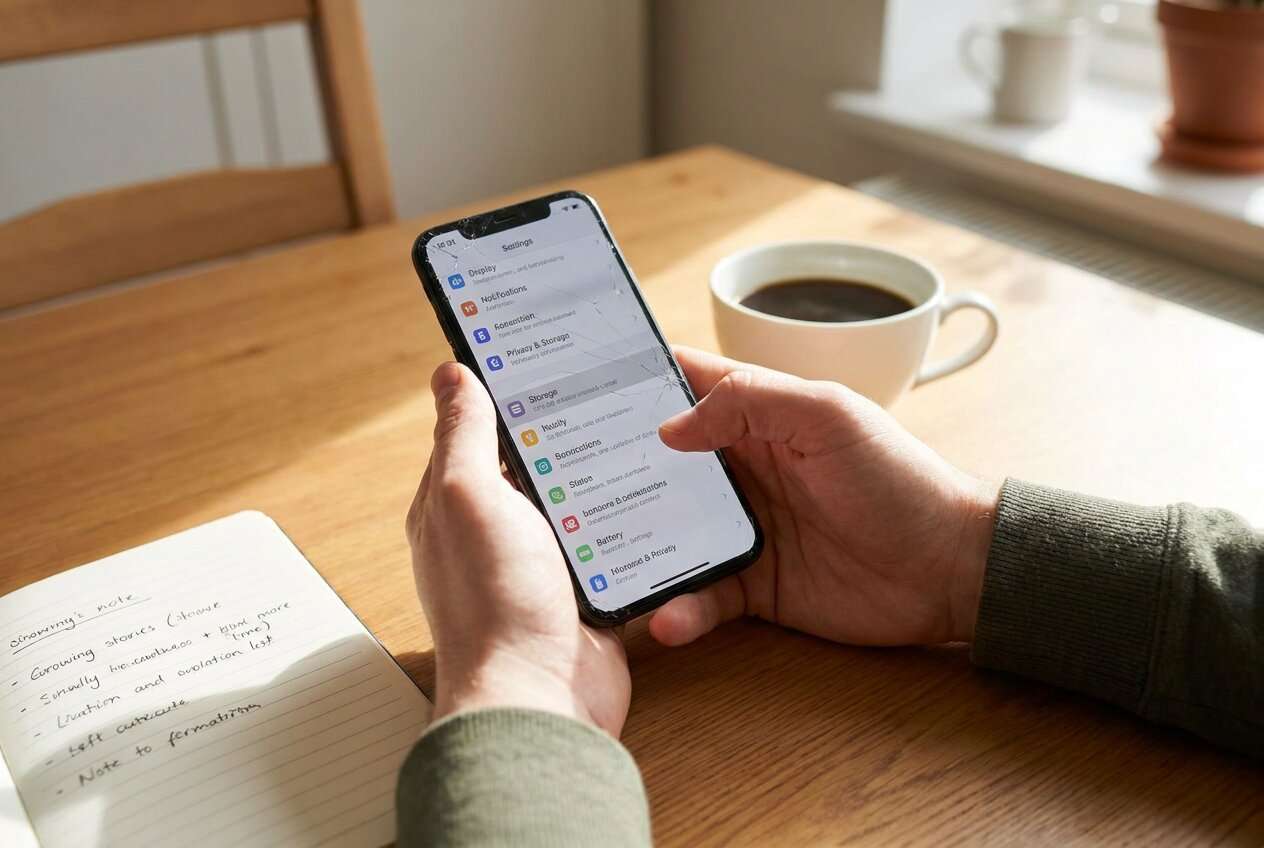
After an AI answer like “social apps are safe to clear,” you may still be unsure about sequence: which apps first, what to verify before and after, and how to ensure you don’t accidentally remove offline files, drafts, or downloads.
The point of no return is tapping “Clear storage/Clear data” instead of “Clear cache” on a critical app (banking, authenticator, messaging). That can wipe local databases, settings, and downloads, and recovery may be impossible without a prior backup or re-sync.
Part 2. What the AI Needs to Know
Share your device context so the plan can be risk-ranked and verification-driven.
- Android version and device model (e.g., Android 14, Samsung Galaxy S23)
- Your goal (free space, fix crashes, speed up, resolve login loops)
- How much space you need (e.g., “free 5–10 GB”)
- Apps you rely on daily (banking, work, 2FA/authenticator, messaging, notes)
- Apps with offline content (Spotify/YouTube downloads, maps, podcasts, Kindle)
- Messaging setup (SMS vs WhatsApp/Telegram/Signal) and whether backups are enabled
- Any “must not lose” items (drafts, unsent messages, game progress, media)
- Whether you can re-download large assets (limited data plan / slow Wi‑Fi)
- Your tolerance for re-login and re-sync time
Part 3. Using AI Prompts to Build a Safer Workflow
Use the prompts below to force a sequence with checks, not just a list of apps.
3-1. Level 1: Basic Prompt
I want to free storage on Android by clearing app cache safely.
Create a short plan that prioritizes low-risk apps first and includes a clear warning about what I must not tap (Clear storage/Clear data).
Also include quick “before and after” checks to confirm nothing important broke.
3-2. Level 2: Advanced Prompt
Build a structured workflow for clearing Android app cache with minimal risk.
Preparation: list what to check first (storage breakdown, app categories, offline content, login/2FA dependencies).
Execution: propose an order of operations for clearing cache only, and define “critical apps” I should avoid until last.
Verification: give pass/fail checks after each batch (logins, offline files, downloads, performance), and a rollback/stop rule.
Label each step as Critical or Optional.
3-3. Level 3: Evidence Prompt
Here’s my context: device (Pixel 7, Android 14), goal (free ~6 GB), constraints (limited mobile data, can use Wi‑Fi overnight), critical apps (Google Authenticator, banking app, WhatsApp, work email), offline content (Spotify downloads, Google Maps offline areas), storage issue (System is fine, apps + media are high).
Create a risk-ranked list of app categories with:
- Safe to clear cache now (examples: “Chrome cache”, “Instagram cache”)
- Clear cache only after checks (examples: “WhatsApp/Telegram”, “Maps”)
- Avoid touching unless you accept consequences (examples: “Authenticator”, “Banking”, “Launcher/System apps”)
Then provide checks before (confirm backups/sync toggles), during (how to confirm I’m clearing cache not storage), and after (what exactly to test in WhatsApp/Spotify/Maps).
Include explicit stop conditions (e.g., “If WhatsApp shows media missing, stop and verify backup settings before continuing.”).
3-4. Prompt Refinement
Convert the plan into a table with columns: App/App category, Risk level, Cache clear allowed?, What might re-download, What to verify after, Stop rule.
Ask me exactly 8 yes/no questions to classify my apps into low-risk, medium, high-risk, then output the workflow based on my answers.
Give me a “Do Not Cross” list: the exact screens/buttons/wording I should avoid (e.g., “Clear storage”, “Manage storage”, “Delete data”), and what to do if I already tapped one.
Create a batch strategy: “Clear 5 apps at a time,” plus the minimum verification checklist after each batch, optimized for limited time.
Part 4. AI Plan vs. Real Device Constraints
| AI plan | Real device constraint |
|---|---|
| AI can: rank apps by typical risk patterns | Device reality: your app settings/offline files differ per account and version |
| AI can: define a safe sequence and stop rules | Device reality: Android menus/labels vary (OEM skins, app screens) |
| AI can: suggest verification checks | Device reality: only you can confirm drafts, downloads, and logins still work |
| AI can: recommend backup timing | Device reality: backups require a real tool and enough storage/time |
AI improves planning and reduces avoidable mistakes, but it cannot execute device actions, confirm what was deleted, or recover data after a wrong tap.
Part 5. When to Stop Planning What App Cache Is Safe to Clear on Android and Start Execution
- You can clearly distinguish Clear cache vs Clear storage/Clear data, and you’ve committed to avoiding the latter unless explicitly intended.
- You’ve identified high-risk apps (2FA, banking, primary messaging, notes, offline media) and placed them last or excluded them.
- You have a verification checklist you can run in under 2 minutes after each batch (logins, offline items, downloads, app launches).
- You’ve set a stop rule for any unexpected outcome (missing media, forced re-login loops, broken offline access).
If all four are true, you’re no longer searching for “what’s safe”—you’re ready to follow a controlled sequence.
Recommended Tool: Execute the Workflow More Safely
Execution matters because the main failure mode is human error under pressure—clearing the wrong thing, too many apps at once, or having no recovery path if an app loses local content. To protect your data first, you can use Dr.Fone Basic - Data Manager to manage and back up important items before you start making changes on your phone.
 Easily manage data through preview, delete, export, etc.
- Transfer all data between devices.
- Robust backup solutions for reliable data protection.
- Mirror screens to PC for meetings, teaching, and control.

Protect a recovery path (backup first): Back up the device data you can’t afford to lose before you clear anything. Limitation: AI can’t verify your backup contents or completeness—you must confirm the backup finished and is accessible.
Clear cache in small batches (cache only, not data): Use Android app settings to clear cache for the low-risk batch you planned, then proceed batch-by-batch. Limitation: no tool decides which caches are safe—you must follow the risk-ranked plan and avoid “Clear storage/Clear data.”
Verify, then continue (or stop): After each batch, test the specific checks you defined (messaging media visibility, offline downloads, map offline areas, auth/banking access) and stop immediately if a stop rule triggers.
-
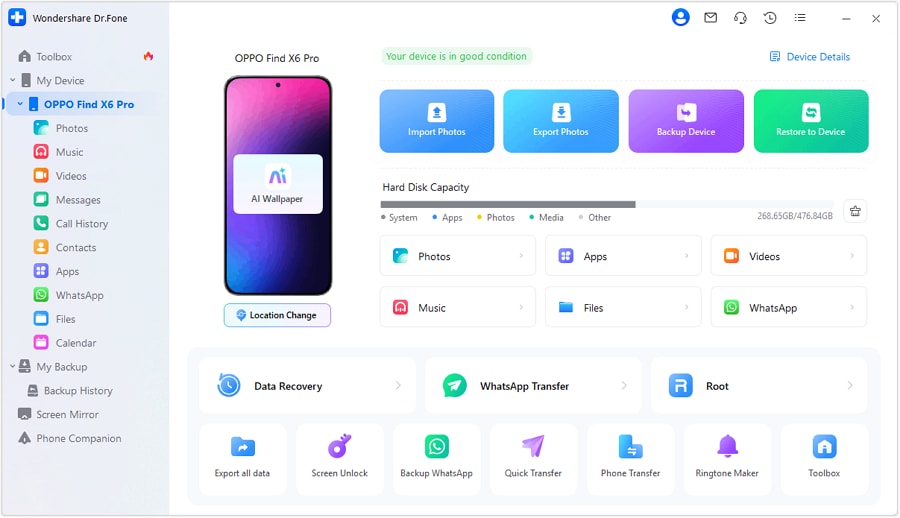
Step 1 Connect your Android to your computer
Connect your device so you can manage important files and create a safer “recovery path” before you begin clearing caches.
-
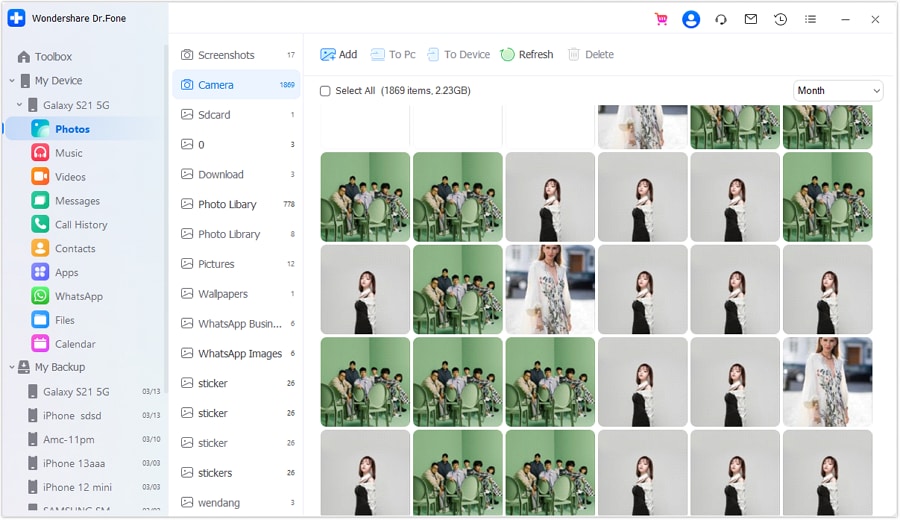
Step 2 Open Photos (or other large categories) to locate space hogs
Review what’s actually taking space (e.g., photos/screenshots) so you can free storage deliberately instead of rushing through cache screens.
-
Step 3 Preview and export what you can’t lose
Preview key items and export/backup them first. This reduces the damage if a “Clear data” mistake ever happens on a critical app.

-
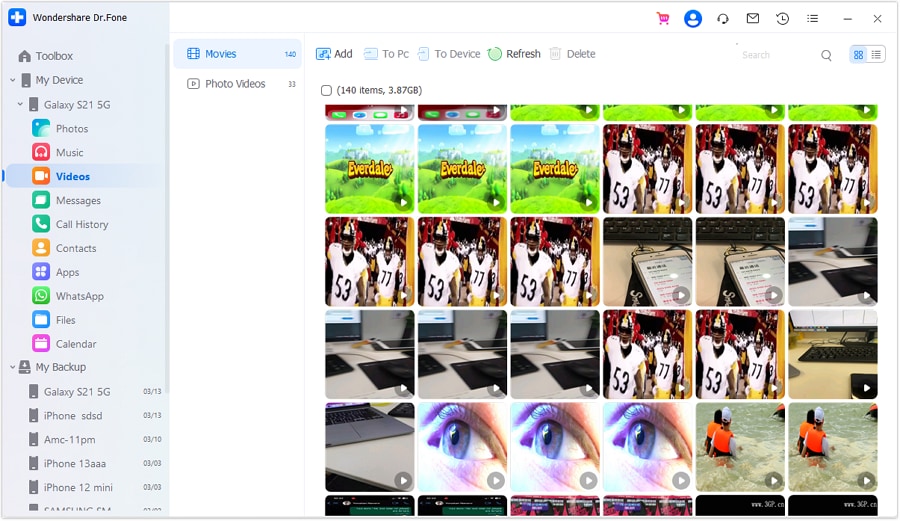
Step 4 Manage large videos or other heavy files
Videos often occupy more space than app cache. Managing them can reduce pressure and help you stick to your cache-only plan.




Conclusion
Use AI to define a risk-ranked sequence, stop rules, and verification checks; then rely on real tools and device settings for execution—especially before any irreversible moment like clearing app storage/data instead of cache.
FAQ
-
Is clearing app cache always safe on Android?
Usually low-risk, but not “always.” Some apps may re-download large files, and confusion with “Clear storage/Clear data” is the real risk.
-
What’s the biggest mistake people make here?
Tapping Clear storage/Clear data instead of Clear cache, especially on messaging, authenticator, banking, or notes apps.
-
Which apps are typically low-risk for clearing cache?
Browsers, social media, shopping apps, and many news/streaming apps are often lower risk—still verify offline downloads and login friction before doing large batches.
-
How do I know I actually freed space?
Check storage before/after each batch and confirm the target apps’ storage numbers changed; also watch for immediate re-growth (some apps rebuild cache quickly).
-
When should I do a backup first?
Before touching caches for apps that store local-only content (drafts, offline media, certain chat media) or before any session where you might accidentally hit “Clear storage.”
-
Can AI tell me exactly what will be deleted on my phone?
No. AI can predict common outcomes and design checks, but only your device and your verification steps can confirm what changed.
 Add Wondershare Dr.Fone as a preferred source on Google





