 Effortlessly manage data through preview, delete, export, etc.

 100% Security Verified | No Subscription Required | No Malware

 :
: 
 ChatGPT
 Perplexity
 Gemini
 Claude
 Grok
Grok

My iPhone screen is broken and the phone is locked. I’m worried my photos and messages are stuck inside, and I don’t want to make it worse by trying random fixes.
Apple Support Community user
A locked iPhone with a broken screen can make your photos, messages, and notes feel “stuck” inside the device—especially if the touchscreen won’t register taps or you can’t see the passcode screen (for example, on an iPhone 13 or iPhone 14). This often happens right after a drop, or after you restarted the phone to “see if it helps.”
AI can help you describe symptoms clearly, narrow likely causes (display-only vs touch failure vs the phone being disabled), and choose safer next steps based on what you still have (iCloud, a trusted computer, backups).
AI can’t verify your iPhone’s real state or access your data, and trial-and-error can increase risk (e.g., triggering “iPhone Unavailable,” overwriting local data, or wasting time on paths that can’t work without trust/backup).
In this article
- Why locked iPhone with broken screen happens and what it means
- What “locked + broken screen” can mean
- What determines data access
- Common ambiguous symptoms
- What to collect before prompting AI
- Using AI prompts to diagnose iPhone data recovery options safely
- When to stop iPhone data recovery attempts and avoid risks
- Recover data from broken iPhone screen safely with Dr.Fone
- AI Output vs Reality: what you still must verify
Part 1. Why locked iPhone with broken screen happens and what it means
A “locked iPhone with broken screen” usually means the phone still powers on, but you can’t complete unlock due to shattered display, dead touch, black screen, ghost touches, or Face ID failing because you can’t position the device. If you recently rebooted or the battery drained, the iPhone may require the passcode before Face ID works, which becomes a problem when touch input is unreliable.
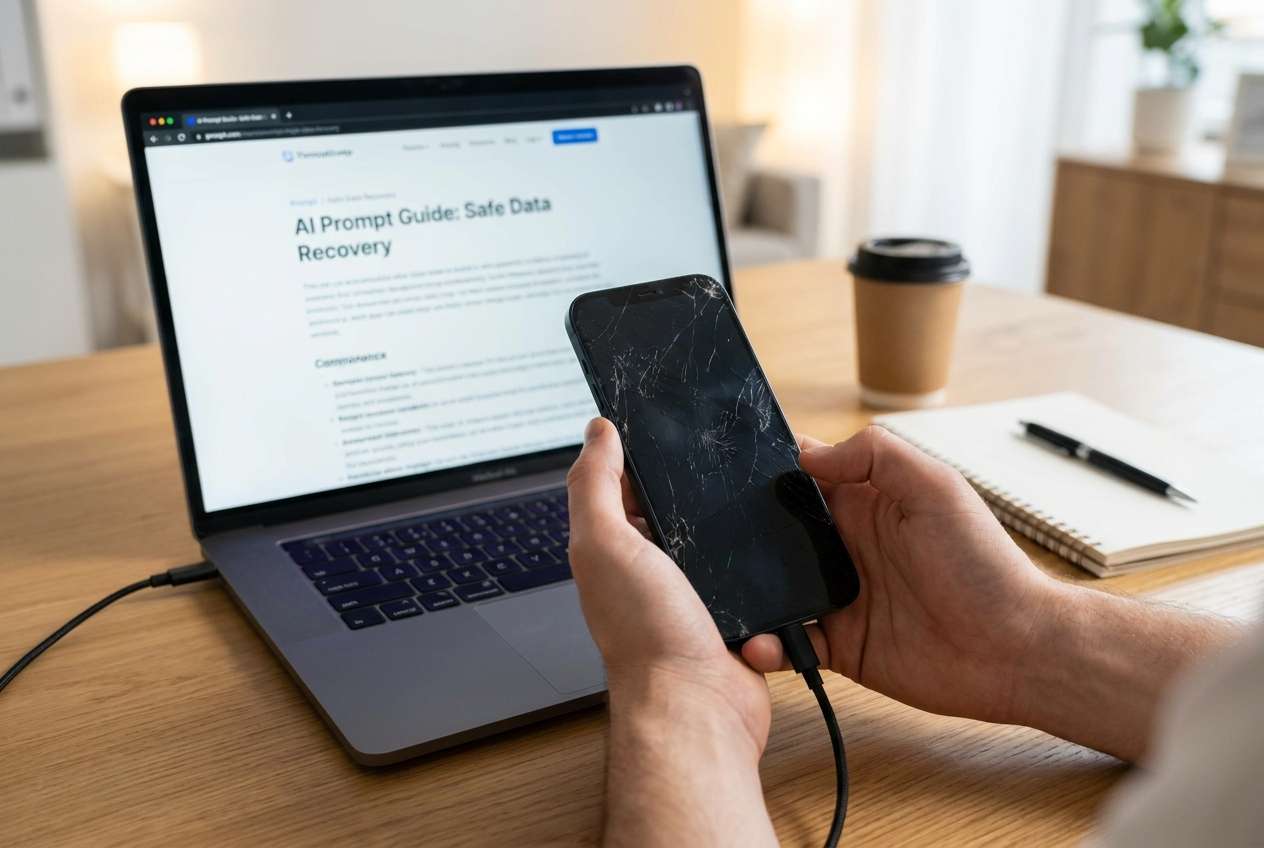
Data access depends on what’s still available: iCloud sync, an existing backup, or a previously trusted computer. Without at least one of these, many recovery paths are limited because iOS protects encrypted data behind the passcode.
It’s common for this to feel ambiguous: you may see the Apple logo or lock screen, but nothing changes after several minutes, and it’s unclear whether the phone is responding or just the screen failing.
1-1. Before You Prompt the AI
Collect the basics first:
- iPhone model and iOS version (if known)
- Screen behavior: black / shattered but visible / touch partially works / ghost touches
- Lock state message: normal lock screen / “iPhone Unavailable” / “Security Lockout”
- Face ID status and whether a passcode is currently required after restart
- iCloud Photos/Drive/WhatsApp sync status (if you remember)
- Whether you have a trusted computer and the original Lightning/USB-C cable
- Whether Finder/iTunes previously backed up this iPhone
Part 2. Using AI prompts to diagnose iPhone data recovery options safely
2-1. Level 1: Basic Prompt
My iPhone screen is broken and I can’t unlock it. Help me figure out the safest way to retrieve my data without making things worse. Ask me what you need to know first, then list the most likely paths (iCloud, backup, trusted computer, recovery tools).
2-2. Level 2: Advanced Prompt
Diagnose my “locked iPhone + broken screen” situation.
1) Ask up to 10 clarifying questions.
2) Rank the most likely scenarios (display-only damage vs touch failure vs device disabled vs iOS issue).
3) For each scenario, suggest low-risk next steps first and label risk level (low/medium/high).
4) Explicitly warn me about actions that can cause data loss or lockouts.
2-3. Level 3: Evidence Prompt
Use the details below to determine the safest data-retrieval plan and what evidence I should check next.
Device basics
- iPhone model: (e.g., iPhone 13 Pro)
- iOS version: (known/unknown)
- Storage nearly full?: (yes/no/unknown)
What happened
- Trigger event: (e.g., dropped it / restarted after lag / battery died)
- Current screen: (black / Apple logo / lock screen visible / flickering)
- Touch response: (none / partial / ghost touches)
- Any alerts: (e.g., “iPhone Unavailable”)
Access & backups
- iCloud signed in?: (yes/no/unsure)
- iCloud Photos enabled?: (yes/no/unsure)
- Last known backup: (iCloud date / computer date / none)
- Trusted computer available?: (Mac/Windows/none/unsure)
Goal
- Data I care about most: (photos/messages/WhatsApp/notes/files)
Constraints
- I can/can’t interact with screen at all: (describe)
- I can/can’t receive 2FA codes: (describe)
Output:
- A ranked list of the top 3 likely situations
- The safest next 5 actions in order
- What not to do and why
- What information is missing that would change the recommendation
2-4. Prompt Refinement
Use these follow-ups to tighten the diagnosis:
“What are the minimum conditions required to retrieve data without unlocking the screen?”
“Separate the options into: iCloud-based, backup-based, trusted-computer-based, and device-connection-based. What evidence confirms each?”
“Rank the most likely causes of ‘no access’ in my case, and list 2 observable signs for each cause.”
“Which single check should I do next that would most reduce uncertainty?”
“If the phone is showing ‘iPhone Unavailable,’ how does that change the safest plan?”
Part 3. When to stop iPhone data recovery attempts and avoid risks
Stop and reassess if you hit any of these:
- The phone shows “iPhone Unavailable” or “Security Lockout,” and you’re considering more passcode attempts.
- Touch is behaving like ghost taps, which could trigger incorrect inputs and escalate lockouts.
- You’re about to erase/reset the device without confirming you have a usable backup.
- The phone disconnects repeatedly from the computer, suggesting unstable hardware that may worsen with retries.
Once you’ve used AI to narrow the most plausible path, the next step is choosing a controlled execution method that matches your situation and avoids irreversible moves.
Part 5. AI Output vs Reality: what you still must verify
AI can guide decisions, but can’t confirm device state or perform the extraction.
| What AI can tell you | What you still must verify/do |
|---|---|
| Which recovery route fits your situation | Whether iCloud sync/backup actually exists for your Apple ID |
| What “trusted computer” implies for access | Whether your computer is truly trusted by this iPhone |
| Which actions increase lockout/data-loss risk | Avoiding repeated passcode attempts or risky resets |
| A best-order checklist for next steps | Running an actual recovery workflow with the right tool |
AI helps you choose a low-risk path; execution still depends on what the iPhone, Apple services, and your available devices allow.
Part 4. Recover data from broken iPhone screen safely with Dr.Fone
When your iPhone is locked and the screen is broken, the practical challenge is moving from “likely options” to a repeatable recovery workflow—especially if you can’t reliably tap prompts or confirm trust dialogs. At this stage, Dr.Fone - Data Recovery (iOS) is relevant because it provides a structured way to attempt Recover Data from an iOS device while you follow the safest plan you identified (for example, prioritizing non-destructive steps and focusing on specific data types).
 Recovers data after deletion, crashes, or device damage.
- Supports photos, messages, contacts, WhatsApp, and more.
- Supports all major iPhone, iPad, and iPod models.
- Preview and recover only what you need.

-
Step 1 Prepare your setup
Use a stable USB cable/port and keep the iPhone powered to avoid disconnects mid-scan.

-
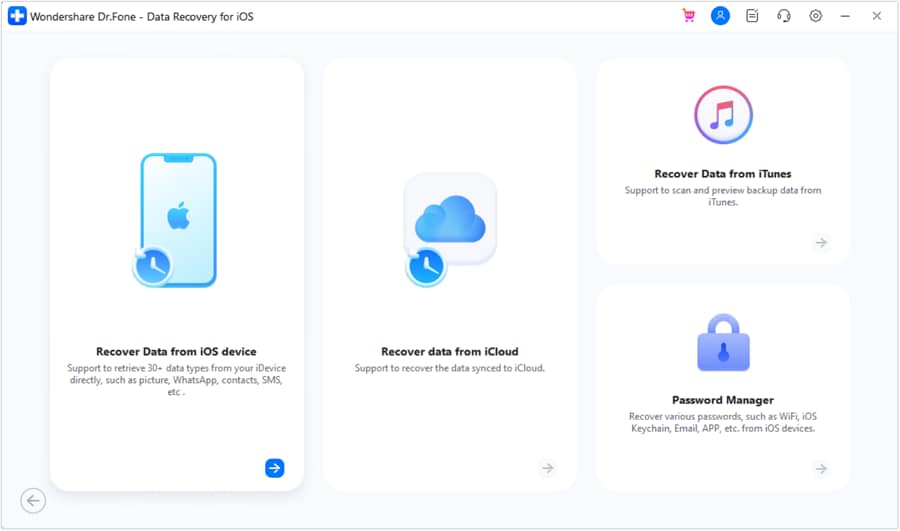
Step 2 Open Dr.Fone and choose iOS Data Recovery
Select the recovery module and proceed carefully if the device state suggests instability.

-
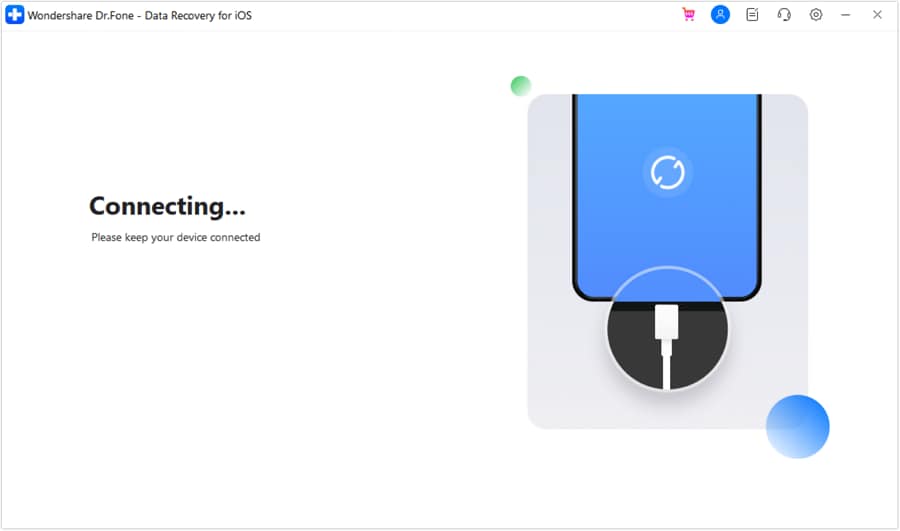
Step 3 Connect the iPhone to the computer
Connect and follow on-screen detection steps; avoid repeated reconnect loops if the phone keeps dropping.
-
Step 4 Select the data types to look for
Choose only what you need first (for example, Photos or Messages) to keep the process focused.
-
Step 5 Preview and export recovered items
Save the extracted data to your computer, and double-check file integrity before making any changes to the iPhone.




Conclusion
Use AI to turn your symptoms (locked state, screen/touch behavior, backup/trust status) into a ranked set of likely causes and the lowest-risk next steps, then move to a controlled execution workflow when you’re ready—especially if your goal is to recover specific data types without triggering lockouts or irreversible changes.
FAQ
-
Can I recover data from a locked iPhone without the passcode?
Sometimes, but it depends on whether you have iCloud sync, an existing backup, or a previously trusted computer; without any of these, iOS encryption can block access.
-
What does “trusted computer” mean for iPhone data access?
It means the iPhone previously approved that computer; if it wasn’t trusted before the screen broke (or before a restart), access may be limited.
-
Does restarting the iPhone make recovery harder?
It can, because after a restart iOS often requires the passcode before certain access methods work, which is difficult with broken touch.
-
If my screen is black but the phone is on, is the data still there?
Often yes—the issue may be display-related—but the recovery path still depends on backups, trust status, and whether the device can maintain a stable connection.
-
Should I keep trying passcodes if the screen is glitching?
No; repeated incorrect attempts can trigger “iPhone Unavailable” and reduce your safe options.
 Add Wondershare Dr.Fone as a preferred source on Google





