 Effortlessly manage data through preview, delete, export, etc.

 100% Security Verified | No Subscription Required | No Malware

 :
: 
 ChatGPT
 Perplexity
 Gemini
 Claude
 Grok
Grok

I charged my iPhone overnight and now it won’t turn on—no Apple logo, no lock screen, sometimes not even a vibration.
Apple Support Community user
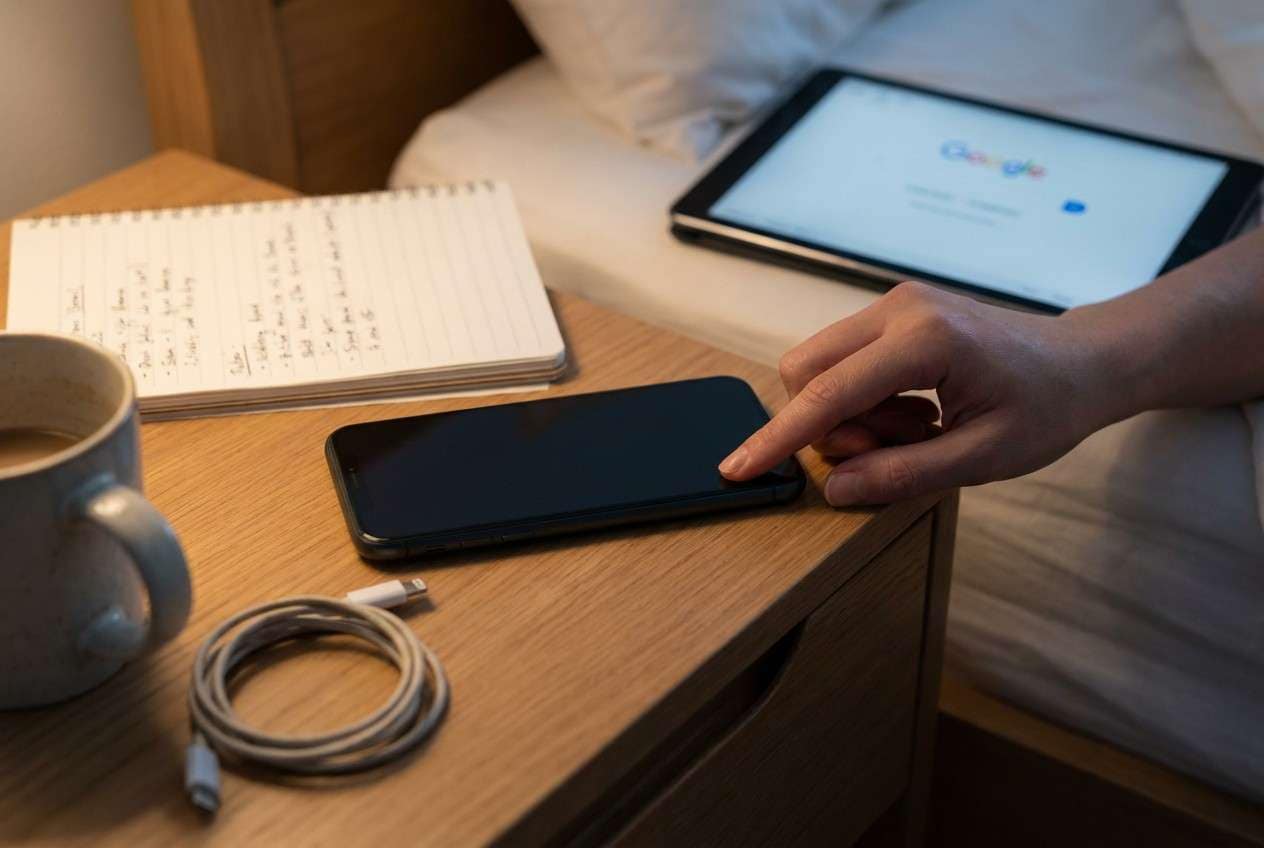
You plugged your iPhone in overnight, woke up, and now it won’t turn on—no logo, no lock screen, sometimes not even a vibration. This can happen on models like iPhone 13 or iPhone 14, and it’s hard to tell whether it’s truly “dead” or just stuck.
AI (like ChatGPT or Gemini) can help you describe symptoms clearly, narrow likely causes (battery, cable/charger, port, iOS crash, failed update), and choose the lowest-risk next checks based on what you observe.
AI can’t verify hardware condition or perform device-level actions, and trial-and-error can increase risk (overheating, port damage, data loss from wrong reset paths). Use AI for diagnosis and decision-making, then use the right tool for execution.
In this article
- Part 1. Why phone wont turn on after overnight charging happens and what it means
- What the three main situations are
- When it commonly happens
- Why a failed update is a clue
- Before you prompt the AI
- Part 2. Using AI prompts to diagnose iPhone not turning on after charging safely
- Part 3. When to stop troubleshooting a dead iPhone after charging and avoid risks
- Part 4. AI output vs reality: the checks you should actually do
- Part 5. Fix or resolve it safely with Dr.Fone
Part 1. Why phone wont turn on after overnight charging happens and what it means
A phone that won’t power on after charging overnight is usually one of three situations: it isn’t getting power (charger/cable/port), it has power but the display/system is unresponsive (iOS crash), or it’s stuck in a boot state (logo loop/black screen with backlight).
This often happens right after a normal overnight charge, after using a different adapter, or after the phone got warm on the charger. From the user side, nothing changes after several minutes—so it’s unclear whether it’s charging, frozen, or failing to start.
If you recently tapped Install Now for an iOS update before bed or the phone restarted on its own during the night, a failed update or system hang becomes more likely than a sudden hardware failure.
1-1. Before You Prompt the AI
Collect a few facts first so the AI can rule things out quickly:
- iPhone model and iOS version (if known)
- What charger/cable you used (Apple, MFi, wireless pad, car charger)
- Any heat, moisture, or drop events in the last 24 hours
- What you see now (black screen, Apple logo, backlight glow, charging icon)
- Whether a computer can detect the device (Finder/iTunes/Device Manager)
Part 2. Using AI prompts to diagnose iPhone not turning on after charging safely
2-1. Level 1: Basic Prompt
Copy and paste:
My iPhone won’t turn on after charging overnight. Ask me the minimum questions needed to tell whether this is a power/charging issue, an iOS crash, or a boot/firmware issue, and give me the lowest-risk next step to test first.
2-2. Level 2: Advanced Prompt
Copy and paste:
Act as a diagnostic assistant. Based on my answers, rank the most likely causes of an iPhone that won’t turn on after overnight charging.
Requirements:
1) Provide a ranked list with probabilities (rough estimates are fine).
2) Separate “power not reaching device” vs “device powered but iOS unresponsive” vs “boot/firmware issue.”
3) For each cause, give one low-risk test and one stop condition to avoid making things worse (overheating, port damage, data risk).
Start by asking up to 7 targeted questions.
2-3. Level 3: Evidence Prompt
Copy and paste:
Diagnose my “iPhone won’t turn on after overnight charging” issue using evidence-based reasoning.
Device info
- iPhone model: (e.g., iPhone 13 Pro)
- Storage size: (e.g., 128GB)
- iOS version last known: (e.g., iOS 17.5)
What happened
- Charger type: (e.g., Apple 20W + USB‑C to Lightning / MagSafe)
- Overnight conditions: (warm room? under pillow? on bed?)
- Any update/restart before sleep: (e.g., tapped “Install Now”)
Current symptoms
- Screen behavior: (pure black / Apple logo / flicker / backlight glow)
- Sounds/vibration: (none / vibration when toggling mute)
- Heat: (cool / warm / hot)
- Charging signs: (charging icon / none)
Tests already tried
- Different cable/adapter/outlet: (yes/no + results)
- Hard restart attempt: (yes/no + exact button sequence used)
- Computer connection: (recognized in Finder/iTunes? yes/no)
Constraints
- Priority: (avoid data loss / fastest restore / both)
Output:
1) Top 3 likely causes with reasoning tied to my evidence
2) A lowest-risk decision tree (max 6 steps)
3) Clear “stop and escalate” thresholds
2-4. Prompt Refinement
If the AI response feels generic, force it to become specific with follow-ups:
What 3 questions would change your ranking the most, and why?
Separate hardware-power causes from iOS/system causes, and list the telltale signs for each.
Rank these causes again assuming the phone was warm in the morning vs completely cool.
What single observation should I check next that most strongly confirms or rejects a dead battery vs an iOS crash?
List the safest actions first, and label any step that could increase data-loss risk.
Part 3. When to stop troubleshooting a dead iPhone after charging and avoid risks
Use AI to narrow the cause, but stop early when the risk starts to outweigh the benefit.
- The phone becomes hot, smells unusual, or the screen/lid looks swollen.
- The charging port looks wet/corroded, or you suspect liquid exposure overnight.
- Repeated force restarts and charger swaps produce zero change and the phone is never detected by a computer.
- You can’t risk data loss and you’re being pushed toward restore/erase steps without clear evidence.
Once you’ve identified the likely category (power delivery vs iOS crash vs boot/firmware), hand off execution to a method designed for iOS system states rather than continuing random resets.
Part 4. AI output vs reality: the checks you should actually do
AI can help you decide what’s most likely; your device’s behavior determines what’s actually true.
| AI says… | Reality check you should do |
|---|---|
| “It’s probably the charger.” | Try a known-good Apple/MFi cable + adapter + wall outlet for 20–30 minutes, then check for any screen/backlight change. |
| “It’s a frozen iOS state.” | Attempt the correct force-restart sequence for your model and observe any logo/connection response. |
| “It might be a boot/firmware issue.” | See whether a computer detects the iPhone (Finder/iTunes/USB device) even if the screen stays black. |
| “It could be hardware.” | If there’s heat, swelling, liquid exposure, or repeated no-detection on any computer, stop and avoid repeated power cycling. |
AI can’t run device-level repair actions or confirm internal faults; it only suggests options based on symptoms. Once your checks point to an iOS/system state (black screen, boot stuck, detected by computer but won’t start), you’ll likely need an execution tool to carry out the system repair steps safely.
Part 5. Phone wont turn on after overnight charging: fix or resolve it safely with Dr.Fone
If your evidence points to an iOS-level issue (black screen, stuck boot state, or the device is intermittently detected but won’t fully start), Dr.Fone - System Repair (iOS) becomes relevant because it can perform the system repair workflow after AI helps you choose the right direction. In this situation, the goal is to address the iOS system state causing the no-power/black-screen behavior while avoiding unnecessary trial-and-error.
 Fix iOS issues, no data loss.
- One-click repair for all iOS problems.
- Solve recovery mode, Apple logo, black screen, etc.
- Upgrade or downgrade iOS without iTunes

Use the Repair iOS Issues capability when basic power checks (known-good charger/cable and correct force restart) don’t change anything, and you want a structured, lower-risk path than jumping straight to an erase/restore. You can follow the guided flow referenced on the product and guide pages within the app experience.
-
Step 1 Confirm it’s not a simple power issue
Charge with a known-good setup for 20–30 minutes and avoid wiggling the cable if the port feels loose or gritty.

-
Step 2 Open System Repair (iOS) on your computer
Launch Dr.Fone and choose the iOS System Repair option so you’re using a system-focused path rather than backup/restore shortcuts.

-
Step 3 Connect the iPhone and follow the on-screen device-state steps
Plug in via a stable USB port and follow the prompts carefully, since the wrong button timing can prevent detection.

-
Step 4 Choose the appropriate repair mode for your risk tolerance
Prefer the mode intended to reduce data risk first, and only escalate if the tool indicates it’s necessary based on detection state.

-
Step 5 Recheck startup and charging behavior after completion
Once the phone boots, monitor heat and charging stability for a full cycle to confirm the overnight issue isn’t recurring.




Conclusion
Use AI to turn vague symptoms into a clear shortlist of likely causes and the safest next checks, then hand off to an execution tool like Dr.Fone’s iOS System Repair when the evidence points to an iOS system state rather than simple charging hardware.
FAQ
-
Why is my phone completely black after charging all night?
Common possibilities include no power delivery (bad cable/adapter/port), an iOS crash causing a black screen, or a boot/firmware hang after a restart or update.
-
How long should I charge before assuming it won’t turn on?
With a known-good charger and outlet, give it 20–30 minutes before testing a force restart; a deeply drained battery can take time to show signs.
-
What’s the safest first test to distinguish charger failure from iOS freeze?
Try a known-good cable/adapter/outlet, then attempt the correct force restart sequence for your iPhone model and observe any logo or detection on a computer.
-
If my computer detects the iPhone but the screen stays black, what does that mean?
It often suggests the device has power but iOS isn’t booting normally (system crash, recovery/DFU state, or firmware issue), not necessarily a dead battery.
-
Will repeated force restarts damage my iPhone?
Occasional force restarts are standard, but repeated cycles when the phone is hot, wet, or potentially swollen can increase risk—stop and reassess.
 Add Wondershare Dr.Fone as a preferred source on Google





