 Effortlessly manage data through preview, delete, export, etc.

 100% Security Verified | No Subscription Required | No Malware

 :
: 
 ChatGPT
 Perplexity
 Gemini
 Claude
 Grok
Grok

Thought I was just clearing space, but then realized some “synced” photos and chat media might only exist locally. One wrong delete and I’d lose the last copy.
Reddit user, r/techsupport
Deciding what stays on your phone, tablet, or laptop sounds simple—until one missed dependency (like “photos that aren’t actually backed up” or “chat media stored only locally”) turns cleanup into data loss.
AI is useful here because it can turn a messy goal (“free space, keep what matters”) into a sequence: inventory → rules → test set → verification checks → only then execution.
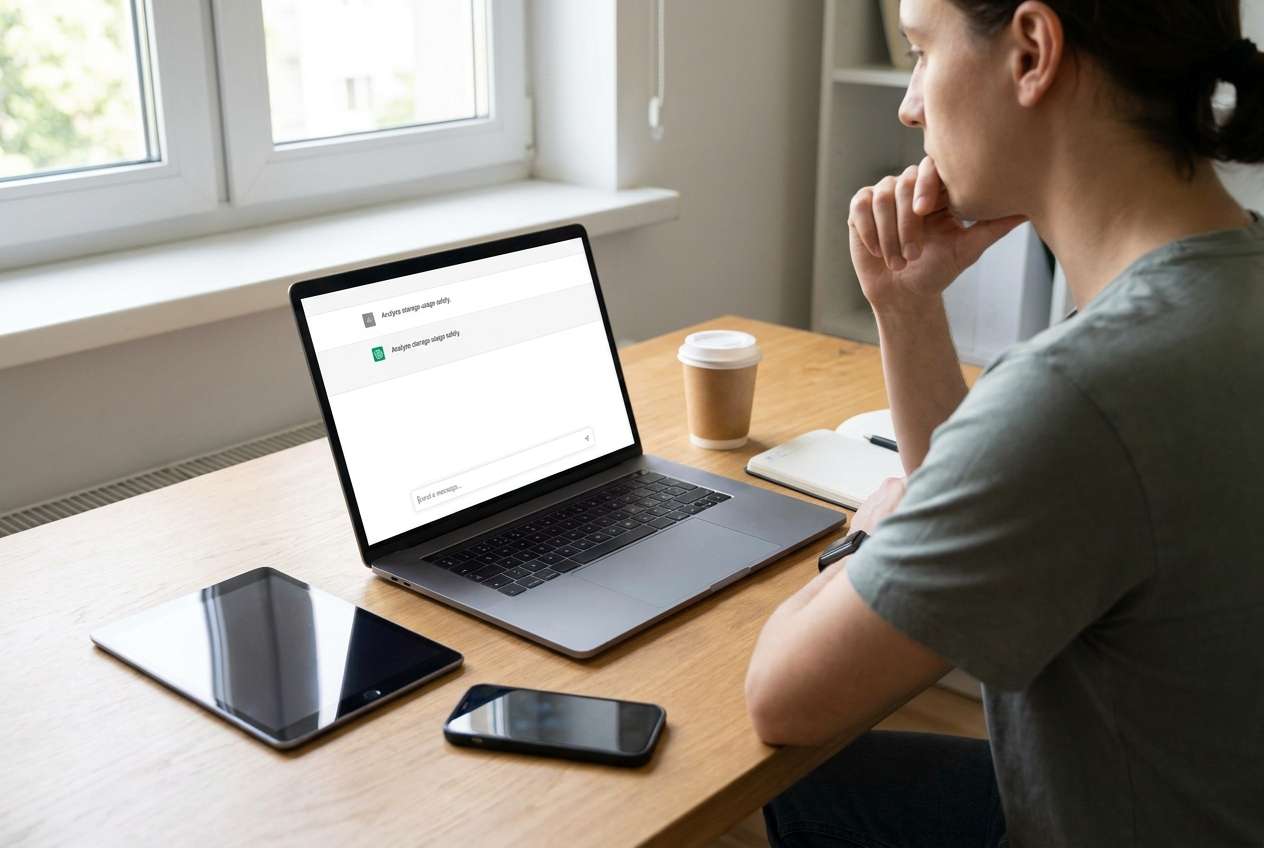
AI can’t see what’s truly on your devices, can’t confirm what’s already synced, and can’t safely delete or move anything for you. That’s why you plan with AI first, then execute with a real device tool when your checks are complete.
In this article
- Part 1. Plan what stays where (without missing critical steps)
- Why overlap creates risk
- What “source of truth” means in practice
- Verification gates before any move/delete
- Your point-of-no-return line
- Part 2. What the AI needs to know
- Part 3. Using AI prompts to build a safer workflow
- Part 4. AI plan vs. real device constraints
- Part 5. Stop planning and start execution (safely)
Part 1. Plan what stays where (without missing critical steps)
1-1. Why overlap creates risk
You’re running out of storage, your devices overlap (same photos in multiple places, different versions of documents), and you’re not sure what’s safe to remove. You ask AI what to keep, but the answer still leaves gaps: Which device is the source of truth? What counts as “backed up”? What gets excluded (work files, legal docs, kids’ photos)?
1-2. The real uncertainty is usually the order of verification
The uncertainty is usually not “what should I keep,” but “in what order do I verify it’s safe.” For example, a tablet may show photos that look synced, but some are only cached locally; a laptop may contain the only full-resolution originals.
1-3. Verification gates must come before any action
Your point-of-no-return moment is any delete, factory reset, or “remove from device” action before you’ve verified backups and confirmed you’re not deleting the last copy. Don’t approach that step until your inventory and verification checks are complete.
1-4. Define your “do not cross” line
Don’t do any irreversible cleanup until your inventory is done, your verification checks are passed, and you’ve completed at least one small test run.
Part 2. What the AI needs to know
Share enough context so the workflow can be specific and verifiable.
- Devices and OS versions (e.g., iPhone iOS 17, Android 14, iPadOS 17, Windows 11, macOS 14)
- Storage pressure and goal (e.g., “free 30GB on phone without losing originals”)
- File categories involved (photos/videos, documents, downloads, app media, voice notes, music, offline maps)
- Where you think backups/syncs exist (iCloud/Google Photos/OneDrive/Dropbox/external drive/NAS) and whether full-resolution is enabled
- “Source of truth” preference (which device/service should hold the master copy)
- Privacy constraints (work device rules, encrypted folders, family sharing)
- Time constraints and connectivity limits (slow Wi‑Fi, limited data plan)
- Risk tolerance (conservative: keep duplicates vs aggressive: dedupe)
- Special cases (WhatsApp/LINE/Telegram media, camera RAW files, “Recently Deleted,” shared albums)
Part 3. Using AI prompts to build a safer workflow
Use these prompts to force a clear sequence, with explicit checks before you touch anything on-device.
3-1. Level 1: Basic Prompt
I need a safe plan to decide what files should stay on my phone, tablet, and laptop so I can free space without losing anything.
Ask me the minimum questions needed, then give me a simple step-by-step workflow with verification checks before any deletion or moving.
Keep it conservative.
3-2. Level 2: Advanced Prompt
Build me a structured workflow to decide what stays on my phone/tablet/laptop, and what can be moved or removed.
Split the plan into Preparation, Execution (no actions yet—just what I should do later), and Verification, and label each step as critical or optional.
Include: (1) an inventory checklist by file type, (2) rules for “source of truth,” (3) a duplicate-handling policy, and (4) a hard stop before any irreversible action until all verification items are checked off.
3-3. Level 3: Evidence Prompt
Context: I have (phone: iPhone 13 iOS 17, 128GB nearly full), (tablet: iPad iPadOS 17), (laptop: Windows 11, 1TB).
My biggest storage is (photos/videos ~70GB, downloads ~12GB, chat media ~8GB).
I use (iCloud Photos ON but not sure if “Optimize Storage” is enabled), and I also have (OneDrive for documents).
Goal: free (at least 25GB) on the phone without losing full-resolution originals anywhere.
Create a plan with checks before / during / after that confirms what’s truly backed up (not just visible), and call out risk areas like “only local copies,” “shared albums vs originals,” “Recently Deleted,” and “chat app media.”
Include a small sample decision table (e.g., “category → keep on phone? keep on tablet? keep on laptop? store in cloud?”) using example values (e.g., “family photos,” “work PDFs,” “memes folder,” “RAW videos”).
3-4. Prompt Refinement
Ask me to define a single source of truth for each category (photos, documents, chat media), then restate it as non-negotiable rules and list what would break those rules.
Convert my goal into a checklist with pass/fail gates, where “pass” is required before I reach any delete/move step.
Produce a risk register with: risk, how it happens, how to detect it, and the prevention step (include “deleting the last copy” and “sync deletes propagate”).
Create a test run plan that uses a small sample folder/album first, including what success looks like and what to roll back if results are wrong.
Force a device-by-device sequence (phone → tablet → laptop or laptop → phone) and justify the order based on data safety.
Part 4. AI plan vs. real device constraints
| Planning with AI | Reality on devices |
|---|---|
| Turns your goal into a step-by-step workflow with gates | Storage, sync status, and permissions vary per device |
| Identifies risky categories (chat media, “optimize storage,” cloud-only files) | You must confirm what is actually local vs cloud vs cached |
| Produces decision rules (“keep originals on laptop; phone gets optimized copies”) | Apps/services may behave differently (sync deletions can propagate) |
| Creates verification checklists and a reversible test-run plan | The actual moving, backing up, exporting, and deleting requires device tools |
AI improves planning, but cannot execute transfers, confirm device states, or guarantee outcomes. Use it to reduce ambiguity—then use real tools to perform and verify the changes.
Part 5. Stop planning and start execution (safely)
You’re no longer deciding what you want—you’re ready to confirm what’s true and then act when the following are true:
- You can name a source of truth for each category (photos/videos, documents, chat media) and you agree not to violate it.
- Your verification checklist has clear “proof” signals (what you’ll look for) rather than vague confidence (“I think it’s backed up”).
- You have identified at least one reversible test run (small subset) before any large cleanup.
- You have a written “do not cross” line: no delete/remove/reset until backup and spot-checks are complete.
Recommended execution tool (after planning): Dr.Fone
Execution is where most mistakes happen, because the device state (sync, storage optimization, hidden folders, app media) can differ from what you expect. Once your plan and checks are clear, use Dr.Fone - Phone Transfer as the execution layer to carry out the transfers/management steps you already decided.
 Move data between iOS to Android and vice versa.
- Transfer contacts, SMS, photos, videos, music, and more types.
- Transfer contacts, SMS, photos, videos, music, and more types.
- Available with all phones with Android and iOS versions.
- Simple, click-through process.

-
Step 1 Run a proof-first test pass (smallest planned set)
Use Dr.Fone to perform the smallest planned transfer/backup action on a test set, then verify it matches your expected results.
Limitation: Dr.Fone executes actions, but it does not decide your rules or confirm your intent—you must validate outcomes before scaling up.

-
Step 2 Set the correct device-to-device path before you start
Follow your plan’s device order and ensure the transfer direction matches your “source of truth” rules.

-
Step 3 Execute by category and checkpoint after each batch
Complete the device-to-device or device-to-computer actions you mapped (by category and priority), keeping to your source-of-truth rules.
Limitation: If your plan is wrong (e.g., the only originals were local), execution can amplify the mistake—pause at each checkpoint.

-
Step 4 Verify first, then do irreversible cleanup last
Only after confirmations and spot-checks, finalize the cleanup steps you defined (this is where point-of-no-return actions happen).
Limitation: Deletions and resets can be irreversible or propagate via sync; do not proceed unless every verification gate is passed.




Conclusion
Use AI to define the rules, order, and verification gates for deciding what files stay on your phone, tablet, or laptop—then use Dr.Fone to execute only after your checks are complete, saving irreversible cleanup for the very end.
FAQ
-
What’s the biggest risk when deciding what stays on each device?
Deleting or moving files before confirming where the only original exists, especially with photos/videos and chat media. -
How do I avoid “sync delete” disasters?
Treat any synced library as potentially bidirectional: plan assuming a deletion on one device might remove it elsewhere, and verify behavior before mass actions. -
What should I verify before I delete anything?
That the destination copy exists, is accessible, and is the expected quality/version (e.g., full-resolution photo/video), using spot checks across multiple items. -
When should I do a test run?
Always—use a small, representative subset (a few albums, a downloads folder, a chat media batch) before scaling to the full library. -
Can AI tell me what’s safe to delete on my specific devices?
Not reliably. AI can design a safe sequence and checks, but it can’t see your actual device state or confirm what’s truly stored locally.
 Add Wondershare Dr.Fone as a preferred source on Google





