 Effortlessly manage data through preview, delete, export, etc.

 100% Security Verified | No Subscription Required | No Malware

 :
: 
 ChatGPT
 Perplexity
 Gemini
 Claude
 Grok
Grok

I keep bookmarking “best tablet shortcuts” posts, but when I actually need to work faster, I can’t remember any of them—or I find out they don’t fit the apps I use.
Reddit user, r/iPad
“Best shortcuts” lists are easy to skim but hard to apply, because what’s “useful” depends on how you actually use your tablet day to day.
AI can help by turning vague preferences (“I want to be faster”) into structured trade-offs, so you can pick a shortcut approach you’ll actually stick with—then validate it with real-life testing.
In this article
- How to compare shortcut approaches based on real priorities
- Why “useful” shortcuts depend on your workflow
- The three shortcut systems most people choose between
- How to ground the comparison in daily reality
- What to decide before you start collecting tips
- What the AI needs to compare
- AI prompts to evaluate tablet shortcuts more clearly
- When to stop researching and make the call
- After choosing: switch or prepare smoothly with Dr.Fone
How to Compare Use to Find Useful Tablet Shortcuts Based on Real Priorities
Most people aren’t choosing which shortcut exists—they’re choosing which shortcut system to invest in: learning built-in gestures, relying on a keyboard/trackpad, or building automations that remove steps entirely.
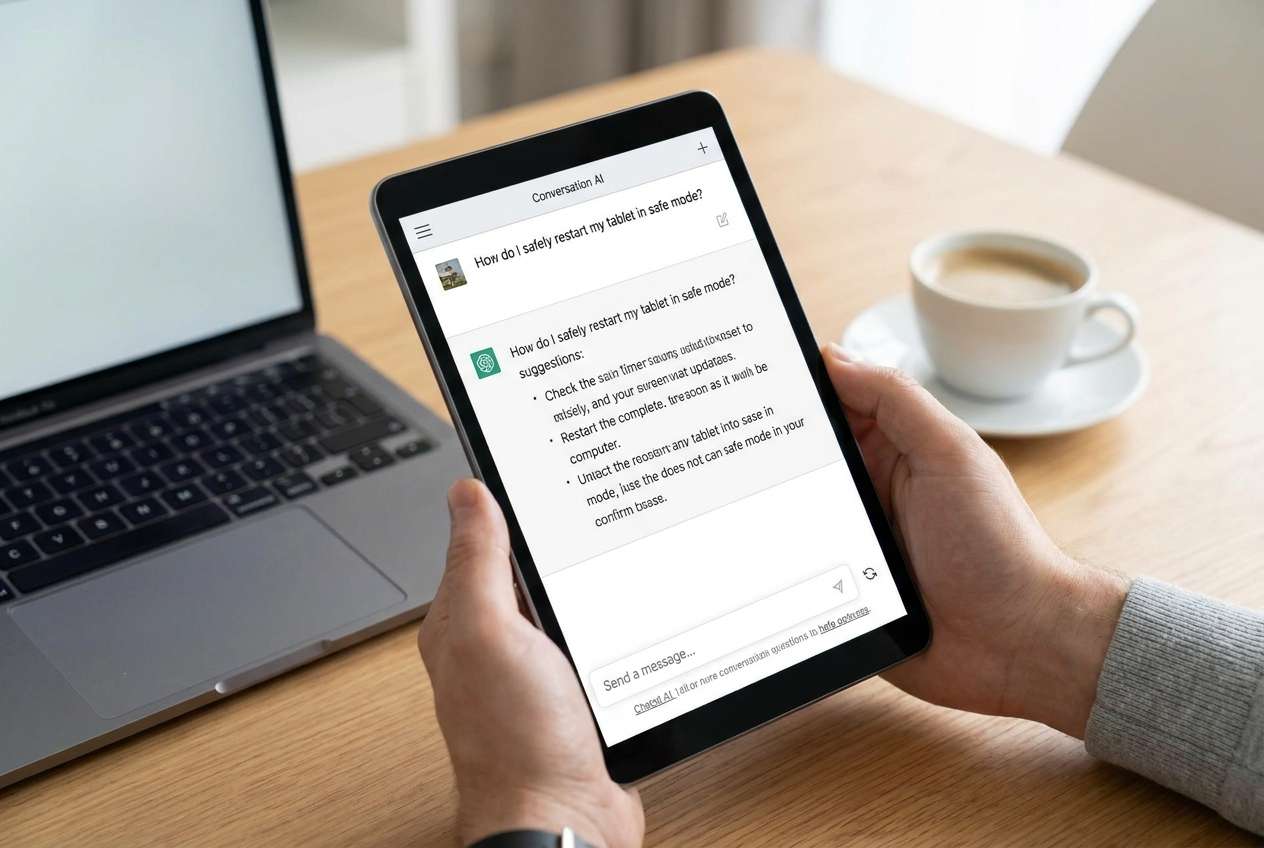
The tension is real: gestures are fast but easy to forget, keyboard shortcuts are powerful but depend on hardware and apps, and automations can save time but take setup and maintenance.
A good comparison starts with your reality: whether your tablet use is mostly reading/annotating, writing and email, creative work, school, or admin tasks—and whether you’re mostly touch-first or keyboard-first.
What the AI Needs to Compare
To compare shortcut approaches clearly, the AI needs a few details about your workflow and constraints:
- Your tablet OS (iPadOS or Android) and model (only if relevant to accessories you already own)
- Whether you use an external keyboard/trackpad (and how often)
- Your top 5 repetitive tasks (e.g., switching apps, screenshots + markup, file moves, calendar/email, note capture)
- Your tolerance for setup/maintenance (low / medium / high)
- Your “failure mode” (forgetting shortcuts, misfires, too many steps, inconsistent across apps)
- Whether you need cross-device consistency (tablet + phone + laptop)
- Privacy/permission comfort (especially for automation apps)
Using AI Prompts to Evaluate Use to Find Useful Tablet Shortcuts More Clearly
Use these prompts to force a trade-off decision between the most common shortcut strategies instead of collecting endless tips.
3-1. Level 1: Basic Prompt
I’m trying to decide the best way to find and use tablet shortcuts for my daily tasks. Compare these options: (1) built-in gestures/system shortcuts, (2) keyboard/trackpad shortcuts, and (3) automation workflows (like routine actions that run multiple steps). Ask me 5 questions, then tell me which option to prioritize first.
3-2. Level 2: Advanced Prompt
Help me choose a shortcut strategy for my tablet based on priorities, not “cool tricks.”
Build a comparison matrix for: built-in gestures, keyboard/trackpad shortcuts, and automation workflows. For each, evaluate: learning curve, consistency across apps, speed gains for my top tasks, how easy it is to remember, and how likely I am to abandon it. Then recommend a “primary” and “secondary” approach and explain who each approach fits best.
3-3. Level 3: Evidence Prompt
Here’s my real context: [paste your top 5 repetitive tasks], [touch-first or keyboard-first], [setup tolerance], and [apps I live in most].
Recommend which shortcut approach I should invest in first: gestures, keyboard/trackpad shortcuts, or automation workflows. Explain what I gain and what I give up with each choice, and name one key assumption about my usage that—if wrong—would change your recommendation.
3-4. Prompt Refinement
Rank my top 5 tasks by “time saved if shortened,” then map each task to the best shortcut type (gesture vs keyboard vs automation) and explain why.
What’s the most likely regret if I choose gestures first? What’s the most likely regret if I choose automation first?
Identify the minimum shortcut set (no more than 7) that would cover 80% of my benefit, and justify each one in one sentence.
If I can only commit 20 minutes to learning, which approach gives the highest payoff in a week—and what should I ignore for now?
What would make this recommendation fail in real life (e.g., app inconsistency, permissions friction, forgetting commands), and how do I mitigate that?
3-5. AI Recommendation vs Real-World Fit
| Likely AI recommendation or conclusion | What real-life use may change or reveal |
|---|---|
| “Go keyboard shortcuts first—you’ll get the biggest speed gains.” | You may not actually use the keyboard often enough, or key combos vary by app. |
| “Use gestures because they’re always available and quick.” | Gesture conflicts, accidental triggers, or simply forgetting them can kill the benefit. |
| “Automate repetitive multi-step tasks for the best long-term payoff.” | Setup friction, permission prompts, and maintenance can outweigh the savings. |
| “Use a hybrid: 3–5 gestures + 3–5 keyboard shortcuts + 1–2 automations.” | Switching contexts can feel mentally expensive; you might prefer one consistent method. |
AI can clarify likely fit, but hands-on use, workflow friction, and daily habits still decide satisfaction.
When to Stop Researching Use to Find Useful Tablet Shortcuts and Make the Call
- You can name your top 5 repetitive tasks without looking them up and agree they’re worth optimizing.
- You’ve chosen one “primary” shortcut approach (gestures vs keyboard vs automation) and one “secondary” approach—so you’re not trying to learn everything at once.
- You have a realistic success metric (e.g., “save 10 minutes/day” or “reduce app switching”) and a 7-day trial plan.
- You understand at least one flip factor (e.g., “If I stop using the keyboard, keyboard shortcuts won’t be worth it.”)
Once you can explain your choice in one sentence and predict the main downside you’ll tolerate, you’re ready to move from comparison to use.
After Choosing Use to Find Useful Tablet Shortcuts: Switch or Prepare Smoothly with Dr.Fone
After you pick your shortcut strategy, the practical work is making your tablet environment match it—especially if you’re switching devices, consolidating apps/files, or preparing one device for resale. If you also need to regain access to an Android device (for example, to finish backup or prep steps), Dr.Fone - Screen Unlock (Android) can help you get to the point where you can proceed with those practical tasks.
 Unlock Android phone in seconds.
- Remove PIN, pattern, password, fingerprint.
- Bypass Google FRP lock easily.
- Works on all Android brands & models.
- No tech skills required – user-friendly.

If your next step is switching devices or handing off an old tablet, focus on three practical outcomes: move what you’ll actually use, remove clutter that blocks the new habit, and back up/erase properly before resale. Keep in mind that even when tools speed things up, some checks (like account sign-outs and confirming what to delete) still depend on you.
-
Step 1 Open Dr.Fone and go to the unlock-related workflow
This is the starting point if you need to regain access before you can complete backup/transfer or resale prep.

-
Step 2 Select the device/unlock option you need
Choose the Android unlock path so you can proceed with the next practical steps (backup, cleanup, reset) afterward.

-
Step 3 Enter the remove screen lock flow and follow the on-screen guidance
Once access is restored, you can focus on transferring essentials (photos, messages, contacts, files) and organizing what supports your workflow.

-
Step 4 Confirm your device brand/model details and finish, then prepare the old tablet for handoff
After your important data is safe, complete cleanup decisions and do a proper erase/reset so personal data isn’t left behind.





Conclusion
AI is best used here as decision support—clarifying what you gain, what you give up, and what might cause regret—while real use is the final proof; once you’ve chosen, tools like Dr.Fone help execute the practical transfer, cleanup, or resale steps cleanly.
FAQ
-
Can I trust AI to tell me the “best” tablet shortcuts?
Trust it to structure trade-offs and propose a plan; don’t trust it to know which shortcuts feel natural in your hands or which apps behave consistently on your device. -
What’s the most important trade-off when choosing a shortcut strategy?
Consistency vs power: the most powerful approach (often automation or keyboard) can be less consistent across apps and harder to maintain than simple gestures. -
How do I avoid a generic spec-like decision (“this method is faster”)?
Anchor the comparison to your top 5 repetitive tasks and your failure mode (forgetting, misfires, setup friction). If the method doesn’t survive those, it won’t stick. -
How many shortcuts should I learn first?
Start with a small set (around 5–7) tied directly to daily tasks; expanding before habits form usually leads to forgetting and churn. -
What should I prepare after I choose—especially if I’m switching tablets?
A short list of must-have data (contacts, photos, messages, key files) and your core apps—then transfer/clean up so the new setup supports the shortcut approach you picked.
 Add Wondershare Dr.Fone as a preferred source on Google





