 Effortlessly manage data through preview, delete, export, etc.

 100% Security Verified | No Subscription Required | No Malware

 :
: 
 ChatGPT
 Perplexity
 Gemini
 Claude
 Grok
Grok

I replaced my iPhone screen and now it randomly taps and swipes on its own—apps open by themselves right after I restart or unlock it. I can’t tell if it’s the screen, a connector, or iOS.
Forum user
Ghost touches after a screen replacement can look like random taps, swipes, or apps opening by themselves—often right after you close up the phone and restart it (or after you first unlock it). On models like iPhone 13 or iPhone 14, it can be hard to tell whether it’s a display issue, a connector issue, or a software glitch.
AI (like ChatGPT or Gemini) can help you describe symptoms clearly, sort likely causes, and decide which checks are low-risk versus which steps might worsen the problem. It’s especially useful for narrowing whether the pattern matches hardware, calibration, power, or iOS behavior.
AI can’t verify your parts, measure voltage, or reseat connectors—and repeated trial-and-error (like pressing on the display, forcing restarts repeatedly, or installing random “touch fix” apps) can increase risk of damage or data loss.
In this article
- Part 1. Why iPhone ghost touch after screen replacement happens and what it means
- What “ghost touch” means after a swap
- Common triggers (parts, seating, pressure, ESD)
- Why it can seem intermittent
- Before you prompt the AI
- Part 2. Using AI prompts to diagnose iPhone ghost touch after screen replacement safely
- Part 3. When to stop troubleshooting iPhone ghost touch after screen replacement and avoid risks
- Part 4. iPhone ghost touch after screen replacement: fix it safely with Dr.Fone
- Part 5. AI Output vs Reality: what to trust vs what to verify
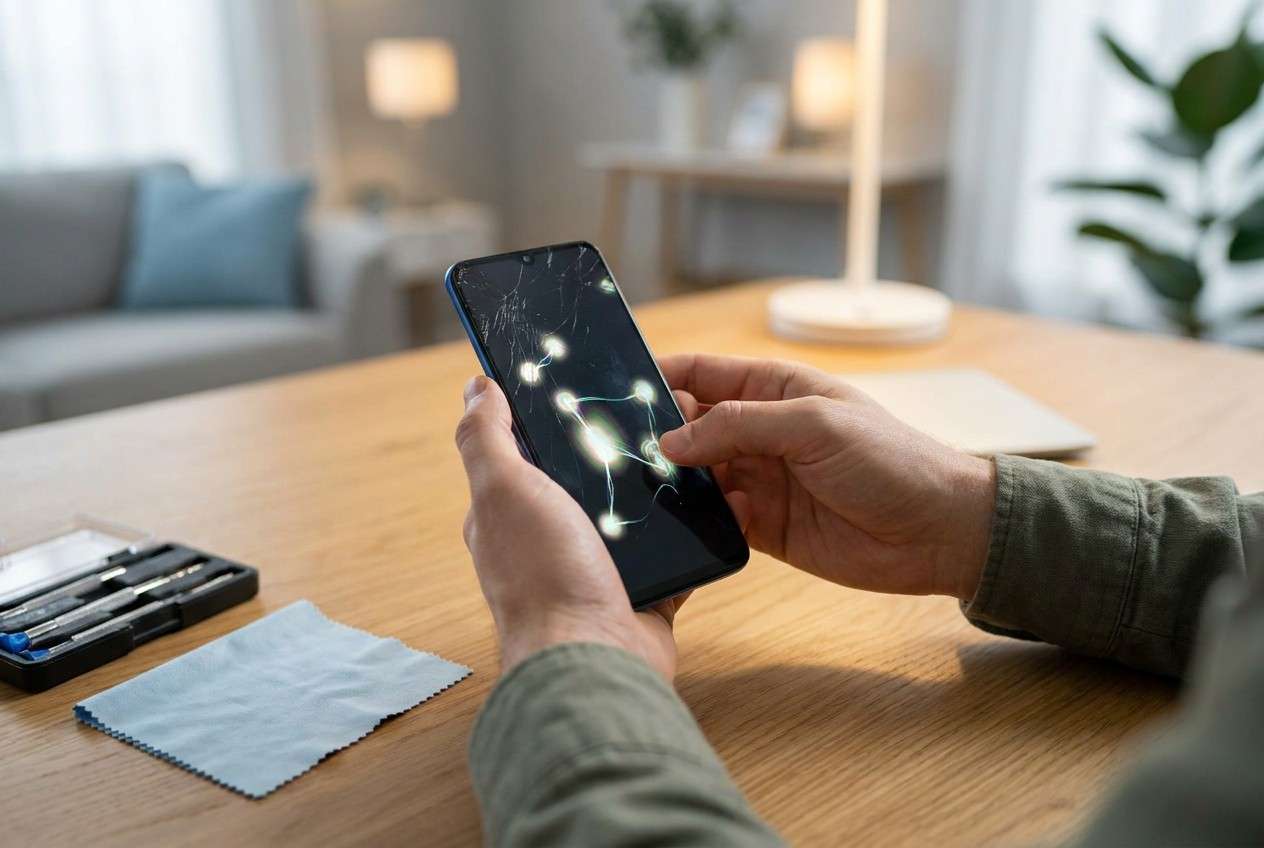
Part 1. Why does iPhone ghost touch after screen replacement happen, and what does it mean
After a screen swap, “ghost touch” usually means the touch layer is registering input without you touching it. It may show up immediately after the first boot, or only after the phone warms up, charges, or you start using certain areas of the screen.
Common triggers include a flex cable not fully seated, slight pressure from an internal bracket, a lower-quality replacement panel, ESD/static during installation, or a software-level touch handling issue that coincidentally appeared after the repair.
From the user perspective, it’s confusing because sometimes it stops for a minute, then comes back—so it’s unclear whether the phone is “settling” or actively getting worse.
1-1. Before You Prompt the AI
Gather the basics so the AI can sort hardware vs iOS causes quickly:
- iPhone model and iOS version (if known)
- When it started (immediately after replacement vs later)
- What actions trigger it (charging, heat, specific apps, lock screen)
- Where touches appear (top edge, corners, full screen)
- Whether the display is OEM/aftermarket (if you know)
- Any visible screen lift, frame gap, or pressure points
Part 2. Using AI prompts to diagnose iPhone ghost touch after screen replacement safely
2-1. Level 1: Basic Prompt
My iPhone has a ghost touch after a screen replacement. Ask me the minimum questions needed to narrow whether it’s likely a hardware connection/part issue or an iOS/software issue, and then list the safest next checks first.
2-2. Level 2: Advanced Prompt
You’re helping me triage “iPhone ghost touch after screen replacement.”
1) Give me a ranked list of the most likely causes with brief reasoning.
2) For each cause, label risk level: Low-risk check / Medium-risk check / High-risk (avoid).
3) Provide a short decision tree that starts with the lowest-risk observations (no disassembly).
4) Include what evidence would strongly confirm or rule out each cause.
2-3. Level 3: Evidence Prompt
Diagnose ghost touch after screen replacement using the details below. If anything important is missing, ask targeted questions first. Then provide: likely causes ranked, what evidence supports each, and the lowest-risk next steps.
Device
- iPhone model: (e.g., iPhone 13 Pro)
- iOS version: (e.g., iOS 17.4)
- Battery health/age: (e.g., 86%, original battery)
Screen replacement details
- Screen type: (OEM / aftermarket / unknown)
- Repair method: (shop repair / DIY)
- Was the phone exposed to static, moisture, or impact? (yes/no/unknown)
Symptoms
- When it happens: (immediately after boot / during charging / random)
- Touch pattern: (rapid taps / swipes / edge-only / full-screen)
- Areas affected: (top-right, bottom edge, entire display)
- Does it happen in Safe situations: lock screen? Settings app? (yes/no)
- Any other issues: screen flicker, lines, heat, restarts (describe)
What I already tried
- Force restart results: (no change / temporary improvement)
- Removed screen protector/case: (yes/no)
- Charging cable/adapter changed: (yes/no)
Goal & constraints
- Goal: stop ghost touch without risking data loss
- Constraints: I prefer no disassembly / I can visit a repair shop / I can try software-only steps
2-4. Prompt Refinement
Use these follow-ups to make the AI’s output more actionable and safer:
“What key questions did you *not* ask that would most change your ranking of causes?”
“Separate likely causes into: display/part quality, connector seating/pressure, power/charging noise, and iOS/software.”
“Rank the causes again assuming: it only happens while charging. How does your ranking change?”
“Rank the causes again assuming: it happens even in the lock screen and in Settings with no apps open.”
“What single piece of evidence would most strongly indicate a bad panel vs an iOS touch-handling issue?”
“List steps I should *avoid* because they increase risk (data loss, physical damage, warranty issues).”
Part 3. When to stop troubleshooting iPhone ghost touch after screen replacement and avoid risks
If ghost touch is persistent, it’s important to stop once the remaining steps become high-risk or could compromise your data.
- Ghost touches are triggering passcode attempts or emergency calls, risking lockout or safety issues
- The screen shows lines/flicker/blackouts, or the phone heats up unusually during the problem
- The behavior worsens after charging, pressure, or movement—suggesting a physical/connection issue
- You’ve tried basic low-risk checks (case/protector removed, different charger, restart) with no improvement
Once you’ve used AI to narrow the likely category (hardware vs iOS), the next step is a controlled execution path that avoids random trial-and-error.
Part 5. AI Output vs Reality: what to trust vs what to verify
AI can guide thinking, but it can’t verify the physical build quality or execute device-level actions for you.
| What AI can infer | What you must verify on the device |
|---|---|
| The pattern suggests charging-related noise or grounding | Try a different cable/adapter/outlet and observe changes |
| Symptoms resemble a panel/connector issue | Check for frame gaps, pressure points, or screen lift (no forcing) |
| iOS-level glitches can mimic touch problems | Confirm whether it occurs in basic screens (lock screen/Settings) |
| Risk ranking for next steps | Decide whether to stop and switch to a controlled repair workflow |
AI output is a hypothesis map; the real-world gap is that touch issues after replacement can be part-quality or connection-related, and the wrong “experiment” can make the problem harder to diagnose.
Part 4. iPhone ghost touch after screen replacement: fix it safely with Dr.Fone
If your AI triage suggests the symptoms could be iOS-related (or you need to rule out system issues before reopening the device), Dr.Fone - System Repair (iOS) is relevant as an execution tool to run a structured iOS repair workflow aimed at addressing system-level problems that can contribute to abnormal touch behavior. This helps you validate whether software is a factor before taking higher-risk hardware steps, while keeping the process more consistent than ad-hoc resets and repeated force restarts.
 Fix iOS issues, no data loss.
- One-click repair for all iOS problems.
- Solve recovery mode, Apple logo, black screen, etc.
- Upgrade or downgrade iOS without iTunes

-
Step 1 Connect iPhone to a computer
Use a reliable cable and keep the connection stable to avoid interruptions mid-process.

-
Step 2 Open System Repair (iOS)
Choose the iOS system repair function to focus on system-level issues rather than touch “tweaks.”

-
Step 3 Select a repair mode carefully
Start with the mode designed to minimize data impact when possible, and only escalate if the tool indicates it’s necessary.

-
Step 4 Follow the on-screen firmware/repair flow
Let the process complete without unplugging the device, because partial completion can complicate diagnosis.

-
Step 5 Re-test touch behavior in controlled conditions
Test in lock screen and Settings first, then during charging, to see whether the symptom pattern changed.




Conclusion
Use AI to translate your ghost-touch symptoms into a ranked set of likely causes and low-risk checks, then hand off the execution to a controlled workflow—especially when you need to rule out iOS system issues before taking higher-risk hardware steps.
FAQ
-
Why is my iPhone clicking by itself after a screen replacement?
Usually, the touch layer is receiving false input due to a panel/connector/pressure issue, or, less commonly, an iOS-level glitch that surfaced around the same time. -
Can a screen protector cause ghost touch after repair?
Yes—especially thick glass protectors or misalignment near edges; removing it briefly is a low-risk way to test. -
Why does ghost touch happen only while charging?
That pattern often suggests charger/cable quality, electrical noise, grounding, or a marginal touch panel that becomes unstable under charging conditions. -
Should I reset my iPhone to fix ghost touch?
A full reset is high-friction and can add risk without proving the cause; it’s better to triage first, then use a controlled system-repair approach if software is suspected. -
How do I tell if it’s a bad screen or iOS?
If it happens on the lock screen and in Settings with no apps running, and especially if it changes with pressure/charging/heat, hardware becomes more likely; if it changes after system-level repair steps, software becomes more plausible.
 Add Wondershare Dr.Fone as a preferred source on Google





