 Effortlessly manage data through preview, delete, export, etc.

 100% Security Verified | No Subscription Required | No Malware

 :
: 
 ChatGPT
 Perplexity
 Gemini
 Claude
 Grok
Grok

I set up my new iPad and thought everything transferred—then I realized some photos were missing and a few apps made me log in again. Now I’m scared to erase the old iPad in case something didn’t move.
Forum user
Moving data from an old iPad to a new iPad sounds simple, but one missed step can lead to partial transfers, missing photos, broken app logins, or overwritten device settings.
AI helps most when you use it to structure the sequence: what to check first, what to verify before you touch anything, and what evidence confirms the transfer actually worked.
AI can’t access your iPads, iCloud, cables, storage, or error screens—so it can’t execute the move. Real device tools are still required for backups, restores, and transfers once the plan is confirmed.
In this article
- Part 1. Plan the transfer without missing critical steps
- Where uncertainty usually comes from
- What “done” should look like
- Points of no return to delay
- How to avoid avoidable rework
- Part 2. What the AI needs to know
- Part 3. Use AI prompts to build a safer workflow
- Part 4. AI plan vs. real device constraints
- Part 5. When to stop planning and start execution
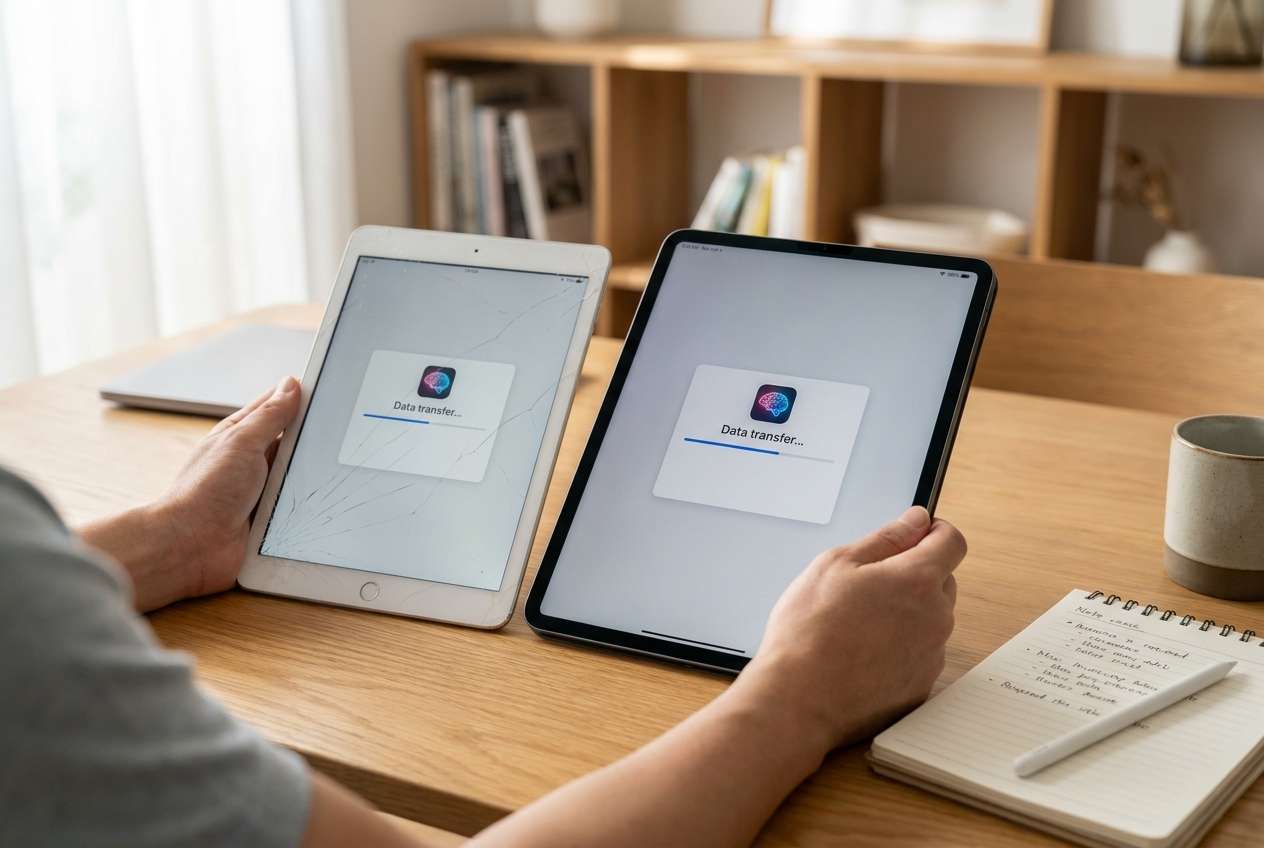
Part 1. Plan move data from old iPad to new iPad without missing critical steps
You have a new iPad ready to set up, but you’re unsure whether to use iCloud, a computer backup, or a direct device-to-device transfer. You also don’t know what “done” looks like beyond “it seems fine.”
After an AI answer, the uncertainty often remains: What’s the safest order? What should I confirm before starting? Which items tend to go missing (photos, Messages, app data, files)? Missing clarity here creates avoidable rework.
There’s also a point of no return: erasing the old iPad, resetting the new iPad, or overwriting a backup before verifying the transfer is complete. You should not reach that moment until your checks say the data exists in at least two places (source + confirmed backup/target).
Part 2. What the AI needs to know
Share your situation so the AI can build a sequence with the right checks.
- Old iPad model + iPadOS version (if known)
- New iPad model + iPadOS version (if known)
- Transfer goal: “mirror everything” vs “move only essentials”
- Your preferred method (if any): iCloud, computer backup, direct transfer, or unsure
- iCloud storage available vs used (e.g., 50 GB plan, 48 GB used)
- Internet reliability and speed (slow Wi‑Fi changes the safest method)
- Whether you use iCloud Photos, Messages in iCloud, iCloud Drive, Keychain
- Whether you have a computer available (Mac/Windows) and a cable/adapter
- Sensitive data considerations (work profile/MDM, school iPad, shared Apple ID)
- App types that matter most (banking/2FA, games, note apps, WhatsApp, etc.)
- Time constraints (e.g., must finish tonight; old iPad needed tomorrow)
- Current issues on old iPad (low storage, crashes, battery health problems)
Part 3. Using AI prompts to build a safer move data from old iPad to new iPad workflow
Use the prompts below to make the AI produce a plan you can follow, with clear verification gates before any irreversible step.
3-1. Level 1: Basic prompt
I need a planning checklist to move data from my old iPad to a new iPad with minimal risk of missing anything. Give me the safest sequence of steps and the key things to verify before I erase or reset any device.
3-2. Level 2: Advanced prompt
Build a structured workflow for moving data from an old iPad to a new iPad.
Split it into Preparation / Execution / Verification, and mark each item as Critical or Optional.
Include decision rules for choosing between iCloud transfer, computer backup/restore, or direct device-to-device transfer based on Wi‑Fi speed, iCloud storage, and old iPad reliability.
3-3. Level 3: Evidence prompt
Create a risk-controlled plan to move my data from old iPad to new iPad with verification checks before / during / after.
Context: old iPad (iPadOS 16.x), new iPad (iPadOS 17.x), Apple ID is the same, iCloud storage (50 GB plan, 46 GB used), Wi‑Fi is unstable, I can use a Windows PC, and the must-keep items are Photos, Notes, Files, Messages, and app logins (banking + authenticator).
Output:
- Method recommendation with reasoning (and a fallback method)
- Pre-checks (storage, iCloud sync status, encryption/credentials, power)
- During-transfer checkpoints (what progress evidence to look for)
- Post-transfer audit list (exact things to compare: photo count ranges, Notes sync status, Files locations, Messages settings, app-by-app priority)
- Stop signs that mean “do not erase/reset anything yet”
3-4. Prompt refinement (follow-up prompts)
Rewrite the plan as a gate-based workflow: “Gate 1 must be true before Gate 2,” and include the exact proof I should capture (screenshots, counts, timestamps).
Produce a top-10 failure modes list for iPad-to-iPad moves (e.g., iCloud Photos still uploading, Messages not fully synced) and add a prevention check for each.
Give me a minimal viable verification checklist for when I’m in a rush, and a full audit checklist when I have time.
Ask me only the missing questions needed to finalize the method choice, then output the final plan in a single page.
Part 4. AI plan vs. real device constraints
| Planning with AI (good at) | Real devices (constraints) |
|---|---|
| Sequencing steps to avoid rework and risk | Battery, storage, Wi‑Fi instability, and OS bugs can derail timing |
| Creating verification gates and audit checklists | Sync status and “still uploading” states are only visible on-device |
| Identifying points of no return to delay | Resets/overwrites can be irreversible once performed |
| Generating fallback paths when a method fails | Transfers require actual tools, cables, accounts, and device access |
AI improves planning, but cannot execute. Once the workflow is clear and you know what “verified” looks like, you’ll need real device tools to perform the transfer and confirm results.
Part 5. When to stop planning move data from old iPad to new iPad and start execution
- You’ve chosen a primary method and a fallback method, with clear triggers for switching.
- You know the minimum verification evidence you must see before any reset/erase action.
- You’ve checked practical blockers: power, storage headroom, Wi‑Fi quality, required cables/adapters, Apple ID credentials, and 2FA access.
- You’ve identified the irreversible moment you will not cross yet (erase old iPad / reset new iPad / overwrite backup) until the audit passes.
At this point, the risk is mostly in execution errors—not in planning gaps.
Move data from old iPad to new iPad: Execute the workflow safely with Dr.Fone
Execution now matters because the plan only reduces risk if the transfer is performed in the right order and you stop immediately when a verification gate fails. If you want a dedicated execution layer, Dr.Fone - Phone Transfer can help you run the transfer while you follow the gates and verification checks you planned.
 Move data between iOS to Android and vice versa.
- Transfer contacts, SMS, photos, videos, music, and more types.
- Available with all phones with Android and iOS versions.
- Simple, click-through process.

-
Step 1 Lock the “no-return” rule and capture baseline evidence
Before transferring, record baseline proofs (key photo counts/ranges, Notes sync status, Files locations, critical app list) and confirm you will not erase/reset anything until the post-transfer audit passes. AI can tell you what to capture and compare, but it cannot see your iPad’s current sync/upload status or confirm your evidence.

-
Step 2 Start the transfer and set the correct device-to-device path
Run the transfer/backup-restore using your chosen method (and keep your fallback ready). AI cannot perform the transfer or handle device prompts, so follow the on-screen prompts and your verification gates.

-
Step 3 Select what to move and watch for “evidence of progress” checkpoints
Choose the data categories that match your plan, then monitor checkpoints you defined (progress indicators, timestamps, and expected data sizes/counts) so you can stop early if something looks wrong.

-
Step 4 Verify on the new iPad before any erase/reset/cleanup
Perform the post-transfer audit (priority apps first, then Photos/Notes/Files/Messages), and only proceed to any wipe/reset once everything critical is confirmed present and usable. AI can help interpret a mismatch and propose next checks, but it cannot validate your on-device results or guarantee completeness.





Conclusion
Use AI to design a gated plan with clear verification evidence and a delayed point of no return; then use a real tool like Dr.Fone to execute the transfer and complete the on-device checks before any irreversible cleanup.
FAQ
-
What’s the biggest risk when moving data to a new iPad?
Crossing an irreversible step (erasing/resetting or overwriting a backup) before you’ve verified that critical data is fully present and usable on the new iPad. -
How do I know the transfer is actually complete?
You need evidence: key counts/ranges (photos/videos), Notes and Files showing expected folders, Messages content appearing as expected, and successful login/access for priority apps (especially banking/2FA). -
Should I erase the old iPad right after the new one “looks fine”?
No. “Looks fine” isn’t a verification gate. Wait until your audit checklist passes and you have a confirmed backup or a second confirmed copy of critical data. -
What if iCloud is still syncing after setup?
Treat that as “not finished.” Keep both devices powered and on Wi‑Fi, and postpone any erase/reset until sync indicators and your audit checks confirm completion. -
Can AI choose the best transfer method for me?
AI can recommend a method based on what you tell it (Wi‑Fi, iCloud space, computer access, time), but it can’t see real-time device conditions—so you should keep a fallback method ready.
 Add Wondershare Dr.Fone as a preferred source on Google





