 Effortlessly manage data through preview, delete, export, etc.

 100% Security Verified | No Subscription Required | No Malware

 :
: 
 ChatGPT
 Perplexity
 Gemini
 Claude
 Grok
Grok

I thought moving from iPhone to an Android tablet would be simple, but I ended up with missing photos and duplicated contacts because I did things in the wrong order.
Forum user
Moving data from an iPhone to an Android tablet sounds straightforward—until one missed step causes missing photos, duplicated contacts, or messages that never arrive.
AI is useful here because it can turn your situation into a clear sequence: what to prep, what to transfer first, what to verify, and what to avoid until you’ve confirmed results.
AI cannot access your devices, cables, accounts, storage, or transfer tools—so it can’t perform the move or confirm what actually transferred. You still need real device software to execute safely.
1. Plan the order of operations before you touch anything irreversible.
Define what you’ll move, the exact sequence (prep → transfer → verify), and explicitly block erasing/deleting/overwriting until verification passes.
2. Use AI to generate verification gates, not “generic steps.”
Ask for checks like counts, date ranges, and spot-check samples so you can prove completeness before cleanup.
3. Execute with real tooling and confirm results on-device.
AI can’t validate your transfer; you must verify photos, contacts, calendars, and files on the Android tablet before any cleanup.
In this article
- How to plan the transfer without missing critical steps
- Common failure points
- Information to share with AI
- Verification gates to define
- What to avoid until checks pass
- Use AI prompts to build a safer workflow
- AI plan vs. real device constraints
- When to stop planning and start execution
- Execute the workflow safely (step-by-step)
Part 1. How to Plan Move Data From iPhone to Android Tablet Without Missing Critical Steps
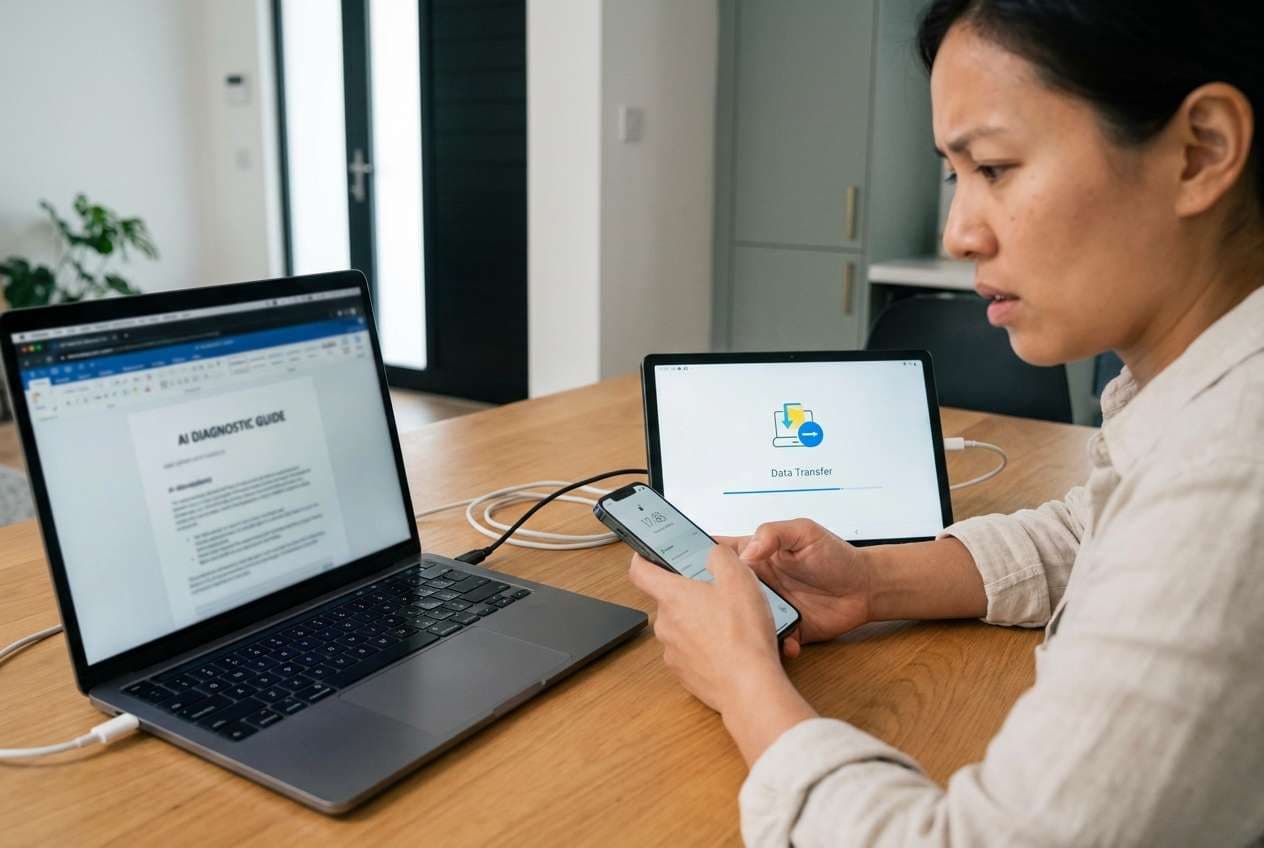
1-1. Common failure points (where people lose data)
A common situation: you’re keeping your iPhone but want your Android tablet to have the same core data (photos, contacts, calendars, some files), and you’re unsure what method fits your setup (USB vs. cloud, one-time move vs. ongoing sync).
Even after an AI gives “general steps,” the uncertainty is usually in the sequencing: which accounts to sign into first, whether to disable iMessage, how to avoid duplicates, and how to confirm completeness before you clean up anything.

1-2. What the AI needs to know (so sequencing is correct)
Share your device, data, and constraint details so the workflow can be sequenced correctly.
- iPhone model + iOS version (e.g., iPhone 13, iOS 17.5)
- Android tablet model + Android version (e.g., Galaxy Tab S8, Android 14)
- What you must move (photos/videos, contacts, calendars, notes, files, WhatsApp, messages)
- Where your data currently lives (iCloud Photos on/off, Google Photos, local storage, OneDrive/Dropbox)
- Target outcome (one-time copy vs. ongoing sync)
- Storage space on the tablet (free GB available) and iPhone (free GB)
- Connectivity constraints (USB-C/Lightning cable availability, Wi‑Fi only, no PC/Mac)
- Risk constraints (must not lose originals, must avoid duplicates, work device policies/MDM)
- Whether the tablet already has data that must be preserved (existing photos/contacts)
- Deadline and acceptable downtime window
1-3. Verification gates you should define up front
Before transfer, decide what “success” looks like for each category (photos, contacts, calendars, notes, files). A good gate includes at least:
- Counts (items, albums, contacts)
- Date ranges (e.g., last 2 years of calendars, oldest/newest photo dates)
- Spot-check samples (random checks across time ranges)
- A pass/fail decision (what you do if it fails)
1-4. What not to do until checks pass
Do not erase/reset devices, delete cloud originals, or merge/overwrite existing tablet data until your verification checklist meets your pass criteria.
Part 2. Using AI Prompts to Build a Safer Move Data From iPhone to Android Tablet Workflow
Use the prompts below to force a verifiable plan before you touch any irreversible actions.
2-1. Level 1: Basic Prompt
Write a step-by-step plan to move my data from an iPhone to an Android tablet with minimal risk.
Include what to do first, what to verify after each stage, and what I should not do until verification is complete.
Keep it focused on planning, not tool clicks.
2-2. Level 2: Advanced Prompt
Design a workflow to move data from my iPhone to my Android tablet with Preparation / Execution / Verification phases.
Mark each step as critical or optional, list prerequisites (accounts/cables/storage), and include a “stop and check” gate before any irreversible actions (like erasing the iPhone or merging/overwriting tablet data).
2-3. Level 3: Evidence Prompt
Here’s my situation: iPhone (iPhone 12, iOS 17), Android tablet (Pixel Tablet, Android 14).
I need to move (photos/videos ~45GB, contacts ~1,200, calendars, notes, files), and the tablet already has some photos I can’t lose.
I have (Wi‑Fi, USB cable, a Windows laptop). iCloud Photos is (ON), Google Photos is (OFF).
Create a workflow with checks before / during / after transfer.
Include: storage math, duplicate-avoidance strategy, how to confirm completeness (sample checks: “randomly verify 50 photos across date ranges,” “spot-check 20 contacts,” “confirm calendar ranges (e.g., last 2 years)”), and a final “safe-to-clean-up” checklist.
Do not include irreversible cleanup until all checks pass.
2-4. Prompt Refinement (follow-up prompts)
Convert the plan into a table with columns: Step, Critical/Optional, Input needed, Expected output, How to verify, What can go wrong, Rollback/Recovery.
Identify the single riskiest moment in my workflow (data overwrite, deletion, account sync conflict), and add a hard “verification gate” with explicit pass/fail criteria.
Create a duplicate-prevention strategy for contacts and photos, including what to do if I already have Google contacts/photos on the tablet.
Give me a minimum viable transfer (only critical items first) and a full transfer (everything), each with separate verification checklists.
Part 3. AI Plan vs. Real Device Constraints
| Planning outcome (AI can help) | Reality constraint (AI can’t do) |
|---|---|
| Define transfer order and verification gates | Detect your actual cable reliability, ports, or flaky connections |
| Predict common duplication/sync conflicts | See what is already on your tablet and how it will merge in practice |
| Create pass/fail verification criteria | Confirm the real counts (items, dates, sizes) on-device after transfer |
| Draft a rollback plan (what to restore if wrong) | Perform the transfer/restore actions or guarantee tool compatibility |
AI improves the plan and reduces avoidable mistakes, but it cannot execute or validate transfers on your devices—execution requires real tooling and your confirmations.
Part 4. When to Stop Planning Move Data From iPhone to Android Tablet and Start Execution
- You can name exactly what data categories you’re moving and what you’re intentionally not moving.
- You have a written order of operations (prep → transfer → verify) with at least one verification gate.
- You’ve defined pass/fail checks (counts, date ranges, spot-checks) and what you’ll do if checks fail.
- You have explicitly blocked irreversible actions (erase iPhone, delete iCloud, overwrite tablet content) until verification passes.
If those four points are true, planning is “good enough” and the risk now shifts from uncertainty to careful execution.
Part 5. Move Data From iPhone to Android Tablet: Execute the Workflow Safely (Step-by-Step)
Execution is where most losses happen—because people move data and then clean up before confirming what actually arrived and what duplicated.
-
Step 1 Prepare a protected baseline
Action: Create a current backup and confirm storage space and power stability on both devices so you can recover if anything goes wrong. Limitation: AI can’t verify your backup integrity or your actual free space—confirm on the devices before proceeding.

-
Step 2 Set the transfer path (iPhone → Android tablet)
Action: Confirm which device is the source and which is the destination before you start, especially if the tablet already contains data you must preserve.

-
Step 3 Transfer only the planned data types
Action: Select only the categories you decided are in-scope (e.g., photos/videos, contacts, calendars, files). Limitation: Don’t assume every app’s data is transferable; rely on what the tool and devices explicitly show as supported during execution.

-
Step 4 Verify, then decide on irreversible cleanup
Action: Run your verification checklist (counts, date ranges, spot-checks, open files/photos) and only then consider cleanup like deleting duplicates or erasing the old device. Limitation: The “point of no return” (erase/reset/delete cloud originals) should not happen unless your checks meet your pass criteria.

Recommended Tool for Execution
If your plan calls for a controlled, one-time device-to-device transfer (with you choosing exactly what categories are in-scope), Dr.Fone - Phone Transfer can help you execute the workflow while keeping the iPhone data intact until you verify results.
 Move data between iOS to Android and vice versa.
- Transfer contacts, SMS, photos, videos, music, and more types.
- Available with all phones with Android and iOS versions.
- Simple, click-through process.

To reduce risk, keep your process aligned with the same gates you planned with AI: transfer a limited scope first (minimum viable transfer), verify counts and samples, then expand to the full transfer. Only after everything passes should you consider cleanup actions like deleting duplicates or resetting the old device.




Conclusion
Use AI to design a sequenced workflow with verification gates and clear stop conditions, then use Dr.Fone to execute the transfer—waiting on any irreversible cleanup until your checks prove the move is complete.
FAQ
-
What’s the biggest risk when moving from iPhone to an Android tablet?
Premature cleanup: erasing the iPhone or deleting iCloud content before confirming the tablet has complete, usable copies—especially for photos and contacts.
-
How do I avoid duplicated contacts on the tablet?
Plan a single “source of truth” (iCloud vs. Google) and a merge strategy before you transfer; verify with spot-checks and counts before importing additional contact sources.
-
Should I disable iMessage before moving?
If you rely on receiving SMS/MMS on a non-iPhone device, plan the timing carefully; changing messaging settings too early can disrupt inbound messages. Treat it as a change that needs a verification gate.
-
What should I verify after transfer besides “I see my photos”?
Check counts and date ranges, open a sample across old/new dates, confirm videos play, spot-check contacts (including duplicates), and confirm calendar coverage (e.g., last 12–24 months).
-
Can AI tell me if the transfer succeeded?
No. AI can define what “success” means and what to check, but only you (and the tool/device readouts) can confirm the results.
 Add Wondershare Dr.Fone as a preferred source on Google





