 Effortlessly manage data through preview, delete, export, etc.

 100% Security Verified | No Subscription Required | No Malware

 :
: 
 ChatGPT
 Perplexity
 Gemini
 Claude
 Grok
Grok

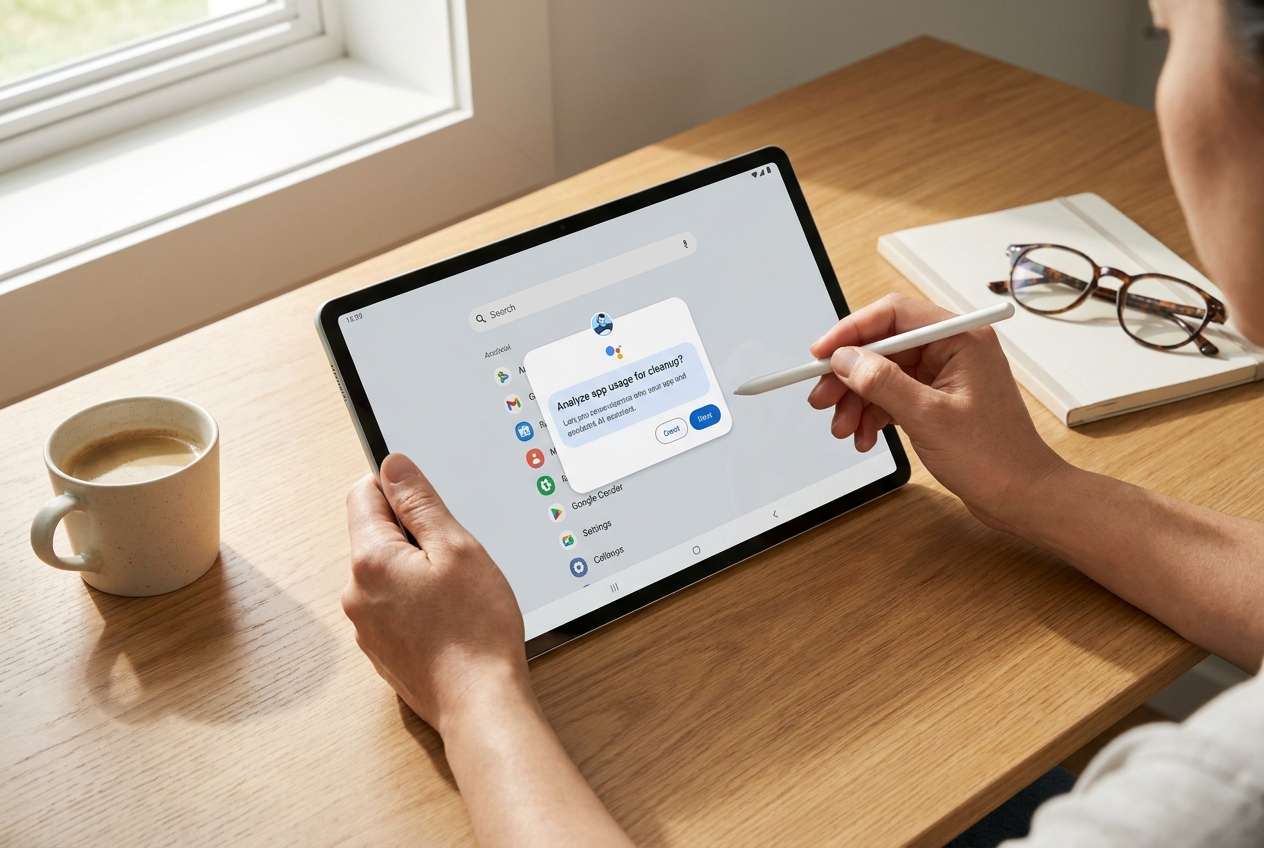
I tried cleaning “bloat” on my Android tablet to free up space, but I’m worried I’ll remove the wrong thing and lose offline downloads or break important logins.
Forum user
Cleaning bloated apps on an Android tablet sounds simple, but skipping one step can cause lost downloads, broken logins, missing offline files, or removing something the system relies on.
AI helps by turning a vague goal (“free up space”) into a clear workflow with prerequisites, decision points, and verification checks before you touch anything irreversible.
AI cannot see your tablet, confirm what’s safe to remove, or perform device actions—so once the plan is solid, execution must be done with real tools and device confirmations.
In this article
- How to plan clean bloated apps on an Android tablet without missing critical steps
- Why order matters more than “what to delete”
- Identify point-of-no-return actions
- Set verification checkpoints
- Prevent unsynced/offline data loss
- What the AI needs to know
- Using AI prompts to build a safer workflow
- When to stop planning and start execution
- Execute the workflow safely with Dr.Fone
Part 1. How to Plan clean bloated apps on an android tablet Without Missing Critical Steps
You’re running out of storage, the tablet feels slow, and you suspect “bloat” (unused apps, duplicate apps, vendor apps, and heavy media caches). You want space back without breaking school/work apps, logins, or device stability.
The uncertainty is usually not what to remove, but in what order: what to back up, how to identify “safe” targets, and what to verify before and after. Without a sequence, you can delete the wrong thing and only discover the impact later.
The point-of-no-return moment is when you uninstall an app or clear its data and realize the content wasn’t synced (e.g., offline notes, downloaded videos, chat media, game progress). That’s the step you should not reach until verification is complete.
Part 2. What the AI Needs to Know
Share your device context so the AI can build a safer, ordered checklist.
- Tablet model and Android version (e.g., “Samsung Tab A8, Android 13”)
- Current free storage and target free storage (e.g., “3 GB free, want 15 GB”)
- What “bloat” means to you (unused apps, preinstalled apps, large caches, duplicate apps)
- Apps you must keep working (banking, school MDM, email, camera, messaging)
- What data is at risk (offline downloads, photos, local documents, app-only files)
- Whether the tablet is managed/locked down (work/school profiles, admin restrictions)
- Your tolerance for risk (only remove user-installed vs also disable system apps)
Part 3. Using AI Prompts to Build a Safer clean bloated apps on an android tablet Workflow
Use the prompts below to make the workflow explicit before any removal or cleanup happens.
3-1. Level 1: Basic Prompt
Help me plan a safe workflow to clean bloated apps on my Android tablet without breaking essential apps or losing unsynced data. I want a short sequence of preparation, what to remove first, and what to verify afterward.
3-2. Level 2: Advanced Prompt
Design a structured workflow to clean bloated apps on an Android tablet with Preparation / Execution / Verification phases.
Mark each step as critical or optional, include “stop and verify” checkpoints, and call out actions that are irreversible (like uninstalling apps or clearing app data) that must wait until backups and sync checks are confirmed.
3-3. Level 3: Evidence Prompt
Create a cautious plan to remove bloat from my Android tablet using this context: device (Samsung Tab A8, Android 13), storage (3 GB free of 64 GB), goal (free 15 GB), must-keep apps (Google Classroom, Gmail, WhatsApp, Banking app), risk data (WhatsApp media, offline Classroom files, downloaded videos).
Include:
- Checks before any removal (sync status, backups, which apps store offline data)
- Checks during execution (how to confirm the right app/version, how to avoid removing device-critical services)
- Checks after execution (functional tests, storage delta expectations, what to do if something breaks)
Also provide a “safe target list” framework: uninstall, disable, keep, review later.
3-4. Prompt Refinement
Convert your plan into a single checklist with three gates: “Ready to Start,” “Safe to Uninstall,” and “Done/Verified,” and list the exact pass/fail criteria for each gate.
Give me a decision tree for each candidate app: “Is it user-installed? Is data synced? Is it required for device management? Is it a dependency?” and the resulting action.
Provide a verification script I can follow after each batch (e.g., after removing 3–5 apps): what to open, what to check, and what storage change is realistic.
Identify the highest-risk app categories on Android tablets (messaging, notes, offline media, launchers, security/MDM) and the specific questions I must answer before touching them.
3-5. AI Plan vs. Real Device Constraints
AI improves planning and reduces avoidable mistakes, but it cannot execute device actions, confirm system dependencies, or validate your data state without real on-device steps.
| AI plan | Real device constraints |
|---|---|
| AI can rank risk and propose checkpoints | Only the tablet can confirm what’s installed, restricted, or required |
| AI can suggest what to verify before uninstalling | Only real tools can perform backups/uninstalls reliably |
| AI can draft a batch-removal strategy | Storage reported can lag until reboot/media scan completes |
| AI can outline rollback options | Some deletions (clearing app data/uninstall) can’t restore unsynced content |
Part 4. When to Stop Planning clean bloated apps on an android tablet and Start Execution
- You have a short list of apps to remove with a reason for each (unused, duplicate, oversized, replaceable).
- You have confirmed what data is synced/backed up for high-risk apps (messaging, notes, offline media).
- You have defined a rollback path (reinstall list, credentials available, and what “broken” looks like).
- You have a verification checklist for storage gain and functional tests after each batch.
If all four are true, the plan is complete enough to move into controlled execution without improvising mid-clean.
Part 5. Clean bloated apps on an android tablet: Execute the Workflow Safely with Dr.Fone
Execution now matters because this is where irreversible actions happen; the goal is to remove the right apps while keeping a clear fallback if something unexpected breaks. To do that, use Dr.Fone Basic - Data Manager for backup and device-side management while you follow the plan and verification gates.
 Easily manage data through preview, delete, export, etc.
- Transfer all data between devices.
- Robust backup solutions for reliable data protection.
- Mirror screens to PC for meetings, teaching, and control.

-
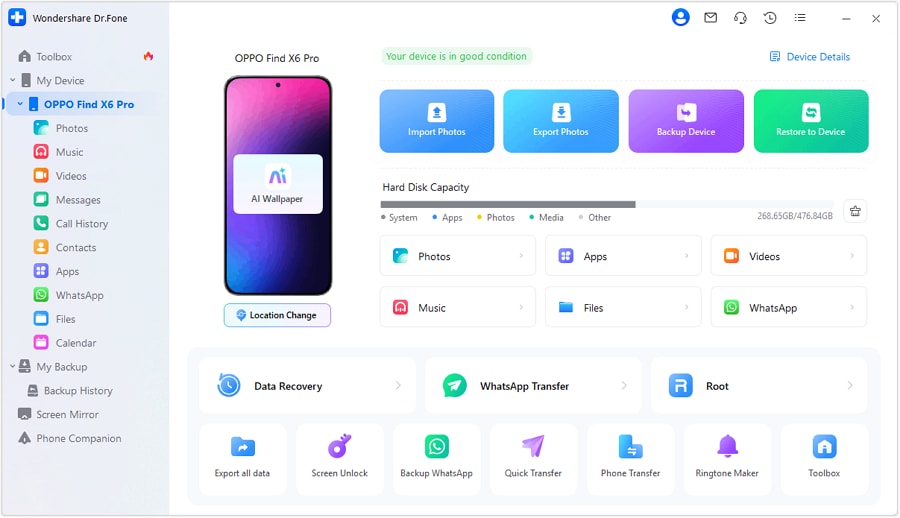
Step 1 Create a safety backup before removals
Action: Use Dr.Fone to back up the tablet data you can’t afford to lose before uninstalling anything on your “review/high-risk” list.
Limitation: A backup is only useful if it actually contains the data you care about—confirm what’s included (and what isn’t) before proceeding.
-
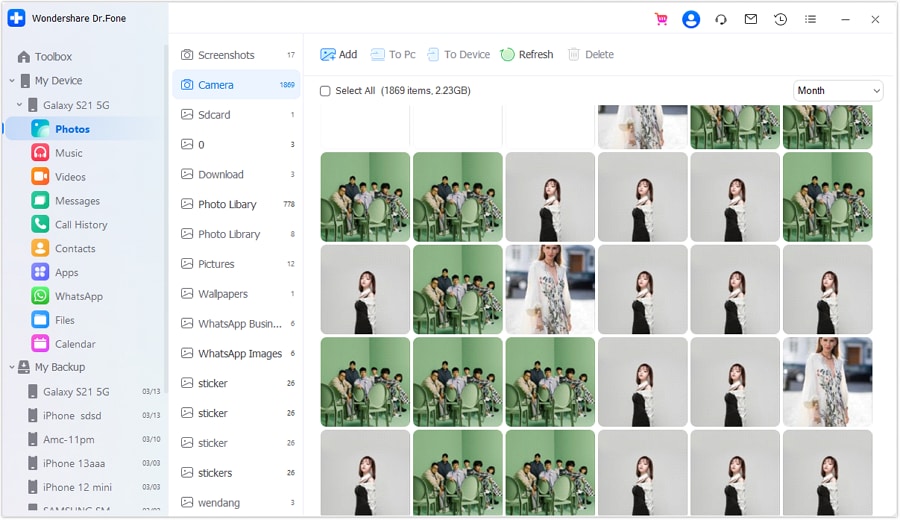
Step 2 Prepare a batch list and double-check risk items
Action: Start with clear “safe targets” (unused user-installed apps, duplicate utilities, replaceable media caches) and keep high-risk apps (messaging/offline media/notes/MDM-managed apps) in a review bucket until sync and backup checks are confirmed.
Limitation: If the tablet is managed (work/school profile), removals may be restricted or policy-sensitive—confirm before making changes.
-
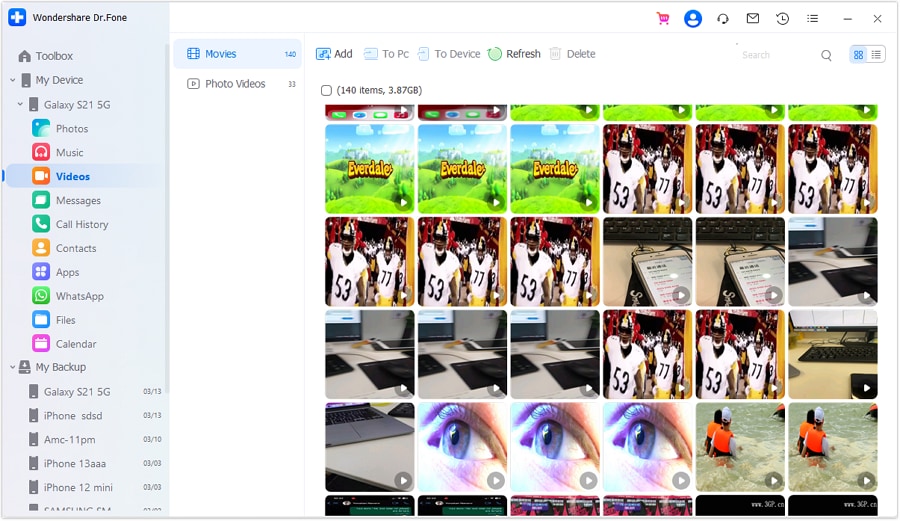
Step 3 Remove apps in small, verified batches
Action: Use Dr.Fone to manage and uninstall the selected non-essential apps in batches (e.g., 3–5 at a time) so you can isolate issues quickly.
Limitation: Uninstalling an app (or clearing its data) can permanently remove unsynced content; do not touch high-risk apps until your sync/backup checks are passed.

-
Step 4 Verify function and storage impact, then finalize
Action: Use your verification checklist to test must-keep apps and confirm the expected storage gain before continuing or stopping.
Limitation: Storage reporting can be delayed, and some problems only appear on next launch/sign-in—re-check after a reboot and first-use tests.




Conclusion
Use AI to plan the sequence, define risk gates, and write verification checks; then use real tools like Dr.Fone to execute backups and app removal safely, without skipping the checks that prevent irreversible loss.
FAQ
-
What’s the biggest risk when cleaning “bloated” apps?
Deleting unsynced data (offline downloads, local notes, chat media) or removing something required by device management/work profiles.
-
Is “Disable” safer than “Uninstall”?
Usually yes, because it’s more reversible—but disabled apps can still affect dependencies, and some can’t be disabled on certain devices.
-
When is it unsafe to proceed?
When you can’t confirm whether key apps are synced/backed up, you don’t have account access to reinstall, or the tablet is managed and removals may violate policy.
-
How do I verify I actually freed space (not just “estimated”)?
Check storage before/after, reboot once, re-check storage, then confirm your largest categories (Apps, Images/Video, Downloads) changed as expected.
-
Can AI tell me which specific system apps are safe to remove on my exact tablet?
No—AI can flag risk patterns, but only the device, vendor, and your usage context can confirm what’s safe or required.
 Add Wondershare Dr.Fone as a preferred source on Google





