 Effortlessly manage data through preview, delete, export, etc.

 100% Security Verified | No Subscription Required | No Malware

 :
: 
 ChatGPT
 Perplexity
 Gemini
 Claude
 Grok
Grok

I’m returning my work phone soon and I’m worried I’ll miss something—files in odd folders, a chat history export, or media that isn’t synced anywhere. I need a safe order to check things without accidentally deleting or losing access before I’ve captured the required records.
Forum user
Inventory reviews on a work phone sound simple until you miss a folder, a chat export, or a media sync—and then you discover it after access is gone.
AI can help you map what to check, in what order, and what “done” looks like before you touch anything on the device.
AI can’t actually scan your phone, confirm what exists, or perform backups/transfers; real device actions require real tools and the right permissions.

In this article
- How to plan an inventory review without missing critical steps
- What you’re trying to avoid
- Where uncertainty usually shows up
- The point of no return
- What a “safe order” means
- What the AI needs to know
- Using AI prompts to build a safer workflow
- When to stop planning and start execution
- Execute the workflow safely with Dr.Fone
Part 1. How to Plan inventory review for files chats and media on work phone Without Missing Critical Steps
You’re cleaning up or handing back a work phone and need to inventory what’s on it: work files, chat histories, photos/videos, downloads, and app data. You’re not sure what matters, what’s duplicative, or what must be preserved for compliance.
Even after getting general advice, the uncertainty is usually in the sequence: what to verify first, what to capture as evidence, what to back up, and what to leave untouched until approvals are confirmed.
The point of no return is any irreversible step—bulk deletion, signing out of managed accounts that removes synced data, or a factory reset before handoff—because you may lose content that wasn’t captured, wasn’t permitted to be copied, or was needed for records.
Part 2. What the AI Needs to Know
Share the constraints and the end goal so the plan can be complete and safe.
- Phone OS and model (Android/iPhone; example: “iPhone 13, iOS 17”)
- Work management status (MDM/managed profile, company portal app, supervised device, unknown)
- Ownership and destination (returning to IT, transferring to a new work phone, leaving company)
- What “inventory” means for you (list only vs export/copy vs backup)
- Data types in scope (files, chats, media, notes, call logs, downloads, app-specific storage)
- Allowed actions (can you export chats? can you back up to computer? prohibited from personal cloud?)
- Accounts involved (work email, Teams/Slack/WhatsApp/WeChat, Google Drive/iCloud, OneDrive)
- Time constraints and access risk (deadline, pending deprovision, SIM swap, password reset)
- Required evidence (screenshots, counts, folder lists, timestamps, sign-off requirement)
- Risk tolerance (must avoid any chance of policy violation vs “best effort”)
Part 3. Using AI Prompts to Build a Safer inventory review for files chats and media on work phone Workflow
Use the prompts below to make AI produce a sequence you can follow, with verification gates before any irreversible action.
3-1. Level 1: Basic Prompt
I need a planning checklist to inventory files, chats, and media on my work phone without missing anything important. Organize it in a safe order and call out any steps I should not do until I’ve verified backups and permissions.
3-2. Level 2: Advanced Prompt
Build me a structured workflow for a work-phone inventory review with Preparation / Inventory / Verification phases. Mark steps as critical vs optional, include a “stop” gate before any irreversible actions (deleting, signing out, factory reset), and list what proof I should collect to confirm the inventory is complete.
3-3. Level 3: Evidence Prompt
Create a risk-aware plan to inventory and (only if allowed) preserve work data from my work phone.
Context:
- Device: (Android 14, Samsung S22)
- Management: (company MDM + work profile enabled)
- Apps: (Teams, Outlook, OneDrive, WhatsApp, Photos/Gallery)
- Goal: (prepare to return device to IT in 48 hours; ensure no required work records are lost)
- Allowed destinations: (company OneDrive only; no personal cloud)
- Evidence needed: (counts + key folder/app lists + timestamps)
Output:
- A checklist with Before / During / After checks
- A table of Data type → Where it lives → How to verify it exists → How to confirm it’s preserved
- A “do not cross” point listing actions that become irreversible and what must be verified first
3-4. Prompt Refinement
Output a single-page runbook with sections: Scope, Assumptions, Pre-checks, Inventory steps, Verification, Stop/Go criteria, and Rollback options (if any).
Ask me 10 yes/no questions first to remove ambiguity (MDM restrictions, allowed exports, required retention), then produce the workflow.
Create a verification matrix: each item must have (location checked → evidence captured → backup destination confirmed → sign-off ready).
Produce two variants: “Inventory-only (no copying)” and “Inventory + compliant preservation”, and clearly label which steps change.
3-5. AI Plan vs. Real Device Constraints
| Planning need | What AI can do | What the device/tool must do |
|---|---|---|
| Identify likely data locations across apps and storage | Produce a structured map and checklist | Reveal what’s actually on the phone and what’s accessible |
| Reduce missed steps with an ordered workflow | Provide sequencing and gating before irreversible actions | Perform scans, exports, backups, and transfers |
| Define verification criteria (counts, timestamps, hashes where possible) | Specify what evidence to capture and how to interpret it | Generate the real counts/files and allow you to record them |
| Prevent policy mistakes (personal cloud, unmanaged exports) | Flag risk points and suggest safer alternatives | Enforce MDM restrictions and execute permitted actions |
AI improves planning and verification logic, but it cannot read your phone’s contents or perform the inventory/backup actions for you.
Part 4. When to Stop Planning inventory review for files chats and media on work phone and Start Execution
- You have a written scope: exactly which apps/data types are in-bounds and out-of-bounds.
- You’ve confirmed the allowed destination(s) and policy constraints (especially around chats and media).
- You’ve defined “done” evidence (lists, counts, timestamps) and where you’ll store that evidence.
- You have a clear stop/go gate before any irreversible action (delete/sign-out/reset), including who must approve.
If all four are true, your plan is stable enough to move from “thinking” to “doing.”
Part 5. Inventory review for files chats and media on work phone: Execute the Workflow Safely with Dr.Fone
Execution is where most mistakes happen: you move data before confirming permissions, or you delete/reset before proving preservation. Once the plan and verification gates are set, use a real tool like Dr.Fone Basic - Data Manager to carry out the device actions.
 Easily manage data through preview, delete, export, etc.
- Transfer all data between devices.
- Robust backup solutions for reliable data protection.
- Mirror screens to PC for meetings, teaching, and control.

-
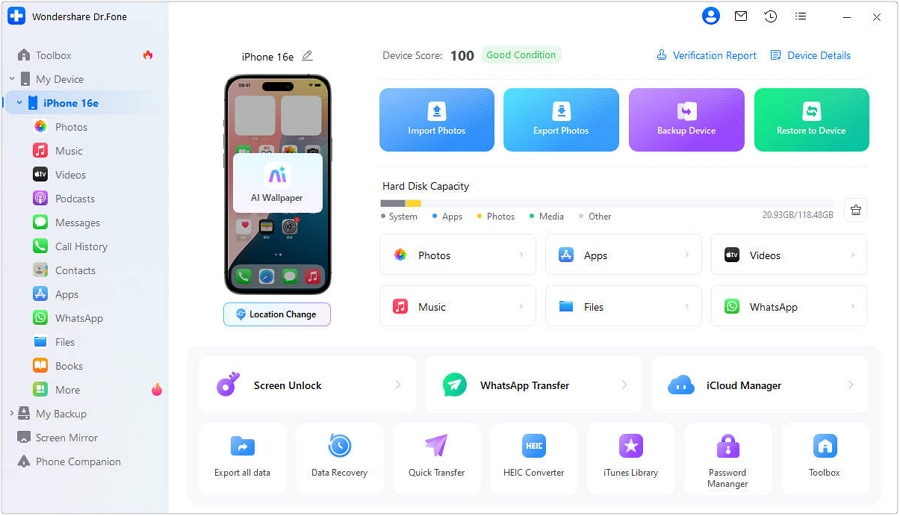
Step 1 Stabilize the device state (don’t change anything yet)
Use Dr.Fone to connect the phone and prepare the intended inventory/backup/transfer action only after confirming your approved destinations and what will be captured.
AI can’t confirm what Dr.Fone detects on your specific device or what MDM allows; if access is blocked, stop and re-scope with IT.
-
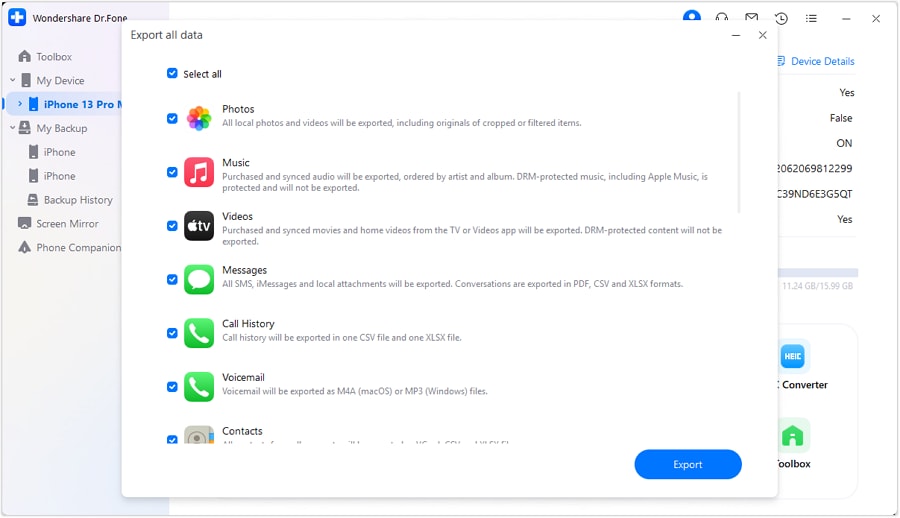
Step 2 Choose in-scope categories (align to policy before exporting)
Select the data types you’re permitted to handle (for example: work files, approved chat exports, and work media), and avoid any destination that policy forbids (such as personal cloud accounts).
-
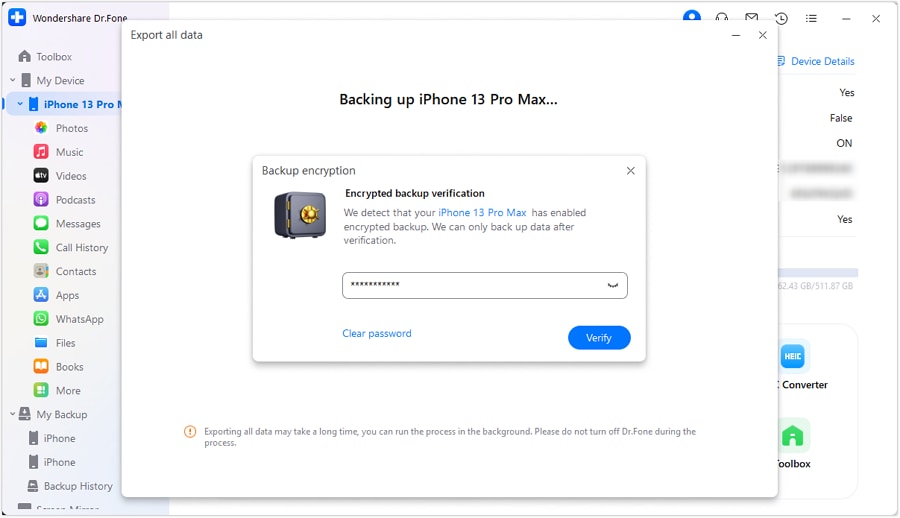
Step 3 Capture and preserve according to policy (the high-risk moment)
Perform the planned backup/transfer for the in-scope data, then immediately record your evidence (counts, key folders, timestamps) before doing any cleanup.
Do not proceed to bulk delete, sign out of managed accounts, or factory reset until verification is complete—those actions may be irreversible.
-
Step 4 Verify completeness, then finalize handoff/cleanup
Use the tool’s outputs (and your evidence checklist) to confirm every critical category is accounted for, then proceed with the approved final step (handoff, cleanup, or reset).
AI can help judge whether the evidence looks complete, but it cannot certify compliance; if anything is uncertain, pause before final wipe/reset.




Conclusion
Use AI to define scope, sequence, risks, and verification gates for an inventory review on a work phone, then use a real tool like Dr.Fone to execute the approved device actions—especially before any irreversible cleanup step.
FAQ
-
How do I avoid missing “hidden” work data outside Photos and Files?
Have AI produce an app-by-app inventory map (chat apps, note apps, downloads, voice memos, document editors) and verify each app’s internal storage separately from the general file system. -
What’s the most dangerous step in this workflow?
Any irreversible change: bulk deletion, removing a work profile, signing out when it triggers data removal, or factory resetting before you’ve verified preservation and captured evidence. -
What should verification look like if I’m not allowed to copy data off the phone?
Inventory-only verification can be evidence-based: folder/app lists, item counts, timestamps, screenshots of key locations, and a written record of where data resides—without exporting content. -
When should I involve IT or compliance?
Before exporting chats, moving media to any non-approved location, removing MDM/work profiles, or if the device is close to being deprovisioned and you might lose access. -
Can AI tell me whether my backup or export is complete?
AI can evaluate your recorded counts, checklists, and anomalies, but it cannot see the phone or validate the backup contents directly.
 Add Wondershare Dr.Fone as a preferred source on Google





