 Effortlessly manage data through preview, delete, export, etc.

 100% Security Verified | No Subscription Required | No Malware

 :
: 
 ChatGPT
 Perplexity
 Gemini
 Claude
 Grok
Grok

I deleted photos from my Android microSD card and they vanished from Gallery. I’m not sure if they’re actually gone, still indexing, or if something got corrupted—and I don’t want to make it worse by “trying random fixes.”
Forum user
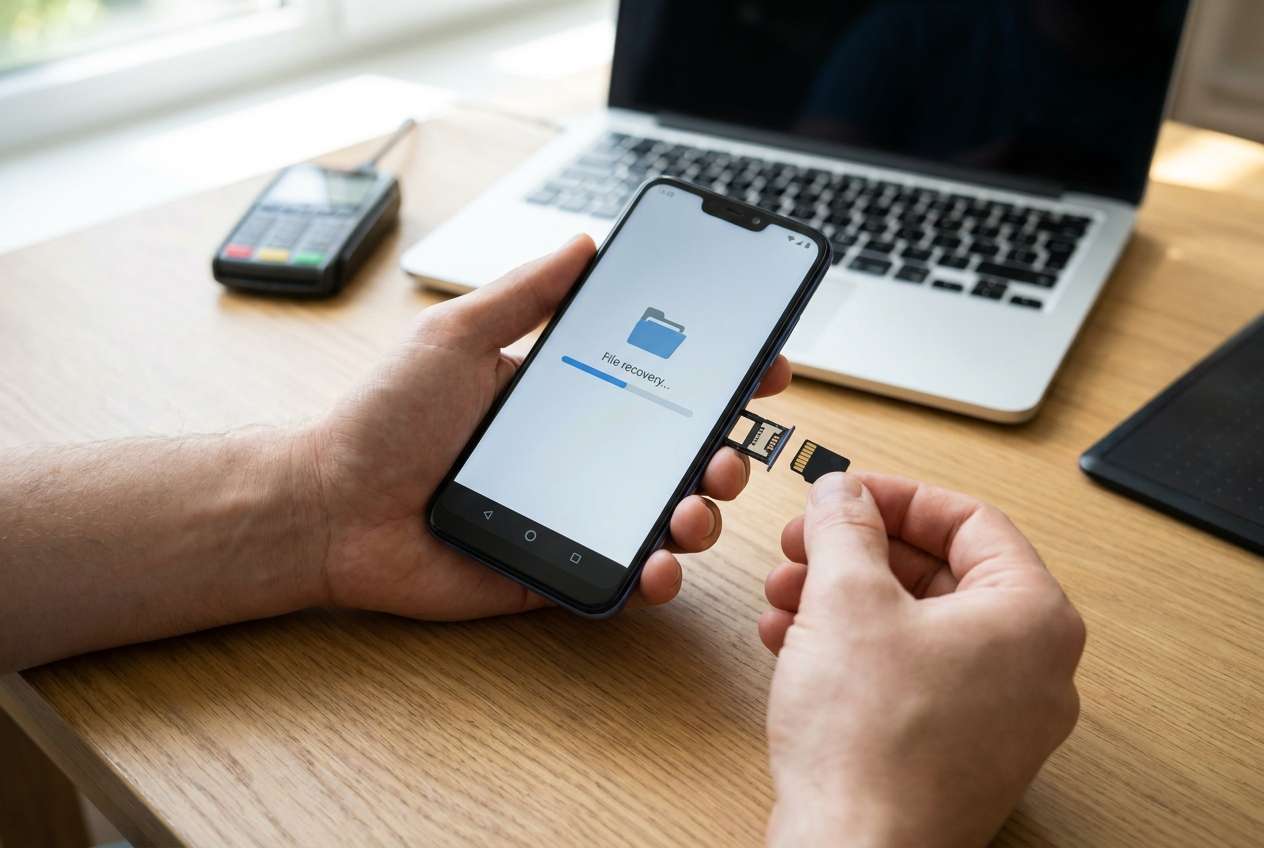
Deleted photos on an Android phone can feel “gone” the moment they disappear from Gallery—especially if they were stored on a microSD card and you just tapped Delete, cleared a folder, or even hit Format. Nothing seems to change after several minutes, and it’s unclear whether the phone is still indexing or the files are truly missing.
AI (like ChatGPT or Gemini) can help you diagnose what likely happened—for example, whether this is a Gallery/album view issue, a cloud sync mismatch, card corruption, or true deletion—and suggest low-risk next checks before you make things worse.
AI can’t see your storage directly, and trial-and-error (restarting repeatedly, moving files around, installing random “cleaner” apps) can overwrite recoverable data. The goal is to use AI for careful triage, then hand off execution to a dedicated tool.
In this article
- Part 1. Why deleted photos disappear from a microSD card on Android
- Common triggers
- Gallery vs card vs cloud views
- Why overwrite matters
- Before you prompt the AI
- Part 2. Using AI prompts to identify likely microSD photo loss causes on Android
- Part 3. AI output vs reality: what to verify before you act
- Part 4. When to stop trying random fixes for deleted SD card photos
- Part 5. Recover deleted photos from a microSD card on Android with Dr.Fone
Part 1. Why deleted photos disappear from a microSD card on Android
This usually happens right after a specific trigger: you deleted photos in Gallery, emptied a “Trash/Recently deleted” area, moved items between internal storage and the SD card, or the phone restarted mid-transfer. It’s also common after using a file manager to “clean up” folders like DCIM.
On many Android phones (for example, a Samsung Galaxy A-series or Pixel device), the Gallery app may show albums, cached thumbnails, or cloud-synced views—so the symptom (photos missing) doesn’t always mean the same root cause. If you also move photos between devices like an iPhone 13 or iPhone 14, it can add confusion about what was saved locally vs synced.
What it “means” depends on whether the SD card space was reused. If new photos/apps are written to the card after deletion, the chance of recovering older photo data typically drops—so the safest first move is to pause changes and clarify what scenario you’re in.
1-1. Before You Prompt the AI
Collect a few details first so the AI can narrow causes accurately:
- Android phone make/model and Android version
- microSD card brand/capacity and whether it was set as portable storage
- What you did right before photos disappeared (delete, move, format, update, restart)
- Whether new photos/videos were taken after the issue
- Whether photos were ever synced (Google Photos/OneDrive/Samsung Cloud)
- Any error messages (card unreadable, needs formatting, slow card, etc.)
Part 2. Using AI prompts to identify likely microSD photo loss causes on Android
2-1. Level 1: Basic Prompt
My Android phone photos disappeared from my microSD card after I [describe action]. I want a safe diagnosis first. Ask me the minimum questions needed, then list the 3 most likely causes and the lowest-risk next steps that avoid overwriting the SD card.
2-2. Level 2: Advanced Prompt
You are helping me triage missing/deleted photos on an Android microSD card without risking overwrite.
1) Ask up to 7 questions to clarify the situation.
2) Then rank the most likely causes from highest to lowest probability.
3) For each cause, provide: why it fits, what evidence would confirm it, and the safest next step.
4) Flag any actions that increase risk (e.g., taking new photos, moving files, “repairing” the card, installing random recovery apps).
2-3. Level 3: Evidence Prompt
Diagnose my “deleted/missing photos on Android microSD” issue using the evidence below.
- Android phone model: (e.g., Samsung Galaxy A54)
- Android version: (e.g., Android 14)
- microSD card capacity/brand: (e.g., 128GB SanDisk)
- Storage setup: portable / adopted (internal) / not sure
- Where the photos were saved: DCIM/Camera on SD / WhatsApp on SD / other
- What happened right before: (e.g., tapped Delete, emptied Trash, moved folders, formatted card, phone restarted)
- Current symptom: (missing albums, empty folder, files show 0 bytes, card not detected, “needs formatting”)
- Any cloud apps involved: (Google Photos, OneDrive, Samsung Cloud) and whether “Free up space” was used
- New writes after the incident: (took photos, installed apps, copied files) yes/no
- Computer check: does the SD card show files on Windows/macOS? yes/no/not tried
- Encryption/lock: screen lock on, SD encrypted, or unknown
Output:
A) Most likely cause (ranked list)
B) What NOT to do (to prevent overwrite)
C) Safest verification steps in order
D) If recovery is plausible, the lowest-risk recovery approach and why
2-4. Prompt Refinement
Use these follow-ups to force clearer, safer answers:
What 5 questions are you missing to distinguish between Gallery indexing vs true deletion vs corruption?
Separate causes into categories: app/view issue, cloud sync issue, file system corruption, true deletion/overwrite.
Rank the causes again, but include your confidence level and the single best piece of evidence for each.
What is the highest-risk mistake people make in this scenario, and what should I do instead?
Given my details, what evidence would change your top diagnosis within 10 minutes of checking?
Part 3. AI output vs reality: what to verify before you act
AI can guide decisions, but it can’t validate the device state or run scans. Use this comparison to avoid false certainty:
| AI may conclude | Reality to verify |
|---|---|
| “It’s probably just Gallery not showing files.” | Check the SD card via a computer or file manager to confirm whether files exist. |
| “Cloud sync deleted them.” | Confirm in the cloud app’s Trash/Recently Deleted and account settings. |
| “The card is corrupted.” | Validate with read-only checks; avoid “format/repair” prompts that write changes. |
| “Recovery should work.” | Recoverability depends on overwrite, encryption, and whether the card is readable. |
AI narrows what’s most likely and what to try first, but the actual scan, preview, and export steps need a dedicated recovery workflow.
Part 4. When to stop trying random fixes for deleted SD card photos
If you’re unsure what happened, the biggest risk is accidentally writing new data onto the microSD card while “testing.” Stop troubleshooting and switch to a controlled approach if:
- The phone prompts you to format the SD card or says it’s corrupted/unreadable
- You already took new photos/installed apps after deletion and the SD card is still the save location
- The SD card disappears intermittently or the phone becomes slow when it’s inserted
- You can’t clearly confirm whether the photos are missing from the card itself vs a Gallery/cloud view
Once you’ve used AI to narrow the likely cause and define a low-risk plan, the next step is execution: scanning and exporting recovered data without adding more writes to the card.
Part 5. Recover deleted photos from a microSD card on Android with Dr.Fone
After you’ve minimized overwrite risk and clarified whether you’re dealing with deletion, corruption, or a view/sync issue, Dr.Fone - Data Recovery (Android) becomes relevant as the execution tool to scan for recoverable photo data and export what it can find.
 Scan Android phones and tablets directly.
- Preview and recover only what you want.
- Supports WhatsApp, photos, videos, contacts, and more.
- Works with 6000+ Android devices.

This is especially useful when Gallery and file managers no longer show the images, and you need a controlled recovery workflow rather than more trial-and-error. You can reference the official walkthrough while you run the process: Android data recovery guide.
-
Step 1 Freeze new writes
Stop taking photos and avoid copying/creating files on the microSD to reduce overwrite risk.

-
Step 2 Set up Dr.Fone on a computer
Install and open Dr.Fone, then choose Data Recovery (Android) for a controlled scan workflow.

-
Step 3 Connect your Android device and choose photo-related data
Connect via USB and follow on-screen prompts carefully, avoiding any “optimize/clean” actions that write changes. Then choose photo/media categories to keep the scan focused and reduce unnecessary device operations.

-
Step 4 Preview and export results
Preview what’s found and save recovered items to the computer (not back onto the same microSD).





Conclusion
Use AI to classify the symptoms, rank likely causes, and choose the safest next checks that avoid overwriting your microSD card, then hand off to Dr.Fone to perform the scanning, preview, and export steps in a controlled recovery workflow.
FAQ
-
Can AI tell me if my deleted photos are still recoverable on a microSD card?
AI can estimate likelihood based on overwrite, encryption, and symptoms, but it can’t confirm recoverability without an actual scan and preview. -
Should I format the microSD card if Android says it needs formatting?
Not if you want the photos back—formatting can change the file system state and may reduce recoverable data. -
Where should I check first: Google Photos or the microSD card?
Check cloud Trash/Recently Deleted first if you used sync, because that’s a low-risk verification that doesn’t write to the SD card. -
Does taking new photos after deletion reduce recovery chances?
Yes—new data can overwrite previously deleted photo data on the microSD card, lowering what can be recovered. -
Is it safer to recover files back to the same microSD card?
No—export recovered files to a computer or different storage to avoid overwriting other recoverable items.
 Add Wondershare Dr.Fone as a preferred source on Google





