 Effortlessly manage data through preview, delete, export, etc.

 100% Security Verified | No Subscription Required | No Malware

 :
: 
 ChatGPT
 Perplexity
 Gemini
 Claude
 Grok
Grok

We’re switching multiple family phones and I’m terrified we’ll lose years of photos or WhatsApp media—everything looks “backed up” until it isn’t. What’s the safest order so nobody wipes a phone before we verify?
Reddit user, r/iphonehelp
A family phone migration with shared photos and chats can fail quietly if you miss one dependency (wrong account, incomplete backup, chat history not included, or media not downloaded).
AI helps by turning a vague “move everything to the new phone(s)” goal into a sequenced workflow with decision points, risk flags, and verification checks before you touch any device settings.
AI cannot access your devices, confirm what actually transferred, or run backups/transfers—execution requires real tools and hands-on verification on each phone.
In this article
- How to plan a family migration without missing critical steps
- Why family migrations fail quietly
- Where uncertainty usually starts
- The point of no return to delay
- What “verification” really means
- What the AI needs to know
- Using AI prompts to build a safer workflow
- AI plan vs. real device constraints
- Start execution: run the workflow safely with Dr.Fone
Part 1. How to Plan family phone migration plan with shared photos and chats Without Missing Critical Steps
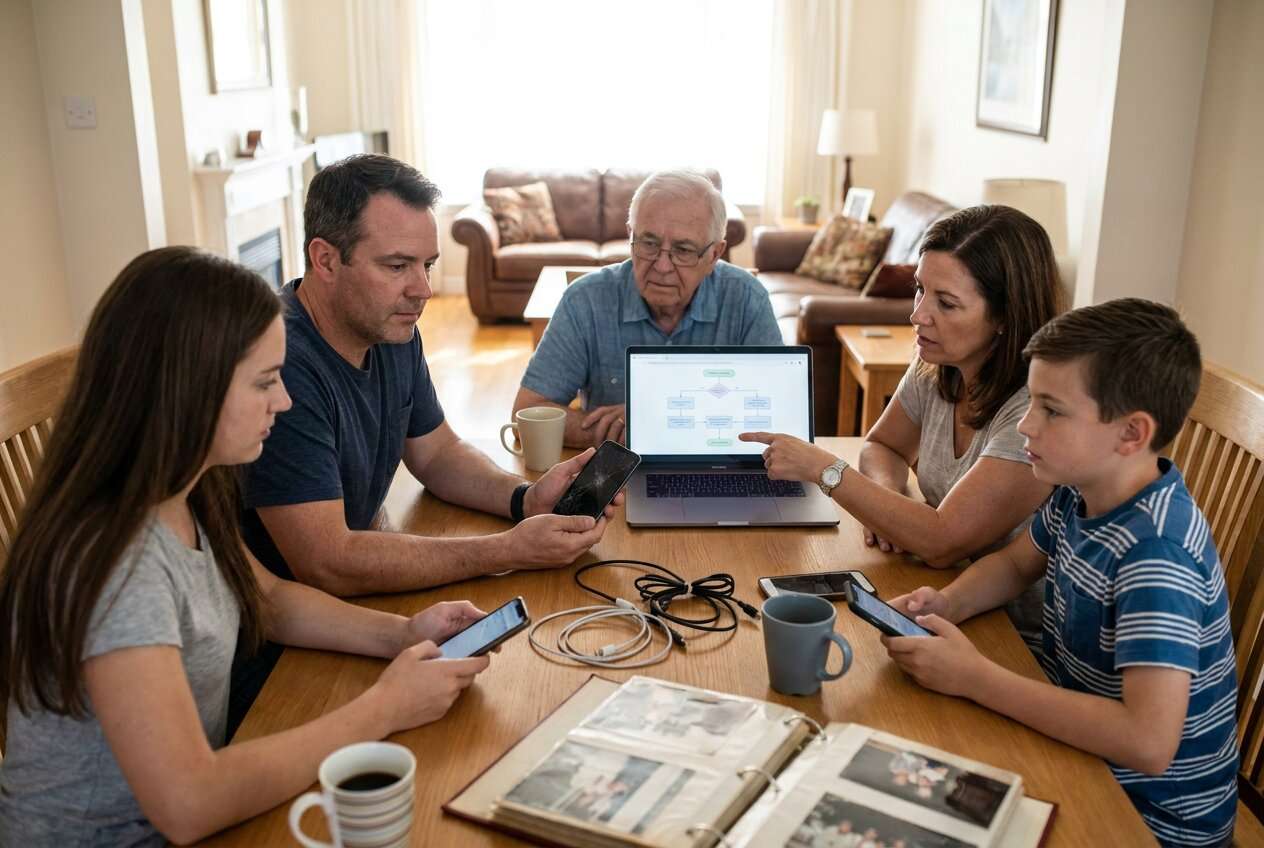
In a family migration, you’re rarely moving just one phone: you’re coordinating multiple devices, multiple accounts, and multiple “owners” of shared memories (albums, group chats, attachments).
The uncertainty usually starts after a generic AI answer: it tells you “back up and restore,” but it doesn’t clarify which backup, which chat app method, what order prevents overwrites, or how to confirm the photos are actually present locally (not just thumbnails).
Your point of no return is typically when someone resets or trades in the old phone—or when a new restore overwrites the only complete chat history—before you’ve verified photos, chats, and media attachments across the whole family set.
Part 2. What the AI Needs to Know
Share the migration context so the plan can be sequenced and verified correctly:
- How many phones are involved, and which are old vs new (e.g., 2 old iPhones → 2 new Androids)
- For each person: chat apps used (WhatsApp/LINE/WeChat/etc.) and whether chats must include media
- Photo setup: shared albums, local camera roll, cloud libraries, SD cards, “optimize storage” enabled, and approximate sizes (e.g., 120 GB photos/videos)
- Account/logins available for each person (Apple ID / Google account / chat app numbers), and whether 2FA is accessible
- Time constraints and downtime tolerance (same-day switch vs weekend)
- Any device issues (broken screen, low storage, boot loops) that change the workflow
- What “done” means (e.g., “all chats since 2019 + all videos + shared album intact”)
- Risk constraints: whether old phones must be wiped for trade-in, and the deadline
Part 3. Using AI Prompts to Build a Safer family phone migration plan with shared photos and chats Workflow
Use the prompts below to make the workflow explicit, checkable, and hard to misinterpret before you execute anything.
3-1. Level 1: Basic Prompt
Write a step-by-step family phone migration plan to move photos (including shared albums) and chat histories (including media) from our old phones to our new phones.
Include the correct order of operations and a verification checklist we must complete before wiping or trading in any old device.
3-2. Level 2: Advanced Prompt
Build a structured workflow for a family phone migration plan with shared photos and chats, split into Preparation, Execution, and Verification.
Mark each step as Critical vs Optional, list the dependencies (accounts, storage, cables/Wi‑Fi), and include “stop points” where we must confirm results before continuing—especially before any reset, restore overwrite, or trade-in.
3-3. Level 3: Evidence Prompt
Use the details below to create a migration workflow with checks before / during / after, and call out the highest-risk failure modes and how to detect them early.
People/devices: (Parent A: old iPhone → new iPhone), (Parent B: old Android → new Android), (Teen: old Android → new iPhone)
Chats: (WhatsApp for all; need full history + media back to 2020)
Photos: (Shared family album), (camera roll ~90,000 items), (some phones use “optimize storage”)
Constraints: (must wipe old devices for trade-in by Friday), (Wi‑Fi is unstable), (one phone is nearly full: 3 GB free)
Success criteria: (group chats intact, media opens, photo counts roughly match, shared album visible on all new phones)
Output requirements:
A single ordered checklist with “Critical/Optional” tags
A “Do NOT do this yet” section listing irreversible steps (factory reset, trade-in handoff, overwrite restore)
A verification table: what to check, where to check it, and what counts as pass/fail (e.g., “WhatsApp: media in a 2021 chat opens within 5 seconds”)
3-4. Prompt Refinement
Convert the plan into a per-person checklist (Parent A / Parent B / Teen) and include owner + estimated time for each critical step.
List the top 10 ways migrations fail for chats + shared photos in our scenario, and map each failure to a specific detection check and a fix.
Create a go/no-go gate before the point of no return (wipe/trade-in): exactly what evidence we must see on each new phone before proceeding.
Rewrite the workflow as a single page runbook with: prerequisites, exact sequence, verification steps, and a rollback plan if a chat transfer is incomplete.
Add a storage math check: estimate required free space per device (e.g., 45 GB chats+media, 120 GB photos) and suggest order changes if space is low.
Part 4. AI Plan vs. Real Device Constraints
| AI planning output | Real device constraint |
|---|---|
| Defines the safest order and stop points | Devices can fail mid-transfer (battery, cable, storage, OS bugs) |
| Creates verification checks and pass/fail criteria | Only real checks on the phones confirm counts, media playback, and login success |
| Flags irreversible steps to delay | A single tap (reset/overwrite) can permanently remove the only complete copy |
| Builds a rollback path | Rollback is limited by what backups/transfers actually exist and whether they’re restorable |
AI improves planning and reduces avoidable mistakes, but it cannot run transfers, read device states, or validate outcomes—execution still depends on device tools and hands-on confirmation.
4-1. When to Stop Planning family phone migration plan with shared photos and chats and Start Execution
- You have a single agreed “source of truth” per person (which phone/account holds the most complete chats and photos).
- Every critical dependency is confirmed (logins + 2FA, enough storage, stable power, required cables, and time window).
- Your verification checklist is unambiguous (exact apps/locations to check, pass/fail definitions, and who checks each item).
- You have explicitly delayed the irreversible actions (factory reset, trade-in handoff, “restore that overwrites,” deleting old chat data) until verification passes.
At this point, planning is no longer the bottleneck—the risk shifts to careful execution and evidence-based verification.
Part 5. Family phone migration plan with shared photos and chats: Execute the Workflow Safely with Dr.Fone
Execution now matters because transfers can partially succeed while looking complete, and the only reliable protection is to run the move in the right order and verify before any irreversible step.
-
Step 1 Create a recoverable baseline (backup before any move)
Back up the data you cannot afford to lose (especially chats and photos) from each old phone before transferring to the new devices. Verify the backup exists and there’s enough available storage on the computer/phone before continuing.

-
Step 2 Set the correct transfer direction (old → new) and avoid overwrites
For each family member, confirm the source phone and target phone (the agreed “source of truth”), then set the transfer path carefully so you don’t overwrite the only complete history during a restore/transfer.

-
Step 3 Transfer the highest-risk items first (chats + media), then photos
Move chat history (including media) to each person’s new phone one person at a time, then transfer photos/videos and shared libraries as planned. Spot-check old threads (for example, a 2020 chat) and confirm attachments open to catch “looks transferred” failures early.

-
Step 4 Run point-of-no-return checks (shared albums, local media, playback) before wiping/trade-in
Complete your verification checklist (counts, shared album visibility, playback tests) before any wipe or trade-in. In particular, confirm items are actually available (not just cloud placeholders) and that media opens reliably.

Recommended tool: execute the plan with a dedicated transfer workflow
Once your AI plan defines the order, stop points, and verification checks, use a hands-on transfer tool like Dr.Fone - Phone Transfer to carry out the migration carefully across multiple family phones.
 Move data between iOS to Android and vice versa.
- Transfer contacts, SMS, photos, videos, music, and more types.
- Available with all phones with Android and iOS versions.
- Simple, click-through process.

For family migrations, keep the process sequential (one person end-to-end) so you can troubleshoot gaps without mixing accounts or devices. Most importantly, treat “factory reset / trade-in handoff / overwrite restore” as gated actions that only happen after the verification evidence is confirmed on each new phone.




Conclusion
Use AI to lock down sequence, dependencies, risk gates, and verification evidence; then use Dr.Fone to execute the backups/transfers and confirm results before any irreversible wipe or trade-in.
FAQ
-
What’s the biggest hidden risk in a family migration with shared photos and chats?
Overwriting or wiping the only complete chat history (or losing media) before you verify on the new phone(s). -
When is the “point of no return”?
Factory reset, trade-in handoff, deleting chat data, or initiating a restore/transfer that overwrites an existing complete history—do not do these until verification passes. -
How do we verify chats properly (not just “it opened”)?
Check a known old date range, confirm message counts look plausible, and open multiple media attachments (photos/videos/voice notes) from older threads and group chats. -
Why can’t AI just tell me the exact steps and guarantee it works?
AI can’t access your devices, see transfer results, or detect partial failures; it can only design a workflow and checks that you must validate with real tools. -
Should we migrate everyone at once to save time?
Usually no—parallel moves increase confusion and make it harder to identify which step caused a gap; sequential per-person execution reduces risk and speeds troubleshooting.
 Add Wondershare Dr.Fone as a preferred source on Google





