 Effortlessly manage data through preview, delete, export, etc.

 100% Security Verified | No Subscription Required | No Malware

 :
: 
 ChatGPT
 Perplexity
 Gemini
 Claude
 Grok
Grok

My iPad is fine in a call until I hit Share Screen—then audio stutters, video freezes, and the whole interface feels delayed.
Apple Support Community user
Your iPad may start lagging during Zoom/Teams/FaceTime calls, especially right after you tap Share Screen or begin presenting—audio stutters, the picture freezes, and the interface feels delayed. This can happen on an iPad Pro 11-inch or iPad Air (5th gen), and it’s often unclear whether the problem is the app, the network, or iPadOS itself because nothing changes even after several minutes.
AI (like ChatGPT or Gemini) can help you sort symptoms into likely causes, ask the right follow-up questions, and suggest low-risk checks in a sensible order—so you don’t randomly change settings that make the situation worse.
AI can’t verify your device state or run diagnostics, and trial-and-error can create new problems (lost meeting recordings, account re-logins, or misconfigured network/VPN settings). Use prompts to reduce uncertainty, then hand off the execution to a tool when you need a structured iPadOS fix path.
In this article
- Why iPad lag during video calls and screen sharing happens and what it means
- Network instability
- Resource pressure (CPU/RAM/thermal)
- App-level conflicts
- iPadOS-level glitches
- AI prompts for iPad video call lag diagnosis
- When to stop troubleshooting iPad screen sharing lag and avoid risks
- iPadOS system repair for lag with Dr.Fone
- Conclusion
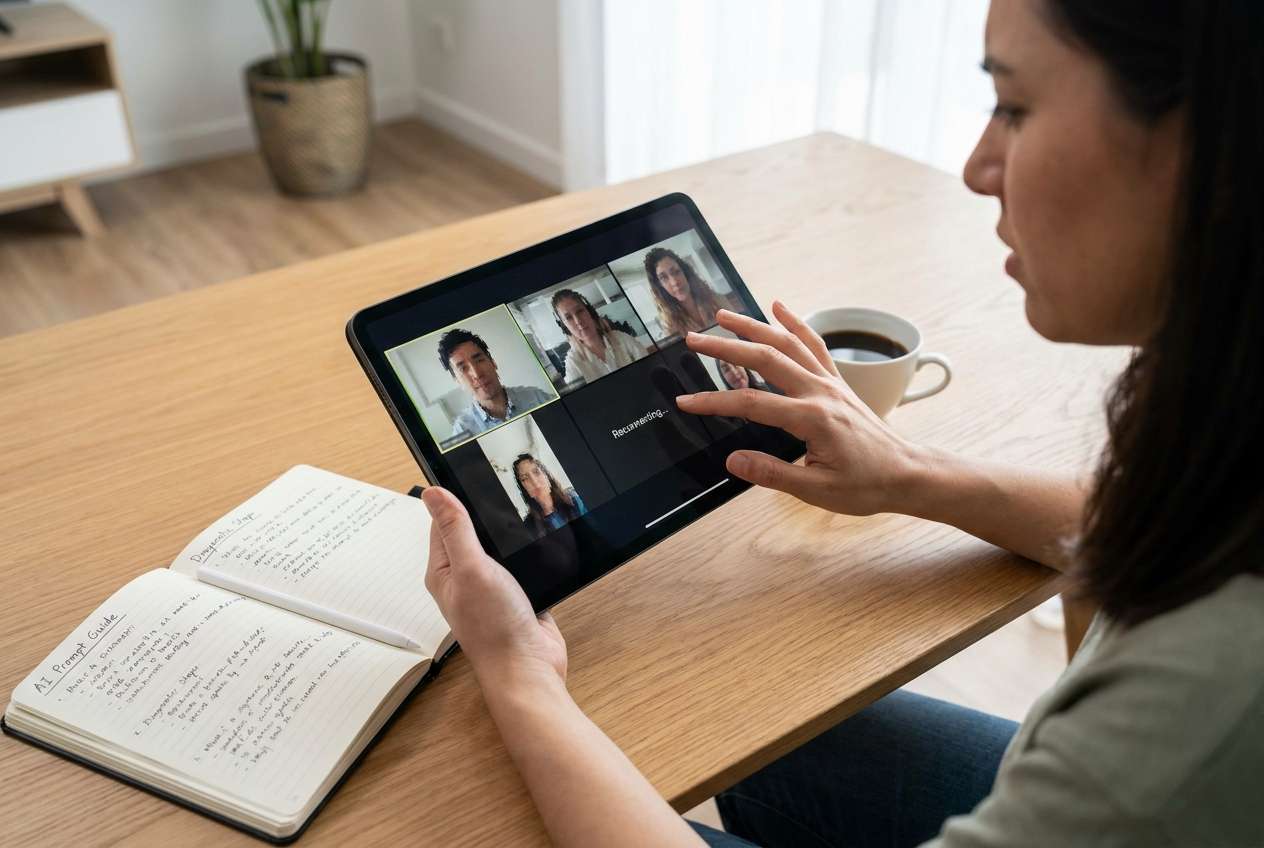
Part 1. Why iPad lag during video calls and screen sharing happens and what it means
Lag during video calls and screen sharing usually points to one of four buckets: network instability, resource pressure (CPU/RAM/thermal), app-level conflicts, or iPadOS-level glitches that show up under real-time video + screen capture load.
1-1. Common triggers that make lag show up
A common pattern is: you were fine until you started sharing your screen, turned on camera effects, connected Bluetooth earbuds, or joined a call right after an iPadOS update. In some cases, the iPad itself is fine, but the connection path (mesh Wi‑Fi, captive portal, VPN, or hotspot—sometimes from an iPhone 13 or iPhone 14) introduces jitter that looks like “device lag.”
1-2. What the type of lag implies
What it “means” depends on what lags: if only video freezes, it’s often upstream bandwidth or app encoding; if the whole UI becomes sluggish, it may be memory pressure, overheating, or an iPadOS process stuck in the background.
1-3. Before you prompt the AI
Collect a few quick facts first so the AI can narrow the cause faster:
- iPad model + iPadOS version
- App name (Zoom/Teams/Meet/FaceTime) + version
- Network type (home Wi‑Fi, office Wi‑Fi, hotspot, VPN)
- Whether lag starts only when screen sharing
- Any recent changes (update, new VPN, new Bluetooth device, new MDM profile)
Part 2. AI prompts for iPad video call lag diagnosis
2-1. Level 1: Basic Prompt
My iPad lags during video calls, and it gets worse when I start screen sharing. Ask me the minimum questions needed to narrow the cause, then give me the safest first checks that don’t risk data loss.
2-2. Level 2: Advanced Prompt
You are my iPadOS troubleshooting assistant. Based on my answers, rank the top 5 most likely causes of iPad lag during video calls/screen sharing.
For each cause, list: (1) why it fits, (2) what evidence would confirm it, (3) a low-risk test, (4) what NOT to change yet to avoid making things worse.
Prioritize tests that are reversible and don’t reset device data.
2-3. Level 3: Evidence Prompt
Diagnose iPad lag during video calls and screen sharing using the details below.
Goal: identify likely cause categories, the most informative missing evidence, and a lowest-risk next-step plan.
Device
- iPad model: (e.g., iPad Pro 11-inch 3rd gen)
- iPadOS version: (e.g., iPadOS 17.5.x)
- Free storage: (e.g., 8 GB free of 128 GB)
- Battery/heat: (cool / warm / hot; any “iPad needs to cool down” warning)
Call setup
- App: (e.g., Zoom 6.x)
- Call type: (1:1 / group)
- Screen sharing: (on/off; full screen or single app)
- Camera on/off:
- Audio route: (speaker / wired / Bluetooth model)
Network
- Connection: (2.4 GHz / 5 GHz / Wi‑Fi 6 / hotspot)
- VPN/Private Relay/MDM: (on/off/unknown)
- Same issue on other networks: (yes/no)
Symptoms (be specific)
- What lags: (UI touch delay / audio cuts / video freezes / screen share choppy)
- When it starts: (immediately / after X minutes / only when presenting)
- Any error messages:
Recent changes
- iPadOS update, app update, new profiles, new router, new accessories:
Output format:
1) Most likely cause category (with confidence %)
2) 3 competing possibilities to rule out
3) Key missing evidence (max 6 questions)
4) A 10-minute low-risk test plan in order
5) Red flags that mean “stop testing”
2-4. Prompt Refinement
If the AI output feels too broad, tighten it with follow-ups like these:
What are the 3 missing questions that would change your ranking the most, and why?
Separate causes into network vs app vs iPadOS vs hardware/thermal, then rank within each category.
List the single best piece of evidence that would confirm each top cause (something I can observe without extra tools).
Give me a risk-labeled plan: Safe / Medium risk / Avoid for now, and explain the risks.
If lag happens only when screen sharing, what does that strongly suggest, and what does it almost rule out?
2-5. AI Output vs Reality
AI can organize thinking, but your device still needs real-world checks:
| What AI can do | What you still must verify |
|---|---|
| Infer likely causes from symptom patterns | Whether the lag reproduces on another Wi‑Fi or with VPN off |
| Suggest the safest order of tests | Whether a specific app build is the trigger on your iPad |
| Explain what evidence would confirm each cause | Whether overheating/memory pressure is happening during the call |
| Flag risky steps to delay | Whether iPadOS components are stuck and need a structured system-level fix |
AI closes the “what should I try next?” gap; it can’t directly observe network jitter, iPadOS processes, or app-level encoding behavior on your device.
Part 3. When to stop troubleshooting iPad screen sharing lag and avoid risks
Stop experimenting when the next step increases the chance of data loss, account lockouts, or configuration drift without strong evidence it will help.
- The iPad becomes hot, dims, or shows temperature warnings during calls.
- Lag escalates into crashes, boot loops, or repeated app freezes across multiple apps.
- You’ve reproduced the issue on multiple networks and with accessories disconnected, but symptoms persist.
- Fix attempts are pushing you toward high-impact actions (full reset, profile removals, MDM changes) without a clear diagnosis.
Once you’ve used AI to narrow the likely category (network vs app vs iPadOS), the next step is choosing a controlled execution path instead of repeating random toggles.
Part 4. iPadOS system repair for lag with Dr.Fone
If AI-led diagnosis points to an iPadOS-level glitch (system slowdown during real-time screen capture, persistent lag across apps, or instability after an update), it’s reasonable to switch from “testing settings” to a structured system workflow. Dr.Fone - System Repair (iOS) is relevant at this stage because it’s designed to address iOS/iPadOS system issues in a guided way—helping you execute the repair process more predictably than trial-and-error.
 Fix iOS issues, no data loss.
- One-click repair for all iOS problems.
- Solve recovery mode, Apple logo, black screen, etc.
- Upgrade or downgrade iOS without iTunes

Use it after you’ve ruled out obvious network/app-only causes and you want a clearer path to stabilize the system behavior behind call lag and screen sharing performance.
Confirm the symptom scope first: re-check whether lag happens in multiple apps (for example, Zoom and FaceTime) to avoid repairing iPadOS when it’s an app-only issue.
-
Step 1 Open Dr.Fone on your computer
Launch Dr.Fone on your computer with the iPad connected reliably to avoid interruptions mid-process.

-
Step 2 Choose System Repair and select iOS
Enter the System Repair workflow and make sure you select iOS/iPadOS repair when prompted.

-
Step 3 Continue to iOS System Repair
Proceed into the iOS System Repair section so the tool can guide the next steps in a controlled order.

-
Step 4 Select an appropriate repair mode (start conservative when available)
Choose the mode that matches your risk tolerance (start with the more conservative option when available) to reduce unnecessary disruption.

-
Step 5 Follow the guided firmware/repair steps and re-test under the same conditions
Let the tool guide the download/verification steps and keep the connection stable, since disconnects can cause repeat attempts. Then reproduce the original scenario (same app, same network, same screen share action) to confirm whether system-level lag is resolved rather than “temporarily improved.”




Conclusion
Use AI prompts to translate your symptoms into ranked causes and low-risk tests, then—if the pattern points to iPadOS-level instability—hand off execution to a structured system approach like Dr.Fone System Repair to reduce random trial-and-error.
FAQ
-
Why does my iPad only lag when I start screen sharing?
Screen sharing adds real-time capture and encoding load; if the iPad is near its thermal/resource limit or the network upstream is unstable, lag can appear right when sharing begins. -
Is iPad lag during calls more likely Wi‑Fi or iPadOS?
If lag disappears on a different network or with VPN/Private Relay off, it leans network; if it persists across networks and apps, iPadOS/system instability becomes more likely. -
Can low storage cause lag on video calls?
Yes—very low free storage can increase background churn and reduce performance headroom, which can show up as stutter under heavy real-time workloads. -
What evidence best distinguishes app issues from system issues?
If only one app lags while others don’t under similar conditions, it’s likely app-level; if multiple apps lag similarly (especially after an iPadOS update), suspect system-level factors. -
Should I reset network settings to fix call lag?
Only after you’ve confirmed a network-related pattern; it’s reversible but disruptive (Wi‑Fi passwords and network preferences), so it’s better as a later step than an early guess.
 Add Wondershare Dr.Fone as a preferred source on Google





