 Effortlessly manage data through preview, delete, export, etc.

 100% Security Verified | No Subscription Required | No Malware

 :
: 
 ChatGPT
 Perplexity
 Gemini
 Claude
 Grok
Grok

“I updated iOS and now my iPhone just keeps showing the Apple logo, restarting over and over. It never finishes booting.”
Apple Support Community user
An iPhone (for example, an iPhone 13 or iPhone 14) can end up in a boot loop right after an iOS update—often after you tapped Install Now or the phone restarted to finish the update. The Apple logo appears, the device restarts, and nothing seems to change even after several minutes.
AI (like ChatGPT or Gemini) can help you describe the symptoms clearly, narrow the most likely causes, and choose low-risk next steps based on what you observe—without guessing randomly.
AI can’t see your device state directly, and trial-and-error can increase risk (especially if you reset or repeatedly interrupt an update). Treat AI as a decision aid, then use the appropriate tool or service for execution.
In this article
- Part 1. Why iPhone boot loop after iOS update happens and what it means
- What a boot loop indicates
- Common triggers during/after updating
- How long is “too long”
- Before you prompt the AI
- Part 2. Using AI prompts to diagnose iPhone boot loop after iOS update safely
- Part 3. When to stop troubleshooting iPhone boot loop after iOS update and avoid risks
- Part 4. AI Output vs Reality: What to verify before you act
- Part 5. Unlock Android screen while your iPhone is in a boot loop
Part 1. Why iPhone boot loop after iOS update happens and what it means
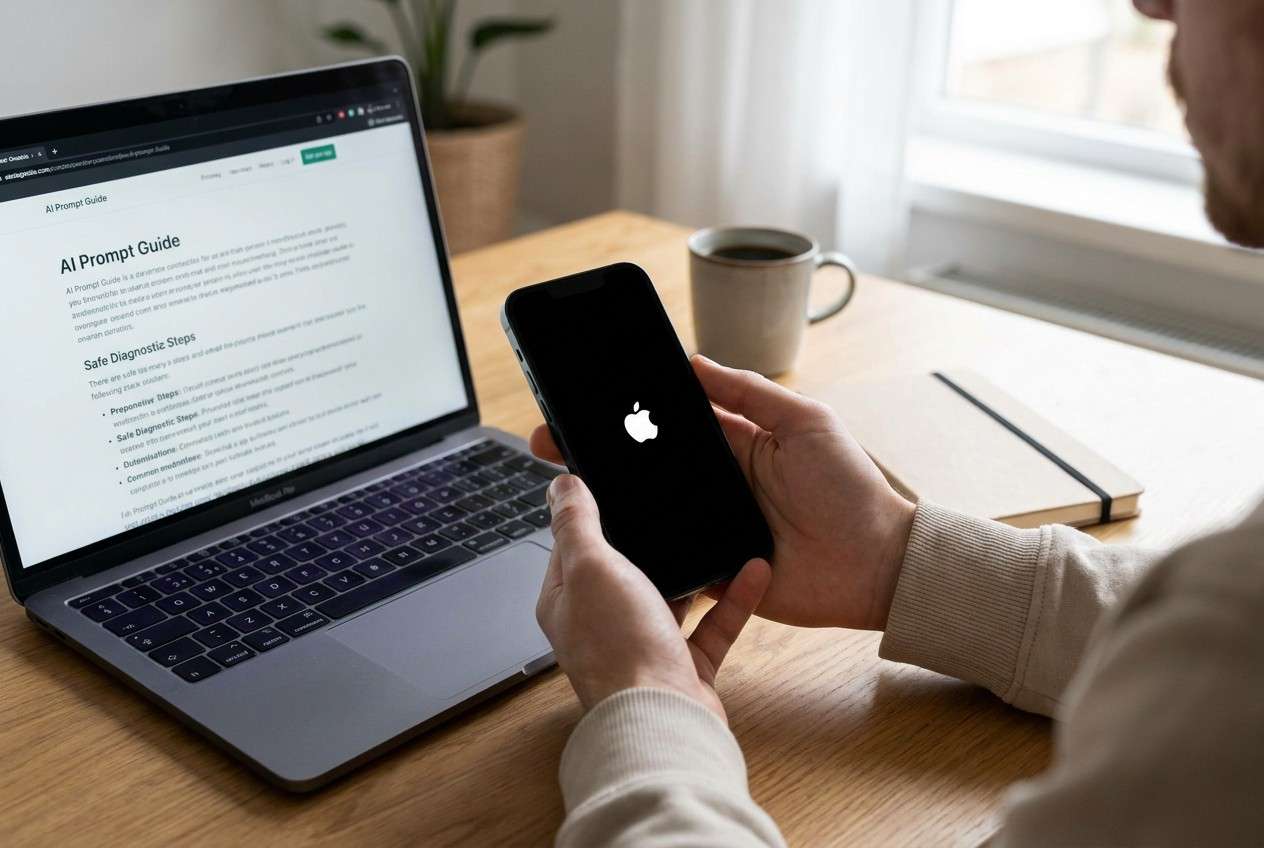
A boot loop after an update usually means the iPhone can’t complete the startup sequence with the current system state. Common triggers include an interrupted update, insufficient free storage during the update, a stalled migration step, or a failed verification stage.
What it “means” depends on timing and behavior: a brief restart cycle immediately after updating can be normal, but repeated loops for 10–30+ minutes often indicate the update didn’t finalize properly. Heat, a rapidly draining battery, or repeated connection/disconnection from a computer can add clues.
Because several causes look similar from the outside, your safest path is to document what you see (timing, screen changes, computer detection) and use that evidence to choose the least destructive next step.
1-1. Before You Prompt the AI
Collect a few facts first so the AI can reason from evidence, not assumptions:
- iPhone model and iOS version you attempted to install
- How long has it been looping (minutes vs hours)
- Battery level and whether it’s on a known-good cable/charger
- Whether a Mac/PC recognizes it (Finder/iTunes)
- Any recent storage warnings before the update
- Whether you see any screens besides the Apple logo (progress bar, restore screen, etc.)
Part 2. Using AI prompts to diagnose an iPhone boot loop after an iOS update safely
2-1. Level 1: Basic Prompt
My iPhone is stuck in a boot loop after an iOS update. Ask me the minimum set of questions needed to narrow the most likely cause and give the lowest-risk next steps first, avoiding data-loss actions unless clearly justified.
2-2. Level 2: Advanced Prompt
Diagnose my iPhone boot loop after iOS update using a ranked list of likely causes. For each cause, list: (1) what evidence would support it, (2) what I can check without risking data loss, and (3) what to avoid. Start with the safest checks. If you suggest any action that could erase data, label it HIGH RISK.
2-3. Level 3: Evidence Prompt
Help me triage an iPhone boot loop after an iOS update using the details below.
**Device:** iPhone model: (e.g., iPhone 13 Pro)
**Trigger:** what I did right before it started: (e.g., tapped Install Now, phone rebooted)
**Time looping:** (e.g., 25 minutes / 3 hours)
**Screen behavior:** (e.g., Apple logo only / Apple logo with progress bar / restore screen)
**Heat/battery:** (e.g., warm, fast drain, stuck at 1%)
**Storage before update:** (e.g., “iPhone Storage Full” warning)
**Computer detection:** Finder/iTunes sees it? (yes/no/unknown)
**Recent changes:** (e.g., new beta profile, low storage, dropped phone)
**Goal:** keep data if possible/okay to erase if necessary
Output:
1) Top 3 likely causes ranked with confidence and why
2) A “safest-first” checklist of what to try next
3) Clear stop points where I should avoid more attempts and switch to professional/device-tool steps
2-4. Prompt Refinement
If the AI’s answer feels generic, use these follow-ups to force specificity:
What 5 questions would change your ranking the most, and why are they decisive?
Separate likely causes into: update process issues, storage-related issues, hardware/power issues, and computer/USB issues.
Rank the next actions by risk to data (low/medium/high) and explain the mechanism of potential data loss.
What single piece of evidence would most strongly confirm the top cause (and how do I check it safely)?
If Finder/iTunes *does* detect the device but it still loops, how does that change your recommendation?
Part 3. When to stop troubleshooting iPhone boot loop after iOS update and avoid risks
Repeated attempts can turn a recoverable situation into a higher-risk one, especially if you escalate to erase/restore actions without a backup plan.
- The loop continues beyond a reasonable window (for example, well over an hour) with no change in behavior
- The iPhone becomes unusually hot, won’t hold a charge, or shuts off unpredictably
- A computer detects the device inconsistently (connects/disconnects), or you see restore/recovery prompts repeatedly
- You’re about to choose an action you don’t fully understand that could erase data (restore/reset) just to “see if it works.”
Once you’ve used AI to narrow the likely cause and pick the safest option, the next step is execution with the right pathway—either an Apple-supported recovery approach, a service decision, or (if you need immediate access to accounts) regaining access to an alternate device you can use right now.
Part 4. AI Output vs Reality: What to verify before you act
AI can help you decide; it can’t verify the device state the way the device itself and official tools can.
| What AI suggests | What you should verify in reality |
|---|---|
| “It might still be updating.” | Time elapsed, whether the screen ever changes, and whether the phone is overheating |
| “Try a force restart.” | Your exact model’s button sequence and whether you’ve already repeated restarts many times |
| “Connect to a computer to check detection.” | Whether Finder/iTunes detects it consistently and shows update/restore options |
| “Consider restoring if nothing works.” | Whether you have backups, and whether you’re okay with potential data loss |
AI narrows possibilities and helps you choose low-risk steps; execution depends on what your device actually shows and what your computer/tools can confirm.
Part 5. Unlock the Android screen while your iPhone is in a boot loop
If your iPhone is stuck restarting and you can’t rely on it for sign-ins, messages, or 2FA, the practical next move is often continuity: use a spare Android phone you already have—if you can access it. If that Android device is locked (forgotten PIN/pattern or a second-hand device you’re authorized to use), Dr.Fone - Screen Unlock (Android) becomes relevant as an execution tool for regaining access to the Android screen so you can stay reachable while you decide the safest path for the iPhone.
 Unlock Android phone in seconds.
- Remove PIN, pattern, password, fingerprint.
- Bypass Google FRP lock easily.
- Works on all Android brands & models.
- No tech skills required – user-friendly.

-
Step 1 Confirm device ownership and intent

Make sure the Android phone is yours (or you have permission) before attempting any unlock action that could affect device data.
-
Step 2 Open Dr.Fone – Screen Unlock (Android)

Launch the Screen Unlock module in Dr.Fone from your computer and select the Android screen-unlock workflow appropriate for your device model.
-
Step 3 Connect the Android device carefully

Connect the phone with a reliable USB cable and keep it powered to avoid interruptions during the unlock process.
-
Step 4 Follow the guided unlock steps for your model

Use the on-screen guided flow (as outlined in Dr.Fone’s Android lock screen removal guide) and choose the exact brand/model path to reduce mistakes.
-
Step 5 Re-secure access after entry
After you regain access, set a new screen lock you’ll remember and update recovery options (backup codes, secondary numbers) so you’re less dependent on the iPhone during recovery.




Conclusion
Use AI to turn vague symptoms into a ranked, evidence-based diagnosis and a safest-first plan, then hand off execution to the appropriate path—whether that’s a cautious iPhone recovery decision or using Dr.Fone – Screen Unlock (Android) to regain access to an alternate Android device while your iPhone remains unavailable.
FAQ
-
Why does an iPhone get stuck in a boot loop after an iOS update?
Most commonly, it’s a failed or incomplete update finalization, low storage during the update, or a stalled verification/migration step; the external symptom can look the same, so evidence (time, screens, computer detection) matters.
-
How long should I wait before assuming the iPhone is not “still updating”?
If there’s no progress bar movement or screen change for an extended period (often beyond 30–60 minutes), treat it as stuck and move to safest-first checks rather than waiting indefinitely.
-
What details should I give AI to get a useful diagnosis?
Model, what you did right before it started, how long it’s looping, what you see on screen, heat/battery behavior, storage warnings, and whether Finder/iTunes recognizes it.
-
Can AI tell me whether my data is safe right now?
No—AI can only infer risk based on symptoms and typical scenarios; data safety depends on the actual device state and what actions you choose next (especially restore/erase options).
-
Why is an Android screen unlock tool mentioned in an iPhone boot loop guide?
Because boot loops can cut off access to logins and 2FA, if you have a spare Android device but it’s locked, unlocking that device can restore access continuity while you decide on the safest iPhone next step.
 Add Wondershare Dr.Fone as a preferred source on Google





