 Effortlessly manage data through preview, delete, export, etc.

 100% Security Verified | No Subscription Required | No Malware

 :
: 
 ChatGPT
 Perplexity
 Gemini
 Claude
 Grok
Grok

I dropped my Samsung in water, tried turning it on and even plugged in a charger “just to check,” and now it’s stuck in a loop/black screen. I only care about getting my photos and chats back—what’s the safest next step?
Samsung Community user
Water damage can leave a Samsung phone unresponsive, stuck in a boot loop, or showing a black screen—right when you need your photos, chats, and files most. This often happens after an accidental drop in water and then tapping Power on or plugging in a charger “just to check,” with no clear change after several minutes.
AI (like ChatGPT or Gemini) can help you describe symptoms precisely, narrow the likely damage path (power, display, storage, or corrosion), and choose the lowest-risk next step based on what you see.
AI can’t verify the hardware condition or safely “try things” for you. With water damage, trial-and-error can increase corrosion or short-circuit risk, so the goal is to reduce guesswork and hand off execution to a safer, purpose-built workflow.
In this article
- Why water-damaged Samsung recovery is difficult
- Common symptoms after water exposure
- What it means for data access
- Why behavior can look inconsistent
- Before you prompt the AI
- AI prompts to triage water-damaged Samsung data recovery
- AI output vs reality: what you must still verify
- When to stop troubleshooting to avoid data loss
- Recover data from broken Android device with Dr.Fone
Part 1. Why recover data from water damaged Samsung phone is difficult and what it means
If your Galaxy S22 or Galaxy S23 fell into water and you then tried to restart it, charge it, or shake water out of the ports, the phone may now show a black screen, vibrate, heat up, or repeatedly reboot. Those symptoms can point to different failure points: battery/power rail issues, a damaged display path, or moisture affecting the logic board.
What this means for data recovery is simple: your data might still be intact on internal storage, but the phone may not stay powered long enough—or may not present a usable screen/USB connection—to copy data normally.
It’s also common to feel unsure whether the phone is “still drying” or “still turning on,” because the behavior can look inconsistent (brief logo, then nothing).
1-1. Before You Prompt the AI
Gather the clearest facts you can first:
- Phone model and approximate age
- Water type (fresh, salt, pool/chemicals) and exposure time
- What you did after the incident (powered on, charged, button combos)
- Current behavior (LED, vibration, heat, sounds, boot logo)
- Any visible signs (fog in camera, moisture in USB-C, corrosion)
Part 2. Using AI prompts to diagnose water-damaged Samsung data recovery safely
2-1. Level 1: Basic Prompt
My Samsung phone had water exposure and now it won’t work normally. Ask me the minimum set of questions to identify whether the main issue is power, display, USB connection, or storage access, and suggest the lowest-risk next step to avoid worsening corrosion.
2-2. Level 2: Advanced Prompt
You are helping me triage a water-damaged Samsung phone for data recovery, not repair.
1) Ask up to 10 questions, then stop.
2) Based on my answers, rank the top 3 most likely blockers to data access (power, display, USB/data, storage damage).
3) For each blocker, list: (a) what evidence supports it, (b) what evidence would rule it out, (c) the lowest-risk test I can do at home, (d) what actions are higher-risk and why.
4) End with a decision: “try one more low-risk check” vs “stop and switch to a data-recovery workflow.”
2-3. Level 3: Evidence Prompt
Help me assess data recovery options for a water-damaged Samsung phone while minimizing risk. Use my evidence only; if something is unknown, label it “unknown” and ask a targeted question.
Device info
- Phone model: (e.g., Galaxy S22)
- Android version (if known): (e.g., Android 13)
- Storage size: (e.g., 128GB)
- SD card present: (yes/no/unknown)
Water exposure
- Water type: (fresh/salt/pool/other)
- Exposure time: (e.g., 10 seconds / 2 minutes)
- Time since incident: (e.g., 3 hours / 2 days)
What I did after
- Powered on after exposure: (yes/no)
- Plugged into charger/PC: (yes/no)
- Used heat (hair dryer/sun): (yes/no)
Current symptoms
- Screen: (black / flickers / works)
- Boot behavior: (Samsung logo loop / no logo / boots then shuts off)
- Vibration/sounds: (none / vibrates / notification sounds)
- Heat: (cool / warm / hot near camera/USB)
- USB-C port condition: (looks clean / debris / green corrosion)
Goal and constraints
- Data needed most: (photos / WhatsApp / contacts / documents)
- Backup status: (Samsung Cloud/Google/unknown)
- Risk tolerance: (low—avoid anything that could worsen damage)
Output format
1) Likely blocker category (power/display/USB/storage) with confidence.
2) Key evidence missing (top 5).
3) The safest next step(s) to confirm data-access path.
4) Clear “stop” criteria to prevent worsening the damage.
2-4. Prompt Refinement
Use these follow-ups to make the AI’s reasoning more actionable:
What’s the single most important missing detail you need from me, and why does it change the recommendation?
Separate possibilities into display-only failure vs power instability vs USB/data path issues vs storage damage.
Rank the causes again, but this time include what evidence would be most decisive to confirm each one.
What low-risk observation can I make in under 2 minutes without charging or heating the phone?
If the screen is black but the phone vibrates, what does that imply for data access options?
Part 3. AI Output vs Reality
AI can organize probabilities; real outcomes depend on the device’s actual condition.
| What AI can conclude | What you still need to verify |
|---|---|
| Symptoms are consistent with power vs display vs USB issues | Whether moisture/corrosion is still active inside |
| Risk ranking of common “next steps” | Whether a step will trigger a short on your specific board |
| What evidence would strengthen or weaken each hypothesis | Whether the phone can maintain stable power long enough for extraction |
| When to stop home checks to reduce risk | The safest execution method for getting data off the device |
AI helps you choose safer decisions, but the actual data access requires a tool/workflow that can handle broken-device scenarios without improvising.
Part 4. When to stop troubleshooting a water-damaged Samsung phone to avoid data loss
If the goal is data, not experimentation, stopping at the right time is often the safest choice.
- The phone gets noticeably hot, especially near the USB-C port or camera area.
- You see green/white corrosion in the port or SIM tray area, or smell burning/chemical odor.
- The device boot-loops or powers off repeatedly after brief signs of life.
- You already tried charging/restarting and symptoms are worse or less consistent than before.
Once you’ve identified the most likely blocker (power, display, USB/data, or storage access), move from diagnosis to an execution approach designed for broken Android device data recovery.
Part 5. Recover data from broken Android device with Dr.Fone
When water damage prevents normal unlocking, USB file transfer, or stable booting, the practical next step is often switching from “testing” to a data-focused workflow. Wondershare Dr.Fone - Data Recovery (Android) is relevant here because it’s built around extracting data when an Android device is broken or inaccessible, aligning with the “recover data from water damaged Samsung phone” goal without relying on risky trial-and-error. Use it after you’ve minimized further exposure and you’re ready to attempt controlled data access via software rather than repeated power cycling.
 Scan Android phones and tablets directly.
- Preview and recover only what you want.
- Supports WhatsApp, photos, videos, contacts, and more.
- Works with 6000+ Android devices.

-
Step 1 Stabilize the situation first
Ensure the phone is powered off and avoid charging if it heats up or shows corrosion, since power can worsen shorts.

-
Step 2 Install Dr.Fone – Data Recovery (Android)
On a computer, open Dr.Fone and select the Android data recovery option that supports broken-device scenarios.

-
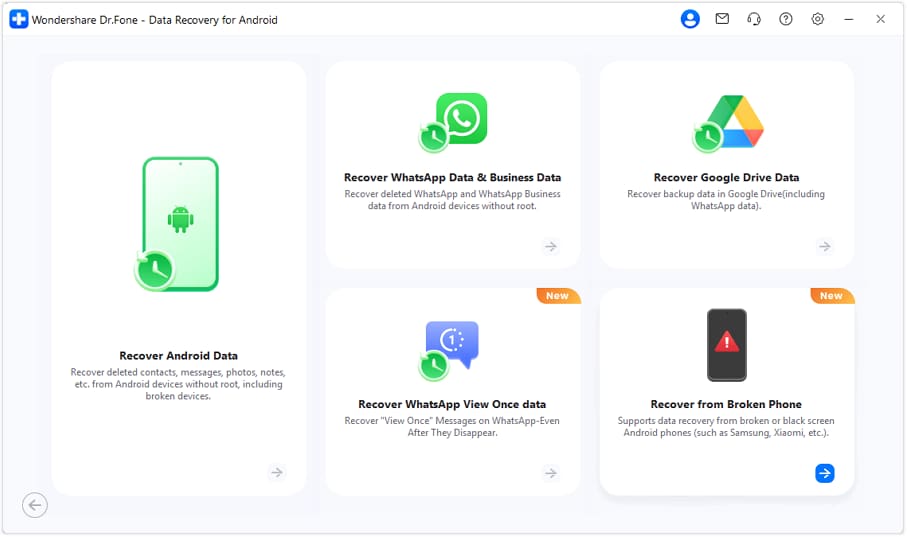
Step 3 Choose “Recover Data From Broken Android Device”
Follow the on-screen device selection and prompts carefully so the workflow matches your Samsung model/state.
-
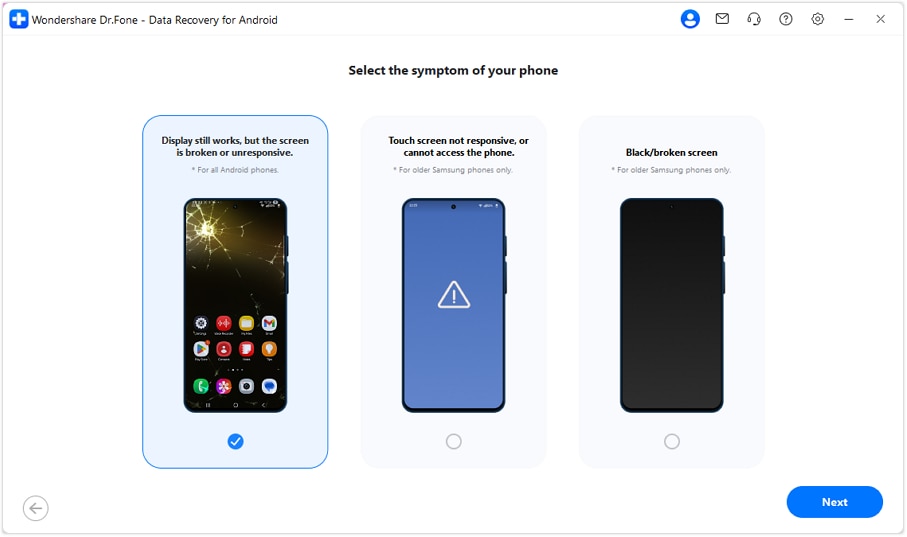
Step 4 Connect the phone only when ready
Use a reliable cable/USB port and avoid repeated reconnect cycles if the phone disconnects frequently.
-
Step 5 Scan and export recovered items
Preview what’s found and save recovered data to the computer (not back to the phone) to reduce risk of interruptions.




Conclusion
Use AI to structure the evidence, rank likely causes, and decide the safest next move—then hand off the execution to a dedicated broken-device recovery workflow like Dr.Fone – Data Recovery (Android) to attempt data extraction without relying on risky experimentation.
FAQ
-
Can I charge a water-damaged Samsung phone to copy my files quickly?
If there’s any sign of heat, corrosion, or instability, charging can increase short-circuit risk; prioritize safety and a controlled recovery workflow instead.
-
What if my Samsung screen is black but the phone vibrates?
That often suggests the phone may still be running, which can change the data-access path (display issue vs power issue); use AI prompts to classify symptoms, then attempt recovery via a broken-device workflow.
-
Does saltwater damage change the recovery approach?
Yes—saltwater increases corrosion risk, so repeated powering/charging is more likely to worsen damage; minimize testing and move sooner to controlled recovery.
-
Will a rice bag or heat source improve my chances of data recovery?
Heat can accelerate damage and rice doesn’t remove internal corrosion; both can reduce the window for safe data access.
-
What should I do if the phone keeps connecting and disconnecting from the computer?
Treat it as power/USB instability; reduce retries, avoid wiggling the cable/port, and switch to a workflow designed for broken Android data recovery.
 Add Wondershare Dr.Fone as a preferred source on Google





