 Effortlessly manage data through preview, delete, export, etc.

 100% Security Verified | No Subscription Required | No Malware

 :
: 
 ChatGPT
 Perplexity
 Gemini
 Claude
 Grok
Grok

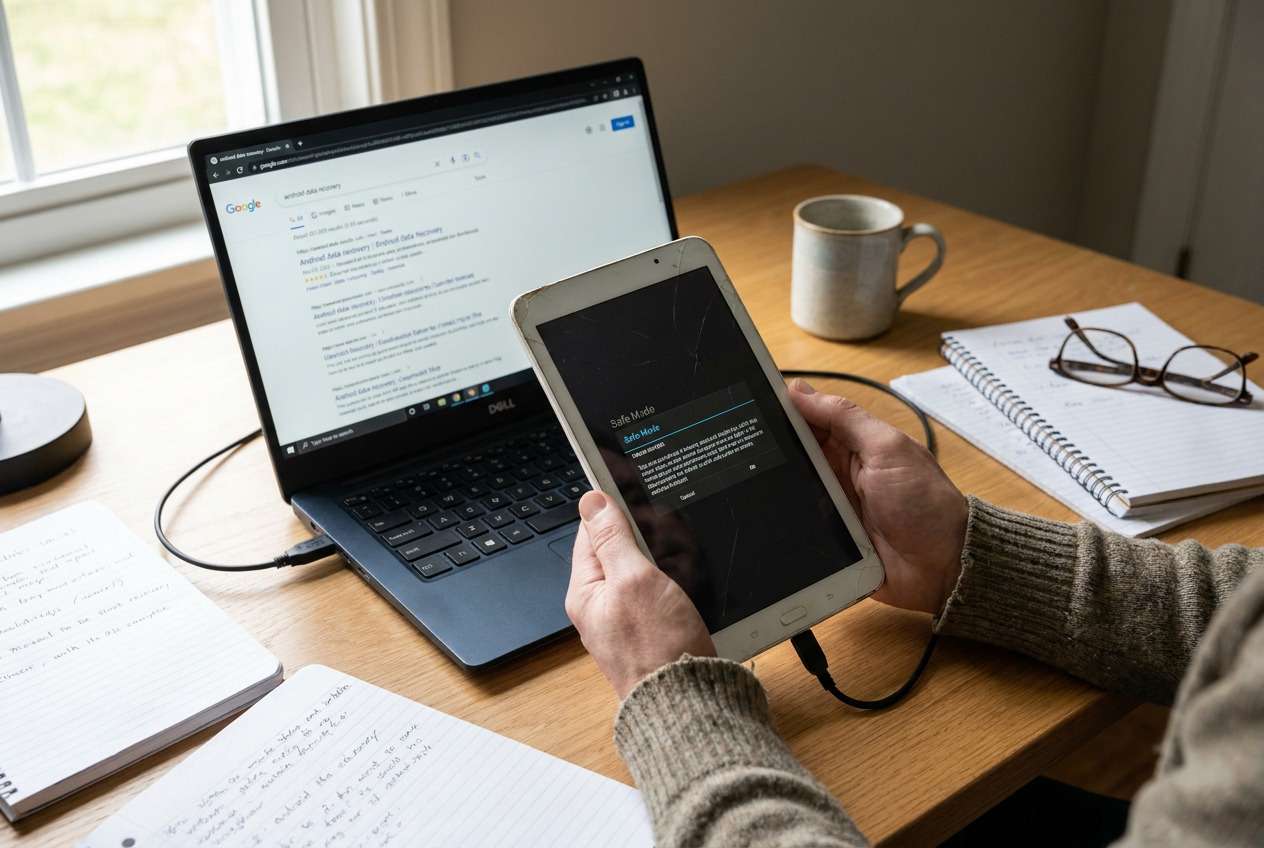
My old Android tablet suddenly shows my notes app as empty after I charged and restarted it. I’m scared they’re deleted, but I don’t want to do anything that makes recovery worse.
Forum user
Your study notes can feel “gone” on an old Android tablet when the device won’t boot, storage looks empty, or the notes app no longer shows your files—often right after you charged it, restarted it, or reinstalled an app. This can happen on devices like a Samsung Galaxy Tab S6 or Lenovo Tab M10, and it’s not always clear whether the data is deleted or just not visible.
In this article
- Part 1. Why study notes go missing on an old Android tablet
- Three common reasons notes look “missing”
- Why the trigger matters
- Why “waiting” often doesn’t change anything
- Before You Prompt the AI
- Part 2. Using AI prompts to diagnose Android tablet data loss
- Part 3. When to stop trying to recover study notes and avoid overwriting
- Part 4. AI Output vs Reality: what can differ on your device
- Part 5. Recover data from Android device with Dr.Fone (Android)
Part 1. Why study notes go missing on an old Android tablet
1-1. Three common reasons notes look “missing”
On older tablets, “missing notes” usually means one of three things: the notes are still stored locally but the app can’t index them, the notes were cloud-based and you’re signed out / offline, or the device storage (or SD card) has corruption that prevents normal access.
1-2. Why the trigger matters
The trigger matters. If the issue started after you reinstalled your notes app, updated Android, moved files to an SD card, or tried a “storage cleaner,” the notes may be intact but disconnected from the app account, folder path, or permissions.
1-3. Why “waiting” often doesn’t change anything
A common uncertainty is that nothing seems to change even after waiting—your tablet may be stuck, the app may be loading an empty account, or the files may exist but be hidden in a different location than you expect.
1-4. Before You Prompt the AI
Capture these details first so the AI can reason from evidence, not guesses:
- Tablet brand/model and Android version (if known)
- Where the notes were created (app name + whether it used an account)
- Whether an SD card was used and if it’s still inserted
- What happened right before the notes disappeared (update, uninstall, crash, reset, battery drain)
- Current state: boots normally, bootloop, black screen, very slow, or works but notes are missing
- Any recent actions that write data (new apps, downloads, photos, updates)
Part 2. Using AI prompts to diagnose Android tablet data loss
2-1. Level 1: Basic Prompt
My old Android tablet is missing my study notes. Ask me the minimum questions needed to figure out whether the notes were (1) cloud-synced, (2) stored locally in app storage, (3) saved as files (TXT/PDF/DOC) in internal storage, or (4) on an SD card. Then suggest the lowest-risk next step for each possibility without overwriting data.
2-2. Level 2: Advanced Prompt
Act as a cautious triage assistant for Android data loss. Based on my answers, rank the top 5 likely explanations for missing study notes (most likely → least likely), and label each with: risk if I keep using the tablet, what evidence would confirm it, and a low-risk action plan. If any step could overwrite deleted data, flag it as “high overwrite risk.”
2-3. Level 3: Evidence Prompt
Help me diagnose missing study notes on an old Android tablet using only the evidence I provide.
Device info
- Tablet model: (e.g., Samsung Galaxy Tab S6)
- Android version: (e.g., Android 10 / unknown)
- Storage: (e.g., 32GB / 64GB) and free space (if visible):
- SD card used: (yes/no/unknown), size and brand (if known):
What notes were
- Notes app name: (e.g., Samsung Notes / OneNote / Keep / WPS / other)
- Signed-in account type: (Google/Microsoft/Samsung/none/unknown)
- Typical note format: (in-app notes / PDFs / Word files / photos of notes)
- Last time I definitely saw the notes:
What changed right before the issue
- Action taken: (reinstall app / update / crash / storage cleanup / factory reset attempt / battery died)
- Any error messages: (exact words/screenshots described)
Current symptoms
- Tablet state: (boots normal / bootloop / stuck on logo / black screen / very slow)
- Notes app behavior: (empty / won’t open / signed out / sync spinning)
- File manager view: (files missing / folders present / SD not detected)
Constraints
- I want the lowest-risk approach and I can stop using the tablet if needed.
Output: (1) most likely cause, (2) what not to do, (3) safe checks I can do without writing data, (4) what kind of recovery approach fits my case.
2-4. Prompt Refinement
Use these follow-ups to force clearer reasoning and safer steps:
“What key question are you missing that would most change your diagnosis?”
“Separate causes into cloud/account, app-local storage, file storage, and SD card/hardware, then rank within each category.”
“List the top 6 pieces of evidence I should collect next, in order, and explain why each matters.”
“For each proposed step, tell me whether it increases overwrite risk and what a safer alternative would be.”
“If I cannot boot the tablet reliably, how does that change the plan and what evidence can I still gather?”
Part 3. When to stop trying to recover study notes and avoid overwriting
Stop “trying random things” when the next action could reduce your chances of getting notes back.
- You’re about to factory reset, “repair storage,” or run a cleaner/optimizer to “free space.”
- You keep installing apps/updates, downloading files, or recording photos/videos on the same tablet.
- The tablet shows storage errors, repeated crashes, or becomes extremely slow/hot during normal use.
- The notes might be in a cloud account, but you’re repeatedly signing in/out or toggling sync without confirming which account originally held the notes.
Once you’ve used AI to narrow the most likely storage location and risks, hand off to an execution method that matches your scenario rather than continuing trial-and-error.
Part 4. AI Output vs Reality: what can differ on your device
AI can help you choose a path, but it can’t verify your tablet’s actual storage condition.
| What AI can do well | What may still differ on your device |
|---|---|
| Map symptoms to likely causes | Notes might be stored in app-private paths you can’t browse normally |
| Identify high overwrite-risk actions | Some “safe” actions still create logs/cache on certain devices |
| Suggest evidence to collect | You may be unable to access settings/files due to crashes or lock screen |
| Propose a decision tree | Actual recoverability depends on storage health, encryption, and access mode |
AI gets you to a safer decision faster; the execution step still requires a tool that can interface with the device and attempt data extraction under real constraints.
Part 5. Recover data from Android device with Dr.Fone (Android)
If your diagnosis points to notes being stored locally (app data, documents, downloads, or media) and you need a practical way to attempt extraction from the tablet, Dr.Fone - Data Recovery (Android) is relevant at this stage because it focuses on the execution step of Recover Data from Android Device using a guided workflow rather than guesswork. This is especially useful when the tablet is unstable, the notes app no longer displays content, or you’re unsure whether the notes were saved as files versus app-only data. Use the AI outputs to choose the most cautious path, then follow the product workflow to attempt retrieval. You can review the product page and the official guide from within these links: Dr.Fone - Data Recovery (Android) and Android Data Recovery guide.
 Scan Android phones and tablets directly.
- Preview and recover only what you want.
- Supports WhatsApp, photos, videos, contacts, and more.
- Works with 6000+ Android devices.

-
Step 1 Freeze changes on the tablet
Stop using the tablet for new installs/downloads and keep it charged to reduce overwrite risk and unexpected shutdowns.

-
Step 2 Connect the tablet to a computer
Use a reliable USB cable and a stable port (avoid hubs if possible) so the connection doesn’t drop mid-process.

-
Step 3 Select Dr.Fone - Data Recovery (Android)
Open Dr.Fone and choose the Android Data Recovery module so the workflow matches your goal (notes stored as files vs app-related data).

-
Step 4 Scan with the most cautious scope first
Start with the least invasive option presented in the workflow and only expand scan scope if results are incomplete.

-
Step 5 Preview and save recovered items to the computer
Save outputs to your computer (not back onto the tablet) to avoid writing new data onto the same storage.




Conclusion
Use AI to translate what you’re seeing into a short list of likely causes, the evidence that would confirm each one, and the lowest-risk next step—then hand off to Dr.Fone - Data Recovery (Android) to carry out the actual data recovery attempt in a more controlled way than trial-and-error.
FAQ
-
Can AI tell whether my notes were stored locally or in the cloud?
AI can’t verify it directly, but it can infer the most likely location from the app, account status, and what changed right before the notes disappeared.
-
What’s the biggest mistake that reduces my chances of getting notes back?
Continuing to write new data to the tablet (installs, downloads, updates, new photos) because it can overwrite deleted data.
-
If I reinstalled the notes app, are my notes definitely gone?
Not necessarily—cloud notes may return after signing into the correct account, while local-only notes may no longer be visible in the app.
-
Should I remove the SD card and check it separately?
If your notes were saved as files on the SD card, checking it separately can help—but handle it cautiously and avoid formatting prompts.
-
Can Dr.Fone recover notes created inside a notes app?
It depends on how the app stored them (cloud-sync vs local database vs exported files); the safest approach is to clarify the app/storage type first, then attempt recovery accordingly.
 Add Wondershare Dr.Fone as a preferred source on Google





