 Effortlessly manage data through preview, delete, export, etc.

 100% Security Verified | No Subscription Required | No Malware

 :
: 
 ChatGPT
 Perplexity
 Gemini
 Claude
 Grok
Grok

I deleted a bunch of stuff but Android still says there’s not enough space to install updates. I’m scared to delete photos or clear app data and lose something important—what order should I do things in?
Reddit user, r/Android
This guide helps you use AI to plan a safe, verification-first workflow for Android “Low Storage / Can’t Install Apps” issues—so you free usable internal space without accidentally deleting critical data.
In this article
- How to plan a low-storage fix without missing critical steps
- Why storage numbers don’t add up
- What “usable internal storage” really means
- What not to delete first
- Where irreversible steps usually happen
- What the AI needs to know
- Using AI prompts to build a safer workflow
- AI plan vs. real device constraints
- Execute the workflow safely with Dr.Fone
Part 1. How to plan a low-storage fix without missing critical steps
You’re trying to install or update an app, but Android says there isn’t enough space—even after you deleted a few things. Storage numbers don’t add up, and the phone may be stuck with “pending downloads” or failed updates.
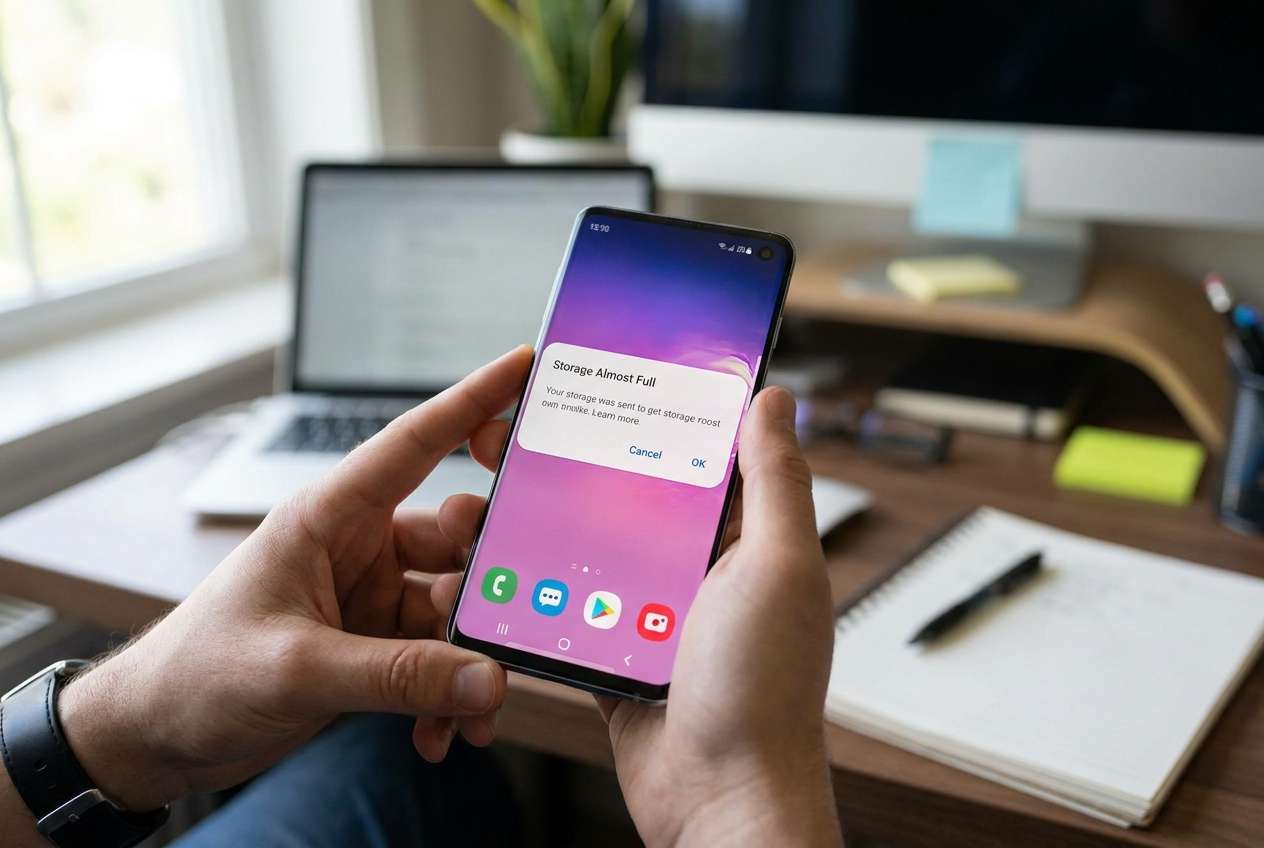
The uncertainty isn’t usually “what to delete,” it’s the sequence: whether you should clear caches first, move media off-device first, or remove apps—and how to confirm you’re actually freeing usable internal storage (not just cloud links or SD card space).
There’s also a real point of no return: deleting DCIM photos, WhatsApp media, or “clearing data” for apps (not cache) can permanently remove local files and log you out—factory reset is irreversible unless backups are verified before you do it.
Part 2. What the AI needs to know
Share the specifics so the workflow can be prioritized safely and realistically.
- Android version (e.g., Android 12/13/14)
- Device model and total storage (e.g., 64 GB / 128 GB)
- Current free internal storage shown in Settings (e.g., 200 MB free)
- Whether you use an SD card and whether apps are allowed to move to it
- What’s taking space (Storage breakdown: Apps / Photos & videos / System / Other)
- Any “can’t install” error details (Play Store message or error code if shown)
- The exact goal (install one app, update all apps, take photos again, etc.)
- What data is critical (photos, WhatsApp, work files, offline music, downloads)
- Cloud status (Google Photos/Drive on or off; “Free up space” used or not)
- Whether you can connect to a PC/Mac (USB available) and approximate time window
- Risk tolerance (OK to uninstall apps? OK to delete local media after backup?)
- Whether a factory reset is on the table (only after verification)
Part 3. Using AI prompts to build a safer workflow
Use the prompts below to force a clear order of operations, checks, and stop-points before any irreversible deletion.
3-1. Level 1: Basic Prompt
I’m on Android and storage is full, so I can’t install or update apps. Create a safe step-by-step plan to free space without losing important data, and tell me what to verify after each step.
Include “do not do yet” warnings for anything that could permanently delete files.
3-2. Level 2: Advanced Prompt
Build a structured workflow for fixing Android “low storage / can’t install apps” with three phases: Preparation, Execution, and Verification.
In each phase, separate critical steps vs optional steps, and add clear stop conditions (e.g., “stop and re-check storage before proceeding”).
Make sure the workflow prioritizes reversible actions first (cache cleanup) and puts high-risk actions last (clearing app data, deleting DCIM, factory reset).
3-3. Level 3: Evidence Prompt
Here’s my context—design the safest workflow and list checks before, during, and after each action:
- Device: (Pixel 6a), Android: (14), Storage: (128 GB)
- Free internal space: (under 300 MB)
- Storage breakdown: (Apps 60 GB, Photos/Videos 35 GB, System 16 GB, Other 12 GB)
- Problem: (Play Store says “Can’t install” and updates fail)
- Must keep: (DCIM photos, WhatsApp chats/media, work PDFs)
- Can delete later: (downloads folder, streamed music cache)
- Computer available: (Windows laptop + USB), Time: (45 minutes)
- SD card: (No)
Also include a checklist to confirm backups are real (file counts, spot-check opens, WhatsApp backup status) before I delete anything big or consider a factory reset.
3-4. Prompt Refinement
If the first AI output is too generic, run follow-up prompts like these to force prioritization, decision logic, and verification gates.
List the top 10 storage wins in my scenario, ranked by “space freed per risk,” and label each as reversible or hard to reverse.
Turn the plan into a decision tree: if free space is still under (2 GB), what do I do next; if it’s over (5 GB), what can I stop doing?
Create a verification checklist that uses only what I can see in Settings (Storage screen, app sizes, Trash/Recycle bins) and explain what “good” looks like.
Identify hidden traps: “Other/System Data,” Play Store pending downloads, messaging app media duplication, and where users accidentally delete originals.
Draft a pre-factory-reset gate: the exact proof I should gather (backup location + timestamp + spot-check files) before I even consider resetting.
Part 4. AI plan vs. real device constraints
| AI can help you plan | But your phone/tools must do |
|---|---|
| Rank actions by risk and likely space recovered | Actually back up, transfer, and delete files |
| Define stop-points and verification checks | Show real storage numbers and confirm what changed |
| Flag irreversible steps (clear data, factory reset) | Execute those steps only after verified backups exist |
AI improves planning and reduces avoidable mistakes, but it cannot access your storage, confirm your backups, or perform the actions on your device.
4-1. When to stop planning and start execution
- You can clearly name what you’ll protect first (e.g., photos + WhatsApp) and where the backup will live (PC/drive).
- You’ve chosen the first reversible actions (cache cleanup, removing offline content) and postponed irreversible ones.
- You know the minimum free space target (often 5–10 GB for comfortable updates) and how you’ll measure it (Settings > Storage).
- You have a written “no-return gate” for high-risk moves (clearing app data, deleting DCIM, factory reset) that requires verification proof.
Once those are true, the workflow stops being a planning problem and becomes an execution-and-verification problem.
Part 5. Android low storage: execute the workflow safely with Dr.Fone
Execution matters now because freeing space safely depends on real backups, real transfers, and real confirmation—not assumptions about what’s synced or recoverable. If you have a computer and a USB cable, Dr.Fone Basic - Data Manager can help you back up and move large files off internal storage so you can install apps again with less risk.
 Easily manage data through preview, delete, export, etc.
- Transfer all data between devices.
- Robust backup solutions for reliable data protection.
- Mirror screens to PC for meetings, teaching, and control.

Back up first, then reduce storage pressure, then verify results before any irreversible deletions.
-
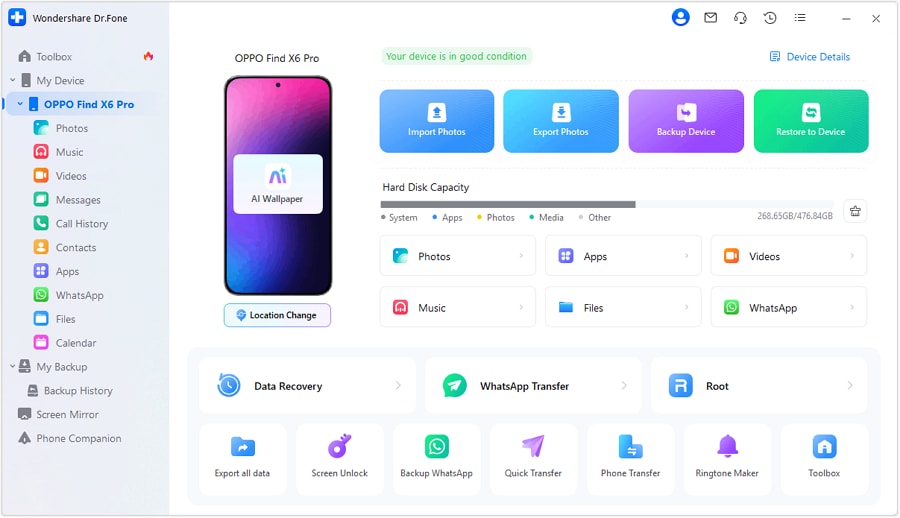
Step 1 Connect your Android to your computer
Use a USB cable and allow file access/transfer on your Android when prompted. This establishes a reliable path to move and back up data off internal storage.
-
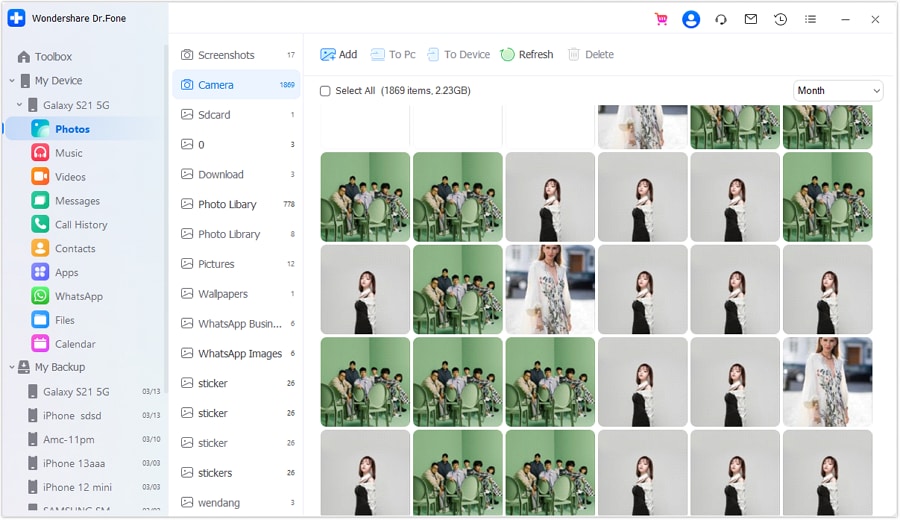
Step 2 Create a verified backup before deleting anything large
Back up essential data first (photos, messaging media, work files) so you have a recoverable copy before you remove files or uninstall apps. You still need to confirm the backup is usable (spot-check files, dates, and sizes) before treating it as protection.
-
Step 3 Transfer the biggest files off internal storage (photos/videos/downloads)
Move large media and folders from the Android device to your computer to quickly reclaim internal space needed for app installs/updates. Transferring doesn’t automatically mean it’s safe to delete—verify the transferred files open correctly and match expected counts.

-
Step 4 Only after verification: remove high-space items to reach your free-space target
After you’ve confirmed what’s safely backed up (and what can be recreated), remove selected items (for example, large videos, unneeded downloads, or apps you can reinstall). Stop before any factory reset until your “no-return gate” proof is met.
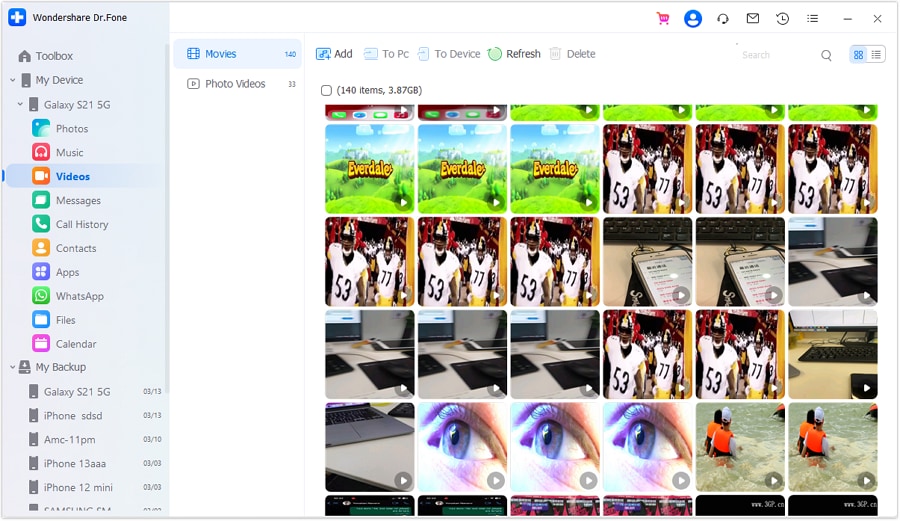
Remember: deletions and resets can be irreversible. Tools can execute actions, but you are responsible for confirming you’re not deleting the only copy.




Conclusion
Use AI to design a careful sequence with clear verification gates, then use real tools to execute the backup, transfer, and cleanup—because planning prevents data loss, but only execution actually frees the space needed to install apps again.
FAQ
-
Why does Android say storage is full even after I delete some files?
Because app data, “Other/System Data,” cached media, pending downloads, or duplicate messaging media can keep internal storage pressured; also Trash/Recycle bins may still hold deleted items until emptied. -
Is clearing cache safe, and is clearing app data safe?
Clearing cache is usually reversible and low risk. Clearing app data can log you out, remove offline files, and delete local databases—treat it as high risk unless you’ve verified backups. -
How much free space do I need to install apps reliably?
It varies, but aiming for at least 5–10 GB free internal space reduces install/update failures and prevents rapid re-filling due to app unpacking and update files. -
What’s the biggest point-of-no-return step in this workflow?
Factory reset and deleting originals (DCIM, WhatsApp media) without verified backups. Don’t do either until you can prove you have a working copy elsewhere. -
How do I verify my backup is real (not just “sync enabled”)?
Check that files exist in the backup location, confirm timestamps and sizes, and open a small sample (photos/videos/PDFs). For chats, confirm the backup completed and is associated with the correct account/device. -
What can AI not do for this problem?
AI can’t view your storage breakdown, confirm what’s actually on-device, perform transfers, or verify backup integrity—its role is planning, sequencing, and risk control.
 Add Wondershare Dr.Fone as a preferred source on Google





