 Effortlessly manage data through preview, delete, export, etc.

 100% Security Verified | No Subscription Required | No Malware

 :
: 
 ChatGPT
 Perplexity
 Gemini
 Claude
 Grok
Grok

I deleted some important screenshots on my Android and now I can’t find them anywhere—no folder, no album, nothing. I’m not even sure if they’re in Trash, in the cloud, or permanently gone.
Reddit user, r/AndroidQuestions
Accidentally deleting screenshots on Android can feel final—especially right after you tapped Delete in Google Photos or cleared a gallery folder while organizing files. AI tools (like ChatGPT or Gemini) can help you diagnose what likely happened (Trash/Bin, cloud backup, another account/profile, or a different storage path) so you prioritize the safest checks and avoid actions that could reduce recovery chances.
In this article
- Part 1. Why accidentally deleted important screenshots on Android happens and what it means
- Soft-delete vs hard-delete
- Where you deleted from matters
- Sync/account/folder confusion
- Before you prompt the AI
- Part 2. AI prompts to diagnose deleted screenshots on Android safely
- Part 3. When to stop troubleshooting deleted screenshots on Android to avoid risks
- Part 4. Unlock Android screen to check for missing screenshots with Dr.Fone
- Part 5. Product recommendation: regain access to run low-risk checks
Part 1. Why accidentally deleted important screenshots on Android happens and what it means
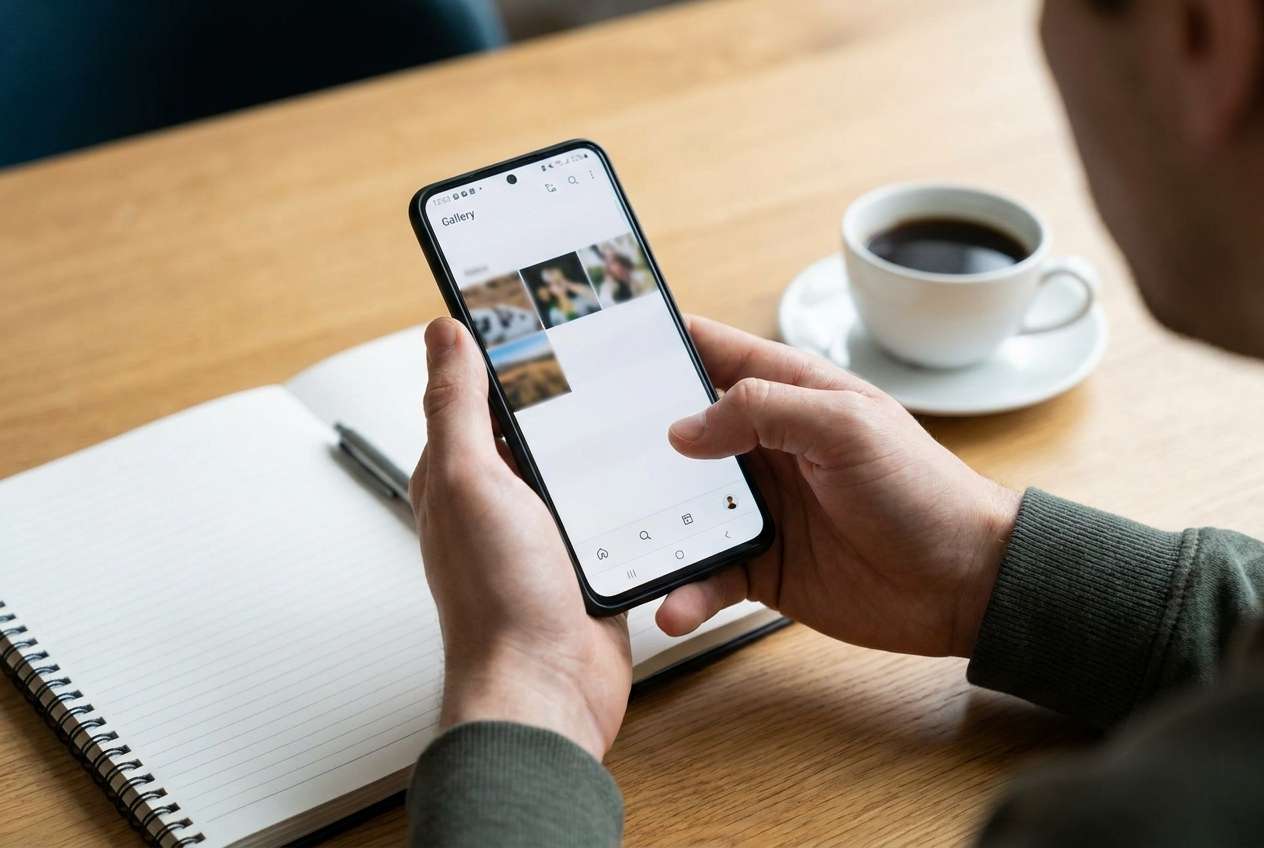
This usually happens right after a quick action: deleting from the Photos app, emptying a “Trash/Bin,” using a file manager to remove the Screenshots folder, or running a storage cleaner. On Android, “delete” can mean soft-delete (recyclable) or hard-delete (removed from the file system), depending on the app and location.
A key detail is where you deleted from: Google Photos, Samsung Gallery, Files by Google, or a third‑party gallery can each maintain its own trash behavior. Also, screenshots may exist in multiple places (local storage + cloud) and can appear to “vanish” due to sync, account switching, or viewing a different device folder.
If your phone is locked or you’re locked out after too many attempts, you might be unable to verify basics (trash, backups, alternate folders). In that case, your next step may be restoring access first—before you can safely check what still exists.
1-1. Before You Prompt the AI
Gather these details first so the AI can narrow the most likely scenario:
- Android brand/model and Android version
- Where you deleted from (Google Photos / Samsung Gallery / file manager / other)
- Whether you emptied Trash/Bin afterward
- Whether Google Photos backup was on for that account
- Whether the phone is currently accessible or locked out
- Approximate deletion time (minutes / hours / days ago)
Part 2. AI prompts to diagnose deleted screenshots on Android safely
2-1. Level 1: Basic Prompt
I accidentally deleted important screenshots on my Android. Ask me the minimum questions needed to figure out whether they might still be in a Trash/Bin, cloud backup, another folder, or permanently deleted. Then give the safest next steps in order, avoiding anything that could reduce recovery chances.
2-2. Level 2: Advanced Prompt
Diagnose my “deleted screenshots on Android” issue with a ranked list of likely causes. For each cause, give: (1) why it fits, (2) what evidence would confirm it, (3) the lowest-risk check I can do first. Also flag any actions that are risky (e.g., cleaning apps, storage optimization, reinstalling gallery apps, factory reset).
End with a decision tree: what to do if Trash exists vs no Trash vs cloud backup exists vs phone is locked.
2-3. Level 3: Evidence Prompt
Act as a triage assistant for deleted screenshots on Android. Use my evidence to narrow the most likely explanation and a safe check order.
Evidence
- Phone model: (e.g., Samsung Galaxy S22 / Pixel 7)
- Android version: (e.g., Android 13)
- Gallery app used: (e.g., Google Photos / Samsung Gallery)
- Deleted from: (app screen / album / file manager path)
- Trash/Bin status: (not checked / checked / emptied)
- Cloud backup status: (Google Photos backup on/off/unknown)
- Account(s) on phone: (one Google account / multiple)
- Screenshots location remembered: (DCIM/Screenshots? Pictures/Screenshots? unknown)
- SD card used: (yes/no)
- Time since deletion: (e.g., 2 hours / 3 days)
- Any cleanup done after deletion: (e.g., Files by Google clean / cache clear)
- Phone access: (unlocked / locked out / broken screen)
Output format
1) Top 3 likely scenarios (ranked)
2) Safe checks in exact order (no risky steps)
3) What not to do and why
4) What I should do if I can’t unlock the phone to check Trash/backups
2-4. Prompt Refinement (follow-up prompts)
If the AI’s answer feels generic, use these follow-ups to force clarity:
What 5 questions do you still need from me to choose between Trash vs cloud vs permanent deletion?
Rank the scenarios again, but separate: Google Photos behavior vs Samsung Gallery behavior vs file manager deletion.
List the single most important evidence item that would change your conclusion for each scenario.
Give me a safest-first checklist that avoids any step that writes new data to storage.
If I’m locked out of the phone, what checks can I do from another device (web/backup/account) without touching the phone?
2-5. AI Output vs Reality
AI can suggest strong possibilities, but your device state determines what you can actually verify.
| AI output | Reality check |
|---|---|
| “Check Trash/Bin in the gallery app.” | Some apps keep Trash separately; you must check the same app you deleted from. |
| “Restore from Google Photos.” | Only works if backup was enabled before deletion and you’re on the correct Google account. |
| “Look in the Screenshots folder.” | The folder path varies by device/app; screenshots may be under DCIM or Pictures. |
| “Use a recovery app.” | Many “recovery” apps can be unreliable; installing apps can also write new data to storage. |
AI helps you avoid wrong turns and prioritize low-risk checks, but actions like verifying trash, account sync, or unlocking a locked phone still require real device access and careful execution.
Part 3. When to stop troubleshooting deleted screenshots on Android to avoid risks
Stop and reassess if you hit any of these signals:
- You’re about to install multiple “recovery/cleaner” apps or run repeated “storage optimize” actions.
- You can’t confirm which account/app you deleted from and you’re guessing across multiple gallery apps.
- The phone is locked out or inaccessible, so you can’t safely verify Trash/backups without escalating steps.
- You’re considering a factory reset or anything that may erase data just to “get back in.”
Once you’ve used AI to narrow the most likely scenario, the next move is choosing a safe execution path—especially if regaining phone access is the blocker preventing you from checking Trash or backups.
Part 4. Unlock Android screen to check for missing screenshots with Dr.Fone
If your screenshots were deleted but your immediate problem is that you can’t unlock the Android device to verify Trash/backups, execution becomes access-first. At this point, Dr.Fone - Screen Unlock (Android) can help you attempt to regain access so you can proceed with the low-risk checks your AI diagnosis recommended (Trash/Bin, correct Google account, cloud backup status). Use it specifically for the Unlock Android Screen step, and follow the compatible method for your device as outlined in the official guide.
-
Step 1 Confirm your goal
Use your AI checklist to identify the exact checks you need access for (Trash, Google Photos backup, folder path), so you don’t do extra actions.

-
Step 2 Open Dr.Fone Screen Unlock
Launch the Screen Unlock module and select Android, being careful to choose the correct device brand/model for the safest supported method.

-
Step 3 Follow the guided unlock flow
Proceed step-by-step and pause if the tool warns about data impact on your device model, since some unlock methods may erase data.

-
Step 4 Verify screenshots the safe way
After access is restored, immediately check the relevant gallery Trash/Bin and cloud backup on the same account you used before deletion.

-
Step 5 Document what you find
Note folder paths, Trash retention timers, and account status so your AI can refine next steps without guesswork.
Part 5. Product recommendation: regain access to run low-risk checks
If being locked out is the main reason you can’t confirm Trash/Bin, account, or backup status, prioritize restoring access first—then follow your AI’s safest-first check order (same app you deleted from, correct Google account, and whether backup was enabled before deletion).
 Unlock Android phone in seconds.
- Remove PIN, pattern, password, fingerprint.
- Bypass Google FRP lock easily.
- Works on all Android brands & models.
- No tech skills required – user-friendly.

Use the tool carefully and stop if you see warnings about potential data impact for your specific model. The goal is to regain access so you can perform low-risk verification steps (Trash/Bin, correct account, backup status) before attempting anything that could overwrite data.




Conclusion
Use AI to quickly narrow whether your screenshots are likely in an app Trash/Bin, a cloud backup, another folder/account view, or truly deleted—then avoid risky trial-and-error. If lack of device access is what blocks verification, hand off execution to a practical screen-unlock step (such as Dr.Fone Screen Unlock) so you can complete the low-risk checks your diagnosis depends on.
FAQ
-
Where do deleted screenshots go on Android?
Often to a Trash/Bin inside the app you deleted from (Google Photos, Samsung Gallery, etc.). If no Trash exists or it was emptied, they may be permanently removed from local storage.
-
Why can’t I find screenshots in the Screenshots folder anymore?
Some devices/apps store screenshots under different paths (commonly under DCIM or Pictures), and gallery filters, albums, or account changes can make them appear missing.
-
Does Google Photos keep deleted screenshots?
Only if you deleted within Google Photos and the item is still within its Trash retention period. Cloud availability also depends on whether backup was enabled before deletion and which Google account is active.
-
Is it risky to install “photo recovery” apps right now?
It can be, because installing apps may write new data to storage and some tools are unreliable. It’s safer to exhaust Trash/account/backup checks first.
-
How does screen unlocking relate to deleted screenshots?
If you’re locked out, you may be unable to check Trash, backups, accounts, or folders. Unlocking restores access so you can perform the safest verification steps.
 Add Wondershare Dr.Fone as a preferred source on Google





