 Effortlessly manage data through preview, delete, export, etc.

 100% Security Verified | No Subscription Required | No Malware

 :
: 
 ChatGPT
 Perplexity
 Gemini
 Claude
 Grok
Grok

I deleted a bunch of old WhatsApp chats to “clean up” before backing up, then realized the backup didn’t include what I thought it did. I wish I’d verified first.
Reddit user, r/whatsapp
Cleaning up WhatsApp before a backup is easy to rush—and one missed step can permanently remove messages or media you later realize you needed.
The biggest risk is deleting chats (or clearing media) before you confirm what’s included in your backup and what you can still retrieve. AI can help you turn a vague goal into a safer, ordered workflow with decision points, safeguards, and verification checks.
AI can’t access your phone, confirm what your WhatsApp backup contains, or perform device actions. Once the plan is verified, you still need real tools to execute backups and confirm results on an actual device.
In this article
- How to plan archive vs delete before backup (without missing critical steps)
- Why people lose data during “cleanup”
- Archive vs delete vs clear vs delete media
- Verification-first sequence
- Point-of-no-return rule
- What the AI needs to know
- Using AI prompts to build a safer workflow
- AI plan vs real device constraints
- Execute the workflow safely with Dr.Fone
Part 1. How to Plan WhatsApp Archive or Delete Old Chats Before Backup Without Missing Critical Steps
You want to back up WhatsApp, but storage is tight and the chat list is messy—so you’re considering archiving old threads or deleting them to shrink what gets backed up. You might also be trying to remove large videos or redundant groups before you create a “clean” backup.
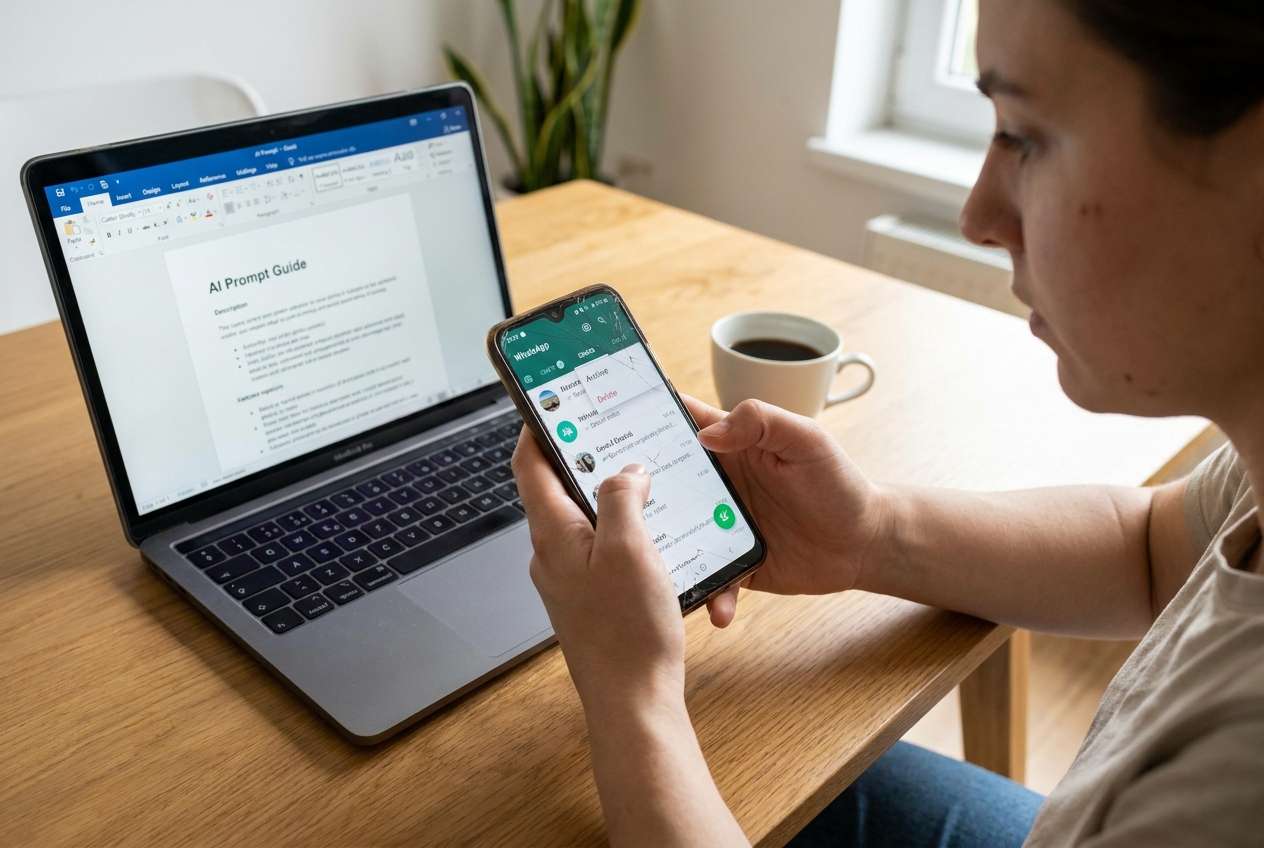
The uncertainty is that WhatsApp’s “archive,” “delete,” “clear chat,” and “delete media” options don’t all behave the same way—and backups can capture different things depending on settings and timing. After an AI answer, it’s common to still feel unsure about the sequence (what to do first) and how to verify you won’t lose something important.
The point-of-no-return moment is pressing Delete Chat (or bulk deleting threads/media) before you’ve confirmed what you’re keeping, what’s already safely backed up, and what you can still restore if something goes wrong.
Part 2. What the AI Needs to Know
Answer these so the AI can produce a workflow that matches your situation:
- Your phone OS (Android / iPhone) and WhatsApp type (personal / business)
- Your goal (reduce backup size, declutter chat list, remove sensitive chats, free device storage)
- What “must not be lost” (specific chats, date ranges, media types like photos/videos/voice notes, documents)
- Current backup method you intend to use (computer backup tool, cloud backup, both, unsure)
- Whether you need chat history to remain searchable in WhatsApp after cleanup
- Whether you’re cleaning up media only, chats only, or both
- Your risk tolerance (OK to permanently delete some items vs want maximum recoverability)
- Any constraints (time window, low storage, slow internet, device overheating, unstable USB cable/port)

Part 3. Using AI Prompts to Build a Safer Workflow
Use the prompts below to force a clear sequence, identify irreversible steps, and define verification checks before you touch any chats.
3-1. Level 1: Basic Prompt
I want to archive or delete old WhatsApp chats before I run a backup, without accidentally losing important messages or media.
Create a simple step-by-step plan with the safest order and the key checks I should do before deleting anything.
Include where I should pause and verify.
3-2. Level 2: Advanced Prompt
Build me a structured workflow for “archive vs delete old WhatsApp chats before backup.”
Split it into Preparation, Execution, and Verification, and label each step as critical or optional.
Call out the irreversible steps (like deleting chats or clearing media) and list the minimum verification I must complete before I’m allowed to proceed to those steps.
3-3. Level 3: Evidence Prompt
Here’s my context: I’m on (Android 14 / iPhone iOS 17), using (WhatsApp personal), and I want to (reduce backup size + declutter) while preserving (family chat 2019–2024, work chats last 6 months, all documents/PDFs).
My constraints: (low storage: 3 GB free, slow Wi‑Fi, only 30 minutes).
Design a workflow with checks before / during / after cleanup and backup.
Include:
- Criteria to choose Archive vs Delete for each chat category (e.g., “Groups I don’t need but may later” vs “Sensitive chats”)
- A verification checklist to confirm what’s still accessible in WhatsApp before deletion
- A “stop” rule that prevents me from deleting until I’ve verified backup readiness
- Example chat buckets (e.g., “Old groups 2017–2020,” “Media-heavy chats,” “1:1 chats with attachments”) and what to do with each
3-4. Prompt Refinement (Follow-up Prompts)
Turn my goal into a decision tree: archive / delete / clear media / export chat with “if/then” rules for each option.
List the exact verification evidence I should collect (screenshots, counts, sample chat spot-checks) and when to collect it.
Identify the top 5 failure modes for my situation (low storage, backup not including media, interrupted backup, wrong chat deleted, restore mismatch) and add prevention steps.
Rewrite the workflow as a checklist with “gates” I must pass before proceeding to irreversible actions (Gate 1: readiness, Gate 2: pre-delete proof, Gate 3: post-backup proof).
Define a sampling method: which (5–10) chats I should open and what I should confirm in each (messages, media, documents, timestamps) before and after.
Part 4. AI Plan vs. Real Device Constraints
| AI planning output | Real device constraint |
|---|---|
| A clean sequence (prep → cleanup → backup → verification) | Your phone can still fail mid-backup due to heat, low storage, or cable issues |
| Risk flags (irreversible steps, common mistakes) | WhatsApp UI/options vary by OS/app version and may not match descriptions exactly |
| Checklists and “stop rules” | Only the device/app can confirm what media is present and what a backup truly contains |
| Decision logic (archive vs delete vs clear media) | Execution requires actual backup/restore tooling and real verification on the phone |
AI improves planning and reduces avoidable mistakes, but it cannot perform backups, read your WhatsApp database, or confirm results—execution and proof must happen with real tools and device checks.
4-1. When to Stop Planning and Start Execution
- You have a finalized list of chats/media that are safe to remove vs must be preserved, and you’ve written it down.
- You’ve defined your point-of-no-return rule: no deleting/clearing until the pre-checks and backup readiness checks are complete.
- You have a verification method: what you’ll check immediately after backup and what you’ll spot-check if you need to restore.
- You’ve reduced ambiguity: you know exactly what “archive” means for your goal (visibility) versus what “delete/clear” means (loss).
If all four are true, planning is complete enough to move into controlled execution.
Part 5. Execute the Workflow Safely with Dr.Fone
Execution is where most losses happen, because actions complete quickly while verification is often skipped. Once you start deleting chats, you may not be able to recover them—so keep execution tightly aligned to your verified plan. To create a “protection pass” first, you can back up WhatsApp to a computer with Dr.Fone - WhatsApp Transfer.
 Transfer WhatsApp across Android & iOS.
- Backup & restore WhatsApp to PC securely.
- Preview & export chats selectively.
- Works with all iPhone & Android models.
Run the backup first (protection pass). Use Dr.Fone to perform a WhatsApp backup to your computer before you delete or clear anything. AI cannot confirm what the backup captured; rely on your own post-backup checks.
Perform the cleanup exactly as planned (archive/delete/clear). On the phone, archive or delete only the chat buckets you pre-approved, and avoid improvising mid-stream. If you haven’t verified backup readiness, stop.
Verify outcomes (proof pass). After cleanup, re-check your must-keep chats and media accessibility, and confirm your backup is usable according to your verification checklist.
-
Step 1 Open Dr.Fone and enter WhatsApp transfer/backup
Launch Dr.Fone on your computer and open the WhatsApp transfer/backup feature so you can start a “protection pass” backup before any deletion.

-
Step 2 Choose the WhatsApp backup tool
Select the WhatsApp backup option and follow the on-screen connection prompts (USB, permissions, and trust prompts as applicable).

-
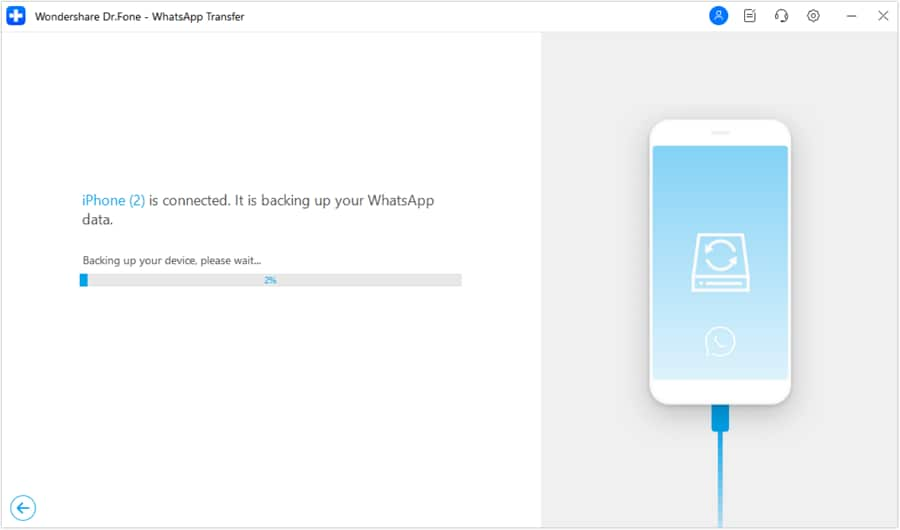
Step 3 Monitor the backup progress
Keep the phone connected and stable until the backup completes. Avoid switching cables/ports mid-process to reduce interruption risk.
-
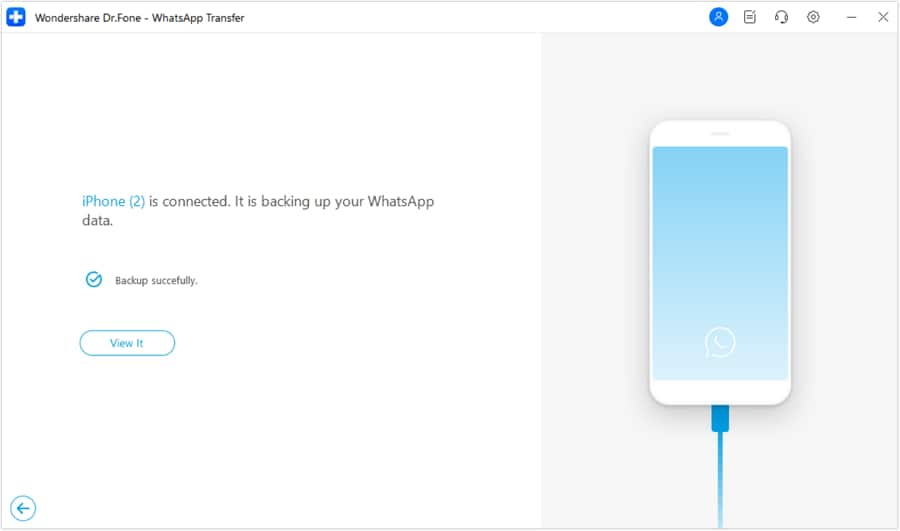
Step 4 Finish the backup, then proceed to cleanup gates
Once the backup is done, move to your pre-delete verification gate (spot-check must-keep chats/media) before you archive/delete/clear anything on the phone.




Conclusion
Use AI to design the safest sequence, define your “do not delete until verified” gates, and create a concrete checklist; then use a real tool like Dr.Fone to execute the backup and validate results on the device before you take any irreversible deletion steps.
FAQ
-
Is archiving WhatsApp chats safer than deleting before a backup?
Yes. Archiving is mainly an organization change, while deleting removes content and can be permanent if it’s not already safely backed up.
-
What’s the most dangerous step in this workflow?
Bulk deleting chats or clearing media before you’ve completed pre-delete verification and created a confirmed backup.
-
How do I verify “must-keep” content without restoring anything?
Do spot-checks in WhatsApp: open a sample of must-keep chats, scroll to older dates, and confirm key media/documents still open correctly before you delete anything.
-
Should I clean up before or after the backup?
If your priority is preventing loss, back up first, then clean up. Only clean first if you’ve accepted the risk and have a verified alternative safety copy.
-
What can AI do here that it’s actually good at?
Turning your goal into a gated sequence with stop rules, defining verification evidence, and reducing confusion between archive/delete/clear/export options.
-
What can AI not do?
It can’t access your WhatsApp data, run the backup, confirm what’s inside it, or guarantee recovery after deletion.
 Add Wondershare Dr.Fone as a preferred source on Google





