 Effortlessly manage data through preview, delete, export, etc.

 100% Security Verified | No Subscription Required | No Malware

 :
: 
 ChatGPT
 Perplexity
 Gemini
 Claude
 Grok
Grok

My Android lock screen won’t respond to touch after a restart/update/new screen protector—tapping and swiping for minutes doesn’t change anything, even though the phone is clearly on.
Forum user
When your Android lock screen won’t respond to touch, it can feel like you’re locked out even though the phone is clearly on. This often shows up right after a restart, an update, or a new screen protector—on devices like a Pixel 7 or Galaxy S22—and nothing changes after several minutes of tapping and swiping.
AI (like ChatGPT or Gemini) can help you describe the symptoms precisely, narrow down likely causes, and choose low-risk checks that won’t accidentally trigger lockouts or data loss.
AI can’t “do” the actions on your phone, and trial-and-error on a locked device can increase risk (more failed attempts, battery drain, or security timeouts). Use AI for diagnosis and decision-making, then switch to a purpose-built tool for execution if needed.
In this article
- Part 1. Why lock screen touch not working on android phone happens and what it means
- Four common cause buckets
- What the symptoms imply
- Why uncertainty is common
- What to collect before prompting AI
- Part 2. Using AI prompts to diagnose lock screen touch issues safely
- Part 3. When to stop troubleshooting lock screen touch and avoid risks
- Part 4. Lock screen touch not working on android phone: fix or resolve it safely with Dr.Fone
- Part 5. Low-risk decision checklist before you act
Part 1. Why lock screen touch not working on android phone happens and what it means
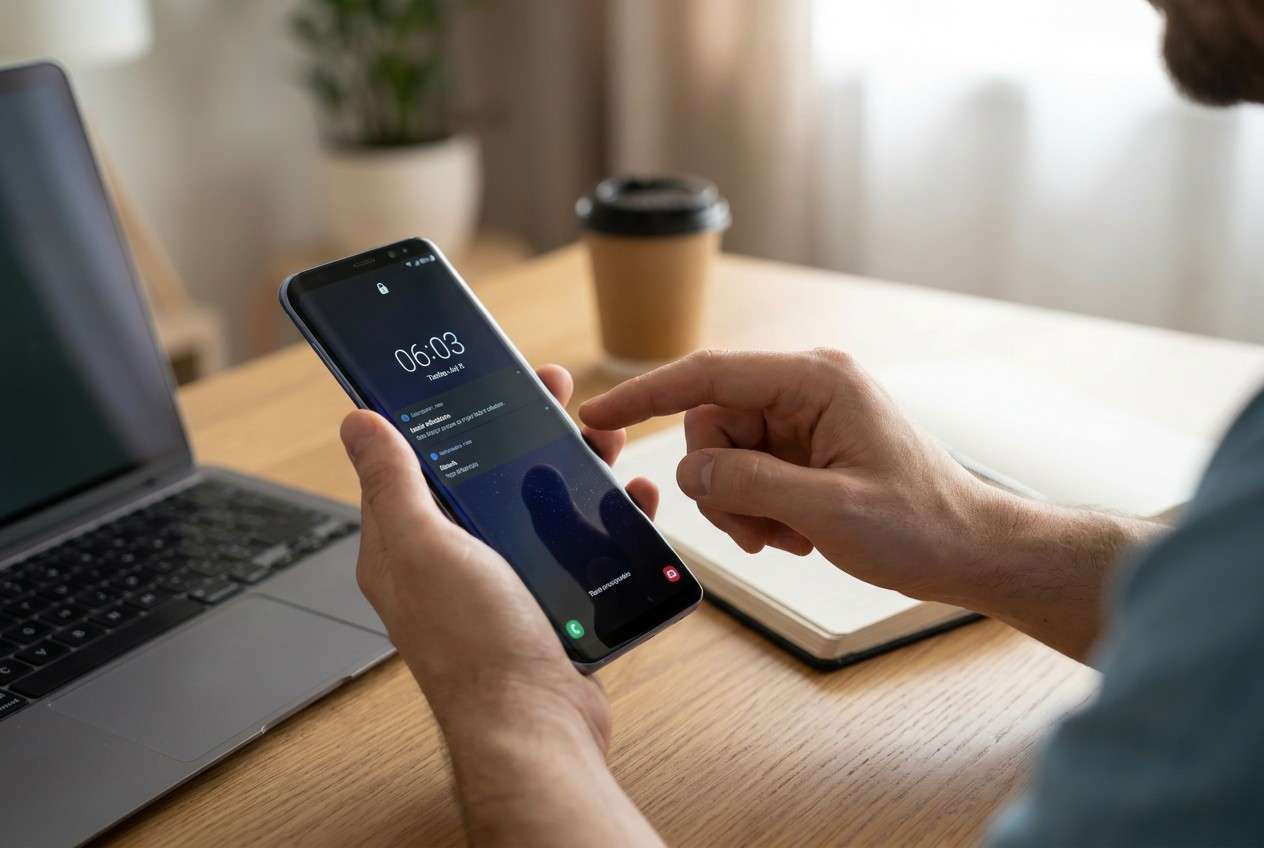
A non-responsive lock screen usually points to one of four buckets: touch input isn’t being registered (hardware/protector/moisture), the system UI is stuck (software hang after “Restart” or “Install now”), the lock method is blocking input (security policy/timeout/Find My Device controls), or the display is working but the touch layer isn’t.
The “meaning” depends on what still works. If buttons work (power/volume), the screen lights up, and notifications appear, your phone may be running normally, but the touch digitizer or system UI is failing at the lock screen layer.
Uncertainty is common: it can look like the phone is still updating, frozen, or simply ignoring touch. Your goal is to identify which category you’re in before trying steps that could make access harder.
1-1. Before You Prompt the AI
Collect these basics first to avoid guessing:
- Phone model and Android version (if known)
- What happened right before it started (update, drop, water, new protector, battery died)
- Whether the display shows image normally (brightness, lines, flicker)
- Whether buttons/biometrics respond (power, volume, fingerprint)
- Whether it works outside the lock screen (if you can reach Emergency call/camera)
Part 2. Using AI prompts to diagnose lock screen touch issues safely
2-1. Level 1: Basic Prompt
My Android phone’s lock screen touch isn’t working. Ask me the most important questions to narrow the cause, then suggest the lowest-risk next steps that won’t increase lockouts or data loss.
2-2. Level 2: Advanced Prompt
Act as a triage assistant for an Android lock-screen touch failure.
Goal: identify the most likely cause and the safest next action.
Constraints: avoid steps that increase failed attempts, security timeouts, or risk of data loss.
First, ask up to 8 yes/no questions.
Then:
1) List the top 5 likely causes ranked by probability.
2) For each cause, list 1–2 “confirming signs” and 1 “safe test”.
3) Recommend a next step order from lowest-risk to highest-risk.
2-3. Level 3: Evidence Prompt
Help me diagnose a lock-screen touch failure on Android using the evidence below. After analysis, give a ranked list of causes with confidence levels and the safest next steps.
Device:
- Phone model: (e.g., Samsung Galaxy S22 / Google Pixel 7)
- Android version: (e.g., Android 13/14, unknown)
- Age of device: (e.g., 6 months / 2 years)
What happened before:
- Trigger event: (e.g., tapped “Install now”, restarted, battery died, dropped phone, new screen protector)
- Any water/heat exposure: (yes/no/unsure)
Current symptoms:
- Screen shows image normally: (yes/no; describe flicker/lines)
- Touch response anywhere on lock screen: (none/partial; where?)
- Buttons work (power/volume): (yes/no)
- Biometrics work (fingerprint/face): (yes/no/unknown)
- Can open camera or emergency dialer from lock screen: (yes/no)
- Any ghost touches or random taps: (yes/no)
- Any cracked screen: (yes/no)
- Charger connected: (yes/no; fast charging/slow)
Security context:
- How many failed unlock attempts so far: (0–5 / 6+)
- Any work profile/MDM restrictions: (yes/no/unknown)
Ask clarifying questions if needed, then propose low-risk checks first and warn me which actions could worsen lockouts or risk data.
2-4. Prompt Refinement
Use these follow-ups to tighten the diagnosis:
“What key questions am I missing that would change your ranking the most?”
“Separate causes into hardware, software, security/policy, and accessory/environment categories.”
“Rank the causes again assuming: (A) the phone was dropped, (B) it started after an update, (C) it started after adding a screen protector.”
“Identify 3 pieces of evidence I can gather without unlocking the phone that best confirm the top cause.”
“Which steps are safe if I’m already near the failed-attempt limit, and which should I avoid?”
2-5. AI Output vs Reality
| What AI can provide | What you must verify on the device |
|---|---|
| A ranked shortlist of likely causes from your symptoms | Whether touch fails only on lock screen or across the whole UI |
| Low-risk checks to reduce uncertainty | If buttons/biometrics/lock-screen shortcuts still respond |
| Warnings about lockout and data-loss risks | Your failed-attempt count and any security timeouts in effect |
| Decision guidance on next safest path | Whether you need an execution tool to regain access |
AI can map symptoms to probabilities and risk, but it can’t confirm what your phone is actually doing or carry out actions. Once the diagnosis points to “access blocked and touch can’t be used reliably,” you’ll likely need a dedicated execution method rather than more experimenting.
Part 3. When to stop troubleshooting lock screen touch and avoid risks
Stop prompting and stop trial steps if you notice any of the following:
- Touch is completely dead and you’ve already made several failed unlock attempts (timeouts are increasing).
- The screen is cracked, bleeding pixels, overheating, or the phone was recently wet (risk of worsening damage).
- The phone is rebooting, stuck on a boot screen, or draining battery rapidly (software instability can escalate).
- You can’t reliably control the device and you’re considering factory reset “just to try” (high data-loss risk).
Once you’ve used AI to narrow the likely cause and you’ve hit a “blocked access” situation, the next phase is execution—using a tool designed to handle Android screen access workflows more safely and consistently.
Part 4. Lock screen touch not working on android phone: fix or resolve it safely with Dr.Fone
If your diagnosis suggests the phone is functioning but the lock screen can’t be operated (or you can’t enter the PIN/pattern due to touch failure), it’s time to switch from analysis to execution. Dr.Fone - Screen Unlock (Android) is relevant here because its Unlock Android Screen feature is built to guide the screen access process in a controlled way, rather than relying on repeated on-screen attempts that may trigger timeouts. Use it after you’ve confirmed basic factors (like removing a problematic screen protector) and you still can’t interact with the lock screen reliably.
 Unlock Android phone in seconds.
- Remove PIN, pattern, password, fingerprint.
- Bypass Google FRP lock easily.
- Works on all Android brands & models.
- No tech skills required – user-friendly.

-
Step 1 Prepare your setup
Install Dr.Fone on a computer and keep your phone charged to avoid interruption during the unlock workflow.

-
Step 2 Open Screen Unlock (Android)
In Dr.Fone, choose the Android screen unlock option and select the on-screen path that matches your device type as closely as possible.

-
Step 3 Connect the phone by USB
Plug in your phone with a stable cable connection, avoiding hubs or loose ports that could drop the connection mid-process.

-
Step 4 Follow the guided unlock flow
Proceed through the on-screen steps carefully, double-checking device prompts to reduce the chance of choosing the wrong model or mode.

-
Step 5 Regain access and reset your lock method
After access is restored, immediately set a new lock method and review backups so you’re protected if touch issues return.




Part 5. Low-risk decision checklist before you act
If touch is unreliable on the lock screen, use a conservative decision checklist before you keep testing:
- Track your failed unlock attempts and stop if timeouts are increasing.
- If the issue started after adding a screen protector, treat it as a likely variable to rule out first.
- Use what still works (power/volume buttons, lock-screen shortcuts like camera/emergency dialer) as evidence for AI, instead of repeated unlock attempts.
- If there are signs of damage or exposure (cracks, bleeding pixels, overheating, recent wet phone), stop trial steps to avoid worsening the situation.
- If evidence points to blocked access or you can’t control touch reliably, switch from diagnosis to a dedicated execution method rather than more experimenting.
Conclusion
Use AI to turn vague symptoms into a ranked diagnosis and a low-risk plan, then hand off to an execution tool when the evidence points to blocked access or unreliable touch input—especially when repeated attempts could increase lockouts or risk data loss.
FAQ
-
Why does my touch work in recovery mode but not on the lock screen?
That often suggests the touch hardware is partially functional, but Android’s system UI or lock-screen layer is stuck; it’s a strong hint toward a software/UI issue rather than total digitizer failure. -
Can a screen protector cause the lock screen to stop responding?
Yes—thick protectors, misalignment, trapped dust, or edge lifting can interfere with touch sensing, especially near swipe areas and PIN pads. -
Will repeated wrong attempts make the situation worse?
It can. Many devices increase timeouts after multiple failed attempts, which slows testing and can complicate access if touch is unreliable. -
What symptoms point to hardware damage instead of software?
Cracks, display flicker/lines, ghost touches, dead zones across the screen, or issues that started immediately after a drop are more consistent with hardware problems. -
If the phone is stuck after an update, should I keep waiting?
If it’s clearly progressing (logo animation, normal warmth, reasonable time), waiting can be fine; if nothing changes for a long time and controls don’t respond, treat it as a probable freeze and shift to safer diagnostic steps.
 Add Wondershare Dr.Fone as a preferred source on Google





