 Effortlessly manage data through preview, delete, export, etc.

 100% Security Verified | No Subscription Required | No Malware

 :
: 
 ChatGPT
 Perplexity
 Gemini
 Claude
 Grok
Grok

I started deleting apps on my old phone to free space, and suddenly I couldn’t log in to a couple of accounts because I removed the authenticator/“system” stuff I didn’t recognize.
Reddit user, r/Android
Cleaning up an old phone sounds simple, but one missed dependency (like an authenticator, launcher, or device service) can lock you out of accounts or destabilize the system.
AI is useful here because it can turn a vague goal (“free space safely”) into a structured workflow: what to inventory, what to classify, what to verify, and what to postpone.
AI can’t see your phone, confirm what’s truly in use, or perform device actions—so once the plan is clear, you’ll still need real tools and on-device checks to execute safely.
In this article
- Part 1. How to plan uninstall candidates without missing critical steps
- Why cleanup can break “core” stuff
- Why generic AI answers aren’t enough
- Your point-of-no-return apps
- What a safe plan must include
- Part 2. What the AI needs to know
- Part 3. Using AI prompts to build a safer workflow
- Part 4. When to stop planning and start execution
- Part 5. Execute the workflow safely with Dr.Fone
Part 1. How to plan identify safe app uninstall candidates on old phone without missing critical steps
1-1. Why cleanup can break “core” stuff
You’re trying to free storage and reduce clutter on an old phone before selling it, handing it down, or just making it usable again. The problem is you don’t remember what half the apps do, and some “unused” apps are quietly required for login, backups, or accessories.
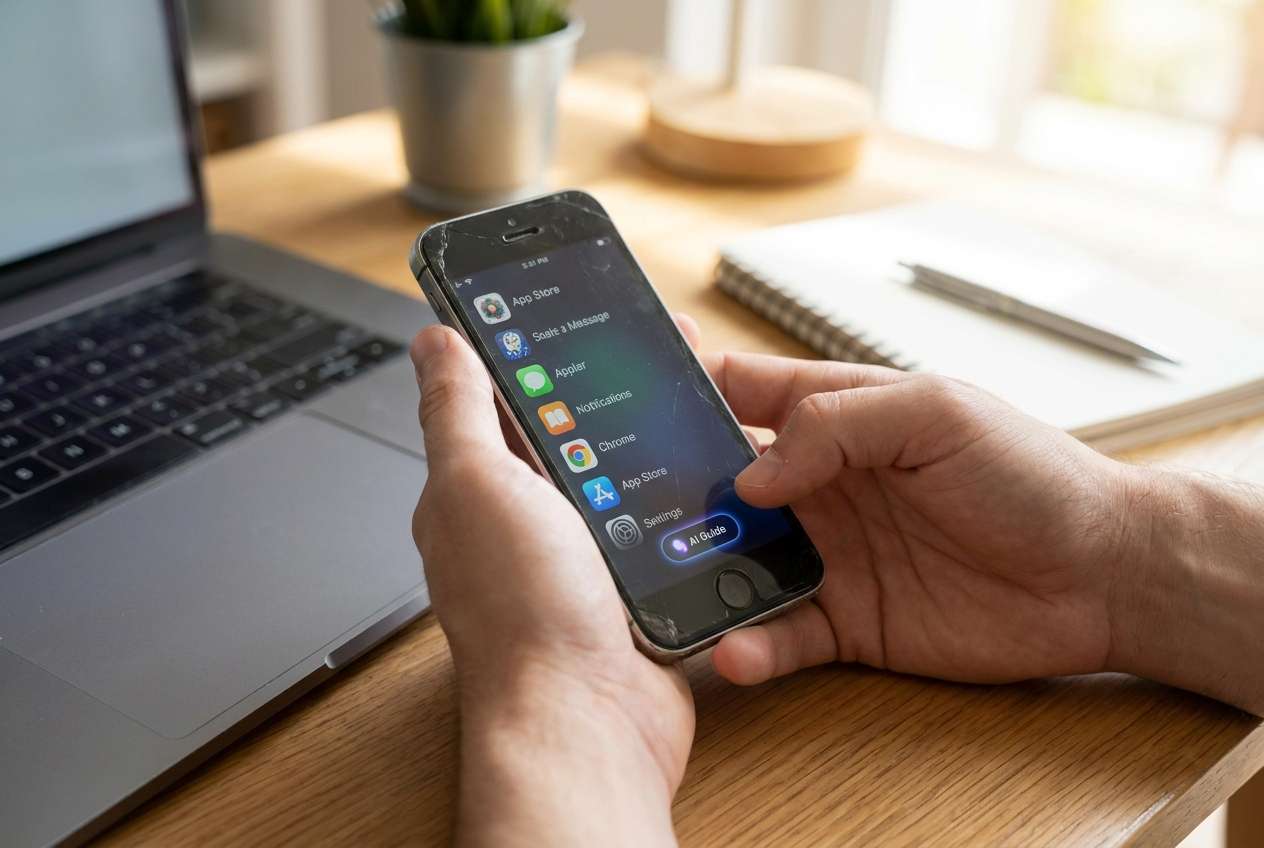
1-2. Why generic AI answers aren’t enough
After you ask AI “what can I delete?”, you’ll often get generic advice (remove games, duplicates, etc.)—but not a dependable sequence. The missing clarity is usually what to check first (accounts, 2FA, backups, device admin) and how to prove an app is safe to remove.
1-3. Your point-of-no-return apps
Your point-of-no-return moment is uninstalling or clearing data for apps tied to access and recovery (authenticator apps, password managers, OEM account services). Once removed, you may not be able to regain access without recovery codes or admin credentials.
1-4. What a safe plan must include
A dependable plan should include: an inventory, a classification rule (Safe to remove / Remove later / Keep), explicit checks before/during/after uninstall, and a stop condition if anything unexpected happens.
Part 2. What the AI needs to know
Share the minimum context needed for the AI to build a safe, verifiable uninstall plan:
- Phone model + OS version (e.g., “Samsung Galaxy S10, Android 12”)
- Your goal (free space, speed up, prepare for resale, reduce notifications)
- Whether you still need the phone for anything (backup device, hotspot, child device)
- Accounts and lock-in risk (Google/Apple ID, OEM account, work profile/MDM)
- Security apps in use (authenticator, password manager, antivirus, VPN)
- What “must keep” means for you (banking apps, SIM tools, camera, messaging)
- Storage pressure and urgency (e.g., “need 10 GB by today”)
- Whether you have another trusted device for account recovery (yes/no)

Part 3. Using AI prompts to build a safer identify safe app uninstall candidates on old phone workflow
Use the prompts below to force a sequence with checks—not just a list of apps to delete.
3-1. Level 1: Basic Prompt
Draft a safe, step-by-step plan to identify uninstall candidates on my old phone without breaking logins or core functions. Include a short checklist of what to verify before I remove anything. Keep the plan device-agnostic and risk-focused.
3-2. Level 2: Advanced Prompt
Create a structured workflow to identify safe app uninstall candidates on an old phone.
Split it into Preparation / Execution / Verification, and label steps as Critical vs Optional.
Include “do-not-remove-yet” categories (authenticator, OEM services, launchers, device admin) and how to confirm whether an app belongs in those categories.
3-3. Level 3: Evidence Prompt
I have an old phone (Samsung Galaxy S10, Android 12) that’s low on storage (needs ~8 GB free). I want to remove apps I don’t use, but I’m worried about breaking sign-ins and losing access to accounts. I use (Google account), a password manager (e.g., Bitwarden), and an authenticator (e.g., Google Authenticator).
Build a workflow to classify apps into: Safe to remove / Remove later / Keep with:
- checks before uninstall (accounts, 2FA, device admin, backups)
- checks during uninstall (one-at-a-time rules, restart points, quick function tests)
- checks after uninstall (login tests, notifications, accessory checks)
Also provide a small “evidence list” of what I should record for each app (last used date, storage size, permissions, whether it’s device admin, whether it handles SMS/2FA).
3-4. Prompt Refinement
“Ask me exactly 10 questions, then output the plan in a table: Step / Why it matters / What could go wrong / How to verify / Rollback option.”
“Give me a ‘red flag’ checklist to identify apps that must not be removed until I confirm recovery (2FA, OEM account, work profile, launcher, keyboard, accessibility services).”
“Create a decision rule set: If app matches X, classify as Keep; if matches Y, Remove later; else Safe—and include examples.”
“Provide a minimal test script after each uninstall: calls, SMS, camera, Wi‑Fi, Bluetooth, biometrics, notifications, login—and say when each test is required vs optional.”
“Output a ‘stop list’: conditions under which I should pause uninstalling (unexpected battery drain, crashes, missing SMS, login prompts, MDM warnings).”
Part 4. When to stop planning identify safe app uninstall candidates on old phone and start execution
| AI planning help | Real device constraint |
|---|---|
| AI can propose “safe” categories and a sequence | Only the device can confirm what’s installed, active, or enforced by admin policies |
| AI can define verification checks (2FA, backup, device admin) | You must manually verify recovery codes, account access, and admin status |
| AI can suggest one-at-a-time removal with test points | Some issues appear hours later (sync failures, missing notifications, battery drain) |
| AI can recommend rollback ideas | Rollback may be impossible if you lose access, delete local data, or can’t re-authenticate |
AI improves planning and reduces avoidable mistakes, but it cannot inspect your actual device state or perform the uninstalls and backups.
If all the following are true, the plan is stable enough to execute without improvising mid-cleanup:
- You have a written Do Not Remove Yet list (authenticator, password manager, OEM account services, launcher/keyboard, device admin/work apps).
- You can pass your account recovery check (recovery email/phone works, recovery codes stored, you can log in on another device).
- You have a defined uninstall order (largest low-risk apps first) and a one-at-a-time rule with quick tests.
- You’ve set a clear rollback boundary (what you’ll reinstall immediately vs what you’ll postpone if anything feels off).
Part 5. Identify safe app uninstall candidates on old phone: execute the workflow safely with Dr.Fone
Execution matters now because the risk is no longer “choosing the perfect list”—it’s losing data or access during removal, especially if storage pressure or resale timelines push you to rush. In this phase, Dr.Fone Basic - Data Manager can help you create a recovery snapshot and manage key files before you start uninstalling on the phone.
 Easily manage data through preview, delete, export, etc.
- Transfer all data between devices.
- Robust backup solutions for reliable data protection.
- Mirror screens to PC for meetings, teaching, and control.

-
Step 1 Create a recovery snapshot first
Action: Back up the phone’s important data to a computer so you can recover if an uninstall breaks something you didn’t anticipate.
Limitation: A backup won’t guarantee restoration of app-specific sign-ins or authenticator tokens that require separate export/recovery codes.

-
Step 2 Review and organize what you’ll keep before deleting anything
Preview key data (photos/videos/messages/documents) and confirm what must be preserved for your “Keep” list before you start uninstalling apps.

-
Step 3 Export large items to free space safely
Move large media off the device first (for example, videos), so you reduce storage pressure and avoid rushing risky app removals.

-
Step 4 Uninstall in a controlled sequence and verify stability
Action: Uninstall only the apps you classified as Safe to remove, one at a time, starting with the biggest storage wins. Run your quick test script after each removal, then do a broader stability check before continuing or wiping/selling.
Limitation: Stop if you see new login prompts, missing SMS/notifications, warnings about device admin/work profile changes, or system instability. Don’t proceed to irreversible cleanup (factory reset, removing accounts) until verification passes.





Conclusion
Use AI to design a verification-first workflow and clear stop conditions; then use real tools to execute carefully—because planning reduces risk, but only device-level actions and checks can confirm the phone remains stable and accessible.
FAQ
-
What are the highest-risk apps to remove first?
Authenticators, password managers, OEM account/services, work/MDM apps, launchers, keyboards, “Device Admin” apps, accessibility services, and anything handling SMS/phone defaults. -
How do I avoid the “locked out of accounts” problem?
Verify recovery paths before uninstalling: recovery email/phone works, you can log in on another device, and you’ve saved recovery codes—especially for 2FA apps. -
Is “unused for 3 months” a safe uninstall rule?
Not by itself. Some critical apps are rarely opened (authenticator, eSIM tools, backup/sync components) but still essential. -
What’s the safest uninstall sequence?
Big, obvious low-risk apps first (large games, streaming downloads, duplicate utilities), then re-test; postpone anything tied to login, device control, or admin privileges. -
When should I stop uninstalling and reassess?
If you see crashes, battery drain spikes, missing notifications, login loops, broken SMS/calls, or warnings about device admin/work profile changes.
 Add Wondershare Dr.Fone as a preferred source on Google





