 Effortlessly manage data through preview, delete, export, etc.

 100% Security Verified | No Subscription Required | No Malware

 :
: 
 ChatGPT
 Perplexity
 Gemini
 Claude
 Grok
Grok

I hit “Clean/Optimize” in a cleaner app, rebooted, and now my Android just sits on the logo or keeps restarting. It powers on, but I can’t get to the home screen.
Reddit user, r/AndroidQuestions
After a system cleanup, an Android phone can suddenly feel like it “won’t start”—it powers on, but never reaches the home screen, or it stops at a lock screen you can’t pass. This often happens right after you tapped Clean/Optimize in a cleaner app and then restarted.
AI (like ChatGPT or Gemini) can help you describe symptoms clearly, narrow likely causes (boot issue vs. lockout vs. corrupted cache), and choose low-risk checks before you make things worse.
AI can’t see your phone or run device actions for you, so trial-and-error can add risk (data loss, FRP triggers, longer lockouts). Use prompts to decide what to try and when to stop—then use the right tool for execution.
In this article
- Why “won’t start” happens after system cleanup
- What cleanup tools change
- Boot failure vs. access/lockout
- Common screens you might see
- Info to collect before asking AI
- Level 1–3 AI prompts (safe diagnosis)
- Prompt refinement + AI output reality checks
- When to stop troubleshooting (avoid risks)
- Android lock screen access after cleanup: resolve it safely with Dr.Fone
Part 1. Why android phone wont start after system cleanup happens and what it means
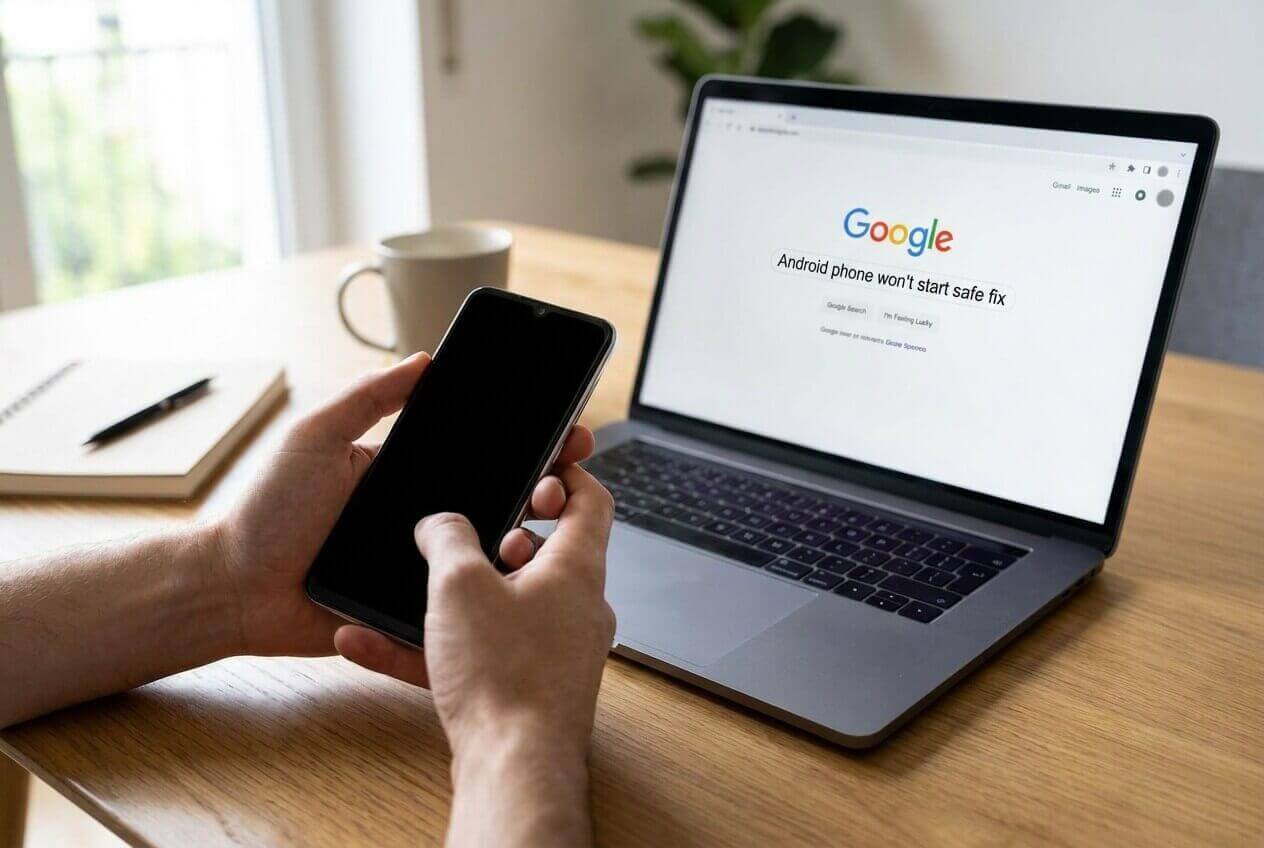
A “system cleanup” can remove cached data, disable apps/services, or change what starts at boot. If the phone now hangs on the logo, loops restarts, shows a black screen, or stops at “Phone is starting…”, it may be a startup path issue rather than a dead device.
Another common pattern is that the phone does boot, but you’re blocked by a security screen you didn’t expect (PIN after restart, pattern not accepted, “Try again in 30 seconds”), so it feels like it won’t start. This can be especially confusing if you also use an iPhone 13 or iPhone 14, where “startup” and lock flows look different.
What you need to clarify first: Does it fail before the lock screen (boot problem), or after it (access problem)? The safest next steps depend on that distinction.
Before You Prompt the AI
Collect the basics first so the AI can sort boot vs. access issues accurately:
- Phone brand/model and Android version (if known)
- What you used to “clean” (built-in optimizer vs third-party cleaner)
- Exact screen state (logo loop, black screen, lock screen, error text)
- Whether the device is detected by a PC (ADB/fastboot/USB)
- Recent changes (new PIN, work profile, encryption, Google account changes)
Part 2. Using AI prompts to diagnose android phone wont start after system cleanup safely
Level 1: Basic Prompt
My Android phone won’t start after I ran a system cleanup and restarted. It [stuck on logo / bootloops / black screen / reaches lock screen but can’t unlock]. Ask me the minimum questions needed to decide whether this is a boot problem or an access/lock-screen problem, and list the safest checks first (no factory reset yet).
Level 2: Advanced Prompt
Act as a cautious Android triage assistant. Based on my symptoms after a system cleanup + restart, rank the top 5 most likely causes with probabilities, and for each cause list: (1) what evidence would confirm it, (2) the safest next action, (3) what actions to avoid because they increase lockout/data-loss risk. End with a “stop here” threshold.
Level 3: Evidence Prompt
Help me diagnose an Android “won’t start” issue that began right after a system cleanup. Use the details below and then:
1) classify it as pre-lock boot failure vs post-lock access failure,
2) list 3–6 likely causes ranked,
3) propose a low-risk decision tree (max 8 steps), and
4) identify what information is still missing.
Device info
- Brand/model: (e.g., Samsung Galaxy S21 / Xiaomi Redmi Note 10)
- Android version/security patch: (if known)
- Storage status before cleanup: (e.g., “almost full”)
What I did
- Cleanup method: (built-in device care / third-party cleaner name)
- Options used: (e.g., “remove junk”, “deep clean”, “disable apps”)
- Trigger moment: (e.g., right after tapping “Clean” or after reboot)
Current symptoms
- Power behavior: (boots / no response / vibrates only)
- Screen state: (logo loop / black screen / recovery screen / lock screen)
- Exact messages: (quote them)
- Time waited: (e.g., 15 minutes with no change)
Connectivity
- Charges normally: (yes/no)
- PC detects device: (MTP / ADB / fastboot / not detected)
Constraints
- Data priority: (high/medium/low)
- I can use recovery mode safely: (yes/no/unsure)
- I remember the lock screen code: (yes/no/unsure)
Prompt Refinement + AI Output vs Reality
Use these follow-ups to make the AI’s output actionable and lower-risk:
What single observation best separates bootloop vs lockout in my case, and how do I check it without changing anything?
List causes in two categories only: startup path vs lock/access path, and put my symptoms under each.
Rank the top 3 causes again, but this time tell me what evidence would disprove each one.
What is the first step you consider unsafe for my data priority, and why?
Ask me 8 yes/no questions maximum, then give a decision tree based on my answers.
AI Output vs Reality
AI can guide reasoning, but your phone’s actual state determines what’s possible:
| AI suggests | Reality check you should do |
|---|---|
| “It’s probably just a long first boot.” | If it’s unchanged after 15–30 minutes, treat it as a stuck state. |
| “Clear cache is safe.” | Some devices label options differently; confirm you’re not selecting a data-wipe action. |
| “It’s a lockout problem.” | Verify whether the device reaches the lock screen consistently or restarts before it. |
| “Use a tool to regain access.” | Confirm the phone can power on and reach the lock screen; tools won’t help a device that can’t boot at all. |
AI helps you choose the right lane (boot vs access) and avoid unnecessary escalation; execution still depends on what your device will enter (normal boot, recovery, fastboot) and what credentials you have.
Part 3. When to stop troubleshooting android phone wont start after system cleanup and avoid risks
Stop early when continuing experimentation is likely to reduce your options or increase lockouts.
- The phone is bootlooping and gets hot, drains fast, or restarts continuously.
- You see encryption / “password required after restart” messages but you’re unsure of the correct code.
- You’re about to try factory reset, unknown ROM tools, or random “one-click” methods without verifying the exact mode (recovery/fastboot).
- The device is not detected by a PC in any mode and shows no stable screen state (possible hardware/firmware escalation).
Once you’ve used AI to classify the problem as access/lock-screen related (device boots but you can’t get past the lock screen), it makes sense to switch from diagnosis to a purpose-built execution tool.
Part 4. Android lock screen access after cleanup: resolve it safely with Dr.Fone
If your phone now powers on to the lock screen but you’re blocked (forgotten PIN/pattern, repeated failed attempts, “phone is starting” then returns to lock), the next practical goal is restoring access with minimal extra trial-and-error. In that situation, Dr.Fone - Screen Unlock (Android) can handle the execution side of Unlock Android Screen in a guided flow, so you’re not guessing which menus or modes to use. This is most relevant after AI has helped you confirm it’s an access issue (not a device that can’t boot at all). You can reference the on-page steps as you work: Android lock screen removal guide.
 Unlock Android phone in seconds.
- Remove PIN, pattern, password, fingerprint.
- Bypass Google FRP lock easily.
- Works on all Android brands & models.
- No tech skills required – user-friendly.

Before you proceed, confirm it’s an access problem: power on and verify the phone consistently reaches a lock screen (and avoid repeated wrong attempts that can extend timeouts).
-
Step 1 Open Screen Unlock (Android)
Launch Dr.Fone and choose Screen Unlock from the toolkit (make sure you select Android, not iOS).

-
Step 2 Select the Android unlock option
In the unlock module, pick the Android screen-unlock path that matches your situation.

-
Step 3 Connect the device by USB
Plug the phone into your computer and follow the prompts to enter the required mode if asked (don’t disconnect mid-process).

-
Step 4 Run Unlock Android Screen for your brand
Proceed with the guided unlocking flow for your device/brand. Read each confirmation carefully because some scenarios may affect on-device data.

-
Step 5 Set a new access method after access is restored
Immediately set a new lock method and review recently disabled apps/services to prevent repeats.




Conclusion
Use AI to turn messy symptoms after a system cleanup into a clear classification (boot failure vs access lockout), ranked causes, and low-risk next checks; once you’ve confirmed it’s an access/lock-screen situation, hand off execution to a tool like Dr.Fone Screen Unlock (Android) to proceed in a guided, less guessy way.
FAQ
-
Why does my Android say “starting” forever after a cleanup?
A cleanup can disable or interfere with apps/services that load at startup; it may also coincide with low storage or corrupted cache, causing the system to stall before reaching the home screen. -
How do I tell bootloop vs lock screen problem quickly?
If it restarts before showing the lock screen, it’s likely a boot path issue; if it reliably shows the lock screen but you can’t pass it, it’s likely an access issue. -
Is it risky to keep trying PINs after the cleanup?
Yes—repeated wrong attempts can increase timeouts, trigger lockout timers, or complicate access, especially right after a restart when some devices require the primary code. -
What if my phone isn’t detected by my computer?
Try a different cable/USB port and check whether the phone can enter a stable mode (normal lock screen, recovery, or fastboot); if none appear, stop and consider professional support. -
Where can I find the Dr.Fone Screen Unlock feature details?
You can review the feature overview here: Dr.Fone - Screen Unlock (Android).
 Add Wondershare Dr.Fone as a preferred source on Google





