 Effortlessly manage data through preview, delete, export, etc.

 100% Security Verified | No Subscription Required | No Malware

 :
: 
 ChatGPT
 Perplexity
 Gemini
 Claude
 Grok
Grok

I bought a second-hand iPad, erased it to start fresh, and now it’s asking for Activation Lock details. The setup screen just won’t move forward and I don’t know what I’m actually locked by.
Forum user
A second-hand iPad that suddenly asks for Activation Lock details usually means the device is still linked to the previous owner’s Apple ID. This often appears right after you tap Continue during setup, or after an Erase All Content and Settings, and it can feel like the screen “just won’t move forward” even after several minutes.
AI (like ChatGPT or Gemini) can help you identify which Activation Lock screen you’re on, narrow the most likely causes, and list the lowest-risk next steps based on what you see on the iPad.
AI can’t verify ownership, contact Apple, or complete device-side unlocking actions for you—and trial-and-error (random Apple ID attempts, repeated restores) can increase delays or create avoidable lockouts. Use AI for diagnosis, then hand off execution to a dedicated tool when you’re sure what you’re dealing with.

In this article
- Part 1. Why a second-hand iPad asks for Activation Lock details and what it means
- What “Activation Lock details” usually indicates
- Common triggers that make the screen appear
- Similar-looking screens (passcode vs MDM)
- Before you prompt the AI
- Part 2. Using AI prompts to diagnose Activation Lock on a used iPad safely
- Part 3. When to stop troubleshooting Activation Lock prompts on iPad and avoid risks
- Part 4. Resolve iPad Activation Lock screen with Dr.Fone
- Part 5. AI output vs reality (plus a quick summary checklist)
Part 1. Why a second-hand iPad asks for Activation Lock details and what it means
When a used iPad asks for Activation Lock details, it usually indicates Find My was enabled on that device and it remains tied to the previous owner’s iCloud account. This is the same protection you might recognize from an iPhone 13 or iPhone 14: it’s designed to prevent unauthorized access after loss, theft, or resale without proper sign-out.
Common triggers include: setting up the iPad after purchase, resetting it to start fresh, restoring via Finder/iTunes, or selecting an erase option when troubleshooting. The device then requires the Apple ID and password previously associated with it.
The confusing part is that multiple screens can look similar—some ask for the Apple ID used to set up this iPad, others ask for a passcode, and others are MDM/remote management. If you’re unsure which one you’re seeing, you can accidentally chase the wrong solution.
1-1. Before You Prompt the AI
Collect these basics so the AI can classify the lock screen accurately:
- iPad model and size (if known)
- iPadOS version (if visible)
- Exact on-screen wording (type it out)
- Whether you can reach the Home screen or you’re stuck in Setup
- What you did right before it appeared (erase, restore, update, setup)
- Whether the seller is reachable and cooperative
- Proof of purchase or transfer (receipt, listing, chat history)
Part 2. Using AI prompts to diagnose Activation Lock on a used iPad safely
2-1. Level 1: Basic Prompt
I bought a second-hand iPad and it asks for Activation Lock details. Here is the exact text on the screen: “[paste exact wording]”. Based on this wording, what lock type is this (Activation Lock vs passcode lock vs MDM/Remote Management), and what are the lowest-risk next steps to confirm?
2-2. Level 2: Advanced Prompt
Act as a cautious mobile-device triage assistant.
Goal: Identify the most likely reason a used iPad is asking for Activation Lock details and suggest safe verification steps.
Context: I triggered this after [setup / erase / restore / update].
What I see on screen: “[exact wording]”.
What I can/can’t do: [can connect to Wi‑Fi / can’t reach Home screen / can access settings, etc.].
Please:
1) List the top 3 likely causes ranked by probability.
2) For each cause, list 2–3 checks I can do that won’t risk data loss or lockouts.
3) Flag any actions that are high-risk (repeated password attempts, restores, etc.).
4) Tell me what info you still need from me.
2-3. Level 3: Evidence Prompt
Help me classify and resolve an iPad Activation Lock situation with minimal risk. Use only the info I provide, and ask clarifying questions if needed.
Device details:
- iPad model: (e.g., iPad Pro 11-inch, iPad 9th gen)
- iPadOS version shown: (e.g., 17.x / unknown)
- Bought second-hand from: (store / marketplace / friend)
- Proof of purchase available: (yes/no/partial)
What happened right before the issue: (e.g., I tapped “Erase iPad”, I restored with iTunes/Finder, I restarted during setup)
Exact on-screen text: “[type it exactly]”
Screens I can access: (e.g., language/Wi‑Fi only, or I can open Settings)
Network status: (Wi‑Fi works / captive portal / unknown)
Seller status: (reachable / not reachable / refuses)
Output format I want:
A) What lock type this is (Activation Lock vs passcode vs MDM) and why
B) What I should try first (lowest risk)
C) What not to do (to avoid lockouts or losing options)
D) Decision tree depending on whether the seller can sign out of iCloud or not
2-4. Prompt Refinement
If the AI’s answer feels generic, use these follow-ups to force clearer diagnosis:
What exact question should I answer to confirm whether this is Activation Lock versus Remote Management (MDM)?
Rank the likely causes again, but separate them into account-related, device-state, and network/activation-server categories.
What single piece of evidence would change your top recommendation the most (exact wording, screen photo description, iPadOS version, etc.)?
List the safest checks in strict order, and mark which steps could cause delays, lockouts, or permanent loss of access.
What would a cooperative seller do remotely to remove the device from their account, and what proof should I request afterward?
Part 3. When to stop troubleshooting Activation Lock prompts on iPad and avoid risks
If you keep poking at the wrong path, you can waste hours or reduce your options. Stop and reassess if you hit any of these:
- You don’t have the seller’s cooperation and you can’t verify legitimate ownership or transfer.
- The iPad starts showing temporary lockout timers or you’ve made multiple incorrect credential attempts.
- You discover it’s Remote Management/MDM (organization-owned) rather than a personal iCloud lock.
- You’re considering repeated restores/erases without a clearer diagnosis of the lock type.
Once you’ve used AI to classify the screen and choose the lowest-risk route, it’s time to hand off execution to a purpose-built method that matches your situation.
Part 5. AI output vs reality (plus a quick summary checklist)
1. Use AI for classification, not “unlocking.”
Ask AI to interpret the exact on-screen wording and tell you whether you’re seeing Activation Lock, a passcode prompt, or MDM/Remote Management.
2. Avoid high-risk trial-and-error.
Repeated password attempts and repeated restores/erases can trigger delays, lockouts, and wasted time—confirm the lock type first, then take a targeted next step.
3. Decide based on seller cooperation and proof.
If the seller can remove the device from their account, that’s typically the cleanest path; if not, stop and reassess legitimacy and available options.
5-1. AI Output vs Reality
AI can classify patterns well, but it can’t confirm account status or complete device-side actions. Use this table to keep expectations realistic:
| What AI can do | What you must verify or do |
|---|---|
| Interpret the exact lock-screen wording | Confirm the iPad’s ownership/transfer legitimacy |
| Compare Activation Lock vs passcode vs MDM indicators | Obtain correct Apple ID credentials or seller sign-out |
| Suggest low-risk checks and a decision tree | Perform device actions carefully (and accept consequences) |
| Help draft messages to the seller or support | Use a specialized tool if you’re eligible and decide to proceed |
AI gets you to a clean diagnosis and safest path; execution still depends on what the device is tied to and what access you can prove.
Part 4. Resolve iPad Activation Lock screen with Dr.Fone
After AI helps you confirm you’re dealing with an Activation Lock scenario on a second-hand iPad, the next step is using a practical execution tool that follows a structured flow. Wondershare Dr.Fone - Screen Unlock (iOS) includes an iCloud Account Removal workflow designed for cases where you’re authorized to regain access on a device you own. This is most useful when you’ve already verified the lock type and you’re ready to proceed carefully rather than repeatedly erasing/restoring without a plan.
 Unlock iPhone/iPad passcode in minutes.
- Remove Face ID, Touch ID, MDM lock, and screen lock.
- Bypass iCloud Activation Lock easily.
- Support all iOS versions and devices.
- Simple steps, no technical skills needed.

-
Step 1 Confirm eligibility
Proceed only if you’re the rightful owner or have explicit permission, since Activation Lock is an anti-theft feature.
-
Step 2 Prepare a stable setup
Use a reliable computer, cable, and internet connection to avoid interruptions mid-process.

-
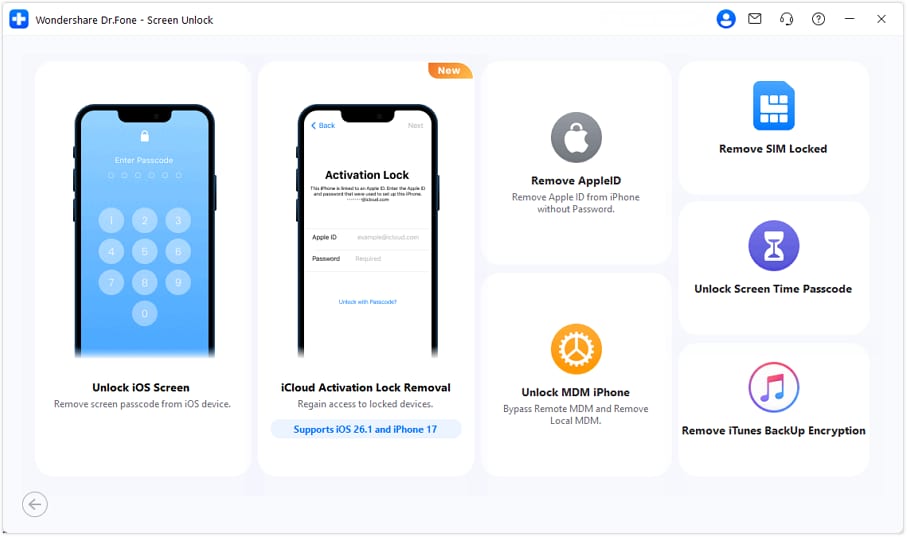
Step 3 Open the correct module
In Dr.Fone, select the path related to Activation Lock and iCloud Account Removal.
-
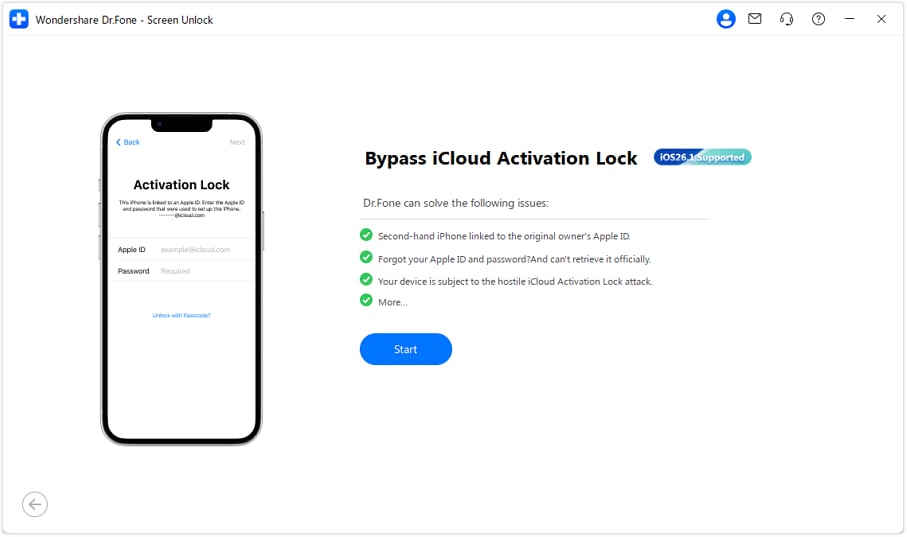
Step 4 Follow the guided flow
Complete the on-screen steps in order and avoid multitasking actions like unplugging the device or forcing restarts unless instructed.
-
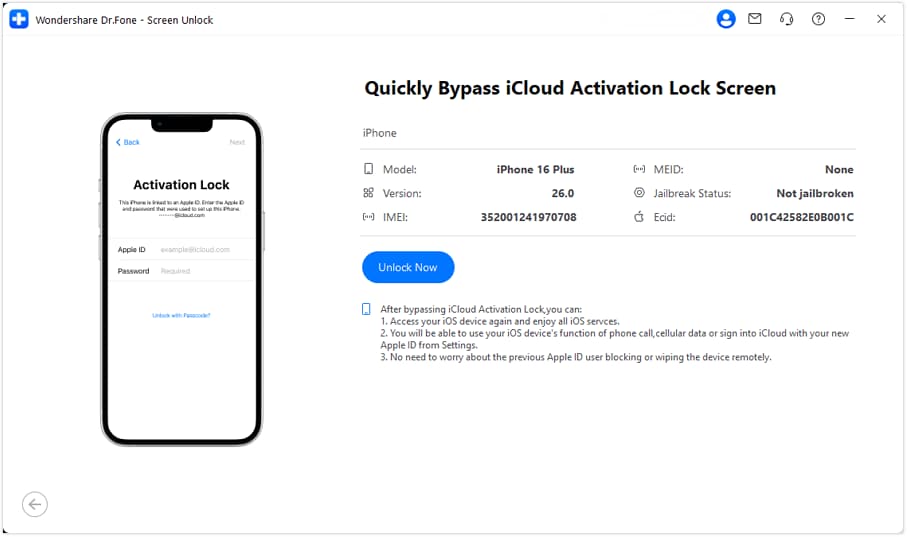
Step 5 Re-check activation status
After completion, go through setup again and confirm you can proceed without being asked for the previous owner’s Apple ID.




Conclusion
AI is best used here to classify the exact lock screen, rank likely causes, and choose the lowest-risk next step without spiraling into random resets or credential attempts. Once you’re confident it’s an Activation Lock scenario and you’re authorized to proceed, hand off the execution to a guided tool like Dr.Fone so the next actions are structured and consistent.
FAQ
-
Why does my iPad ask for Activation Lock details after I reset it?
Because resetting doesn’t remove the iPad from the previous owner’s Apple ID if Find My was enabled; activation still requires that account. -
How can I tell if it’s Activation Lock or MDM Remote Management?
Activation Lock typically asks for the Apple ID used with the device, while MDM usually mentions “Remote Management” and an organization/school during setup. -
Should I keep trying different Apple ID passwords to get in?
No—repeated wrong attempts can trigger lockout timers and slow down your ability to proceed safely. -
What should I ask the seller to do if they’re cooperative?
Ask them to remove the iPad from their Apple ID/Find My association and confirm it no longer appears under their device list afterward. -
Can AI confirm whether the iPad is stolen or legitimately owned?
No—AI can only interpret symptoms and wording; legitimacy depends on proof of purchase/transfer and seller or Apple verification.
 Add Wondershare Dr.Fone as a preferred source on Google





