 Effortlessly manage data through preview, delete, export, etc.

 100% Security Verified | No Subscription Required | No Malware

 :
: 
 ChatGPT
 Perplexity
 Gemini
 Claude
 Grok
Grok

I factory reset my phone, and now it’s stuck asking for the previous Google account / verification. I’m not sure what it’s waiting for or what proof I’m supposed to show.
Forum user
A locked phone can quickly turn into a “proof problem,” not just a password problem—especially after a factory reset or after too many failed unlock attempts. This often shows up on devices like a Samsung Galaxy S22 or Google Pixel 7, where the phone asks for the previous Google account (FRP) or refuses access until ownership is verified. It can feel like nothing changes after several minutes, and it’s unclear what the phone is waiting for.
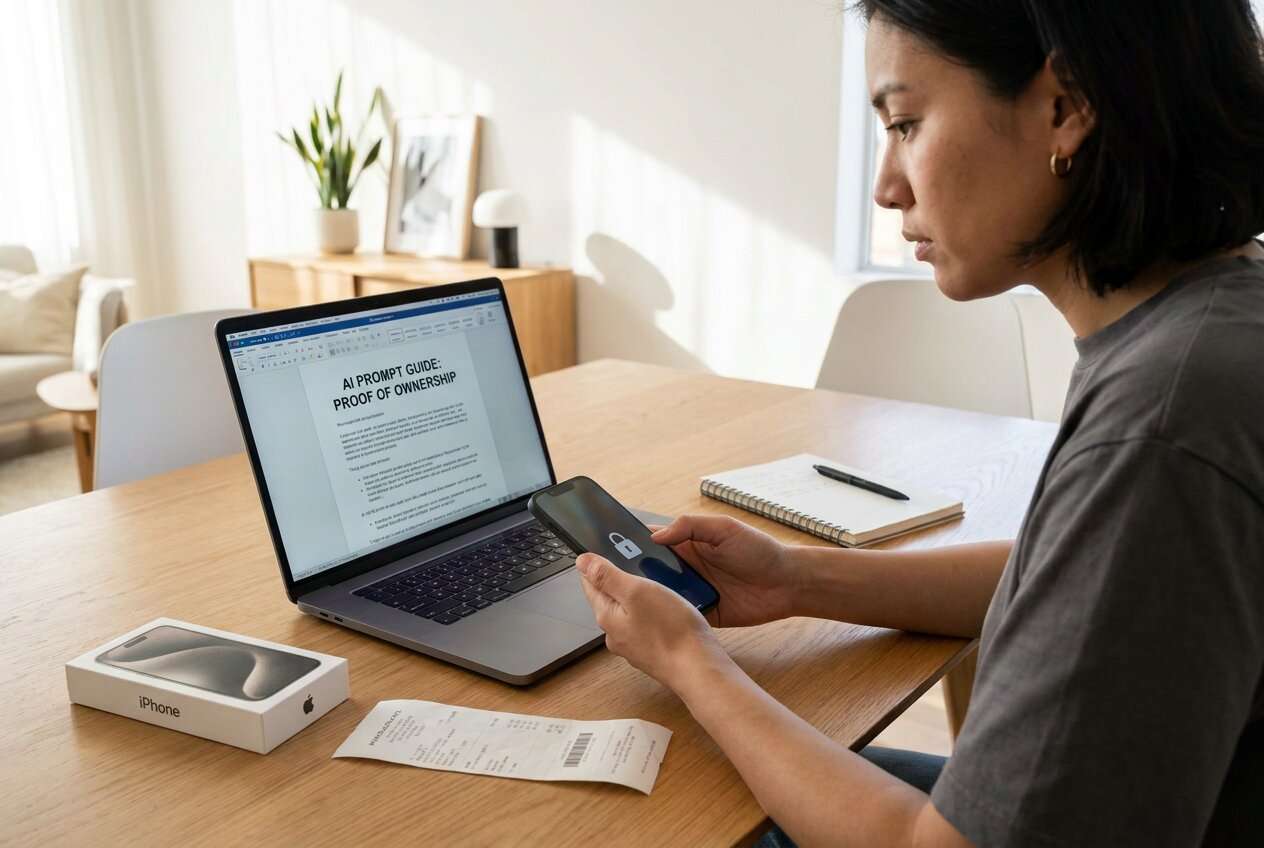
AI can help you sort what kind of lock you’re facing, what documents usually qualify as proof, and what the safest next steps are for your specific situation (for example, using ChatGPT or Gemini to organize the evidence you already have).
AI can’t verify your identity or grant access, and trial-and-error on security screens can create risks (like longer lockouts, triggering FRP, or losing data after resets). Use AI to plan carefully—then use the right execution method.
1. Identify what lock you’re actually facing (screen lock vs FRP vs carrier/OEM lock).
Use the exact on-screen wording and what happened right before the lock (reset, too many attempts, update) to classify the situation without triggering more cooldowns or stricter locks.
2. Build an “ownership packet” that matches what support and verification flows usually accept.
Prioritize receipt/invoice, IMEI/serial matching the device/box, carrier records, and Google account recovery evidence, then ask AI to turn your details into a checklist and support-ready message.
3. Stop risky retries and move to a controlled, legitimate execution path.
If timers/cooldowns increase or FRP is suspected, pause trial-and-error and proceed via official recovery/support or a guided workflow, keeping your proof materials ready.
In this article
- Part 1. Why proof of ownership is required (and what it means)
- What “proof of ownership” means for locked phones
- Common triggers (factory reset, too many attempts)
- What proof usually works in practice
- Before you prompt the AI (what to collect)
- Part 2. Using AI prompts to assess proof of ownership safely
- Part 3. When to stop attempts and avoid risks
- Part 4. How to prepare proof of ownership with FRP checks using Dr.Fone
- Part 5. AI output vs reality (what AI can and can’t do)
Part 1. Why proof of ownership for a locked phone is required and what it means
“Proof of ownership” is typically required when the device is locked in a way that’s designed to deter theft—most commonly after you factory reset and the phone triggers Factory Reset Protection (FRP), asking for the previously synced Google account. This can also come up when requesting help from the carrier or manufacturer.
The trigger is often something you just did: you tapped Reset in Settings, used Recovery Mode, or restarted after multiple failed PIN attempts. Then the phone boots to a verification screen, or it asks for a Google account you can’t access.
What it means in practice: you’ll likely need to prove the device is yours (receipt, carrier record, IMEI/serial match, Google account recovery evidence) before any legitimate unlock path is available.
1-1. Before You Prompt the AI
Collect the basics so the AI can classify the lock and suggest low-risk options:
- Phone brand and model (and Android version if known)
- What happened right before it locked (reset, update, too many attempts)
- Exact on-screen wording (type it or share a photo)
- Whether you know the previously used Google account
- Whether you have a receipt, carrier account records, or IMEI/serial documentation
Part 2. Using AI prompts to assess proof of ownership for locked phone safely
2-1. Level 1: Basic Prompt
My Android phone is locked and I think it’s asking for proof of ownership. I factory reset it / entered the wrong PIN too many times. Based on my symptoms and the exact text on the screen, what type of lock is this (screen lock vs Google FRP vs carrier/OEM lock), and what are the safest next steps that don’t risk data loss?
2-2. Level 2: Advanced Prompt
Act as a troubleshooting analyst.
Goal: help me prepare proof of ownership for a locked phone and choose the lowest-risk path to regain access.
1) Ask up to 8 clarifying questions first.
2) Then rank the top likely lock types (screen lock, Google FRP, OEM account lock, carrier lock) with confidence and reasons.
3) For each lock type, list what proof documents usually work (receipt, IMEI/serial match, carrier billing, Google account recovery info), and what to avoid (factory reset, repeated attempts, unofficial methods).
4) End with a step-by-step plan prioritized by safety and legality.
2-3. Level 3: Evidence Prompt
Use the details below to determine what “proof of ownership” I should prepare and what actions are low-risk. If anything is missing, list exactly what you need.
Device info
- Brand/model: (e.g., Samsung Galaxy S22)
- Android version: (e.g., Android 13)
- IMEI/serial available? Where: (e.g., SIM tray / box label)
What I did right before the lock
- Action: (e.g., factory reset from Recovery Mode / tapped “Erase all data”)
- Reason: (e.g., forgot PIN / bought second-hand)
Current screen/symptoms
- Exact message: (paste it)
- Does it ask for a Google account used on this device before? (yes/no/unsure)
- Is it connected to Wi‑Fi? (yes/no)
Ownership evidence I have
- Purchase proof: (e.g., receipt / invoice / email order)
- Carrier/account proof: (e.g., carrier login, billing name/address match)
- Device packaging: (e.g., box with IMEI/serial)
- Google account access: (can/can’t sign in; recovery email/phone available)
Constraints
- Data importance: (high/medium/low)
- Time sensitivity: (today/this week)
Output format
1) Most likely lock type + why
2) Checklist of proof to gather (most persuasive first)
3) Lowest-risk next steps in order
4) Stop signs when I should pause and escalate to official support
2-4. Prompt Refinement
Use these follow-ups to make the AI’s guidance more accurate and safer:
What questions would you ask to confirm whether this is FRP versus a normal screen lock?
Separate my situation into categories: account recovery, device ownership documents, and device-side actions.
Rank the top 3 next steps by lowest risk of data loss or longer lockouts, and explain why.
What single piece of evidence would most strongly prove ownership in my case, and what alternatives are acceptable?
Based on the exact on-screen text I provided, what should I not do next?
2-5. AI Output vs Reality (context)
AI can organize decisions, but it can’t change what the phone’s security system requires.
Part 3. When to stop attempts to prepare proof of ownership for locked phone and avoid risks
Stop and reassess when continued attempts are more likely to worsen lockouts or cause irreversible loss.
- The phone shows repeated “try again later” timers or increasing cooldown periods after sign-in attempts
- You’re unsure whether a factory reset already happened, and your data might still be recoverable
- The device asks for a previously synced Google account and you don’t have reliable recovery access
- The phone may be second-hand and the seller can’t provide matching proof (receipt/IMEI/account removal)
Once you’ve used AI to identify the probable lock type and the proof you can realistically assemble, move from “analysis” to a controlled execution path.
Part 5. AI output vs reality (what AI can and can’t do)
| AI can help you produce | Reality you still must satisfy |
|---|---|
| A tailored checklist of ownership documents | The issuer (Google/OEM/carrier/retailer) decides what they accept |
| A ranked guess of lock type from symptoms | Only the device’s actual prompts/menus confirm the lock type |
| A low-risk action plan to avoid escalations | Some actions (reset/retries) may still trigger stricter lockouts |
| A script/message for support requests | Support may require exact IMEI/serial matches and account verification |
Use AI to reduce uncertainty and avoid risky moves; use official recovery paths or trusted tools for the actions themselves.
Part 4. How to prepare proof of ownership for locked phone with FRP checks using Dr.Fone
If your analysis points to a Google FRP lock (common after a reset), you’ll need a legitimate way to proceed that matches your ownership situation. At this stage, your priority is to avoid repeated attempts and avoid actions that escalate lockouts. For device-side execution—especially when you’re the rightful owner and need a guided workflow—Dr.Fone - Screen Unlock (Android) can help you carry out the appropriate steps for handling screen access and FRP-related flows, while you keep your proof-of-ownership materials ready in case additional verification is required.
 Unlock Android phone in seconds.
- Remove PIN, pattern, password, fingerprint.
- Bypass Google FRP lock easily.
- Works on all Android brands & models.
- No tech skills required – user-friendly.

-
Step 1 Confirm the lock type on-screen
Read the exact message and proceed only if it clearly indicates FRP or a screen lock; avoid repeated sign-in attempts that trigger cooldowns.

-
Step 2 Prepare your ownership packet
Gather receipt/invoice, IMEI/serial match (box/SIM tray), and carrier/account details so you can verify ownership if prompted.

-
Step 3 Open Dr.Fone Screen Unlock (Android)
Choose the Screen Unlock flow that matches your situation and device, and follow the on-screen guidance carefully.

-
Step 4 Use the FRP-related workflow when applicable
If your device is in an FRP state, follow the supported steps for Bypass Google FRP Lock on Android Devices based on your model/Android version.

-
Step 5 Re-secure access after entry
Add a new screen lock and confirm your Google account recovery options (recovery phone/email) to prevent repeat lockouts.




Conclusion
Use AI to classify the lock, identify what proof of ownership is most persuasive in your case, and choose low-risk next steps; then hand off the device-side actions to a controlled execution method—whether that’s official account recovery/support or a guided tool like Dr.Fone for the appropriate Android screen/FRP workflow.
FAQ
-
What counts as proof of ownership for a locked phone?
Typically: original receipt/invoice, carrier purchase records, device box with IMEI/serial matching the phone, and account evidence (the Google account previously used and recovery factors). -
How do I know if my Android is locked by FRP?
FRP usually appears after a factory reset and asks you to verify a Google account previously synced to that device (often phrased like “Verify your account”). -
Can I prepare proof of ownership without the original receipt?
Often yes—carrier account records, a matching IMEI/serial from the box, financing documents, or retailer email invoices may help, depending on the party verifying. -
Is it risky to keep trying passwords on the verification screen?
Yes. Repeated attempts can trigger cooldown timers and make access slower; it also increases the chance you’ll take a wrong step (like resetting again). -
What should I do if I bought the phone second-hand and it’s FRP locked?
Ask the seller to remove the device from their Google account and provide matching proof of purchase; if they can’t, treat it as a stop signal and avoid further attempts.
 Add Wondershare Dr.Fone as a preferred source on Google





