 Effortlessly manage data through preview, delete, export, etc.

 100% Security Verified | No Subscription Required | No Malware

 :
: 
 ChatGPT
 Perplexity
 Gemini
 Claude
 Grok
Grok

My school tablet’s SD card suddenly shows empty folders after a restart, and I’m afraid that clicking “repair” or “format” will make the missing files unrecoverable.
Forum user
Files on a school tablet SD card can “disappear” after a restart, a failed file transfer, or after you tapped Unmount/Eject and put the card back in. On an Android tablet like a Samsung Galaxy Tab A8 or Lenovo Tab M10, you might suddenly see empty folders, missing photos, or an SD card that won’t open.
AI (like ChatGPT or Gemini) can help you describe symptoms clearly, narrow likely causes (corruption vs. permissions vs. encryption), and choose low-risk next steps based on what you observe.
AI can’t verify what’s truly on the SD card, and trial-and-error actions (formatting, “repairing,” repeatedly writing new data) can reduce the chance of recovery—so the goal is careful diagnosis first, then a safe execution tool.
In this article
- Part 1. Why recover files from school tablet SD card happens and what it means
- What “recovery” usually means on Android SD cards
- Common causes behind the same symptom
- Before you prompt the AI
- What to avoid early to protect recoverability
- Part 2. Using AI prompts to diagnose SD card recovery on a school tablet safely
- Part 3. When to stop troubleshooting SD card recovery on a school tablet and avoid risks
- Part 4. AI output vs reality: what AI can infer vs what you must verify
- Part 5. Recover data from Android device with Dr.Fone
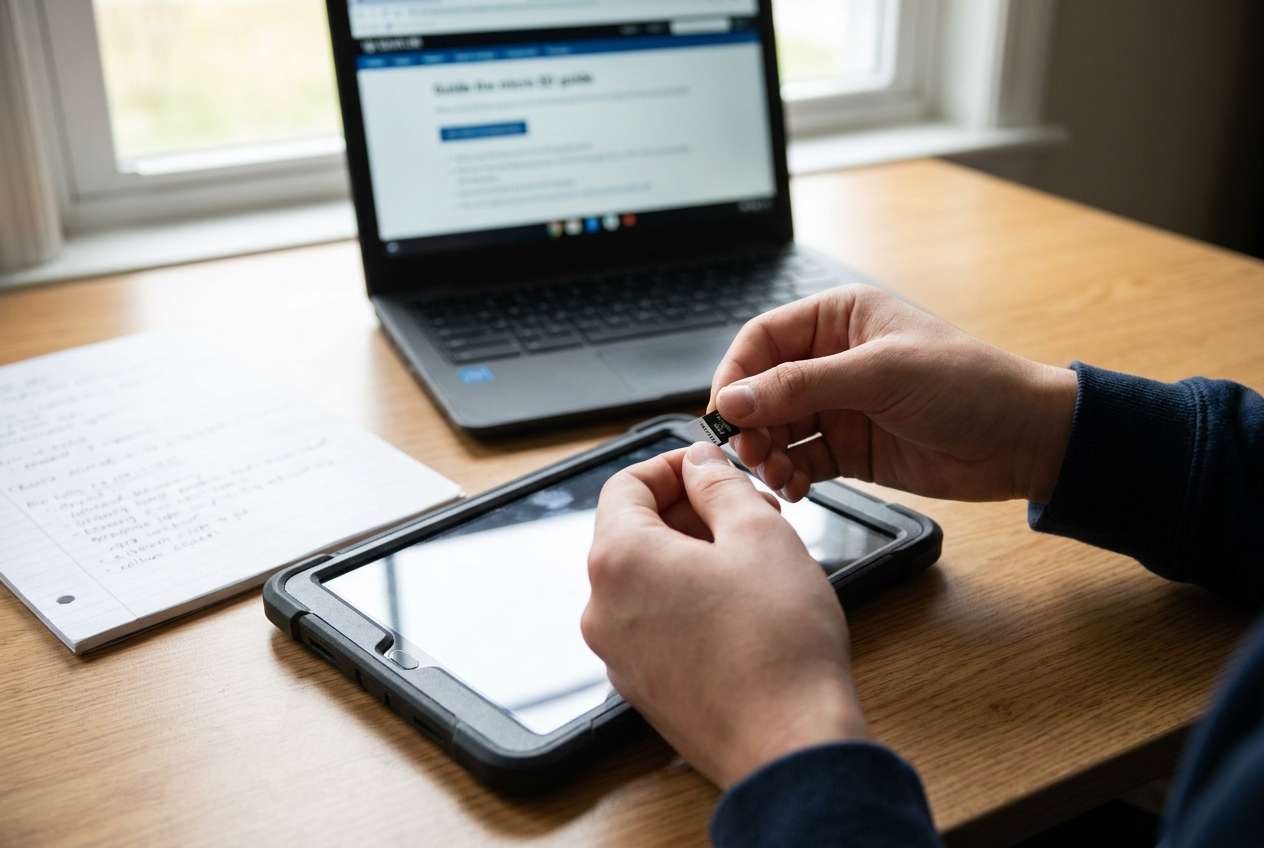
Part 1. Why recover files from school tablet sd card happens and what it means
When you need to recover files from a school tablet SD card, it usually means the files aren’t visible in the normal file browser—yet the storage used on the card may still look high, or the card may act “different” than before. This can happen after you updated an app, restarted the tablet, or moved the card between the tablet and a computer.
Common meanings behind the same symptom: the files may be deleted, the card’s file system may be corrupted, the tablet may be using a different user/profile, or the SD card may be encrypted/adopted storage (so it only works fully on the original device).
It’s also normal to feel unsure—nothing seems to change after waiting, and it’s unclear whether the tablet is still “loading” the SD card or the content is truly gone.
1-1. Before You Prompt the AI
Collect a few facts first so the AI can narrow causes accurately:
- Tablet brand/model and Android version (if known)
- SD card size/brand and whether it was used as Portable or Adopted/Internal
- What happened right before the issue (transfer, power loss, unmount, app update)
- Current symptom (missing folders, “corrupted,” prompts to format, read-only, not detected)
- Whether you’ve already tried anything (reboot, different reader, Windows/macOS checks)
- Whether new photos/files were saved to the card after the problem started
Part 2. Using AI prompts to diagnose SD card recovery on a school tablet safely
The goal of these prompts is to help AI ask the right questions first, then recommend the safest next checks that avoid writing new data to the SD card.
2-1. Level 1: Basic Prompt
I have an Android school tablet SD card with missing files. I want to avoid making recovery worse. Ask me the minimum questions needed, then list the most likely causes and the safest next steps that do not write new data to the SD card.
2-2. Level 2: Advanced Prompt
Act as a cautious triage assistant for SD card data loss on an Android tablet.
1) Ask up to 7 targeted questions to classify the situation.
2) Rank the top 5 likely causes from most to least likely.
3) For each cause, give: what evidence would confirm it, what NOT to do (risk), and the lowest-risk next step.
Prioritize steps that avoid writes to the SD card and avoid “repair/format” prompts.
2-3. Level 3: Evidence Prompt
Help me diagnose SD card file loss on a school Android tablet and choose low-risk recovery steps.
My details:
- Tablet model: (e.g., Samsung Galaxy Tab A8)
- Android version: (e.g., Android 12)
- SD card: (e.g., 64GB SanDisk)
- SD setup: (Portable storage / Adopted as internal / Not sure)
- What I did right before: (e.g., moved files to a laptop, then restarted)
- Symptom now: (e.g., folders empty, “SD card corrupted,” asks to format, not detected)
- Storage indicator: (e.g., shows 40GB used but files missing)
- On a computer: (Windows/macOS sees it? asks to repair? shows wrong size?)
- Any new data written since issue: (yes/no)
- MDM/school management: (managed device? restrictions?)
What I need from you:
1) Categorize the problem (deletion vs corruption vs encryption/adopted vs permissions/MDM vs hardware failure).
2) Provide a ranked shortlist of causes with confidence levels.
3) Give a safest-first action plan and a “stop now” list of risky actions.
2-4. Prompt Refinement
Use these follow-ups to make the AI’s diagnosis more precise:
What are the missing questions that prevent you from differentiating corruption vs adopted storage vs simple deletion?
Separate possibilities into software/format, encryption/adopted storage, hardware/card health, and school management (MDM)—then rank within each category.
Based on my answers, what is the single most discriminating piece of evidence I should check next (without writing data)?
If Windows/macOS prompts to ‘repair’ the card, explain what that implies and why accepting it could be risky.
Give me a decision tree with IF/THEN branches that ends in the safest recovery path.
Part 3. When to stop troubleshooting SD card recovery on a school tablet and avoid risks
Stop “trying random fixes” once you see signs that the next step could overwrite data or lock you out further.
- The tablet or computer repeatedly asks to format the SD card
- The SD card disconnects/reconnects or shows inconsistent capacity (possible hardware failure)
- You suspect Adopted/Internal storage or encryption and can’t confirm the original device/account state
- You’ve already attempted multiple “repair” or cleanup tools and symptoms are getting worse
Once you’ve narrowed the likely cause with AI prompts, switch from diagnosis to a controlled execution approach that minimizes writes and focuses on recovery-safe operations.
Part 4. AI output vs reality: what AI can infer vs what you must verify
AI can guide analysis, but it can’t directly inspect your SD card state or enforce safe handling. Treat AI results as a plan for what to check next, not as proof of what’s on the card.
| What AI can infer | What you must verify |
|---|---|
| Likely cause based on symptoms and triggers | Whether the card is encrypted/adopted or portable |
| Risk level of common actions (format/repair/copy) | Whether the card is physically failing or intermittently disconnecting |
| A safest-first sequence (stop writes, use read-only checks) | Whether the files are truly deleted vs just not visible due to permissions/profile |
| When to stop and avoid compounding loss | Whether the school’s MDM policies restrict access or storage behavior |
AI helps you choose the least risky path; execution still depends on what the device and SD card actually do in real tests, with real consequences if a wrong step writes to the card.
Part 5. Recover data from Android device with Dr.Fone
After AI helps you classify what’s happening (deletion, corruption, adopted storage, or restrictions), you still need a practical way to attempt recovery without improvising risky steps. If your SD card data loss is tied to an Android tablet workflow, Dr.Fone - Data Recovery (Android) is relevant at this point because it’s designed to execute Recover Data from Android Device actions in a guided, repeatable way—especially when you’ve already decided it’s time to stop trial-and-error and move to a structured recovery attempt.
 Scan Android phones and tablets directly.
- Preview and recover only what you want.
- Supports WhatsApp, photos, videos, contacts, and more.
- Works with 6000+ Android devices.

-
Step 1 Pause SD card activity
Stop saving new photos/downloads to the SD card to reduce overwriting recoverable data.

-
Step 2 Prepare a stable connection
Use a reliable cable/reader and avoid intermittent hubs to prevent disconnects during scanning.

-
Step 3 Run Android data recovery
Open Dr.Fone and follow the Android Data Recovery flow, selecting the closest matching data types to keep the process focused.

-
Step 4 Preview and select what matters
Review recoverable items and prioritize the most important school files first to reduce repeated passes.

-
Step 5 Save recovered files safely
Export recovered data to a computer drive (not back to the same SD card) to avoid overwriting.




Conclusion
Use AI prompts to turn vague SD card symptoms into a ranked set of likely causes and low-risk next checks, then hand off execution to a structured recovery tool like Dr.Fone when it’s time to act carefully instead of guessing.
FAQ
-
Can I recover files if my school tablet says the SD card is corrupted?
Sometimes, but avoid clicking “format” or “repair” prompts first; diagnose whether it’s corruption vs failing hardware vs encryption, then attempt a controlled recovery workflow.
-
What does it mean if storage shows space used but folders are empty?
It can indicate hidden/system indexing issues, permissions/profile changes, corruption, or encryption/adopted storage—AI prompts help narrow which one fits your exact symptoms.
-
Should I try Windows “Scan and fix” on the SD card?
Not as a first step; it can modify the file system and potentially reduce recoverability. Ask AI to assess risk based on whether the card is readable and stable.
-
How do I know if my SD card was used as Adopted/Internal storage?
In Android storage settings, it may appear as internal storage and may not be readable normally on a computer; AI can guide which checks to perform without writing data.
-
Will school device management (MDM) affect SD card file access?
Yes—policies can restrict storage behavior, apps, or file access. Include “managed device” details in your prompts so the AI considers this path.
 Add Wondershare Dr.Fone as a preferred source on Google





