 Effortlessly manage data through preview, delete, export, etc.

 100% Security Verified | No Subscription Required | No Malware

 :
: 
 ChatGPT
 Perplexity
 Gemini
 Claude
 Grok
Grok

I moved everything to my new phone and now it just says “No Service / SOS only.” Texts are delayed, and I’m worried I’ll lose SMS 2FA if I reset the wrong thing.
Apple Support Community user
Missing one small step after a phone-to-phone data move can leave you with “No Service,” delayed texts, broken 2FA logins, or a carrier lock situation you didn’t intend to trigger.
AI is useful here because it can turn a messy set of symptoms into a clean sequence: what to check first, what to avoid, what evidence to capture, and how to confirm you’re not about to make things worse.
AI can’t actually read your SIM, talk to your carrier, change network provisioning, or move data on-device—so once the plan is verified, you’ll still need real tools to execute safely (including Dr.Fone for device-side data actions).
In this article
- Part 1. Plan “No Service” after moving data (without missing critical steps)
- Clarify what changed and what didn’t
- Prioritize safest checks first
- Capture proof before you toggle
- Define “stop and verify” gates
- Part 2. What the AI needs to know
- Part 3. AI prompts to build a safer workflow
- Part 4. AI plan vs. real device constraints
- Part 5. When to stop planning and start execution
Part 1. Plan “No Service” after moving data (without missing critical steps)
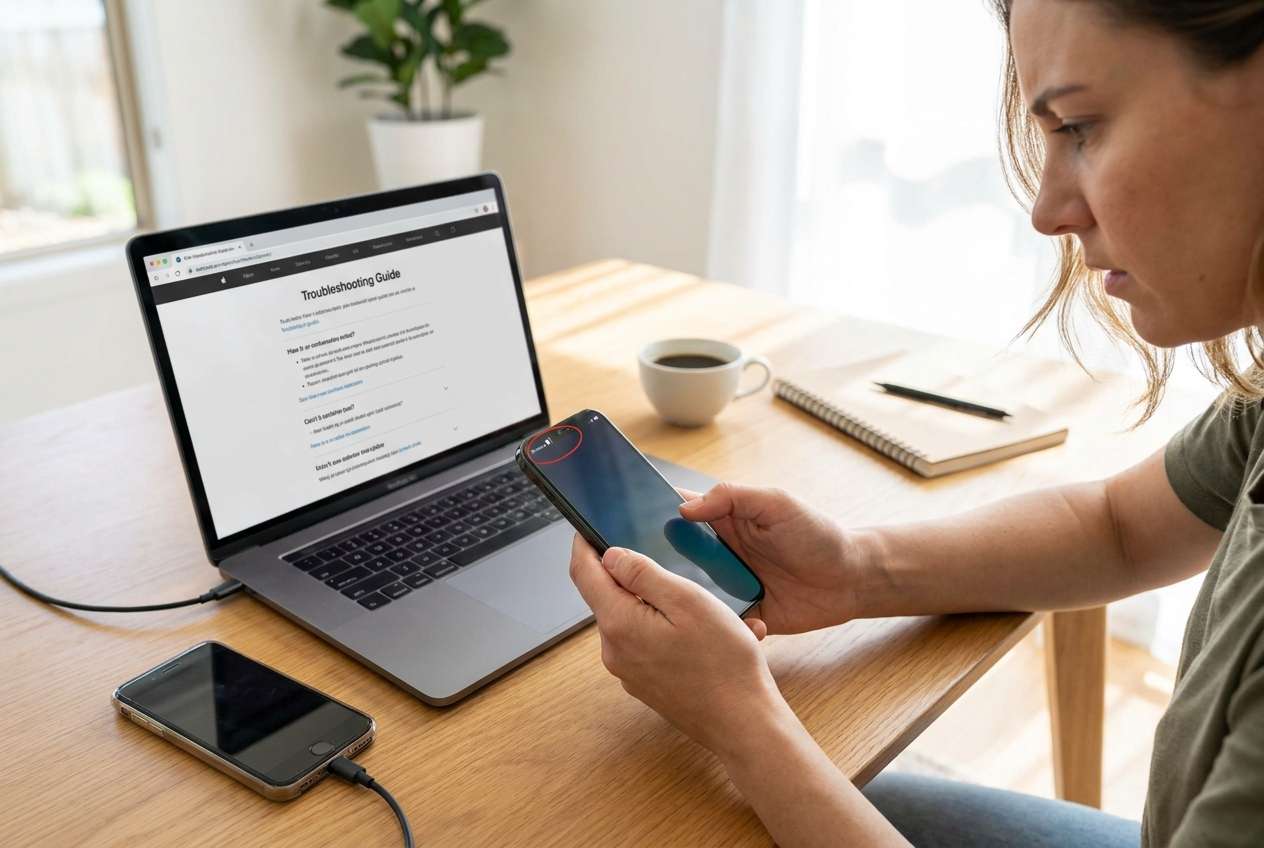
You moved data to a new phone and now it shows No Service (or “SOS only”), while the old phone either still works, partially works, or also lost service. You’re not sure whether it’s a SIM issue, eSIM transfer, carrier activation, IMEI registration, or a setting that got toggled during setup.
1-1. Clarify the situation before you “try fixes”
Even if AI tells you “try Airplane mode” or “reset network settings,” the bigger problem is sequence and proof: you need to know what to check before you change anything, so you can isolate cause instead of guessing.
1-2. Prioritize the safest checks first
Start with low-risk, reversible checks (signal indicators, SIM/eSIM status, carrier app status, basic toggles). Save anything that can delete or invalidate your cellular plan for later steps—only after your verification checklist is complete.
1-3. Capture evidence before making changes
Evidence helps you (and your carrier) identify whether this is provisioning, activation, or device registration—especially if the issue changes after a toggle. Without evidence, you can’t confidently say which step caused an improvement or failure.
1-4. Respect the point-of-no-return actions
There’s also a point-of-no-return moment: factory resetting, wiping an eSIM, or deleting a carrier plan can strand you without incoming SMS/2FA and make it harder to restore service quickly—don’t reach that step until your verification checklist is complete.

Part 2. What the AI needs to know
Share only what’s necessary so the workflow can be sequenced correctly:
- Phone models (old and new) and OS versions (e.g., iPhone 12 iOS 17.5 → iPhone 15 iOS 18, or Galaxy S21 → S24)
- Carrier and country/region (and whether it’s prepaid, postpaid, business line)
- SIM type: physical SIM, eSIM, or dual-SIM setup
- What exactly you did during migration (Quick Start/Smart Switch/other) and whether you used eSIM transfer
- Current symptom wording (e.g., “No Service,” “SOS,” “Emergency calls only,” “SIM not supported,” “Invalid SIM”)
- Whether the old phone still has service if powered on (and with/without SIM inserted)
- Whether Wi‑Fi calling works and whether mobile data/voice/SMS are all affected
- Any recent account changes (carrier plan change, number port, device financing, carrier lock status)
- Whether you rely on SMS for 2FA right now (banking, work, WhatsApp registration, etc.)
Part 3. AI prompts to build a safer workflow
Use the prompts below to force a clean sequence, reduce guesswork, and define verification gates before you touch high-risk actions.
3-1. Level 1: Basic prompt
I moved my data to a new phone and now it shows “No Service.” Create a step-by-step troubleshooting plan that prioritizes the safest checks first and avoids actions that could lock me out of SMS/2FA. Include a short “stop and verify” checkpoint before any destructive step.
3-2. Level 2: Advanced prompt
Build me a structured workflow to diagnose “No Service” after moving to a new phone.
Split it into Preparation, Execution, and Verification, and label steps as Critical vs Optional.
In the plan, include decision branches for physical SIM vs eSIM, and specify which steps require carrier involvement vs only on-device settings.
3-3. Level 3: Evidence prompt
Here’s my situation: new phone = (iPhone 15, iOS 18), old phone = (iPhone 12, iOS 17.5), carrier = (Verizon, US), SIM type = (eSIM), migration method = (Quick Start), symptom = (“SOS only” and no SMS). Old phone service status = (old phone now shows No Service too).
Create an evidence-based checklist with:
- Before: what screenshots/values to capture (carrier settings version, EID/IMEI where relevant, plan status in carrier app, signal indicators)
- During: safest order of toggles/resets and exactly what result to expect after each
- After: confirmation tests (outbound call, inbound call, SMS both directions, mobile data, MMS, voicemail, 2FA test)
Also list red flags that mean I should stop and contact the carrier immediately.
3-4. Prompt refinement (follow-ups)
Turn this into a decision tree with “If X, then Y” branches, and include an explicit “Do not proceed” gate before any reset that could erase an eSIM.
Give me a minimum-change path first (no resets), then a second path that includes resets only if the first fails, with clear stop points.
Provide a verification matrix: rows = (voice, SMS, data, MMS, hotspot), columns = (Wi‑Fi on/off, roaming on/off, dual SIM on/off), and tell me what to test in what order.
List the top 5 root causes for my exact context and map each cause to the single best confirming check (not a fix), so I can confirm before changing anything.
Write a carrier-contact script with the precise details they’ll ask for (IMEI/EID, device model, plan status) and what to request (reprovision, eSIM reissue, IMEI update).
Part 4. AI plan vs. real device constraints
| What AI can plan well | What AI cannot do |
|---|---|
| Build a safe order of checks and stop points | Read your SIM/eSIM state or carrier provisioning in real time |
| Identify likely causes from symptoms + context | Activate service, reissue eSIM, or update carrier records |
| Define evidence to capture before risky steps | Perform transfers, resets, or device-side actions |
| Create pass/fail tests to confirm service is back | Guarantee outcomes across carriers, regions, and device firmware |
AI improves planning, but cannot execute. Once your sequence and verification gates are clear, use real device tools and carrier channels to apply changes safely.
Part 5. When to stop planning and start execution
- You can state whether you’re on physical SIM vs eSIM, and whether the old phone still gets service with the SIM removed/inserted.
- You’ve captured the minimum evidence you might need later (screenshots of signal state, carrier plan status, IMEI/EID if relevant).
- You have a clear stop rule for irreversible actions (e.g., don’t delete an eSIM or factory reset until carrier confirms a replacement is ready).
- You have a defined success test (voice + SMS + data) and know how you’ll validate it before declaring the issue fixed.
At this point, the main risk becomes hesitating in the middle of changes without verifying results step-by-step.
Product recommendation: Execute device-side steps safely
If your plan indicates the cellular issue is carrier-side, you’ll still need the carrier to reprovision/activate. But when you need to re-run or validate device-side data actions (without adding more risk), Dr.Fone - Phone Transfer can serve as the execution layer for transferring and checking key data while you keep network changes controlled and reversible.
 Move data between iOS to Android and vice versa.
- Transfer contacts, SMS, photos, videos, music, and more types.
- Available with all phones with Android and iOS versions.
- Simple, click-through process.

Execution matters because you’re moving from “possible causes” to actions that can change device state, data integrity, and access to authentication channels. Use the checklist you built with AI, and apply changes step-by-step with verification after each step.
-
Step 1 Lock in your verification baseline
Confirm which device currently has service (if any), document the exact on-screen error text, and verify whether your line is physical SIM or eSIM before changing settings.
Limitation: AI can’t see your device state; you must confirm the baseline on-screen before proceeding.

-
Step 2 Prepare a controlled device-side transfer session
Use a device tool to handle data actions you’ve already planned, while keeping service/network changes limited to reversible toggles until results are verified.
Limitation: A device tool can’t replace carrier provisioning; “No Service” may still require carrier activation, eSIM reissue, or IMEI registration.

-
Step 3 Transfer/validate what you actually need (and avoid extra changes)
Select only the data you need to confirm is complete, so you reduce variables while you troubleshoot service (for example, confirm contacts/messages/media critical to your workflow are present).
After each action, re-check your success tests (voice + SMS + data) so you can attribute changes to a specific step.

-
Step 4 Only after verification, proceed to high-risk actions
If your plan’s checkpoints indicate it, proceed with irreversible steps you pre-approved (e.g., deleting/re-adding an eSIM, factory reset) only after confirming you have backup account access and a carrier recovery path.
Limitation: Once an eSIM is deleted or a phone is reset, recovery may require carrier support and may temporarily break SMS/2FA—do not do this without your stop conditions met.





Conclusion
Use AI to structure a careful, evidence-based workflow with clear stop points, then use real tools to execute: AI plans and verifies the sequence, while Dr.Fone supports the device-side execution once you’re confident you won’t cross an irreversible step too early.
FAQ
-
Why did “No Service” happen right after moving data to a new phone?
The timing often points to SIM/eSIM transfer, carrier provisioning, device registration (IMEI/EID), or a carrier lock/activation state—not the data transfer itself. -
What’s the biggest mistake people make when troubleshooting this?
Doing irreversible actions too early (deleting an eSIM, factory reset) without capturing evidence or confirming the carrier can immediately reprovision the line. -
How do I verify the issue is fixed (not just temporarily “bars are back”)?
Test outbound and inbound voice calls, SMS both directions, and mobile data with Wi‑Fi off. If your carrier supports it, test MMS/voicemail too. -
When should I stop and contact the carrier instead of trying more device steps?
If you see “SIM not supported,” “Invalid SIM,” your line shows inactive in the carrier app, both phones lose service after eSIM transfer, or your number is mid-port. -
Can AI tell me exactly which setting is wrong on my phone?
No. AI can propose a safe sequence and checks, but it can’t inspect live carrier provisioning, SIM state, or device logs.
 Add Wondershare Dr.Fone as a preferred source on Google





