 Effortlessly manage data through preview, delete, export, etc.

 100% Security Verified | No Subscription Required | No Malware

 :
: 
 ChatGPT
 Perplexity
 Gemini
 Claude
 Grok
Grok

My cloud backup says “Backed up,” but it doesn’t actually show what’s inside. I’m worried I’ll reset my phone and only then find out messages or app data weren’t included.
Reddit user, r/Android
Missing one backup category (like app data, messages, or device settings) can turn a “safe” migration or reset into permanent data loss. AI can help you define what “complete” means, compare cloud vs local coverage, and build a verification-gated sequence, but it can’t inspect your real device, cloud account, or backup files—final checks must be done with real tools.
In this article
- How to plan the comparison without missing critical steps
- Why “Backed up” isn’t proof
- Define your minimum “no-loss” standard
- Add verification gates and stop points
- Move the irreversible moment to the end
- What the AI needs to know (inputs that change coverage)
- Use AI prompts to build a safer workflow (with refinement + table)
- When to stop planning and start execution
- Execute the workflow safely with Dr.Fone
Part 1. How to plan the comparison without missing critical steps
You’re about to switch phones, factory reset, or troubleshoot storage issues—and you want to confirm whether your cloud backup is truly “complete” compared to a local backup. Confusion usually starts when cloud shows “Backed up” but doesn’t clearly list what’s included (or what’s excluded).

Even after AI explains general differences (cloud vs local), you can still be stuck on sequence: what to verify first, what to back up twice, and what minimum acceptable evidence you need before doing anything risky.
The point-of-no-return is when you reset/erase the old device or restore a backup in a way that overwrites current data—once that happens, you can’t “re-check” what was missing.
Part 2. What the AI needs to know
Share your setup so the plan reflects your real backup coverage and risk points.
- Phone OS and model (e.g., iPhone 14 on iOS 17.5 / Samsung S23 on Android 14)
- Cloud service(s) in use (e.g., iCloud / Google One / Samsung Cloud / OneDrive for photos)
- Local backup options available (PC/Mac, external drive space, encryption preference)
- Data you care about most (photos, messages, WhatsApp, call history, notes, contacts, files, app data, 2FA authenticators)
- Timeline and constraints (today vs weekend, limited Wi‑Fi, low storage, one device already broken)
- Current risk factors (phone storage full, system crashes, screen damaged, uncertain password access)
- Your “no-loss” definition (what would be unacceptable to lose)
Part 3. Use AI prompts to build a safer workflow
Use these prompts to force a clear sequence, define “complete,” and add verification gates before any irreversible step.
3-1. Level 1: Basic prompt
Draft a step-by-step plan to compare my cloud backup vs a local phone backup for completeness. Include what to check first, what to back up twice, and what evidence I should collect before I factory reset or switch phones.
3-2. Level 2: Advanced prompt
Build a structured workflow to compare cloud and local phone backup completeness for my situation.
Split it into Preparation / Execution / Verification, and label each step as Critical or Optional. Include specific “stop points” where I must confirm results before moving forward.
3-3. Level 3: Evidence prompt
I have (Android 14, Samsung S23), using (Google One backup + Google Photos), and I can also do a local backup to (Windows 11 PC, 200 GB free). I must preserve (photos, SMS, call logs, WhatsApp, device settings, and app data for banking/2FA).
Create a checklist with checks before, checks during, and checks after backup to compare cloud vs local completeness. Include example acceptance criteria like: “Photos count roughly matches (e.g., 18,200±2%)” and “Messages present up to (yesterday 9 PM).” Also list items that commonly don’t transfer and how to detect them before reset.
3-4. Prompt refinement (follow-up prompts)
Convert this plan into a table with columns: Data category / Cloud coverage / Local coverage / How to verify / Evidence to record / Risk if missing.
Add a “verification gate” after each major step, with a clear pass/fail rule and what I do if it fails.
Ask me only the minimum questions needed to resolve ambiguity (max 8), then produce a final ordered sequence.
Identify the highest-risk irreversible moment in my workflow and rewrite the plan so that moment cannot happen until all critical checks pass.
Provide two alternative paths: Fast but safe vs Slowest but most complete, and explain what completeness I trade off in each.
3-5. AI plan vs. real device constraints
| AI planning help | Real constraint on your devices/accounts |
|---|---|
| Defines what “complete backup” means for your data categories | Only your phone/cloud UI and backup files can confirm what’s truly included |
| Creates a sequence with verification gates and stop points | Some backups don’t show itemized contents until restore/preview (varies by platform) |
| Flags common omissions (2FA tokens, some app data, encrypted chats) | Access may be blocked by passwords, expired sessions, or missing encryption keys |
| Provides acceptance criteria (counts, dates, spot-check samples) | Counts can differ due to duplicates, optimized storage, or synced vs local-only items |
AI improves planning, but it cannot run backups, inspect your actual backup contents, or guarantee completeness without real-world verification.
Part 4. When to stop planning and start execution
- You have a single written sequence with Critical steps clearly marked and ordered.
- You defined acceptance criteria (counts/dates/spot-checks) for your top-risk data categories.
- You identified the irreversible moment (reset/erase/overwrite-restore) and placed it after all verification gates.
- You confirmed you can access required accounts, passwords, and (if relevant) backup encryption credentials.
If all four are true, the next risk is delay—not lack of ideas—so execution can begin with controlled checks.
Part 5. Execute the workflow safely with Dr.Fone
Execution matters now because the only way to move from “likely backed up” to “verified” is to generate real backup artifacts and confirm they contain what you expect—before any irreversible change. A tool like Dr.Fone Basic - Data Manager can help you create a local backup snapshot and validate what was captured.
 Easily manage data through preview, delete, export, etc.
- Transfer all data between devices.
- Robust backup solutions for reliable data protection.
- Mirror screens to PC for meetings, teaching, and control.

-
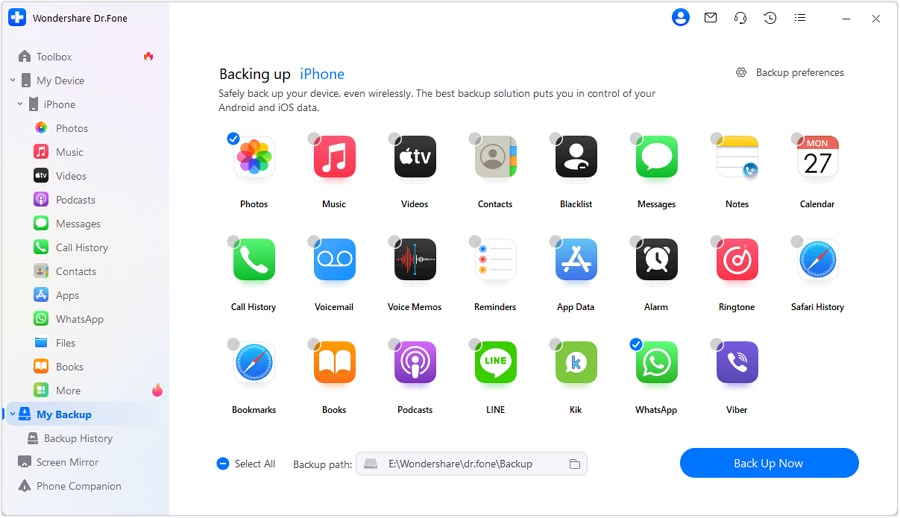
Step 1 Access the backup feature and confirm the device is recognized
Connect your phone to the computer, open the backup module, and confirm the device is detected before selecting any categories.
-
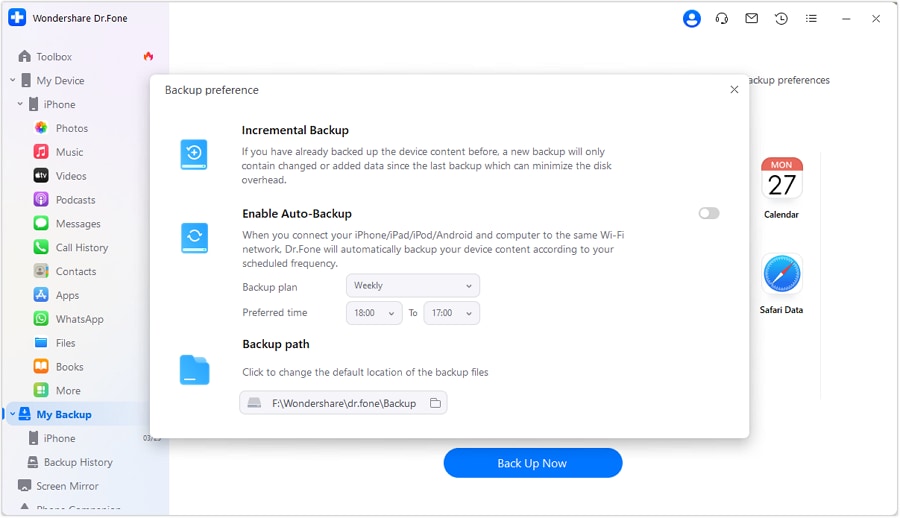
Step 2 Set backup preferences (what counts as “critical” for you)
Choose the data categories you defined as critical in your plan, and set any relevant preferences (for example, where the backup will be stored).
-
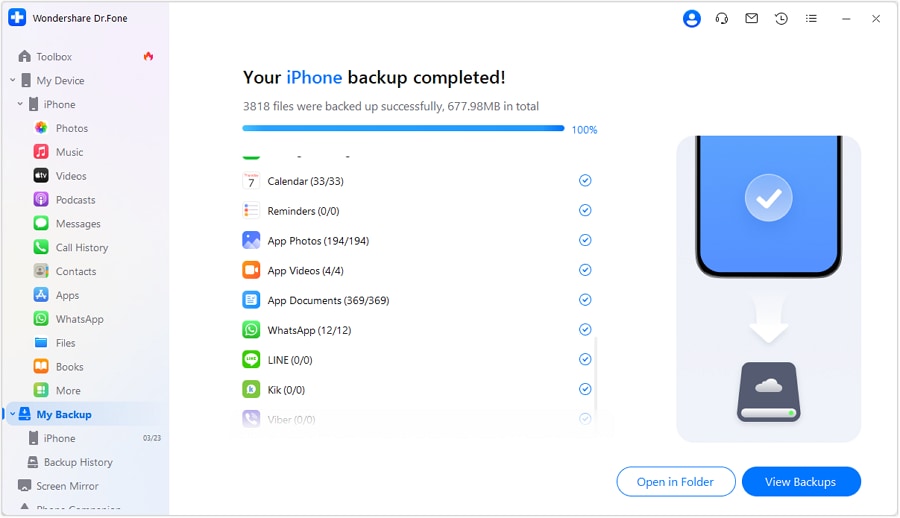
Step 3 Create the local backup snapshot
Run the backup and wait for completion. If the process fails, treat it as a failed verification gate and troubleshoot before proceeding.

-
Step 4 Verify contents against your acceptance criteria before any reset/overwrite
Preview or validate backed-up data where possible, then compare counts/dates/spot-checks to your cloud records and your predefined pass/fail rules. Only after all critical checks pass should you proceed to the irreversible step (reset/erase/overwrite-restore).




Conclusion
Use AI to define completeness, build a sequence, and set verification gates; then use a real execution tool like Dr.Fone to create and validate the local backup before you reach any irreversible reset or overwrite step.
FAQ
-
What’s the biggest reason cloud backups feel “complete” but aren’t?
Many cloud systems back up some categories (settings, app lists, photos in a separate sync app) but not others (certain app data, some messaging content, 2FA tokens), and the UI often summarizes without itemized proof. -
What should I verify first if I’m short on time?
Start with the hardest-to-replace data: messages (including attachments), encrypted chat apps, photos/videos that are local-only, notes, and any business-critical files—then confirm account access and encryption credentials. -
How do I define “complete” in a way I can actually check?
Use measurable acceptance criteria: approximate item counts, last backup timestamps, last-known message/photo dates, and a small spot-check set (e.g., 20 random photos across multiple years). -
When is the point of no return?
Usually when you factory reset/erase the old phone, wipe the only local backup, or perform a restore that overwrites current data. Put that step after all verification gates. -
Can AI tell me whether my backup is complete?
No. AI can design the checklist and interpret the evidence you provide, but only real tools and real verification (on-device/cloud/backup previews) can confirm what’s actually there.
 Add Wondershare Dr.Fone as a preferred source on Google





