 Effortlessly manage data through preview, delete, export, etc.

 100% Security Verified | No Subscription Required | No Malware

 :
: 
 ChatGPT
 Perplexity
 Gemini
 Claude
 Grok
Grok

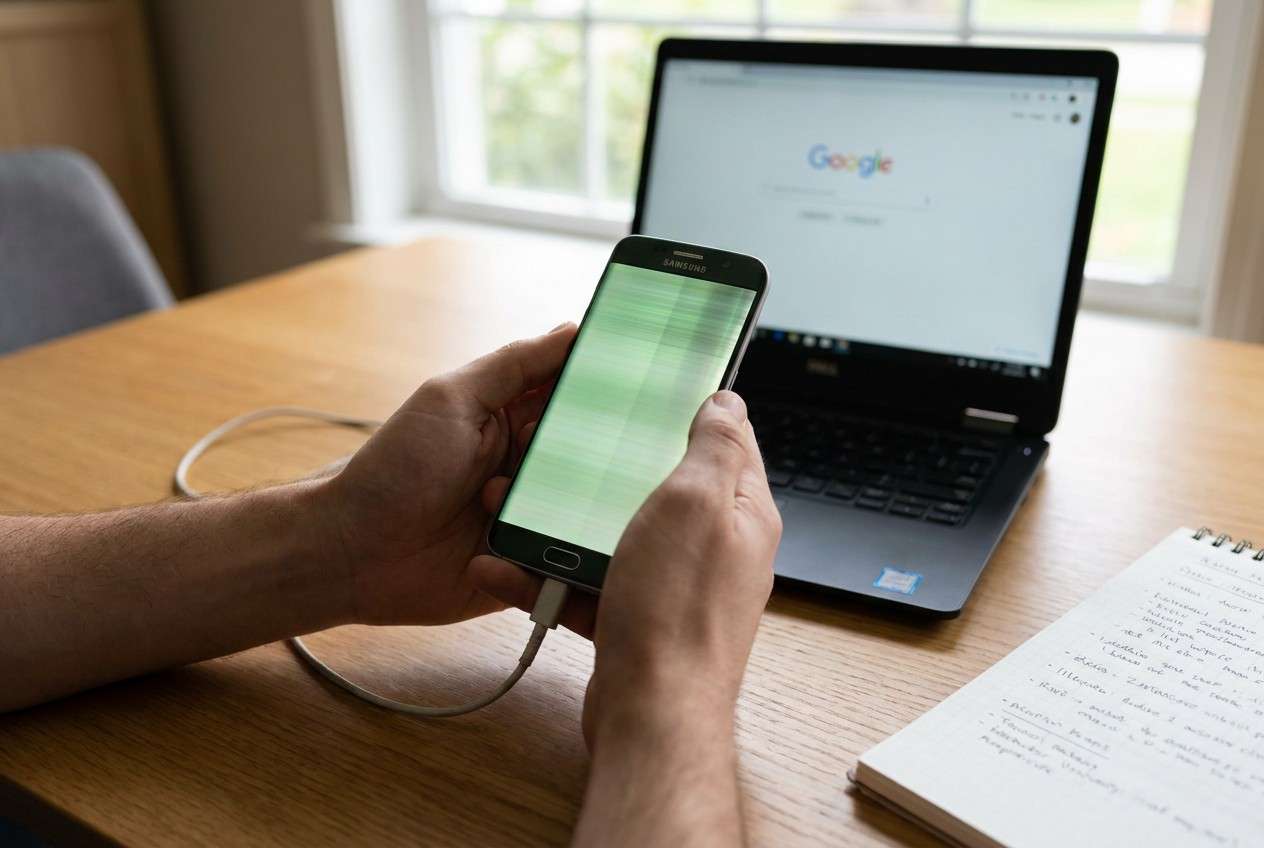
My Samsung screen started flickering green right after charging. The tint comes and goes after I unplug the cable, and it looks like the display is glitching.
Reddit user, r/samsung
Samsung phones can start showing a green tint or a flickering green screen right after charging—often noticed on models like a Galaxy S21 or Galaxy A52 after you unplug the cable. It may look like the display is “glitching,” and nothing seems to change after several minutes.
AI (like ChatGPT or Gemini) can help you describe the symptoms precisely, narrow likely causes (display settings vs firmware vs hardware), and choose the safest next checks without guessing.
AI can’t verify the phone’s physical condition or run device-level repairs, and trial-and-error (random resets, unsafe apps, repeated force restarts) can increase the risk of data loss or make the issue harder to diagnose.
In this article
- Part 1. Why Samsung screen flickering green after charging happens and what it means
- What the green flicker usually indicates
- Why the trigger event matters
- Why the exact symptom matters
- Before you prompt the AI
- Part 2. Using AI prompts to diagnose Samsung screen flickering green after charging safely
- Part 3. When to stop troubleshooting Samsung screen flickering green after charging and avoid risks
- Part 4. Samsung screen flickering green after charging: fix or resolve it safely with Dr.Fone
- Part 5. Guided repair workflow (step-by-step)
Part 1. Why Samsung screen flickering green after charging happens and what it means
1-1. What the green flicker usually indicates
A green flicker after charging commonly points to a mismatch between how the display is being driven and the state the phone enters after power events (plug/unplug, fast charging, heat, or a restart). Sometimes it’s a temporary software state; other times it’s a sign the panel or connector is becoming unstable.
1-2. Why the trigger event matters
The trigger matters: if it started right after enabling fast charging, using a new cable/adapter, installing an update, or after the phone got warm while charging, that pattern helps separate “power/thermal + software” causes from “aging display hardware” causes.
1-3. Why the exact symptom matters
The exact symptom also matters: flicker only at low brightness, only on the lock screen, only in Always-On Display, or only in specific apps suggests different paths than flicker that persists in Safe Mode or during boot.
1-4. Before you prompt the AI
Collect a few observations first so the AI can reason from evidence, not guesses:
- Samsung model + Android/One UI version (if known)
- When it began (right after charging, after an update, after a drop, after water exposure)
- Charger type (fast charging on/off, official vs third-party)
- Heat level during charging (cool / warm / hot)
- Whether flicker changes with brightness, refresh rate, or dark mode
- Whether it appears in Safe Mode or during boot logo
- Any recent screen replacement or repair history
Part 2. Using AI prompts to diagnose samsung screen flickering green after charging safely
2-1. Level 1: Basic Prompt
My Samsung screen flickers green after charging. Ask me the most important questions to narrow the cause, then give the safest next steps that avoid data loss.
2-2. Level 2: Advanced Prompt
Act as a mobile troubleshooting analyst. Based on my description, rank the most likely causes of a Samsung screen flickering green after charging from most to least likely.
Constraints:
- Prefer low-risk steps first (settings checks, Safe Mode, observation tests).
- Call out any step that could risk data loss or worsen the issue.
- Separate likely software causes vs hardware causes.
- Provide a short decision rule for when to stop troubleshooting.
Here are my details:
- Model:
- When it started:
- After charging symptoms (green tint/flicker lines/brightness pulsing):
- Only at low brightness?:
- Changes with refresh rate?:
- Happens in Safe Mode?:
- Any heat during charging?:
- Charger/cable used:
2-3. Level 3: Evidence Prompt
You are helping me diagnose a “Samsung screen flickering green after charging” problem using evidence-based triage.
Use this structure:
1) Clarify: ask only the missing questions you need
2) Hypotheses: list 5–7 possible causes
3) Evidence mapping: what observation supports/weakens each cause
4) Low-risk tests: order them from safest to riskiest
5) Stop signals: when I should stop and avoid further trials
My evidence:
- Samsung model: (e.g., Galaxy S21 / Galaxy A52)
- Android/One UI version: (e.g., Android 13, One UI 5)
- Trigger event: (e.g., after unplugging charger, after “Install now,” after restart)
- Charger type: (e.g., official 25W, third-party fast charger)
- Battery level when it happens: (e.g., near 100%)
- Heat during charging: (e.g., warm near camera area)
- Screen behavior: (e.g., green flicker at low brightness, lines, pulsing)
- Does screenshot capture the issue?: (yes/no)
- Visible in Safe Mode?: (yes/no)
- Visible during boot logo?: (yes/no)
- Recent repairs: (e.g., screen replacement 2 months ago)
- Any drops/water exposure: (yes/no)
- What I already tried: (e.g., toggled brightness, restarted)
2-4. Prompt Refinement
Use these follow-ups to make the AI’s diagnosis more reliable:
“What 5 questions would change your ranking the most, and why?”
“Split your causes into: charging/power-related, display settings, firmware/driver, and hardware; then rank within each category.”
“If the flicker happens only at low brightness, what does that point to vs if it happens even at high brightness?”
“What single observation would best distinguish ‘software display driver issue’ from ‘OLED panel hardware issue’?”
“Give me a minimal test plan with no factory reset and no third-party apps.”
“List the steps I should avoid because they could increase data loss risk or hide the evidence.”
2-5. AI Output vs Reality
AI can guide your reasoning, but it can’t confirm what’s physically happening on your device:
| What AI can infer | What you still must verify |
|---|---|
| Patterns that suggest settings/firmware vs hardware | Whether the issue appears in boot logo or Safe Mode |
| Which low-risk checks to try first | Whether the phone is overheating during charging |
| What observations matter most (brightness, refresh rate, AOD) | Whether the problem shows up in screenshots (software vs display pipeline clues) |
| When your description fits known symptom clusters | Whether a system-level repair step is needed and safe for your data |
AI helps you avoid random trial-and-error by prioritizing evidence and risk, but execution still depends on what the phone actually does during those controlled checks.
Part 3. When to stop troubleshooting Samsung screen flickering green after charging and avoid risks
Stop “trying one more thing” when the signals suggest the problem is escalating or becoming unsafe to experiment with.
- The flicker appears during boot (Samsung logo) or before the lock screen loads
- The screen becomes unreadable, touch becomes unreliable, or the phone restarts repeatedly
- The phone gets unusually hot while charging or the issue worsens with heat
- You’re about to attempt high-risk steps (factory reset, bootloader changes, unofficial flash tools) without a backup
Once you’ve used AI to narrow the likely category (software vs hardware) and picked the least risky path, it’s usually time to move from diagnosis to a controlled system repair workflow.
Part 4. Samsung screen flickering green after charging: fix or resolve it safely with Dr.Fone
If your AI-driven checks suggest the issue is tied to Android system behavior after charging (rather than purely a cracked panel or physical damage), a structured system repair process can be the next practical step. Dr.Fone - System Repair (Android) is relevant here because it’s designed to address Samsung system-level issues in a guided way—helping you act on the diagnosis you’ve already narrowed down, without stacking more random settings changes or uncertain “fix apps.”
 Fix Android instantly – no skills needed.
- Solve boot loop, black screen, won’t turn on, etc.
- High success rate for all system issues.
- User-friendly interface with easy-to-follow steps.

Part 5. Guided repair workflow (step-by-step)
-
Step 1 Confirm it’s not a display setting loop
Re-check brightness/refresh rate/dark mode behavior and note whether Safe Mode changes anything before proceeding, since this affects whether a system repair is appropriate.

-
Step 2 Prepare the phone and cable connection
Charge the phone above ~50% and use a stable USB connection to avoid interruptions during the repair flow.

-
Step 3 Open Dr.Fone and select Android System Repair
Choose the Android repair option and follow the on-screen prompts carefully, matching the correct device details to reduce missteps.

-
Step 4 Run the guided repair process
Let the tool complete the repair workflow without disconnecting the device, since interruptions can leave the system in a worse state than before.

-
Step 5 Re-test the original trigger
After completion, reproduce the original scenario (charge → unplug → observe brightness levels) to confirm whether the green flicker is resolved or unchanged.




Conclusion
Use AI to turn vague symptoms into a ranked, evidence-based shortlist of causes and a low-risk test plan; then, if the pattern points to a system-level issue rather than a clearly physical screen fault, hand off execution to a structured approach like Dr.Fone - System Repair (Android) to act on that diagnosis safely.
FAQ
-
Why does my Samsung screen turn green after charging?
It’s often related to how the display behaves after a power/thermal event (plug/unplug, heat, fast charging) and can be caused by software display drivers, settings interactions, or hardware panel instability.
-
Does Safe Mode help diagnose green flickering?
Yes. If the flicker stops in Safe Mode, it points more toward apps or software overlays; if it persists, system-level or hardware causes become more likely.
-
If the flicker doesn’t show in screenshots, what does that mean?
It often suggests the issue is happening at the display/panel level rather than in what the GPU is rendering, but it’s not a perfect test—use it as one clue among others.
-
Should I factory reset to fix a green flickering screen?
A factory reset is high-risk for data loss and should usually be a last resort after you’ve gathered evidence, tried low-risk checks, and confirmed you have a backup.
-
Can fast charging cause screen flickering?
It can correlate indirectly via heat or power state changes; testing with an official charger/cable and disabling fast charging temporarily can help clarify whether charging conditions are a trigger.
 Add Wondershare Dr.Fone as a preferred source on Google





